

MCP Server
Connect Claude to Databrain
Add Databrain as a connector in Claude, sign in, and ask your first question.
Before you start
- Your role has the MCP permission Connect. New roles have it. An Admin can check it in Settings > People & Access > Roles.
- You have a paid Claude plan. Claude needs one for custom connectors.
For ChatGPT, Cursor, VS Code, Claude Code and Codex, see Set up your AI app.
Steps
Step 1: Copy the server URL
In Databrain, go to Settings > MCP. Under Connect an AI app, select Copy next to Server URL.
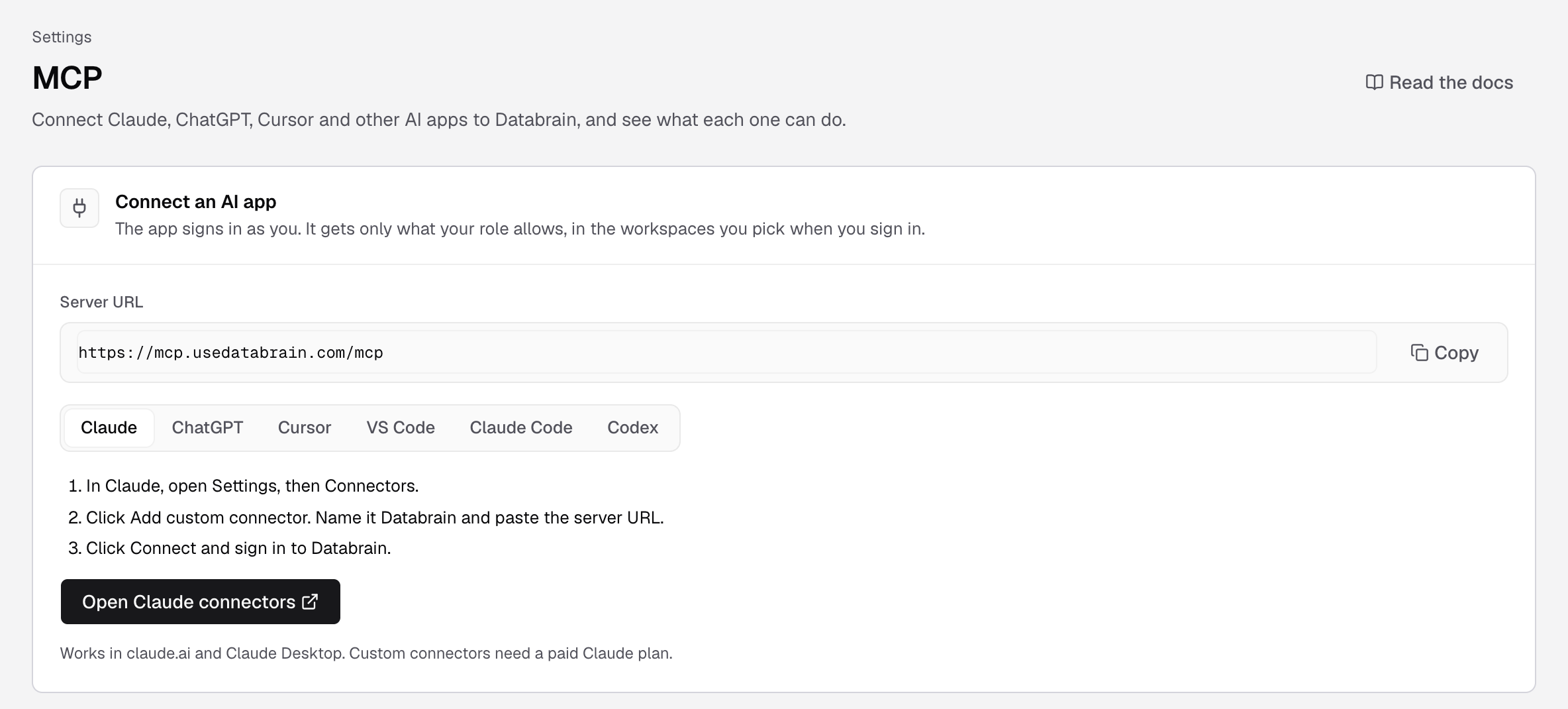
Step 2: Add the connector in Claude
In Claude, go to Settings > Connectors and select Add custom connector. Enter the name Databrain and paste the server URL.
Step 3: Sign in to Databrain
Select Connect. A Databrain page opens and asks you to sign in.
Step 4: Choose the workspaces
The page says Claude wants to connect to your Databrain account. Under Workspaces it can use, select the workspaces, or select All workspaces I can access. Each row shows what your role allows there, for example “Edit dashboards, datamarts and embeds. Run queries.”
If Databrain has not verified the app, the page adds (unverified app) and says to allow it only if you started the connection yourself, just now.
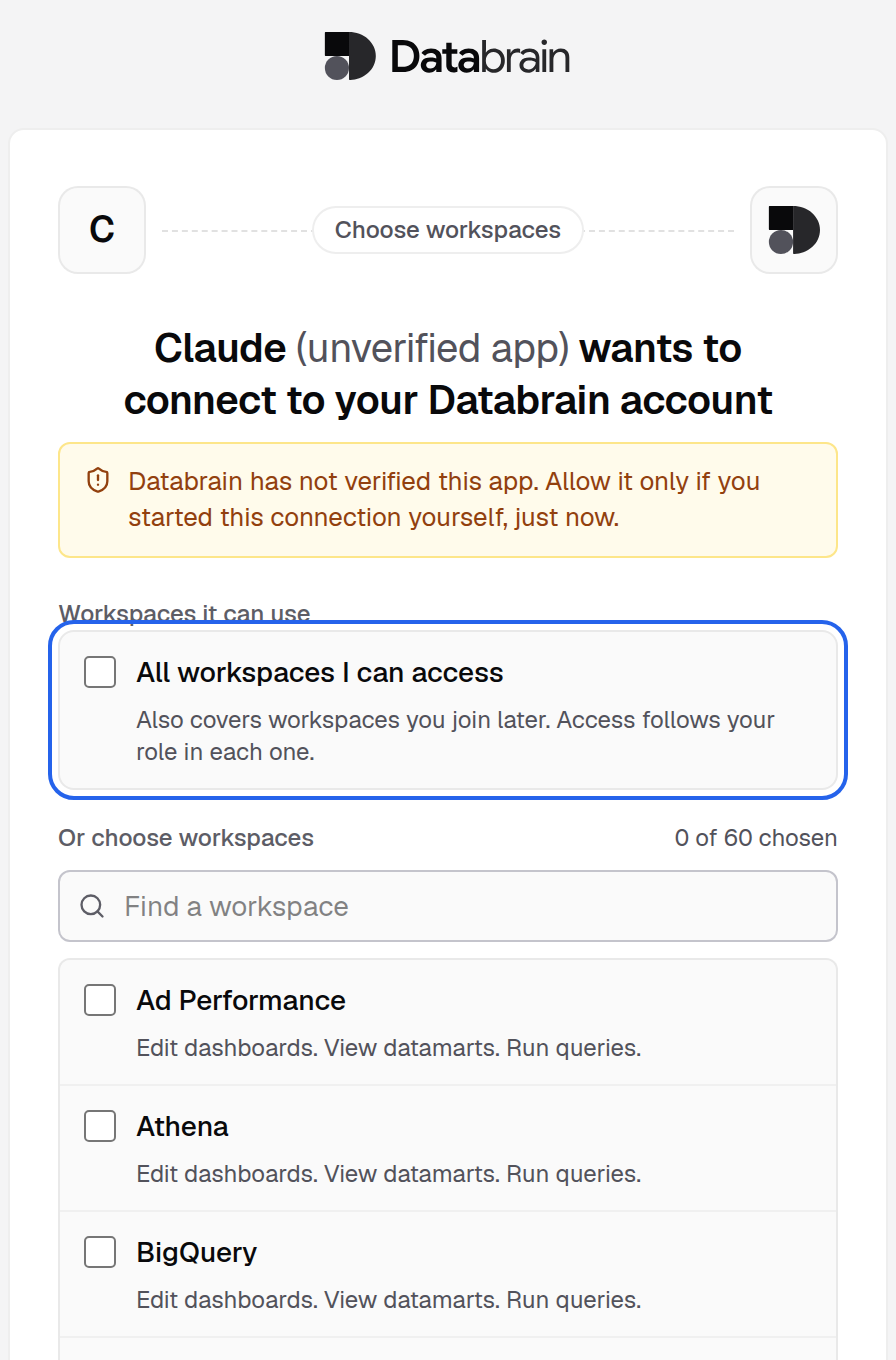
Step 5: Allow access
Select Allow access. You see Claude is connected. Close the tab and go back to Claude.
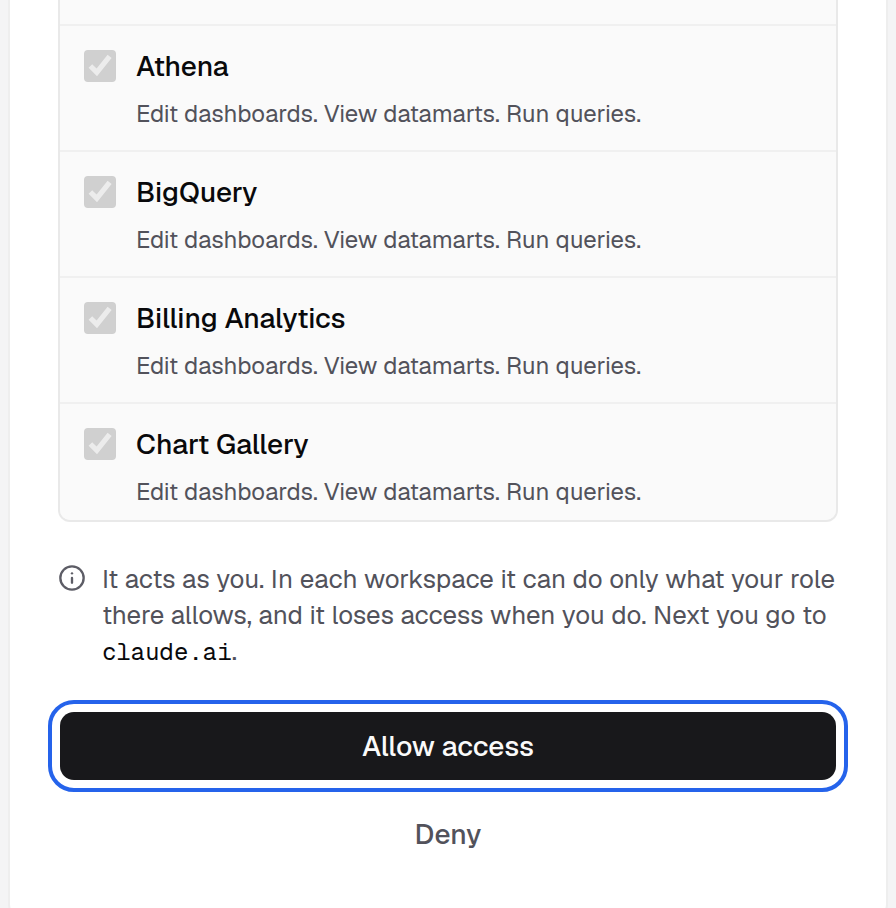
Check that it works
In Claude, ask:
Which Databrain workspaces can you use?Claude calls whoami. The answer lists your name, the access you gave, and the workspaces you picked. Then try a real question, for example What was total revenue last month?.
The connection now shows in Settings > MCP under Connected AI apps.
What the app can do
The app acts as you. It never gets more than your role allows in each workspace. All workspaces I can access also covers workspaces you join later.
When you approve more than one workspace, the app names the workspace on each call. Writes to live data stop and ask you to type APPLY_TO_PRODUCTION first.
If something goes wrong
- “Your role does not allow connecting AI apps”. Ask an Admin to turn on MCP > Connect for your role.
- “Your role cannot give this access”. Your role in the chosen workspace allows none of the access the app asked for. Choose another workspace, or ask an Admin for a role that can.
- “This sign-in link has expired”. A link works for a few minutes and only once. Go back to Claude and connect again.
- “Finish in the browser that started this”. Start again from Claude and finish in the same browser.
More fixes: MCP troubleshooting. Next, see what you can ask.