

Embedding Setup
Create a data app and embed
Pick the dashboards and metrics your customers can see, and get the code to show them.
A data app holds the embeds, API tokens, allowed domains and theme for one product you embed in. An embed is one dashboard or one metric that the data app can show.
Before you start
- You are an Admin or Editor in Databrain.
- The dashboard or metric you want to show exists in a workspace.
- Your company has the Enterprise plan, or Databrain turned on Embedding for it.
Steps
-
Go to Data Studio > Data Apps and select Create data app.
-
Enter an App name. Your backend sends this exact name as
dataAppNamein every guest token request. -
For Data app type, select Embedded.
-
Select the Workspace and select Create data app. The data app opens on its Overview tab.
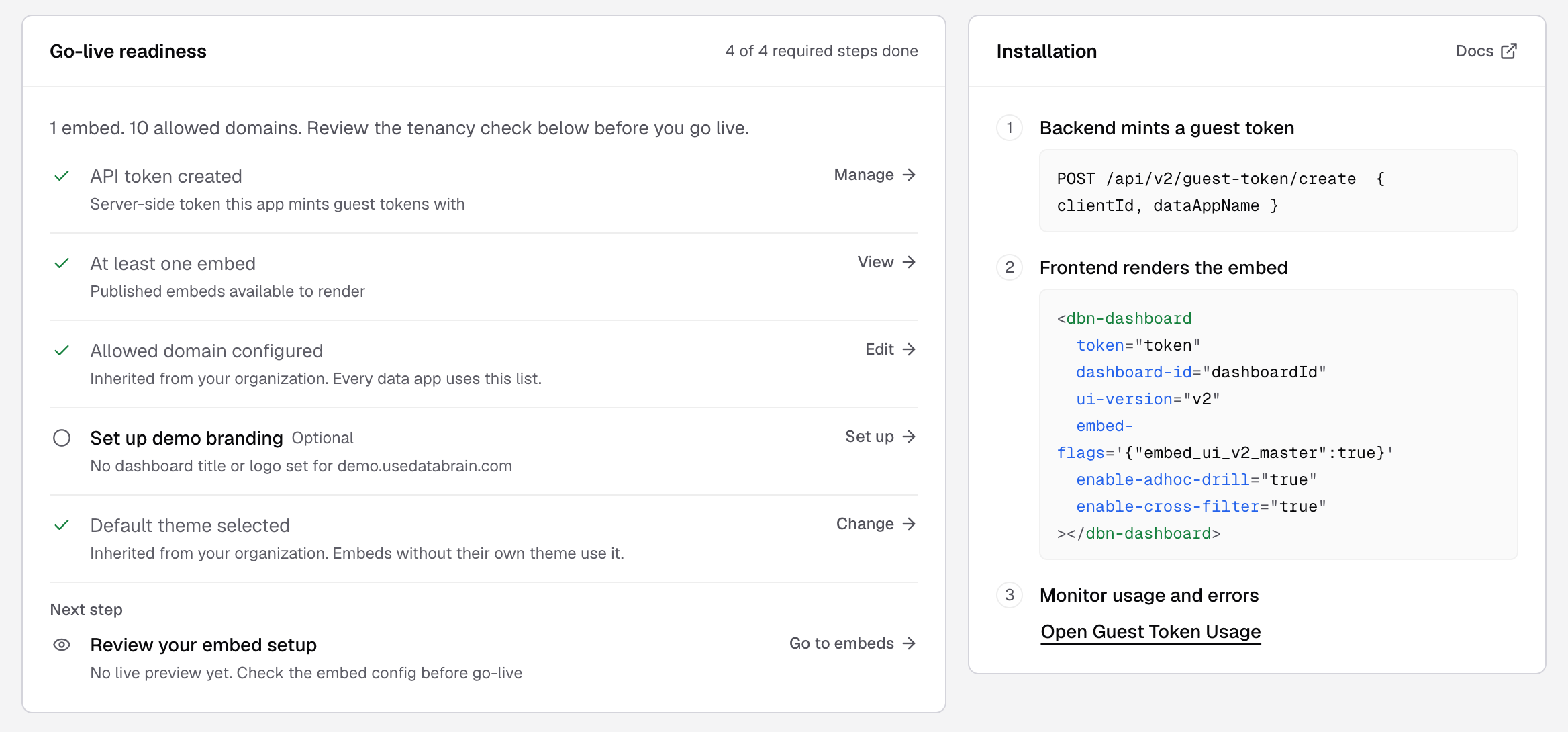
The Overview tab shows what is left before go-live and the code your backend and frontend need. -
Select the Embeds tab, then Add embed.
-
Select the Workspace of the dashboard.
-
For Embed type, select Dashboard to embed the whole dashboard, or Metric to embed one card.
-
Select the Dashboard. For a metric embed, also select the Metric.
-
Optional: enter a Description, for example
Pipeline dashboard for customer accounts. -
Select Create embed.
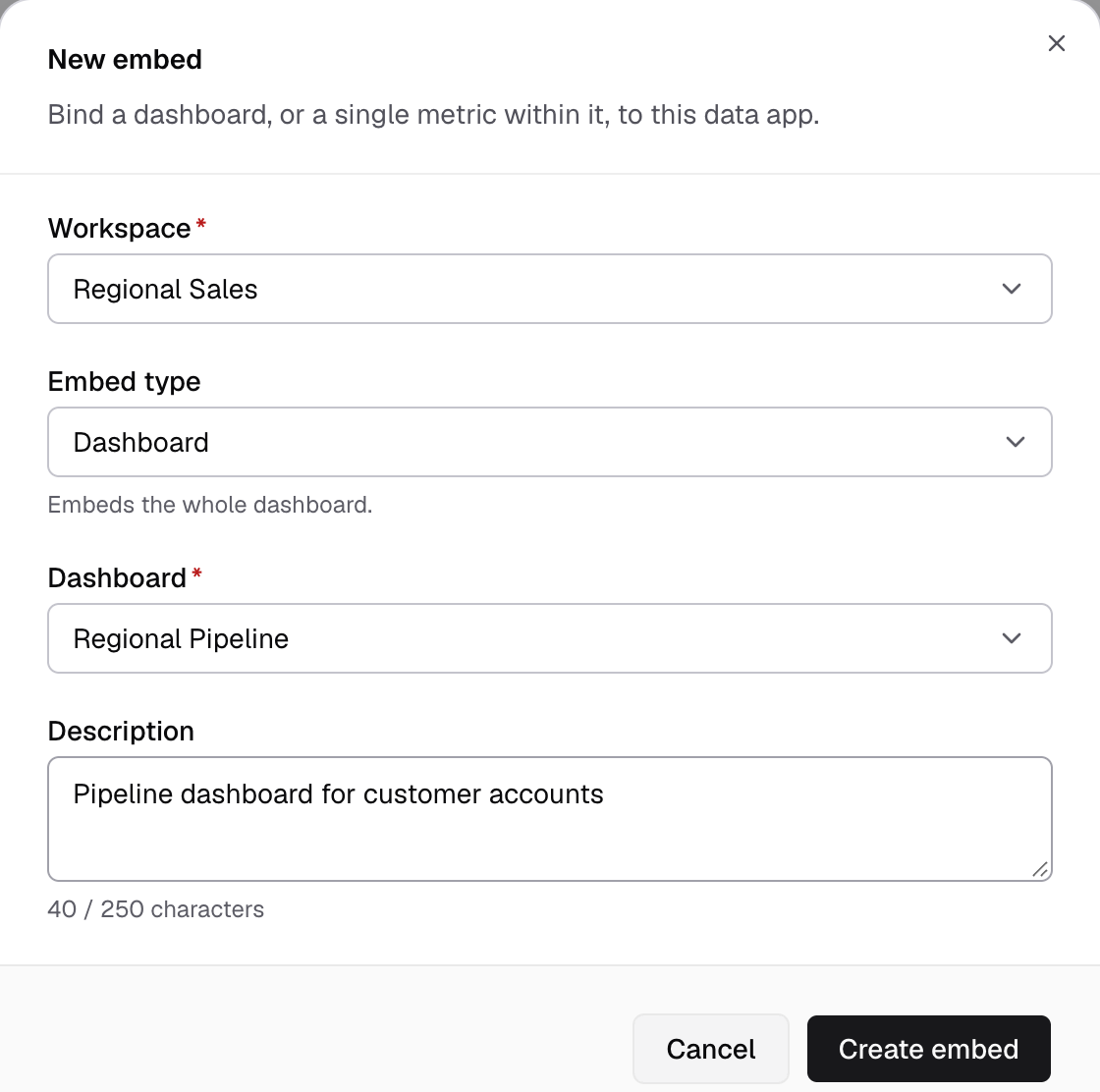
New embed: pick the workspace, the embed type and the dashboard. -
In the embed’s row, select Get snippet. The Embed snippet dialog shows a Tenancy checklist, then the element to paste in your app, with the right
dashboard-idormetric-id.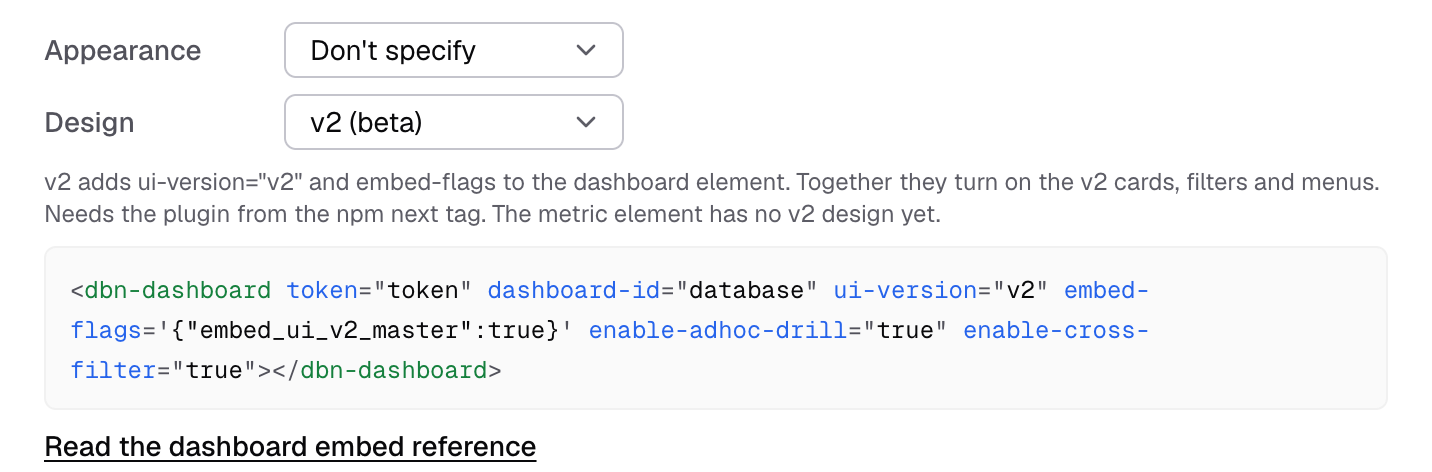
Embed snippet: pick Appearance and Design, then copy the code. The dashboard-id is already filled in.
The embed shows in the Embeds list, with its Key. The data app status changes from Draft to Live. Next, create an API token so your backend can create guest tokens.
What the snippet dialog adds
- Appearance adds
color-scheme, andtheme-namefor a saved theme. - Design: v2 (beta) adds
ui-version="v2",embed-flagsand the drill and cross-filter switches. See Turn on the v2 embed design. - Options for this embed adds one attribute per option, for example
enable-download-csv. See the component options reference.
The other data app tabs
| Tab | What you do there |
|---|---|
| Tenancy | See which surfaces filter rows by customer. Fix them before you share a token. Tenancy levels |
| API tokens | Create the token your backend uses. Create an API token |
| Domains | List the sites that can show your embeds. The list is shared by every data app. |
| Demo branding | Set the title and logo of the demo page. |
| Theme | Pick the theme of embeds that do not set their own. |
| Reports | See the scheduled reports saved with this data app’s embeds. |
If something goes wrong
- The Dashboard list says “This workspace has no dashboards”. Select the workspace that holds the dashboard.
- The dialog says “A client can see other clients’ rows”. Tenancy is not set up for the datasource. You can still create the embed. Fix tenancy before go-live. Tenancy levels
- The embed shows
DASHBOARD_NOT_FOUNDin your app. Thedashboard-idis not an embed of this data app, or the token is for another data app.