

Get set up
Set up Databrain
Create your account, pick how you use Databrain, and follow the setup checklist.
Steps
-
Create an account, or sign in if your company already uses Databrain.
-
On How will your company use Databrain?, pick one or both:
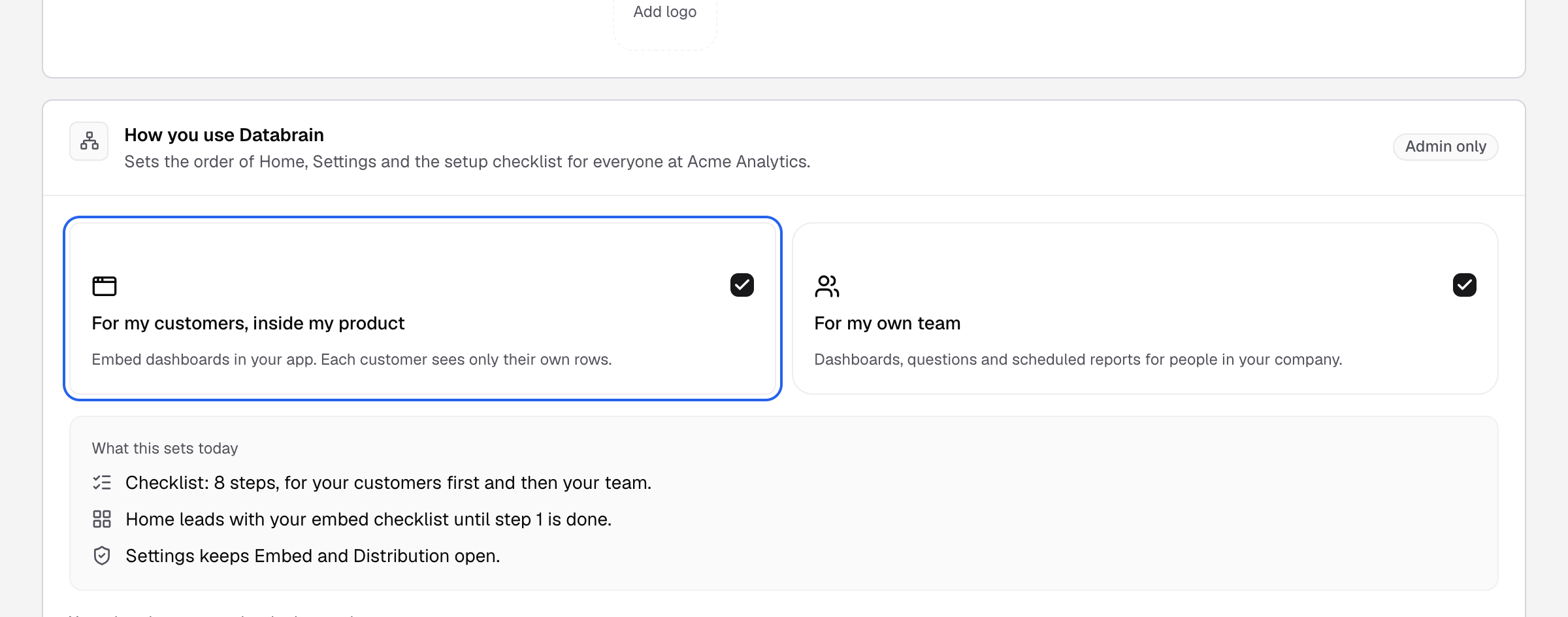
Pick one or both. An Admin can change it later in Settings > Account > Company. - For my customers, inside my product: you embed dashboards in your app.
- For my own team: your team uses dashboards inside Databrain.
-
Follow the Set up Databrain checklist on Home. Each row opens the screen that does the step.
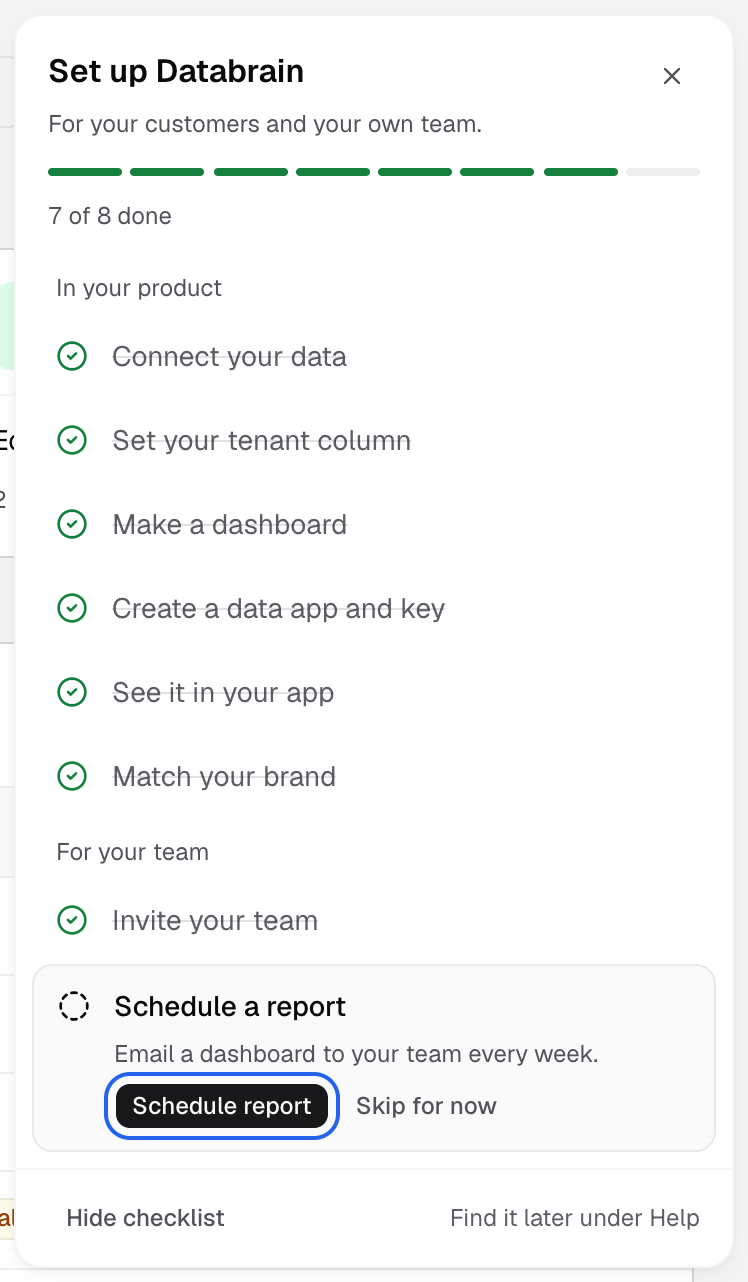
Each row opens the screen that does the step.
Your choice sets the checklist and what Home shows first. An Admin can change it later in Settings > Account > Company, under How you use Databrain.
The checklist
| You picked | Steps in order |
|---|---|
| For my customers | Connect your data, Set your tenant column, Make a dashboard, Create a data app and key, See it in your app, Match your brand |
| For my own team | Connect your data, Ask a question or build a metric, Make a dashboard, Invite your team, Schedule a report |
| Both | The customer steps, then Invite your team and Schedule a report |
A step ticks when the work exists, not when you open the screen. For example, See it in your app ticks when the first embed loads in your product.
Some steps open only after an earlier one: Create a data app and key opens after Set your tenant column, and See it in your app opens after you create a key. A row you have no permission for shows the permission you need.