

Get set up
Create an account
Start a Databrain company with your work email.
Before you start
- You have a work email. Free email, like Gmail, cannot start a company. Use Request access on the sign-in page for a personal address.
- If your company already uses Databrain, ask an Admin to invite you instead.
Steps
-
Go to the Databrain sign-in page and select Create an account.
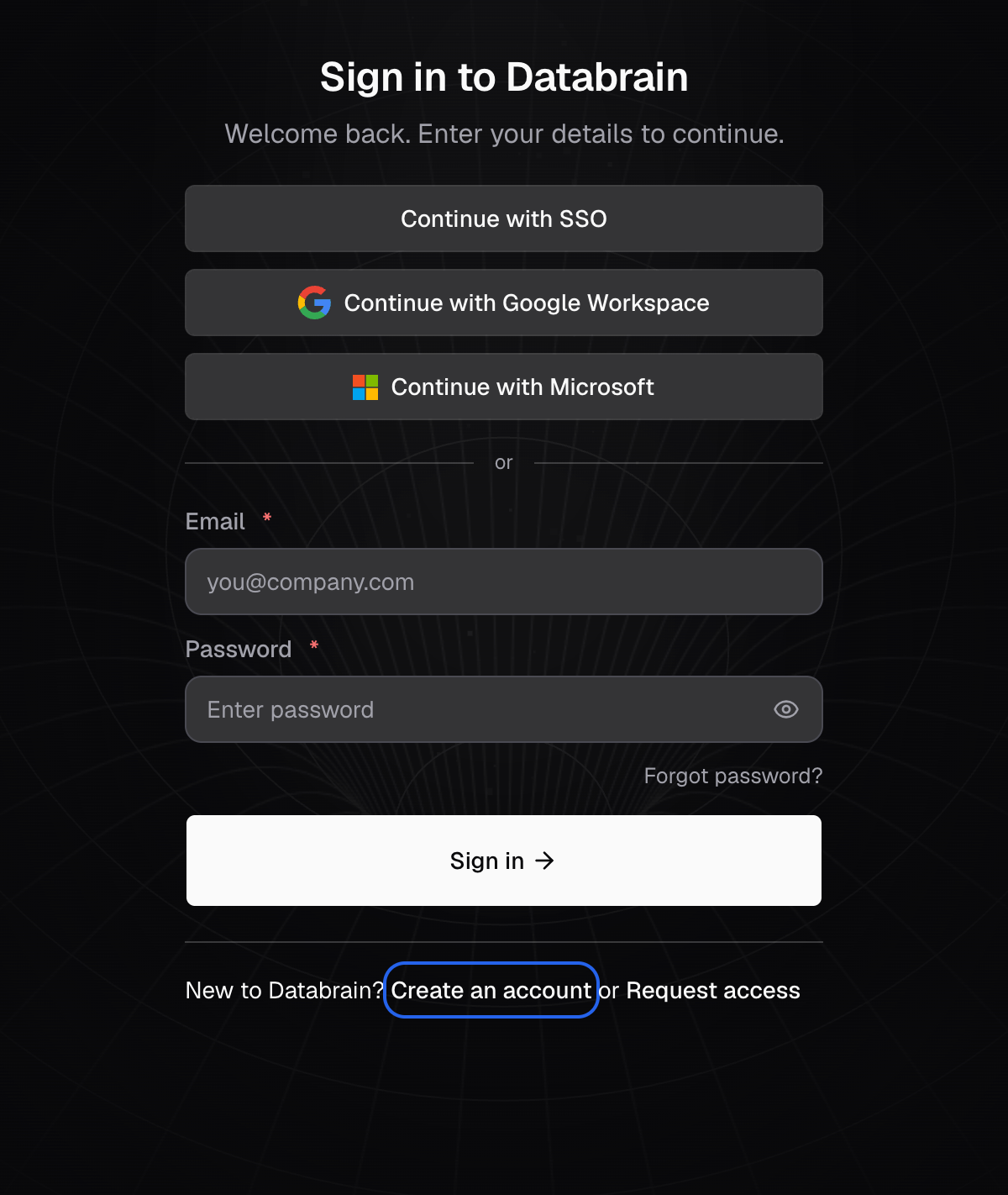
Create an account is under the sign-in form. -
On Create your Databrain account, enter your Work email and select Continue. You can also select Continue with Google Workspace or Continue with Microsoft.
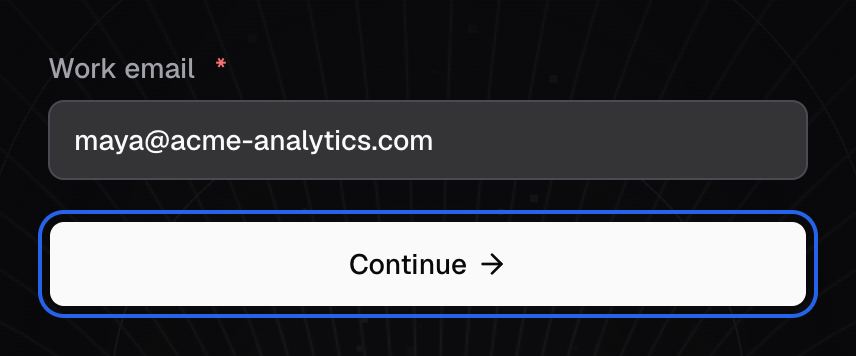
Enter your work email, then Continue. -
On Tell us about you, enter your Full name, Company and Password.
-
Select Create account.
-
Open the email from Databrain and select the verification link within 15 minutes.
You see Email verified. Opening your workspace, then the last setup step. Next, set up Databrain.
Password rules
- 8 characters or more.
- At least one uppercase letter, one lowercase letter, one number and one special character, for example
!,@or#. - No spaces.
If something goes wrong
- Your team is already on Databrain. Another account uses your email domain. Select Ask to join to send the Admin a request, or Create my own workspace.
- Email already registered. Sign in, or use a different email.
- Verification link expired. Select Resend link to get a new one.
- Plus addresses cannot create a second trial for the same mailbox. Sign in to your existing account, or use a different work email.
On a self-hosted install, you can create an account only while the install has no company. Later users join by invitation.