

Get set up
Turn on Google and Microsoft sign-in on a self-hosted install
Show Continue with Google Workspace and Continue with Microsoft on your own Databrain install.
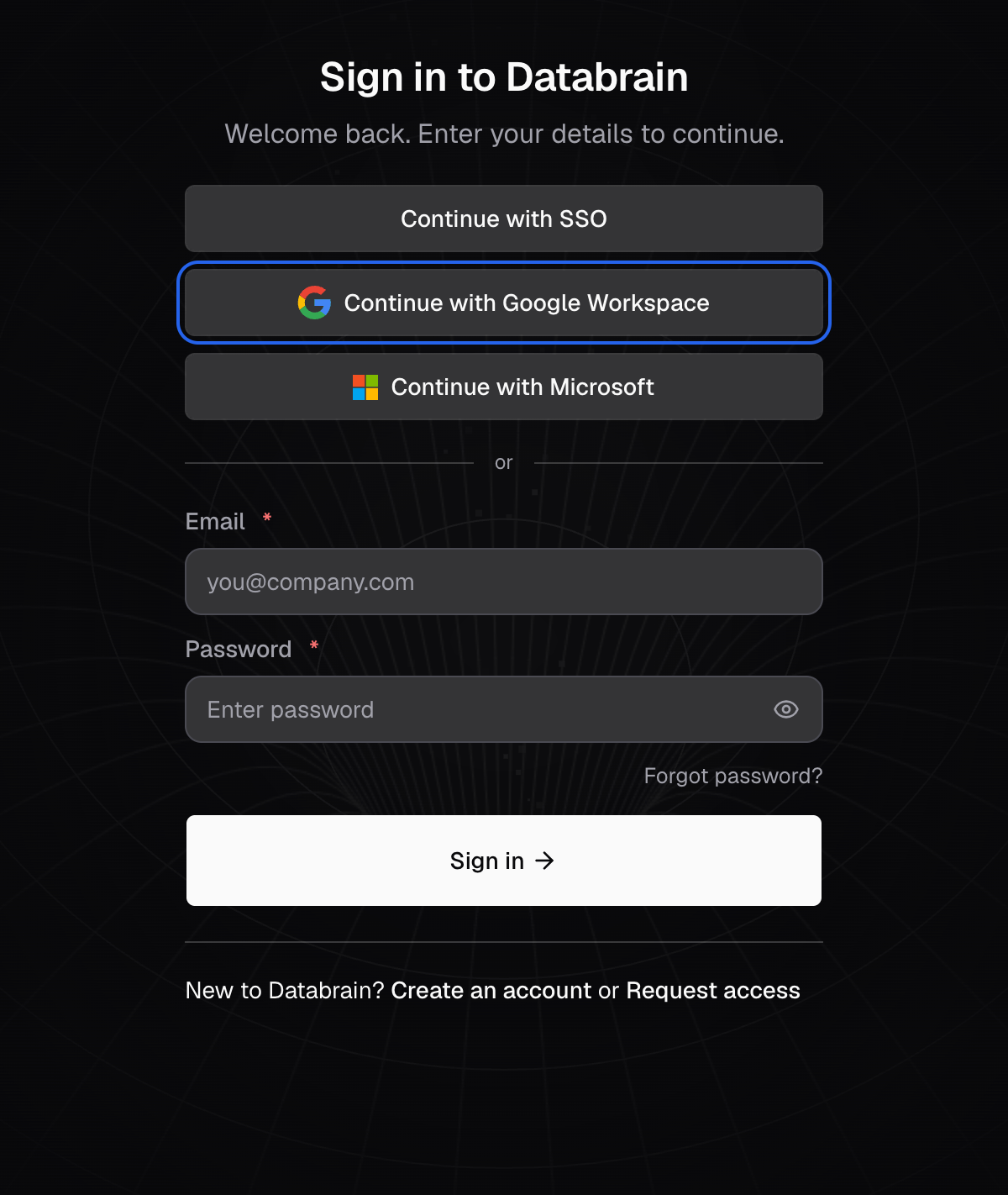
On a self-hosted install, the Continue with Google Workspace and Continue with Microsoft buttons appear only when you give Databrain an OAuth client ID. Each button needs its own ID.
Before you start
- You can change the environment variables of the Databrain backend and restart it.
- You can create an OAuth client in Google Cloud, or an app registration in Microsoft Entra ID.
- Your install can reach
accounts.google.comandlogin.microsoftonline.com. An install with no internet access cannot use these buttons.
-
In Google Cloud, create an OAuth client ID of type Web application.
-
Add your Databrain address, for example
https://analytics.example.com, as an authorized JavaScript origin. -
Add these two authorized redirect URIs:
https://analytics.example.com/users/sign-inhttps://analytics.example.com/users/sign-up
-
Set
GOOGLE_OAUTH_CLIENT_IDto the client ID in the backend environment:GOOGLE_OAUTH_CLIENT_ID=1234567890-abc123.apps.googleusercontent.com -
Restart the backend.
Microsoft
-
In Microsoft Entra ID, register an app for accounts in any organizational directory. Personal Microsoft accounts cannot sign in.
-
Add a Single-page application platform with the same two redirect URIs as above, and turn on ID tokens.
-
Set
MICROSOFT_OAUTH_CLIENT_IDto the application (client) ID in the backend environment:MICROSOFT_OAUTH_CLIENT_ID=00000000-0000-0000-0000-000000000000 -
Restart the backend.
Open the sign-in page. You see the button for each provider you set up.
How sign-in works
- Databrain checks that the token was issued for your client ID. It needs no client secret for these buttons.
- The button signs in existing users only. The email at Google or Microsoft must match a Databrain user. Invite users first.
- Free email accounts, like Gmail, cannot sign in this way.
To sign in through your company’s identity provider instead, see Set up single sign-on.