

Get set up
Sign in
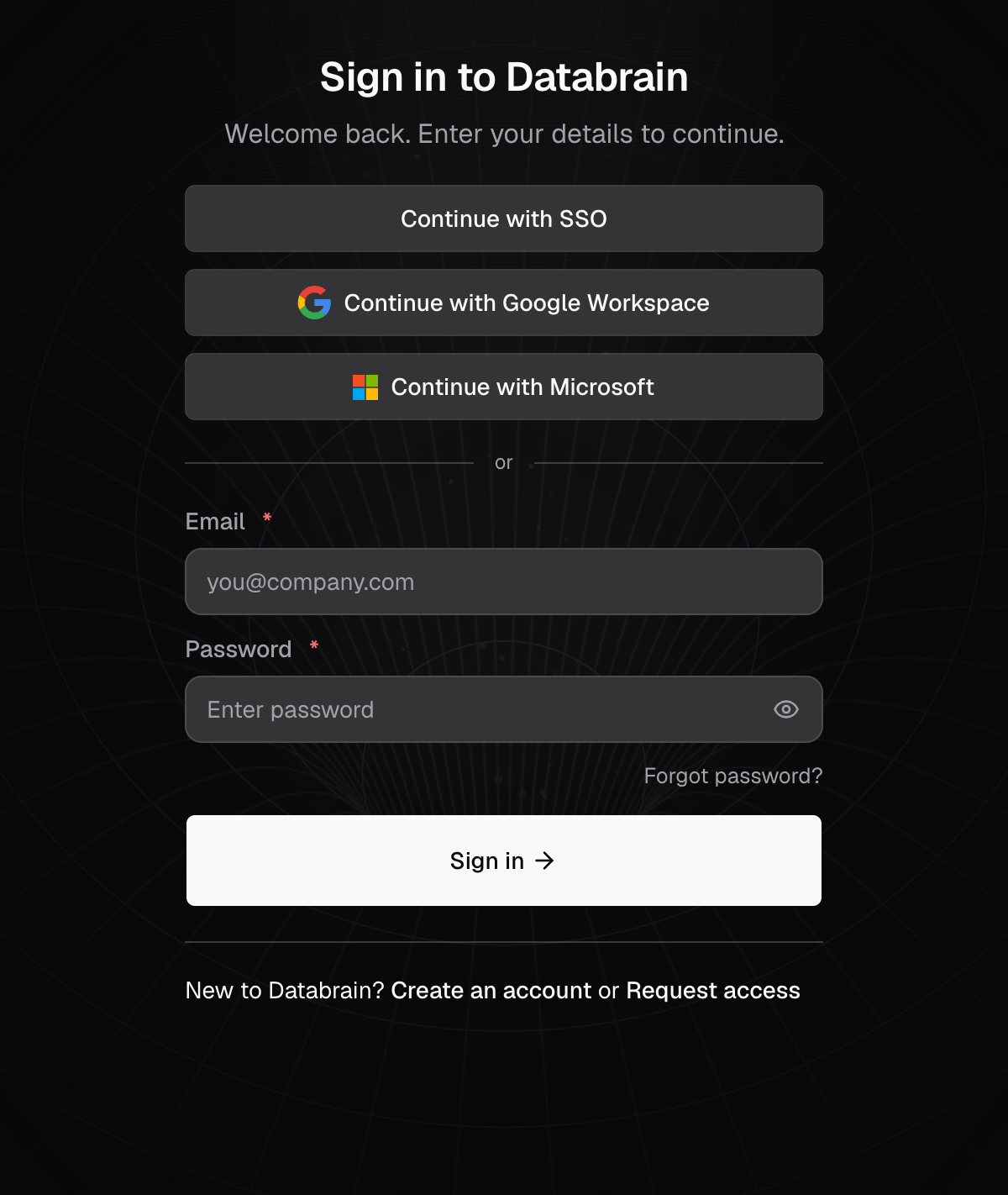
Open Databrain with your password, SSO, Google or Microsoft.
Steps
- Go to the Databrain sign-in page.
- Enter your Email and Password.
- Select Sign in.
You see Home. Other ways to sign in:
- Continue with SSO: your company signs in through its identity provider. See Sign in with SSO.
- Continue with Google Workspace or Continue with Microsoft: use a work account. Free email accounts cannot sign in this way.
Second step
Databrain asks for a 6-digit code after your password when:
- You turned on an Authenticator app: enter the code from the app, or select Use a recovery code.
- Your company requires MFA: enter the code Databrain sent to your email. The code works for 10 minutes.
See Security settings.
If something goes wrong
- That email and password do not match an account. Check both, or reset your password.
- This account is not verified yet. Open the verification email, or select Send a new verification link.
- Your invitation is still pending. Accept the invitation from the invite email first.
- Too many sign-in attempts. Wait the time shown, then try again.
- Active session limit reached. You can be signed in on 5 devices at once. Select End session on one you no longer use, or Sign out oldest and continue.
- This account has been disabled. Ask your Databrain Admin.