

Single sign-on
Set up single sign-on
Let your team sign in to Databrain through your identity provider.
Before you start
- You are an Admin, or your role has the Single sign-on View and Edit permissions.
- Your plan includes SSO. OIDC needs the Business plan or higher. SAML needs the Enterprise plan. See Plans and billing.
- Each person who signs in with SSO already has a Databrain account with the same email. SSO does not create users. Invite them first.
Steps
- Go to Settings > Security.
- Under Organization, select the SSO tab.
- Turn on Enable SSO.
- Under Identity providers, select Add identity provider.
- Choose the Provider type, SAML or OIDC, and fill in the form:
- In the providers table, select Activate on the provider.
The provider shows Active. Your team can now sign in with SSO.
Only one provider is active at a time. Activating one deactivates the active one, and its users must sign in again through the new one.
Sign in with SSO
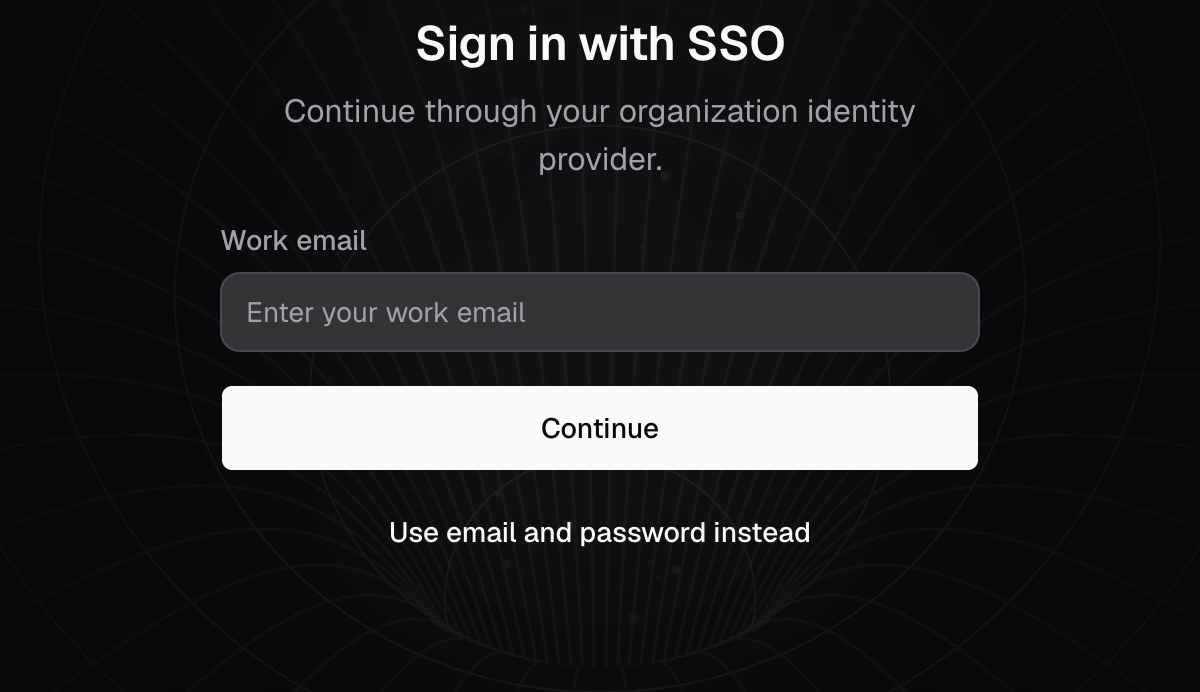
- On the sign-in page, select Continue with SSO.
- Enter your Work email and select Continue.
- Select Sign In With SSO and sign in at your identity provider.
You return to Databrain, signed in. If your company turned on SSO, an invitation link also opens the SSO sign-in instead of the password form.
If something goes wrong
- Your workspace has not enabled SSO. An Admin must turn on Enable SSO.
- We could not find a Databrain workspace for that email domain. No user has this exact email. Ask an Admin to invite you.
- Please use the invited email id. You signed in at the identity provider with a different email than the one you entered.
- We could not sign you in. The company has no active identity provider. An Admin must select Activate on one.
SSO sign-ins skip the Databrain second step (MFA). Set MFA in your identity provider.