

Organization
Fix risky setups with the Migration assistant
Find setups that can show a client too much, preview the fix, and undo it if needed.
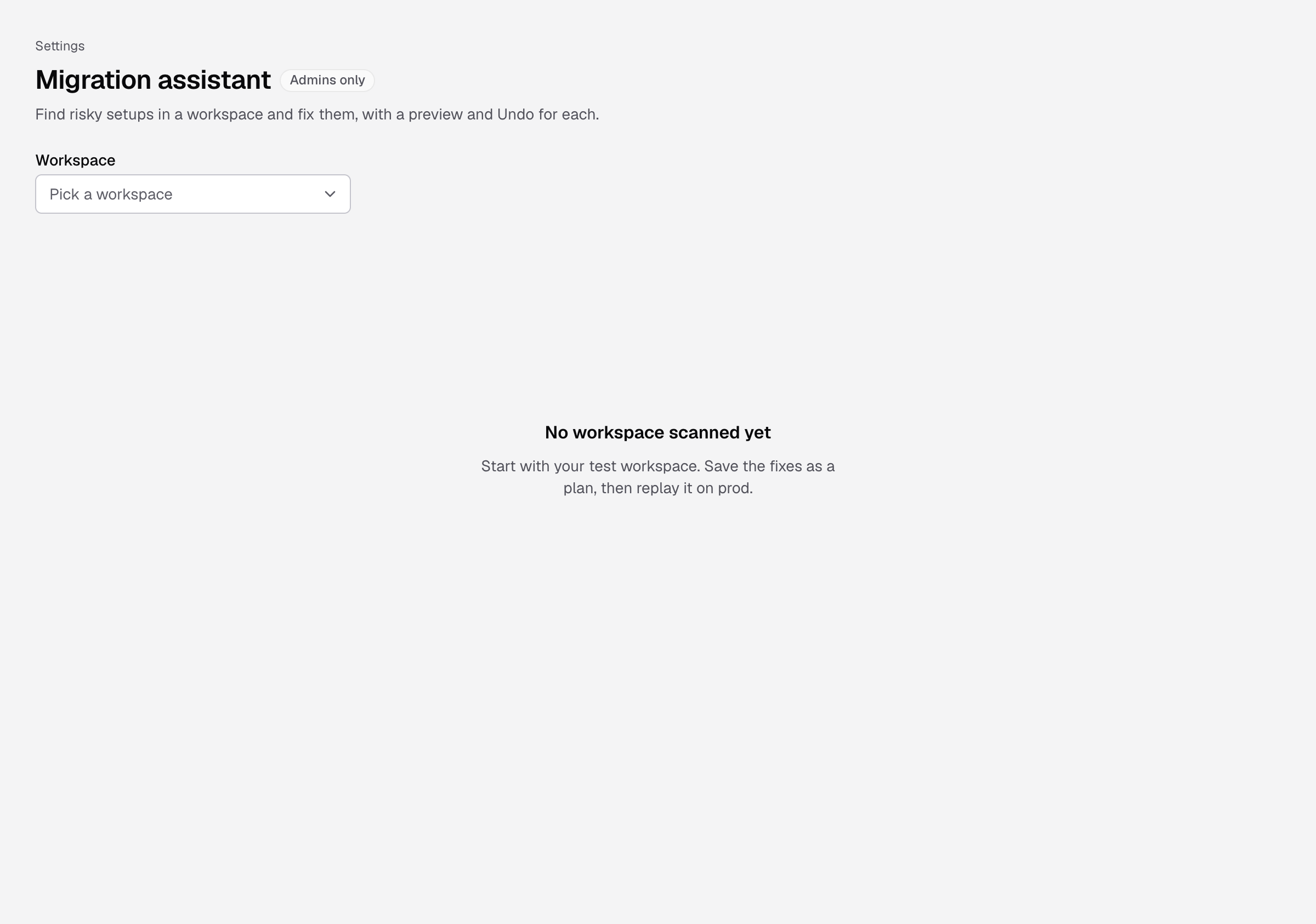
The Migration assistant scans a workspace for setups that work by luck or are risky, for example a client column saved only on an embed, or custom SQL without a client filter. For each one it shows a preview and a one-click fix, with Undo.
Before you start
- You are an Admin.
- Databrain turned the Migration assistant on for your company. It is not part of a plan. Ask Databrain support to turn it on.
Steps
- Go to Settings > Migration assistant.
- Choose the Workspace. Start with your test workspace.
- Read the findings. Each has a badge:
- Clients can see too much: fix this first.
- Works by luck: it works now, but can break.
- Tidy up: optional.
- Select Why and how to fix to see what was found and why it matters.
- Select Preview fix. Nothing changes until you apply.
- Check Who sees which rows. A green banner says No client gets more rows.
- Select Apply.
You see Applied. Undo is in the history of this workspace. Some findings link to the page where you fix them instead.
Undo a move
Select Undo, then Undo the move. Undo has no time limit. It is blocked if someone changed the same settings after the move, or if it would remove a client filter.
Replay on production
Select Save plan to save the moves. Then pick the production workspace and choose the plan in Replay a plan. Each move shows a preview again before you apply it.
If something goes wrong
- This move would remove N client filter(s), so some users could see other clients’ rows. It is blocked. The fix would widen access. Fix it on its own page.
- The SQL, settings or sample checks changed. Open the preview again before you apply.
- The Migration assistant is not on for your company. Ask Databrain support.