

Organization
Promote dashboards between environments
Link workspaces as Dev, Staging and Production, then promote a dashboard one step at a time.
An environment group links 2 to 6 workspaces as stages of one product, for example Dev and Production. You change a dashboard in one stage, check it on the next stage’s data, and publish it there in place. Embeds, links and your customers’ own charts keep working.
Before you start
- You are an Admin.
- Your company has 2 or more workspaces. Every plan includes environments. On a self-hosted install, your licence must list it.
Link workspaces
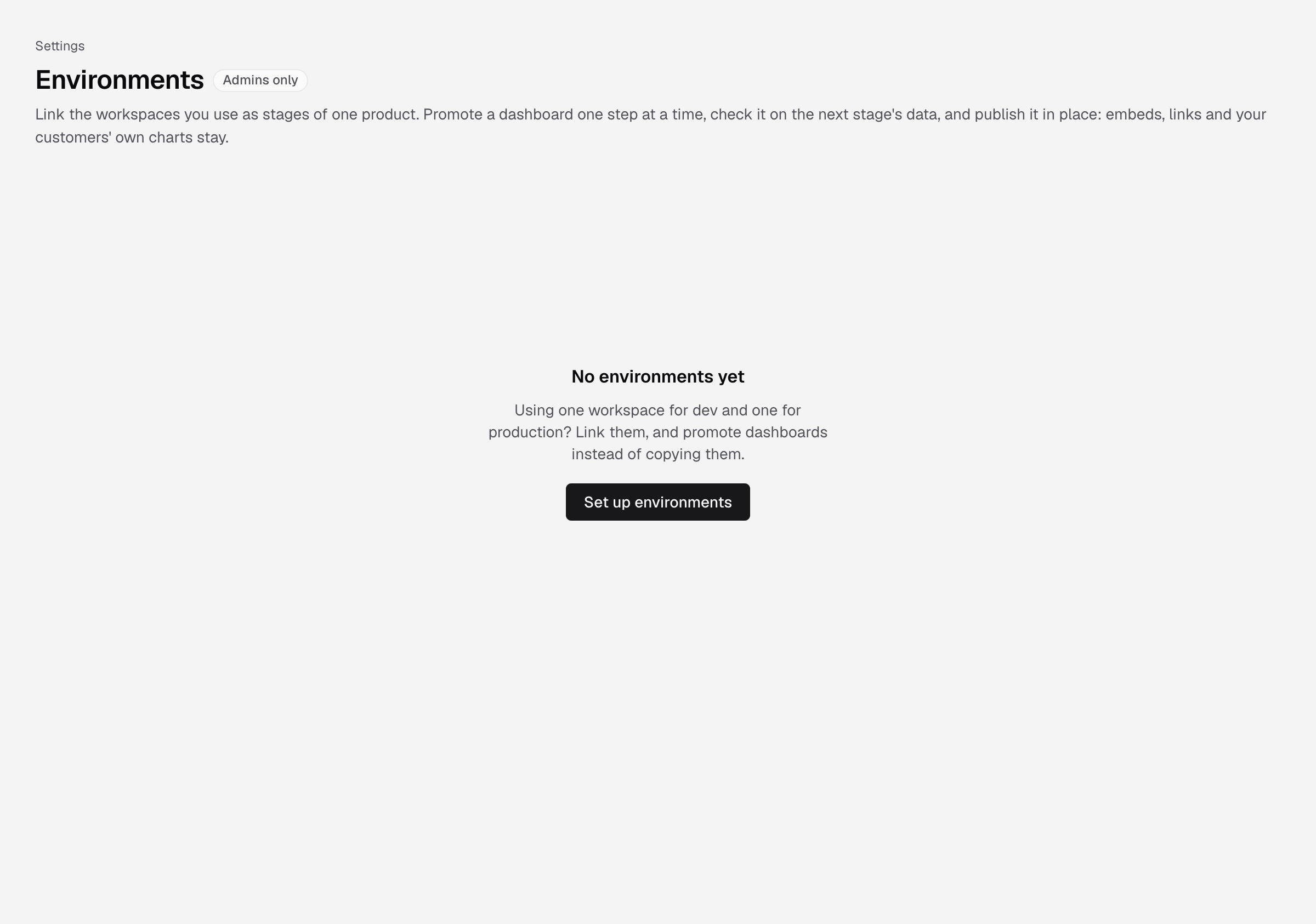
- Go to Settings > Environments and select Set up environments.
- Enter a Product name, for example
Analytics app. - For each step, set the Environment name and pick its Workspace. Order runs left to right. The last step is live for customers.
- Optional: if schema names differ between stages, add a Schema mapping, for example
gold_stagingtogold. - Select Save environments.
You see Saved. Each workspace can be in one environment group only.
Promote a dashboard
- Go to Home and open the workspace you edit in.
- On the dashboard card, hover the environment pill and select Promote to the next environment.
- Review What changes and Checks on the next environment’s data.
- Optional: under Preview as a client, enter a Client id and select Preview to see that client’s rows.
- Optional: enter a Release message and a release Tag, for example
v1.4.0. - Select Publish to the environment.
You see that the dashboard is live in the next environment. It keeps its id, so embeds and links keep working.
Only the dashboard, its layout, filters and its author’s charts move. Each workspace keeps its own datasource, tenancy and embeds. Dashboards and charts made by your customers’ users are never changed.
Roll back
- Hover the environment pill and select History.
- On an older release, select Roll back, then Roll back the environment.
Roll back adds a new release on top, so nothing is lost.
If something goes wrong
- An app filter would change. App filters decide which rows each client sees, so a promote cannot change them. Make the app filters the same in both workspaces.
- Fix the failed checks first. A chart failed on the next environment’s data. Open Checks on the environment to see which.
- This dashboard changed since the review. Review it again, then publish.
- Edited here after the last release. Someone edited the live environment directly. The next promote replaces those edits. Make the change in the earlier environment instead.
- Environments need two workspaces. Create a second workspace first.