

Organization
Protect sign-in with MFA and sessions
Turn on an authenticator app, require MFA for your company, and end sessions you do not use.
Settings > Security has two parts. Your sign-in changes only your own account. Organization changes sign-in for everyone and needs Admin rights.
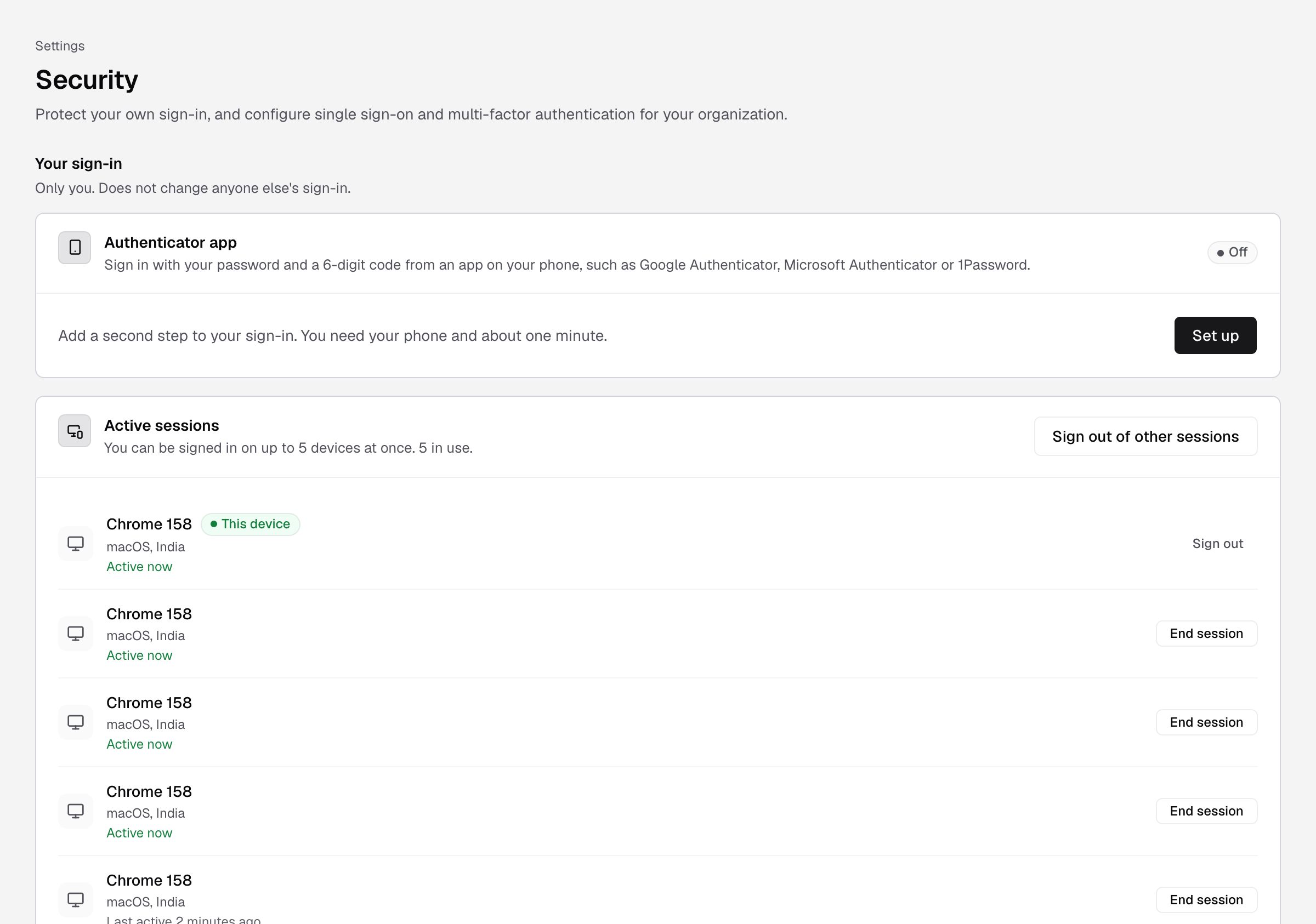
Turn on an authenticator app
Every plan includes this.
- Go to Settings > Security.
- On Authenticator app, select Set up.
- In your authenticator app, add an account and scan the QR code. If you cannot scan, type the key shown.
- Enter the 6-digit code from the app and select Turn on.
- Save the 10 recovery codes, then select I saved them.
The card shows On. At sign-in, Databrain now asks for a code from the app after your password. Each recovery code works once, when you do not have your phone. You do not see them again.
To turn it off, select Turn off and enter an app code or your password.
Require MFA for everyone
- Go to Settings > Security and select the MFA tab.
- Turn on Require MFA for all users.
Everyone who signs in with a password now enters a 6-digit code. People with an authenticator app use the app. Everyone else gets the code by email. Sessions that are signed in stay signed in until they expire.
On a self-hosted install, emailed codes need email settings. SSO sign-ins skip this step.
End a session
You can be signed in on up to 5 devices at once.
- Go to Settings > Security.
- Under Active sessions, find the device and select End session.
To end every session except this one, select Sign out of other sessions, then Sign out others.
Lost phone
Use a recovery code at sign-in: select Use a recovery code. If you have none left, ask an Admin. They go to Settings > People & Access, open your row menu and select Reset authenticator app. Then set up the app again.
Single sign-on
The SSO tab is on the same page. See Set up single sign-on.