

Home
Read notifications and Bryn moments
See datasource and datamart alerts, track your progress, and choose how Bryn reaches you.
Read notifications
-
Select the bell in the top bar. The badge shows how many are unread.
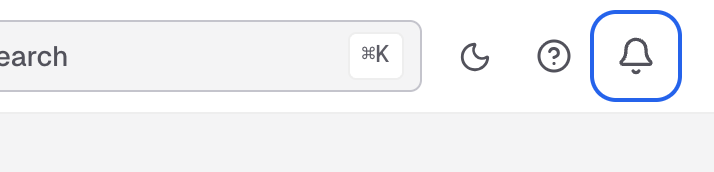
The bell is at the right of the top bar. -
Choose All, Datasource or Datamart.
-
Select a notification to open the datasource or datamart it is about.
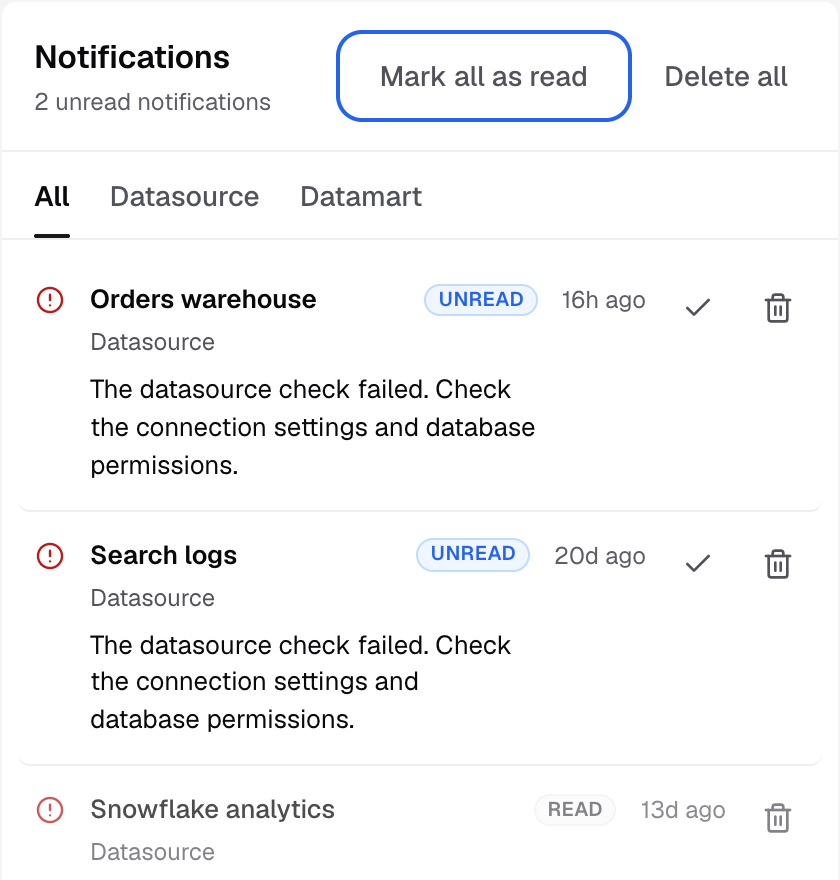
Notifications list datasource and datamart alerts, newest first.
To clean up, select Mark as read or Delete on one notification, or Mark all as read or Delete all at the top. Delete all removes every notification, not only the filtered ones. Your metrics, datamarts and dashboards are not affected.
The bell shows the 20 most recent notifications.
Bryn moments
Bryn marks what you build, such as your first datasource or your first dashboard, and suggests the next step. Moments appear in the bell with Bryn under the title.
- Less of this: Bryn sends fewer moments like this one.
- Your progress on Home: your level and the next step. Select See your moments to open the full list.

Your moments shows your level, the next step, your weekly streak and every moment you earned, each with its date.
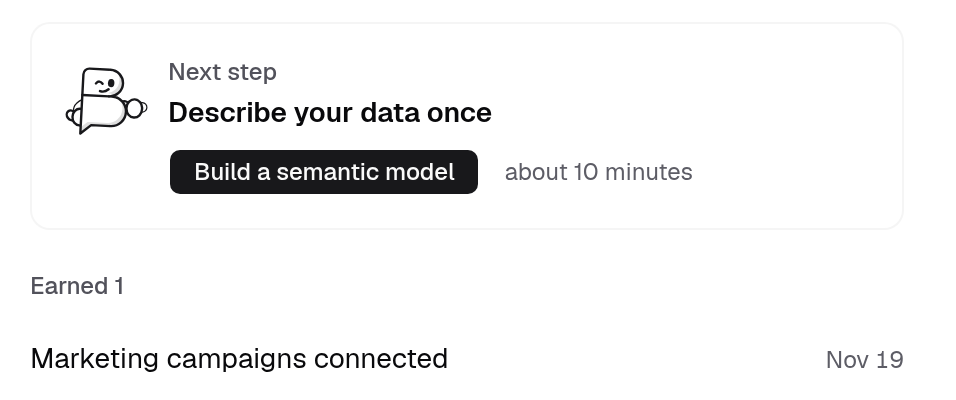
A week counts toward your streak when people see something you built: a dashboard opened, a report sent or an embed viewed.
Moments are on Databrain cloud only. On the Enterprise plan they are calm: a plain list, no streak.
Choose how Bryn reaches you
-
Go to Settings > Account and select Profile.
-
Under Bryn, set:
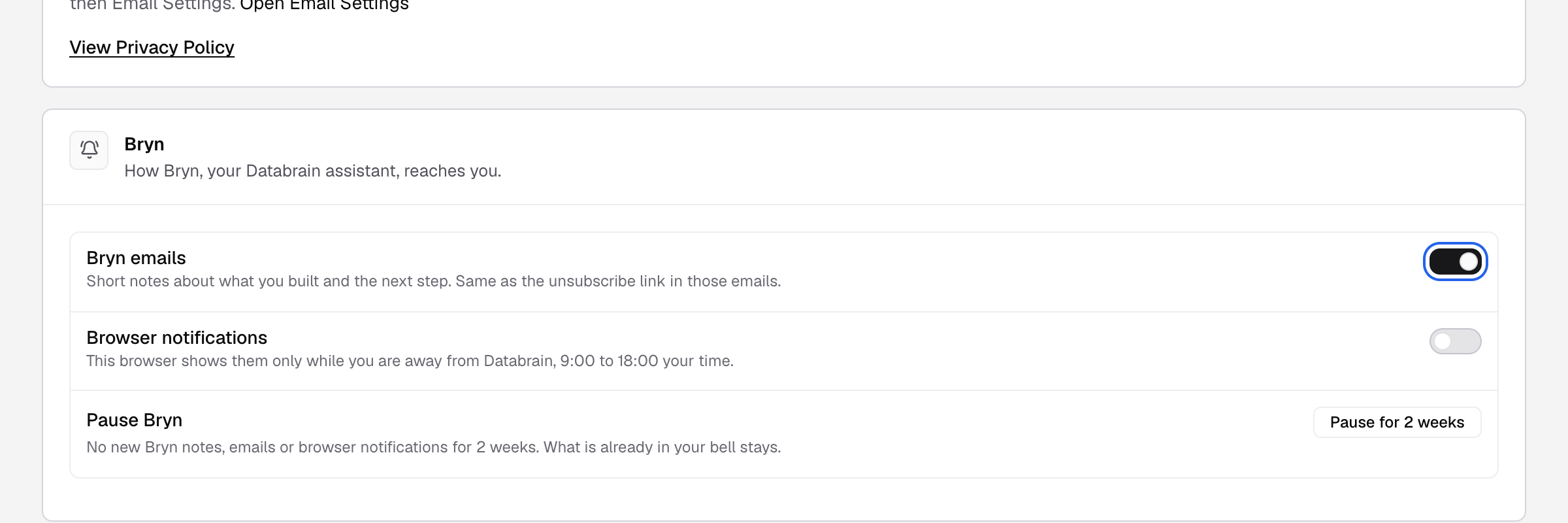
These settings are yours only. - Bryn emails: short notes about what you built and the next step.
- Browser notifications: shown only while you are away from Databrain, 9:00 to 18:00 your time.
- Pause for 2 weeks: no new Bryn notes, emails or browser notifications for 2 weeks. Select Resume to end the pause.
Changes save at once. These settings are yours only.