

Single sign-on
Add an OIDC identity provider
Connect an OpenID Connect provider, such as Okta, Auth0 or Microsoft Entra ID, to Databrain.
Before you start
- Your company is on the Business plan or higher.
- Enable SSO is on. See Set up single sign-on.
- You can create an OIDC app in your identity provider. Make it a public client that uses PKCE. Databrain sends no client secret.
Steps
-
Go to Settings > Security, select the SSO tab, then select Add identity provider.

Add identity provider appears once Enable SSO is on. -
Set Provider type to OIDC.
-
Enter an Alias, for example
auth0. You cannot change it later. -
Copy the two values under Databrain endpoint into your identity provider’s OIDC app:
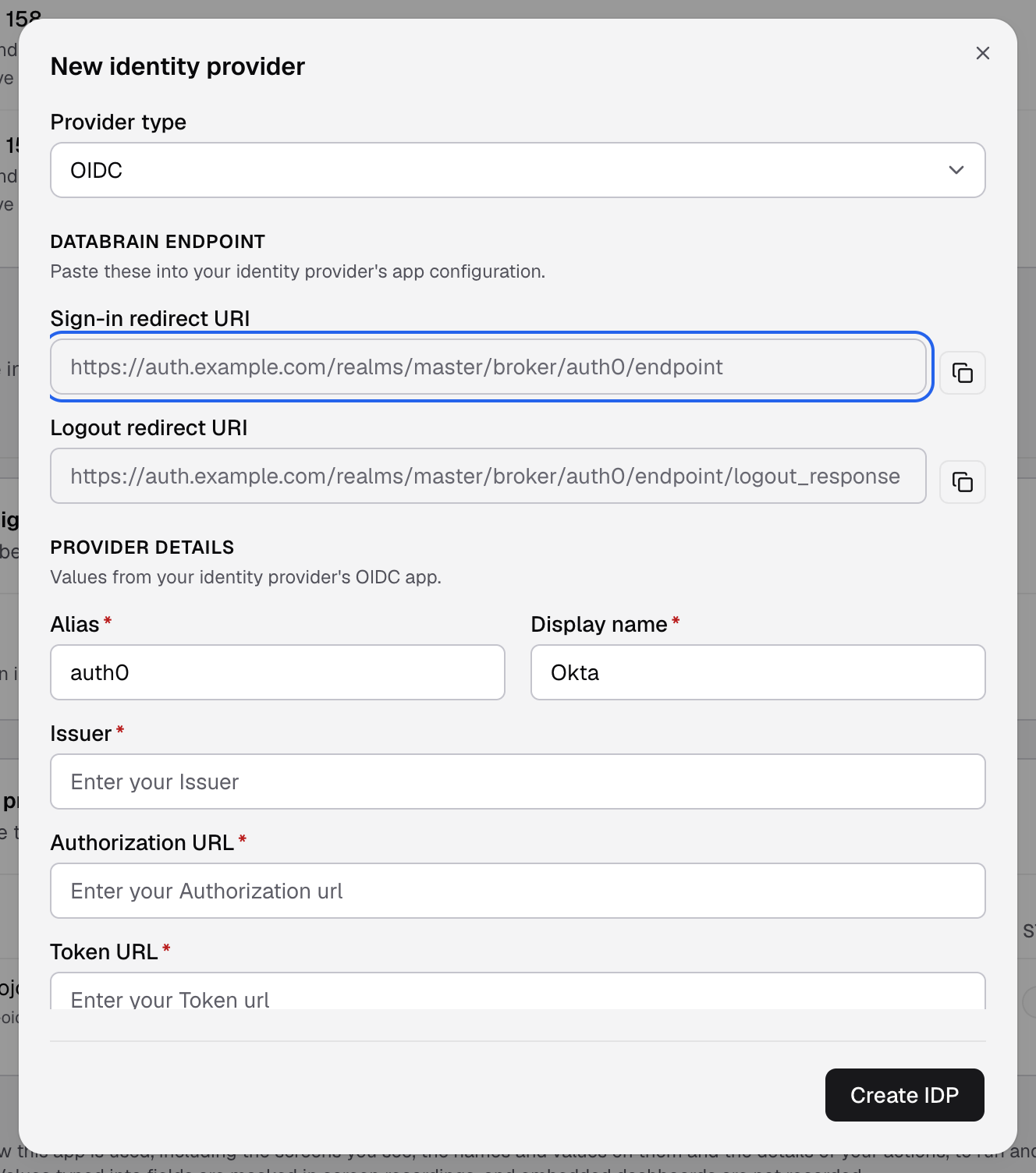
Copy both redirect URIs into your OIDC app. - Sign-in redirect URI: the allowed callback URL.
- Logout redirect URI: the allowed sign-out URL.
-
Fill in Provider details from your identity provider’s OIDC app. Every URL must start with
https://.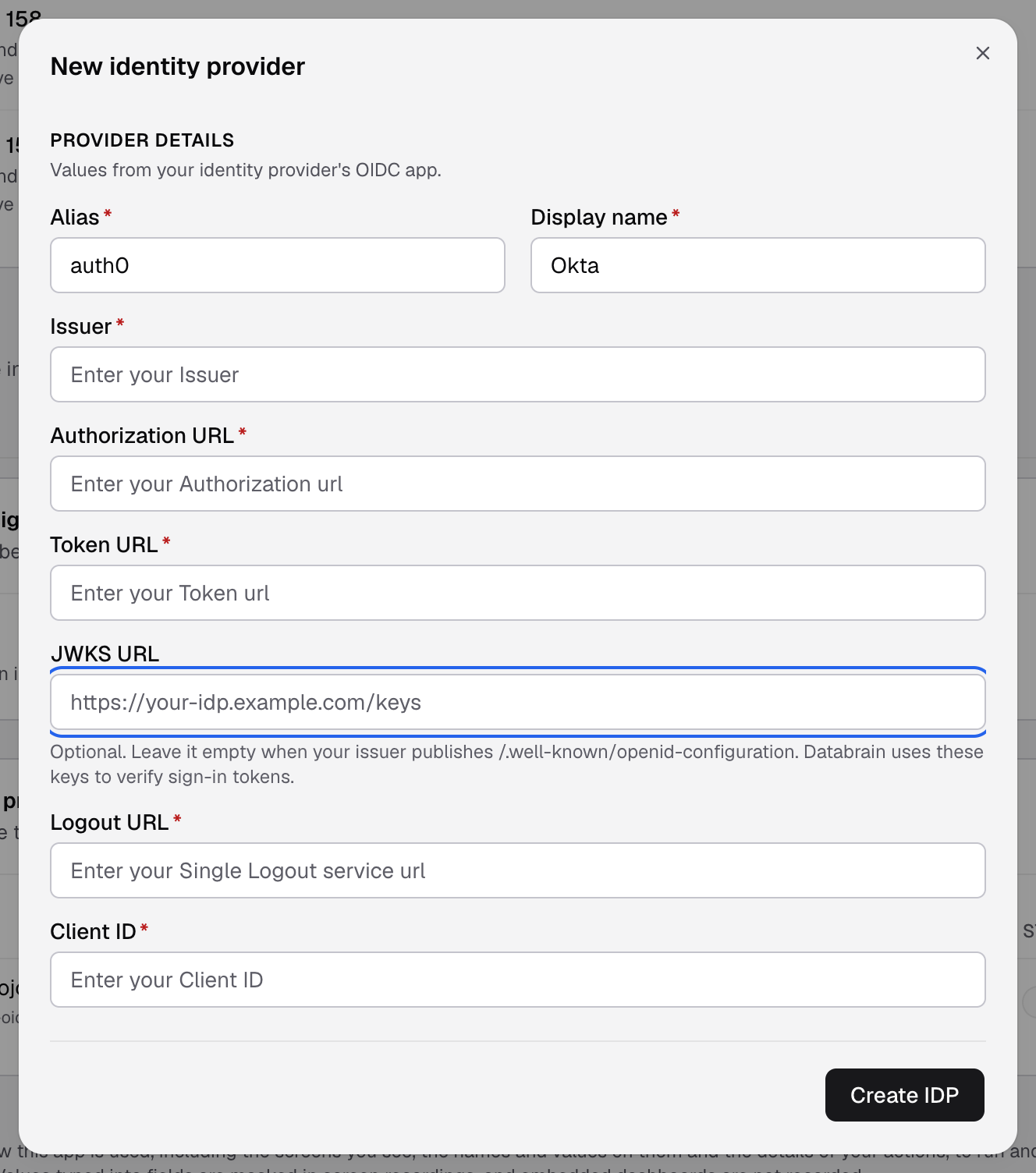
Leave JWKS URL empty when your issuer publishes its discovery document. - Display name: the name your team sees.
- Issuer
- Authorization URL
- Token URL
- Logout URL
- Client ID
- JWKS URL: optional. Leave it empty when your issuer publishes
/.well-known/openid-configuration.
-
Select Create IDP.
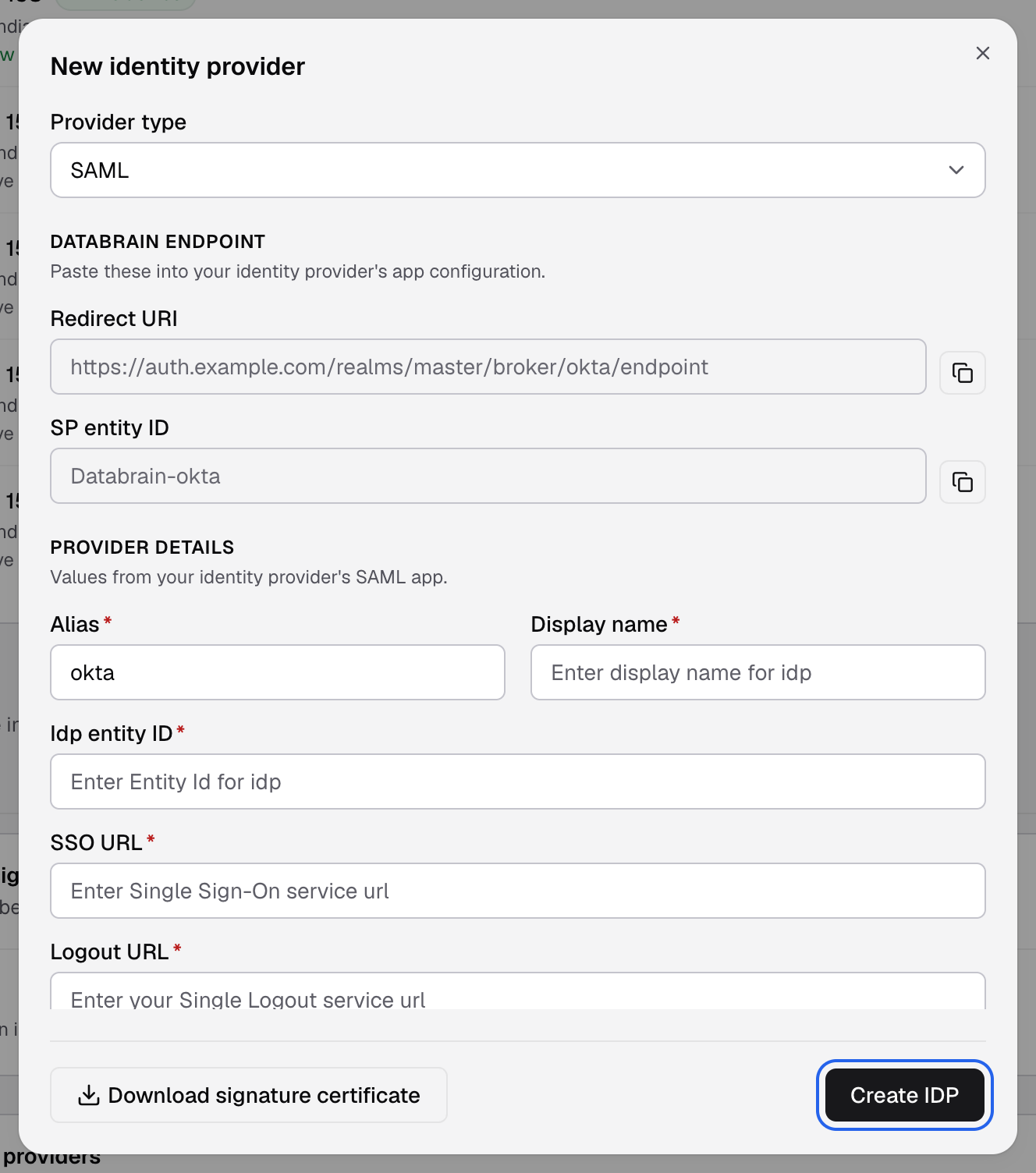
Create IDP saves the provider. Activate it from the table. -
In the providers table, select Activate.
The provider shows Active. Test it with one user: sign out, then use Continue with SSO.
Databrain requests the email scope and matches the user by email. The email must match an existing Databrain user.
If something goes wrong
- Please enter a valid HTTPS URL. Use
https://for every URL. - Add the JWKS URL of your identity provider, or use an issuer that publishes /.well-known/openid-configuration. Databrain cannot find the keys that sign your tokens. Enter the JWKS URL.
- The sign-in fails at the identity provider. Check that the app is a public client with PKCE and allows the Sign-in redirect URI.