

Connect
Connect a datasource
Connect your warehouse, database or file store so Databrain can read your data.
Before you start
- You are an Admin or a Developer, or your role has the datasource Connect permission.
- You have the connection details for your source. For Amazon S3, that is an access key for an IAM user that can
s3:ListBucketands3:GetObjecton the bucket. - If your database only accepts known IP addresses, allow Databrain’s IP.
Steps
-
Go to Data Studio > Datasources and select Connect data source.
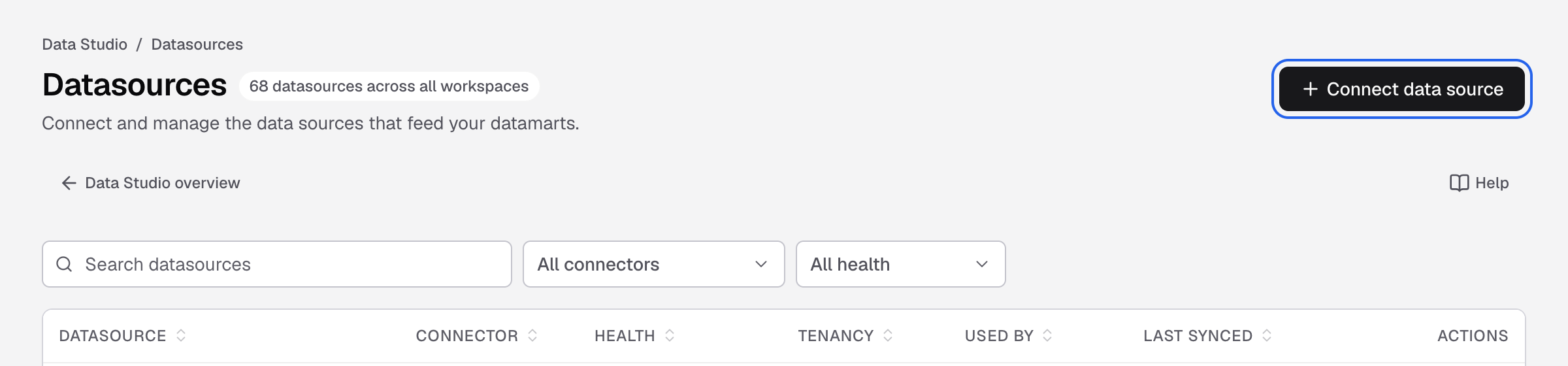
Connect data source is at the top right of the Datasources page. -
On Add datasource, select your connector, for example Amazon S3.
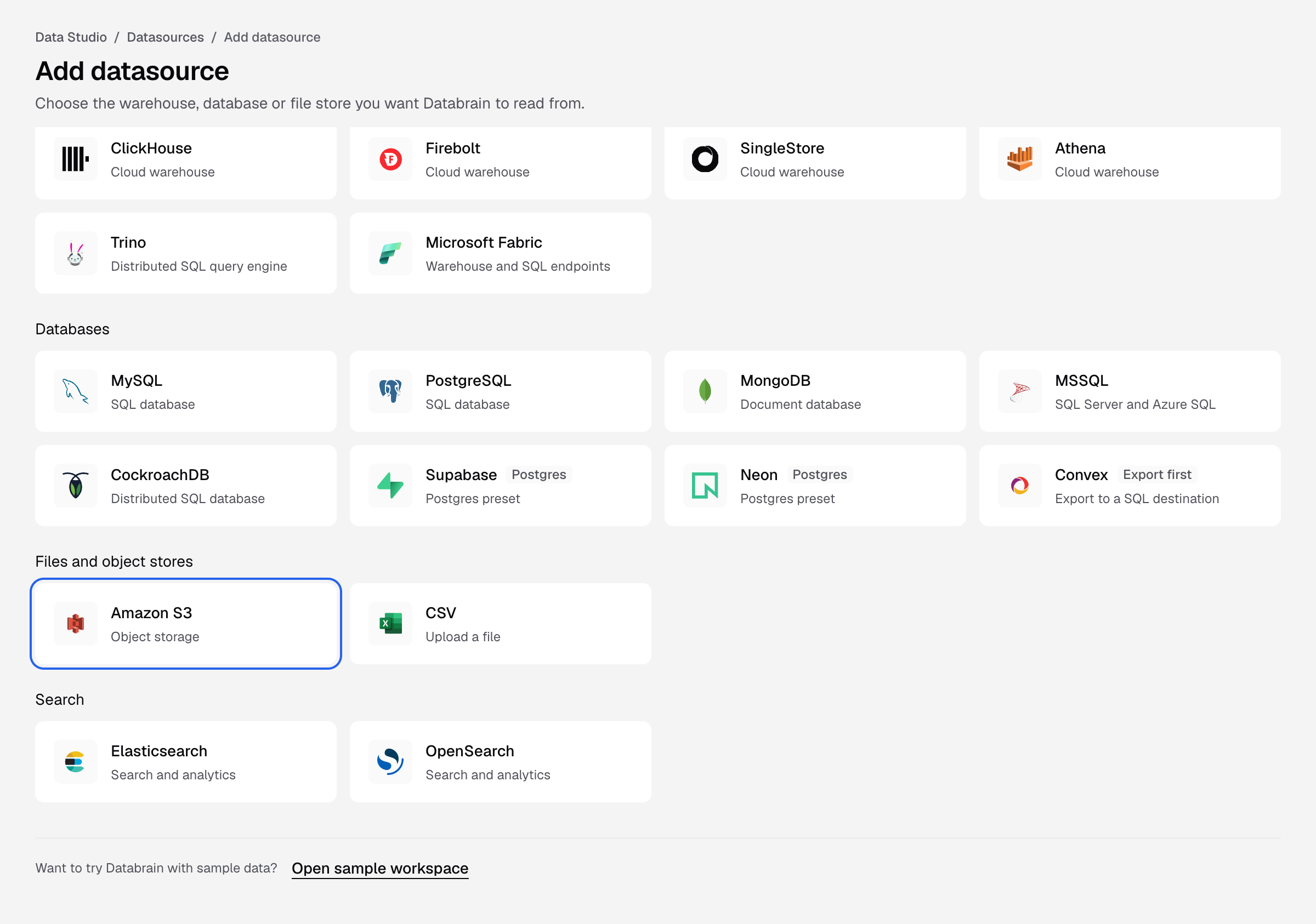
Each tile opens the form for that connector. Search connectors finds one by name. -
In Datasource name, enter a name your team will recognise, for example
Sales files.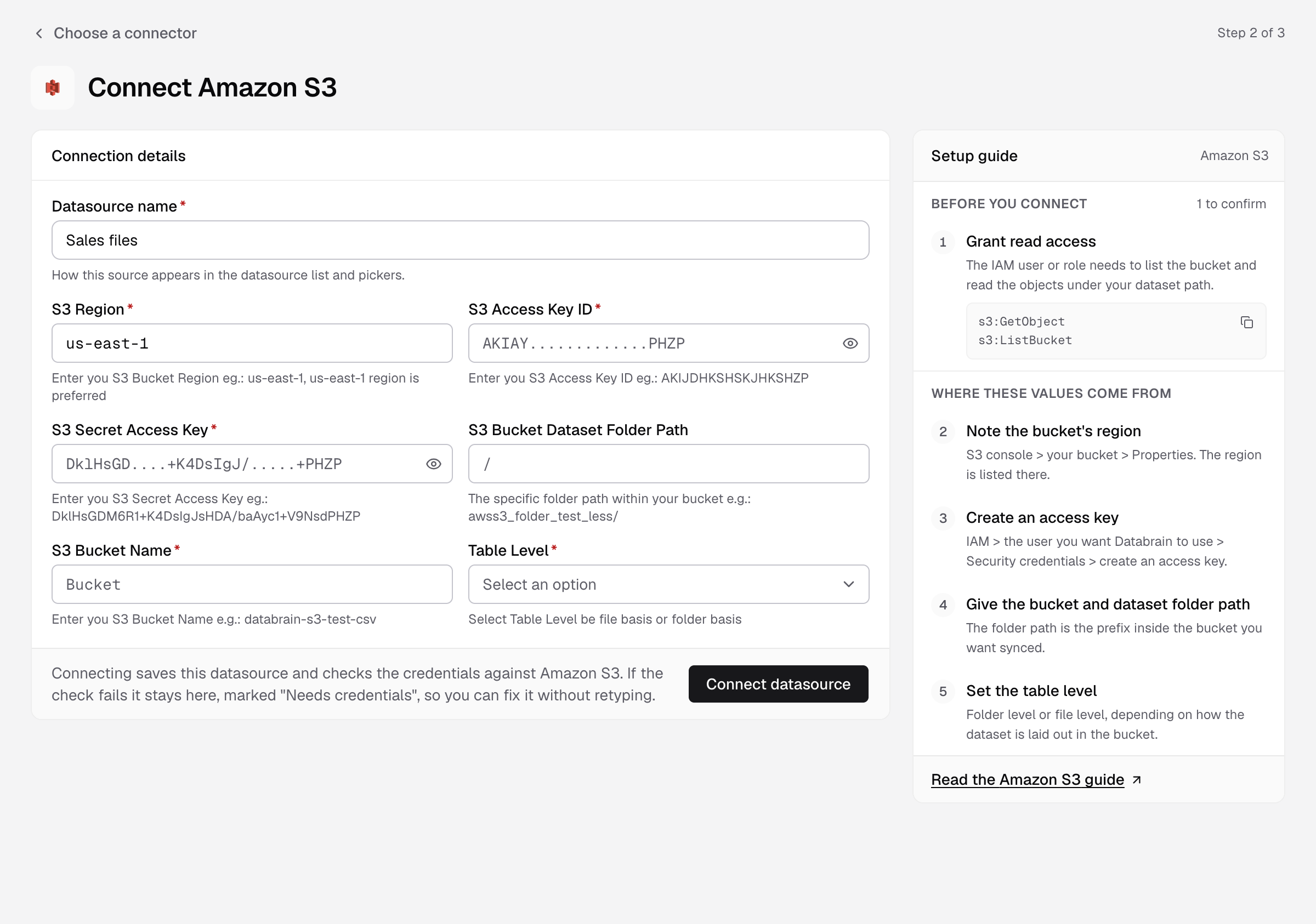
Datasource name is how the datasource shows in lists and pickers. -
Fill in the connection details. The Setup guide on the right says where each value comes from.
-
Select Connect datasource.
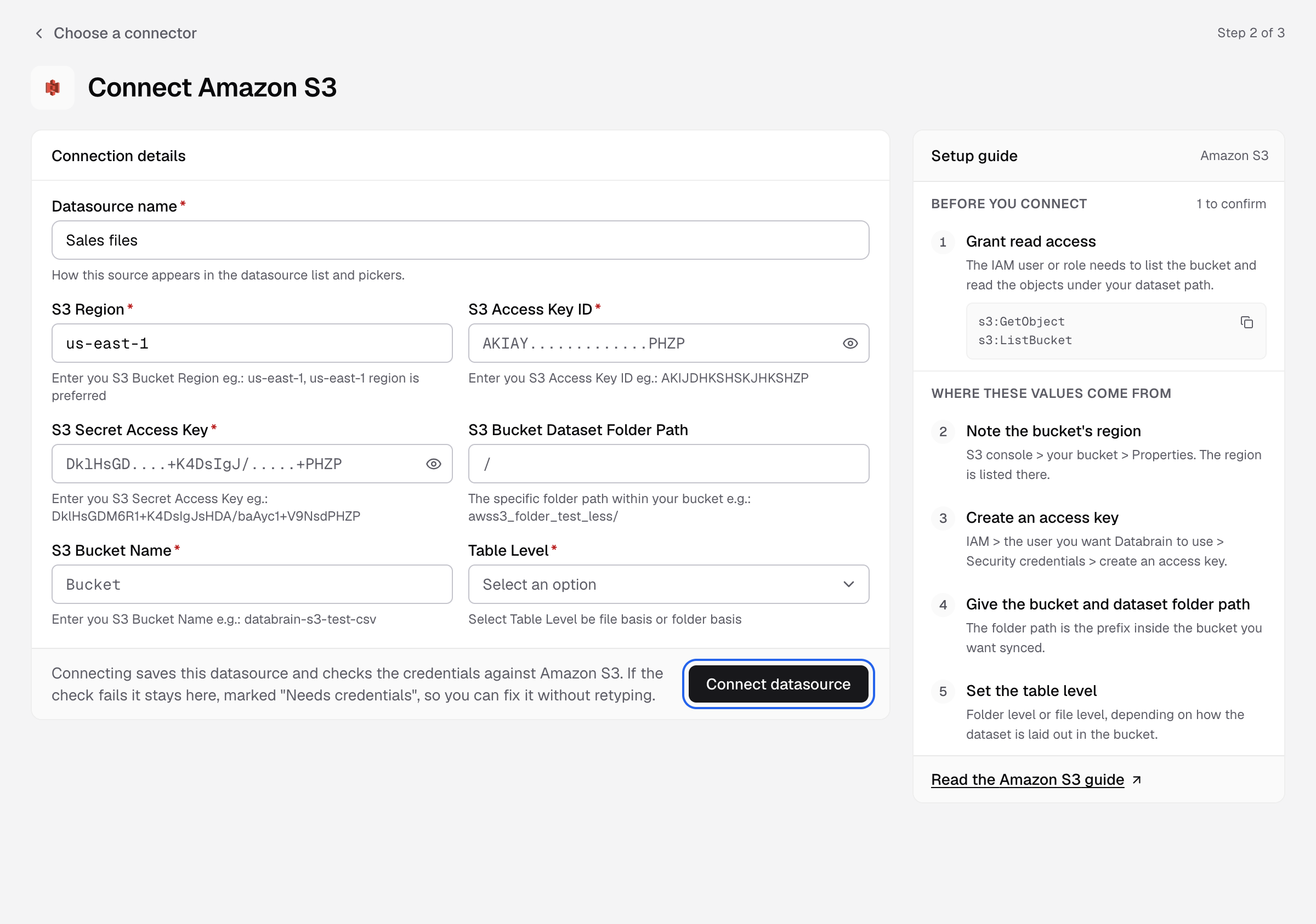
Connect datasource saves the datasource and checks the credentials.
In a workspace with no datasource yet, Data Studio > Overview shows Connect your first datasource. It opens the same Add datasource page.
Databrain saves the datasource and checks the credentials. When the check passes, it loads your tables and opens the new datasource so you can model it. Next, create a datamart.
Amazon S3 details
| Field | What to enter |
|---|---|
| S3 Region | The bucket’s region, for example us-east-1. Find it in the S3 console under your bucket > Properties. |
| S3 Access Key ID | The access key ID of the IAM user. |
| S3 Secret Access Key | The secret that belongs to that access key. |
| S3 Bucket Dataset Folder Path | Optional. The folder inside the bucket to read, for example sales/. |
| S3 Bucket Name | The bucket name, for example acme-analytics. |
| Table Level | File or Folder, depending on how the dataset is laid out in the bucket. |
For Amazon S3, Databrain shows Syncing schema while it reads your files. When it finishes, you see “Sales files” connected.
Other connectors ask for different details. See Supported connectors.
If something goes wrong
- The datasource shows “Needs credentials”. The check failed, but the datasource is saved. Open it from Datasources, correct the details and select Save changes.
- “A datasource with this name already exists.” Enter a different Datasource name.