

Supported connectors
Choose a connector
Pick your warehouse, database or file store and connect it to Databrain.
A datasource is a read-only connection to your data. Every connector uses the same three steps: choose a connector, fill in its form, connect.
Before you start
- You are an Admin or a Developer, or your role has the datasource Connect permission.
- Your database accepts connections from Databrain’s outbound IP. See Allow Databrain’s IP.
Steps
-
Go to Data Studio > Datasources and select Connect data source.
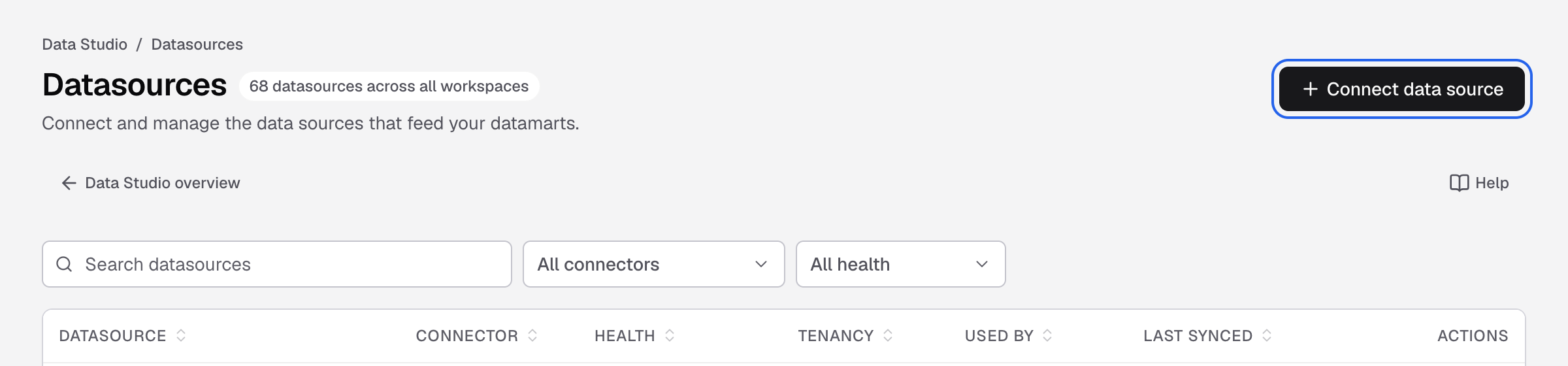
Connect data source is at the top right of the Datasources page. -
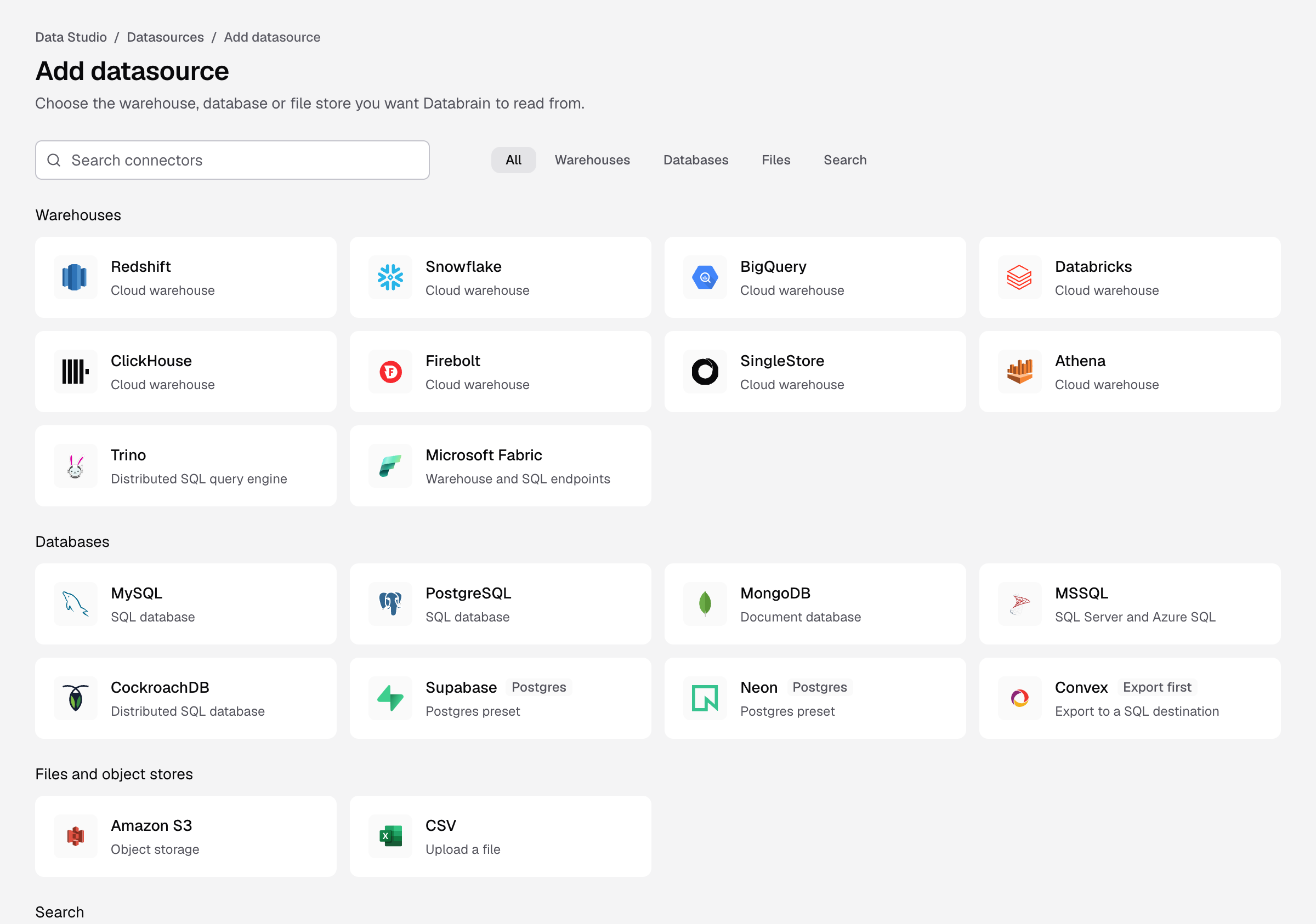
Select your connector, or type its name in Search connectors. Use Warehouses, Databases, Files or Search to filter.
-
Fill in the form. The Setup guide next to the form lists the grants and where each value comes from.
-
Select Connect datasource.
Databrain checks the credentials and reads your schema. You see Step 3 of 3 with Model your data, Set tenancy first and Create workspace. To try Databrain without your own data, select Open sample workspace at the bottom of the page.
Connectors
| Group | Connectors |
|---|---|
| Warehouses | Amazon Redshift, Snowflake, BigQuery, Databricks, ClickHouse, Firebolt, SingleStore, Athena, Trino, Microsoft Fabric |
| Databases | MySQL, PostgreSQL, MongoDB, MSSQL, CockroachDB, Supabase, Neon, Convex |
| Files and object stores | Amazon S3, CSV |
| Search | Elasticsearch, OpenSearch |
Supabase and Neon are PostgreSQL presets. Convex needs an export to a SQL database first.
If the check fails
The datasource stays on the form with Needs credentials, so you can fix it without typing everything again. The message tells you what to fix:
| Message | What to do |
|---|---|
| We could not find that hostname. | Check Host for a typo. |
| The host answered, but refused the connection on that port. | Check Port, and that the database accepts Databrain’s IP. |
| The database did not answer in time. | A firewall blocks Databrain. Allow the outbound IP on the database port. |
| The database rejected these credentials. | Check the username and password. |
| The connection failed while negotiating TLS. | Change SSL mode to what your database expects. |
| That database does not exist on the server. | Database is the database name, not the server name. |
| The credentials worked, but the user cannot read the catalogue. | Grant SELECT on the tables and read access to information_schema. |
After you connect
- Set tenancy before you embed dashboards for customers.
- Create a datamart to choose the tables people can use.