

Supported connectors
Connect PostgreSQL
Connect a PostgreSQL database and choose the schemas to read.
Before you start
- You are an Admin or a Developer, or your role has the datasource Connect permission.
- Your firewall allows Databrain’s outbound IP on the database port. The form shows the IP under Setup guide > Allow the outbound IP. See Allow Databrain’s IP.
- You have a database user with read access to the schemas you want to use.
Connect
-
Go to Data Studio > Datasources and select Connect data source.
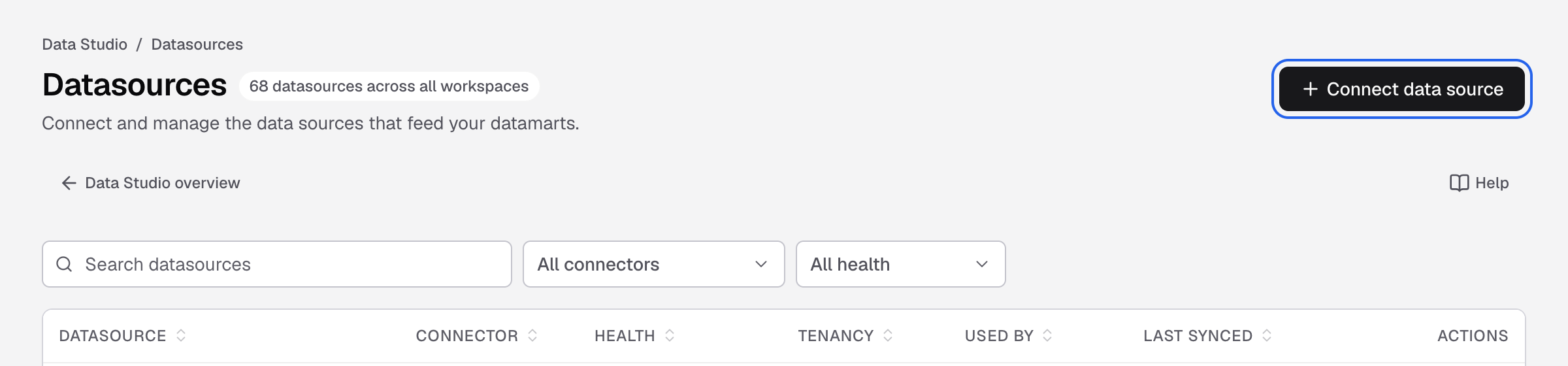
Connect data source is at the top right of the Datasources page. -
Select PostgreSQL. You can type the name in Search connectors.
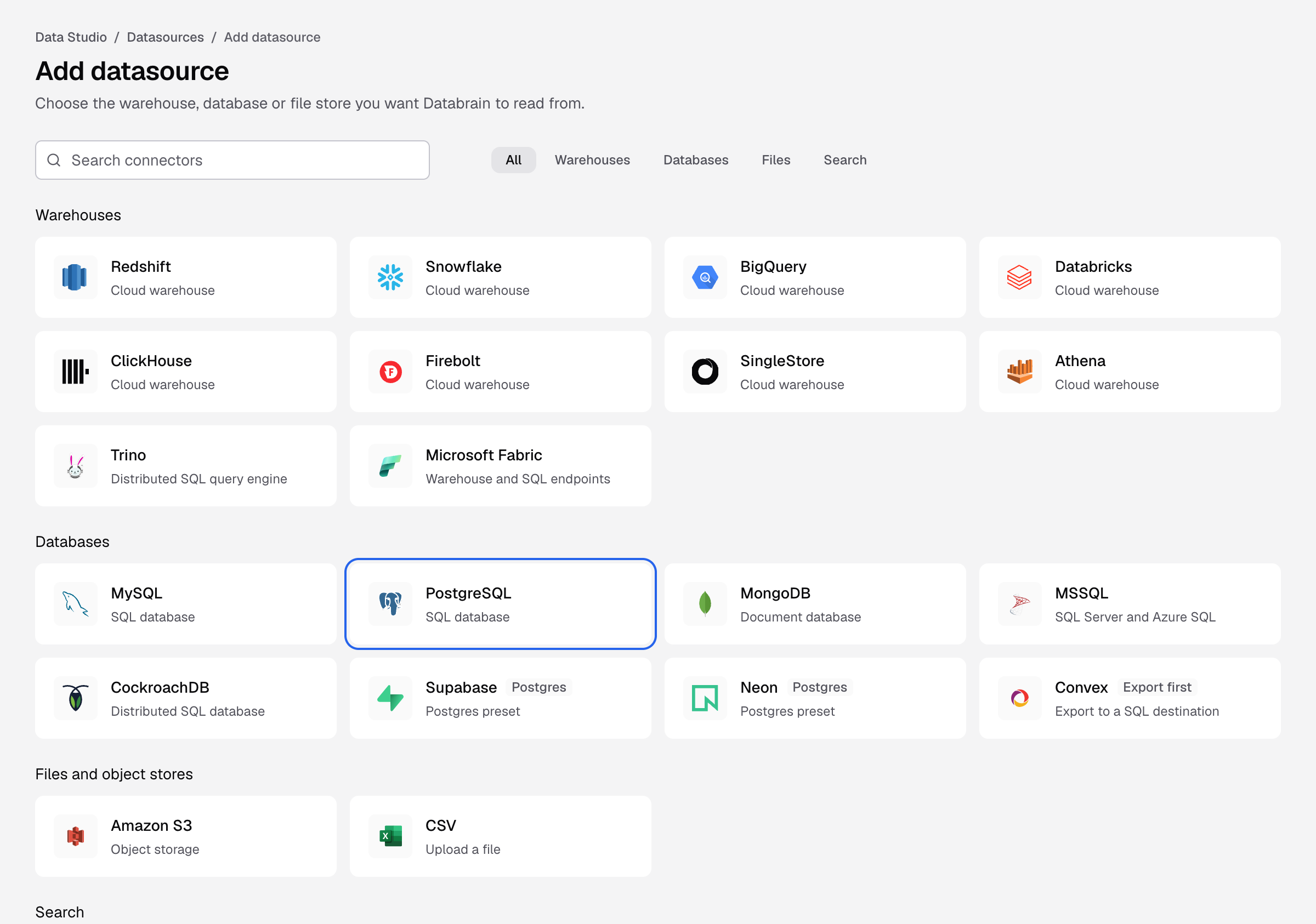
The PostgreSQL tile on the Add datasource page. -
Fill in the form:
Field What to enter Connection string Optional. Paste a postgresql://URL to fill the fields below. The URL is not saved.Datasource name How this datasource appears in lists and pickers, for example Production warehouse.Host, Port The server and port. Port defaults to 5432.Database Name The database you want to read from. Username, Password The database user and its password. Schemas The schemas to sync, case sensitive. Defaults to public.SSL mode disable,prefer(default),require,verify-caorverify-full. Amazon RDS, Neon and Supabase needrequireor stricter.SSH Tunnel disablefor a direct connection. Chooseenableto connect through a bastion host, then enter SSH Host, SSH Port (22), Username and Private key (OpenSSH or PEM). -
Select Connect datasource.
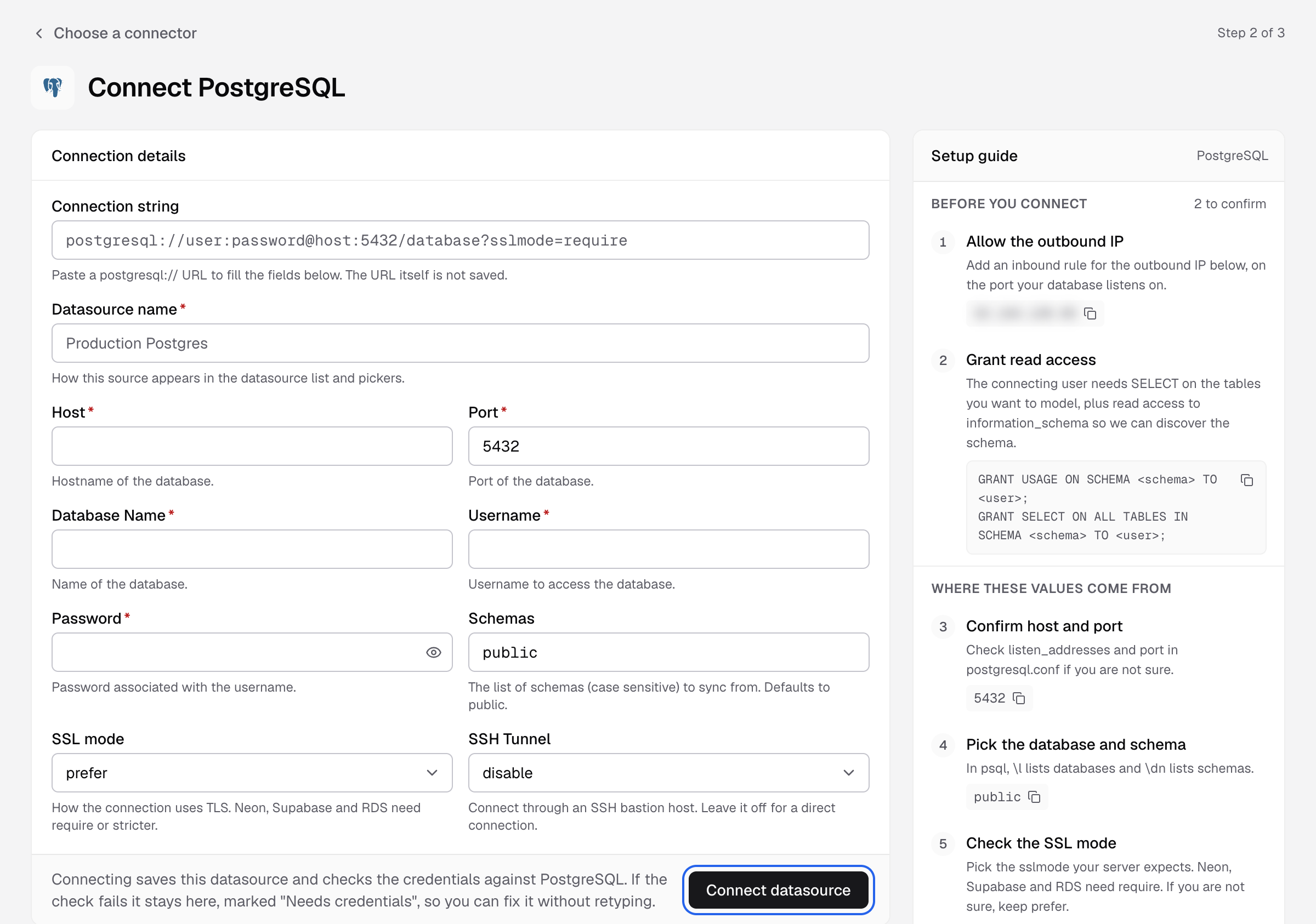
Databrain checks the connection and reads your schema. You see Step 3 of 3 with Model your data. Next, create a datamart.
Grant read access
The user needs SELECT on the tables you want to model, and read access to information_schema so Databrain can read the schema. Replace the placeholders:
GRANT USAGE ON SCHEMA <schema> TO <user>;
GRANT SELECT ON ALL TABLES IN SCHEMA <schema> TO <user>;
Where to find the values
- Host and port: check
listen_addressesandportinpostgresql.conf. - Databases and schemas: in
psql,\llists databases and\dnlists schemas.
If something goes wrong
If the check fails, the datasource stays on the form with Needs credentials. Fix the field the message names and select Connect datasource again.
- The database did not answer in time. A firewall blocks Databrain. Allow the outbound IP on the database port.
- The database rejected these credentials. Check the username and password, and that the user can sign in from a remote host.
- The credentials worked, but the user cannot read the catalogue. Run the grants above.
- The database refused the connection for this user and address. Add a
pg_hba.confrule that accepts this user from Databrain’s IP.