

Supported connectors
Connect Neon
Connect your Neon Postgres database with its connection string.
The Neon tile uses the PostgreSQL connector with SSL turned on. Your saved datasource is a PostgreSQL datasource.
Before you start
- You are an Admin or a Developer, or your role has the datasource Connect permission.
- You have a Postgres role with SELECT on the tables you want to read. A dedicated role is best.
- If your project has an IP allow list, it allows Databrain’s outbound IP. See Allow Databrain’s IP.
Copy the connection string
- Open your project in the Neon console and select Connect.
- Choose the branch, database and role.
- Copy the PostgreSQL connection string. Pooled and direct strings both work.
Connect
-
Go to Data Studio > Datasources and select Connect data source.
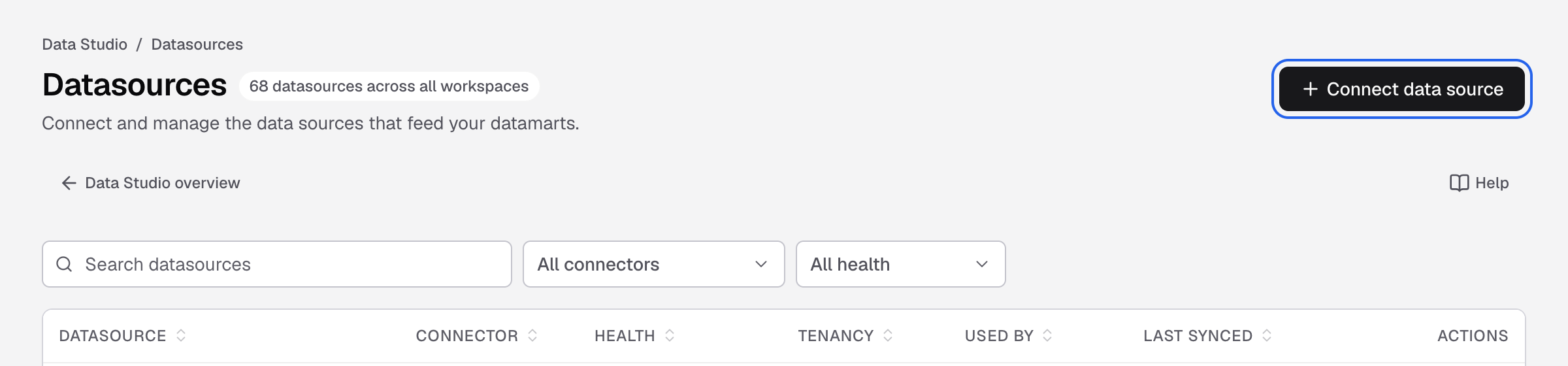
Connect data source is at the top right of the Datasources page. -
Select Neon.
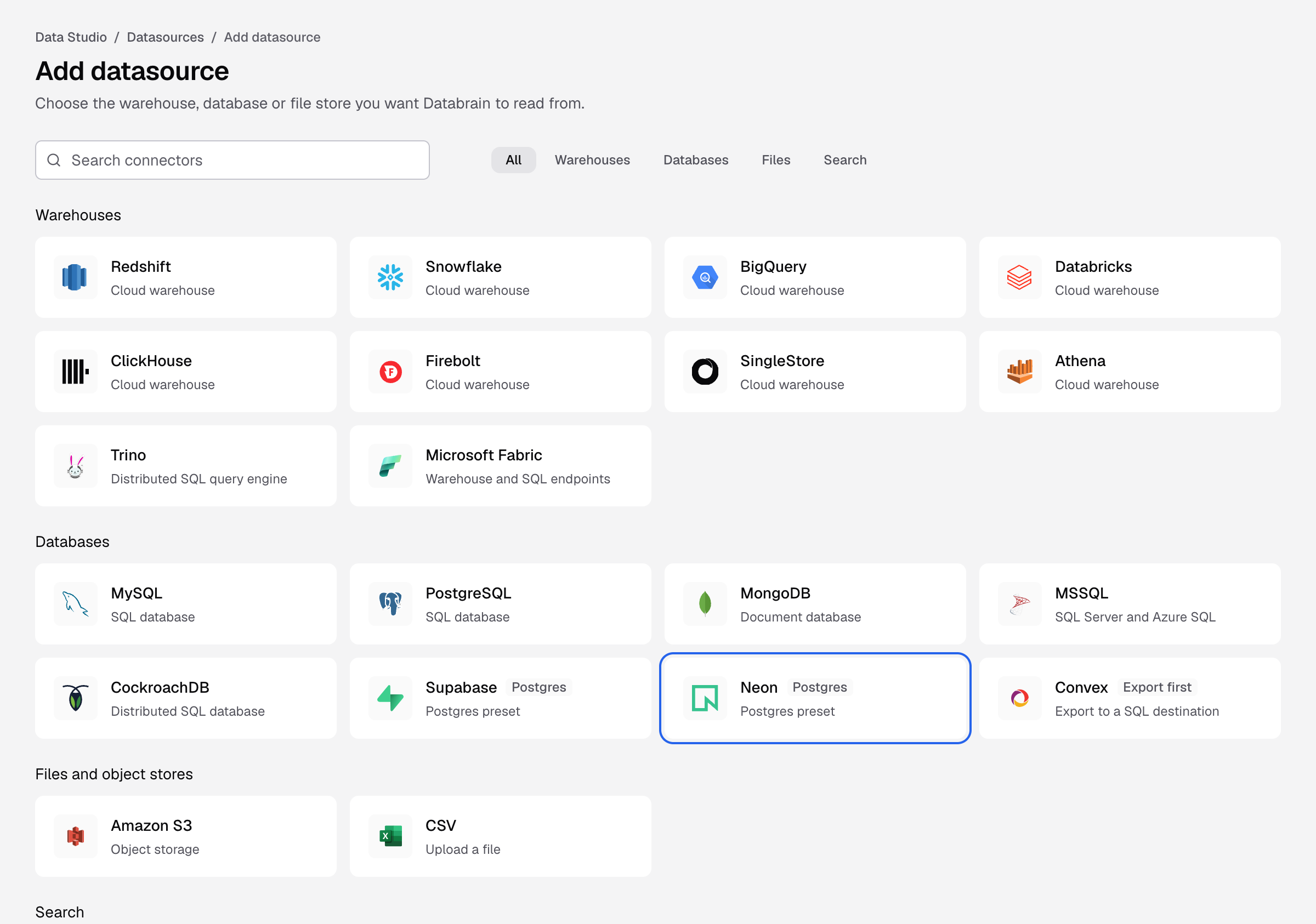
The Neon tile on the Add datasource page. -
Paste the string into Connection string. Databrain fills the host, database, user and password. A string with
sslmode=requirealso sets SSL mode. -
Enter a Datasource name, for example
Neon production. -
Keep SSL mode at
require. -
Select Connect datasource.
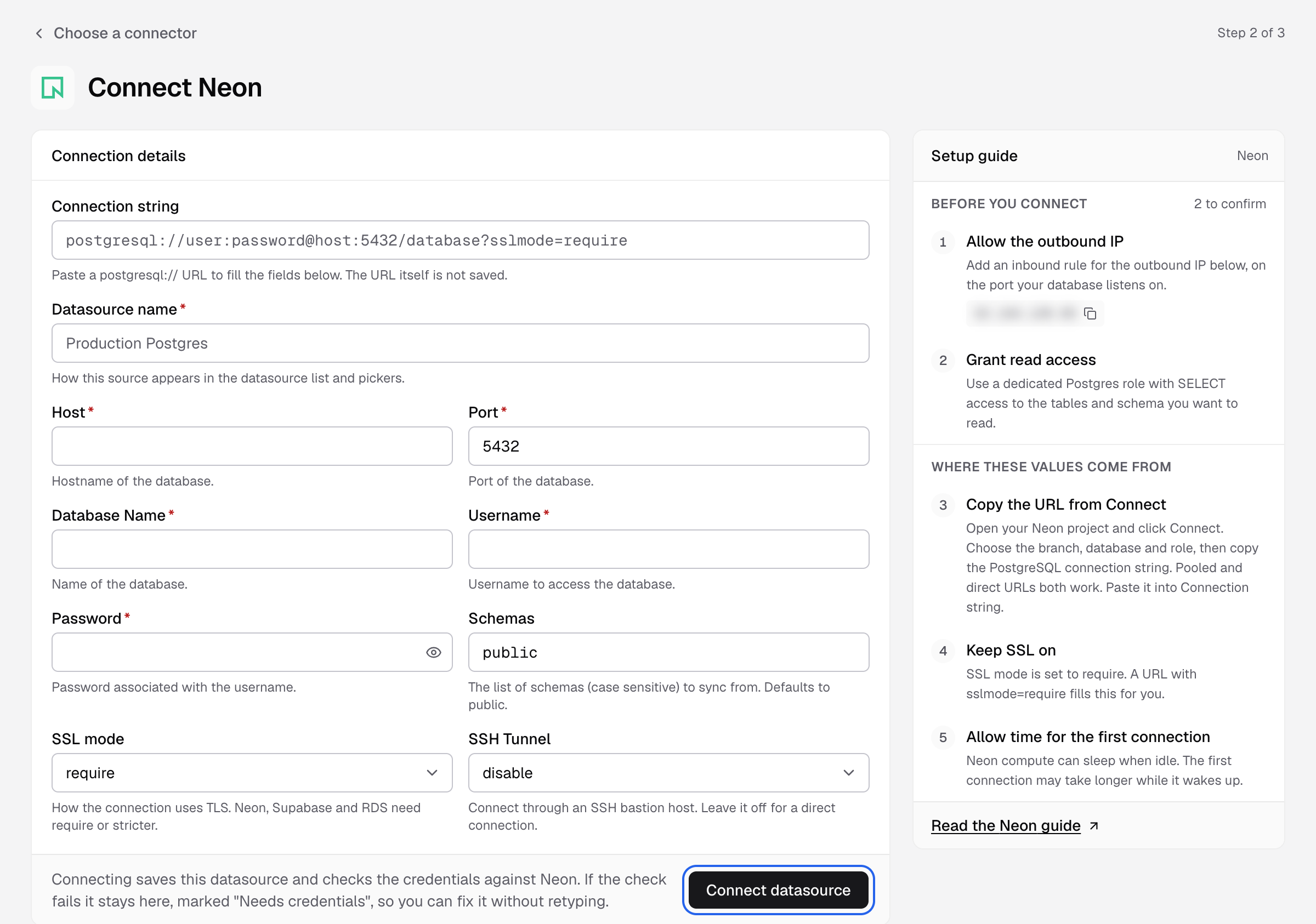
Databrain checks the connection and reads your schema. Next, create a datamart.
If something goes wrong
- The first connection is slow. Neon compute sleeps when idle. The first connection waits while it wakes up. Try again.
- The connection failed while negotiating TLS. Set SSL mode to
require.