

Connect
Create a custom dataset
Save a SQL result or an existing table as a reusable dataset, on one datasource or several.
A custom dataset is a table you define once and then model and query like any other table. It is either a saved existing table, or a virtual table defined by SQL.
Before you start
- Your role has the custom dataset Create permission. Admins, Developers and Editors have it.
- You cannot create a custom dataset on Elasticsearch, OpenSearch or MongoDB.
- From a SQL metric, the Custom dataset choice shows only when the metric reads a datasource directly. A metric on a datamart or semantic model, or in Python mode, offers only New chart and Table chart.
From a SQL metric
Use this when you already have the SQL in the metric editor.
-
Open a workspace that reads a datasource directly, and create or open a metric. Select SQL, write your query and select Run query.
-
Under the query result, select Use results.
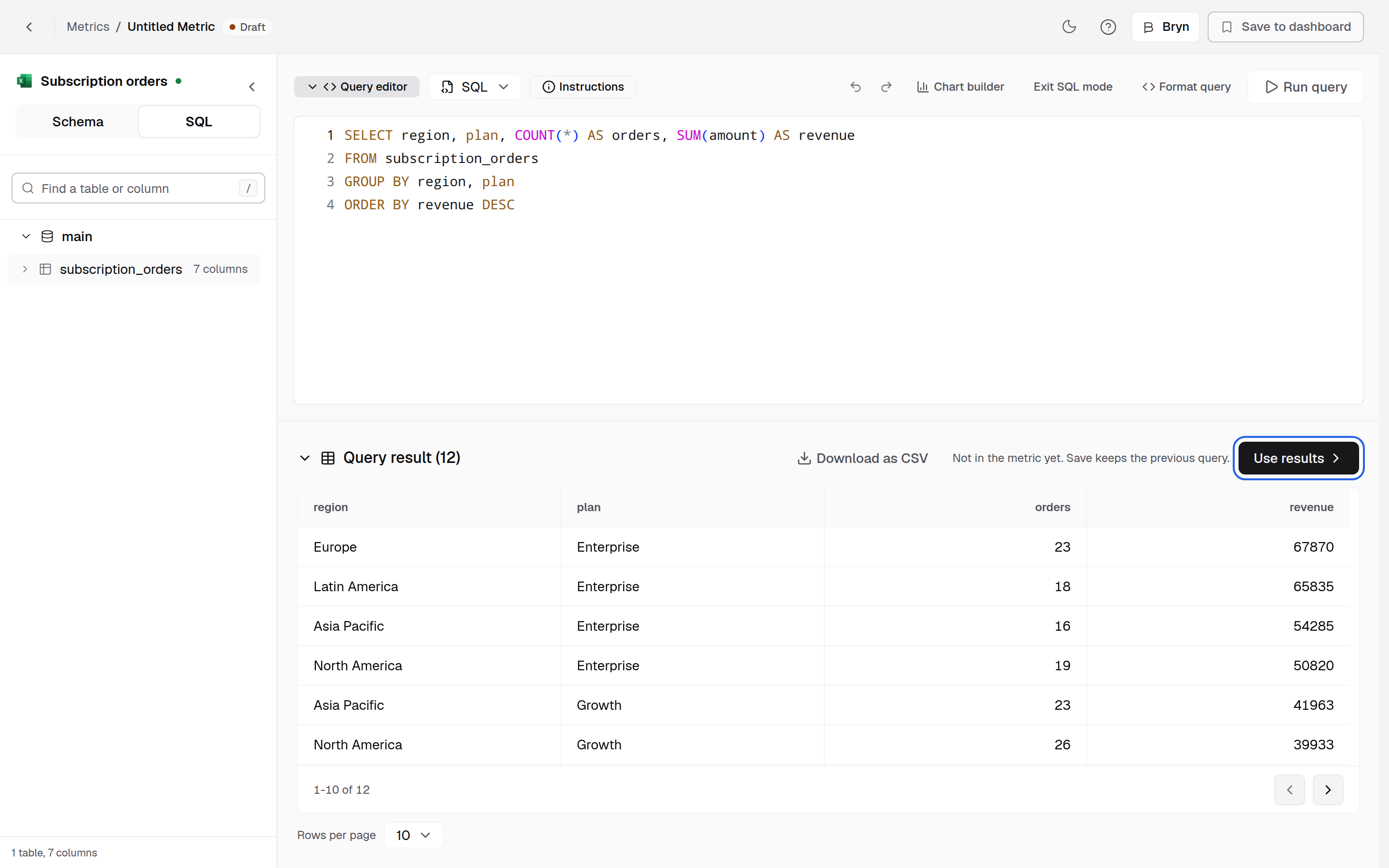
Use results appears once the query has run. -
In Use result as, select Custom dataset (Publish as a reusable, queryable dataset), then select Continue.
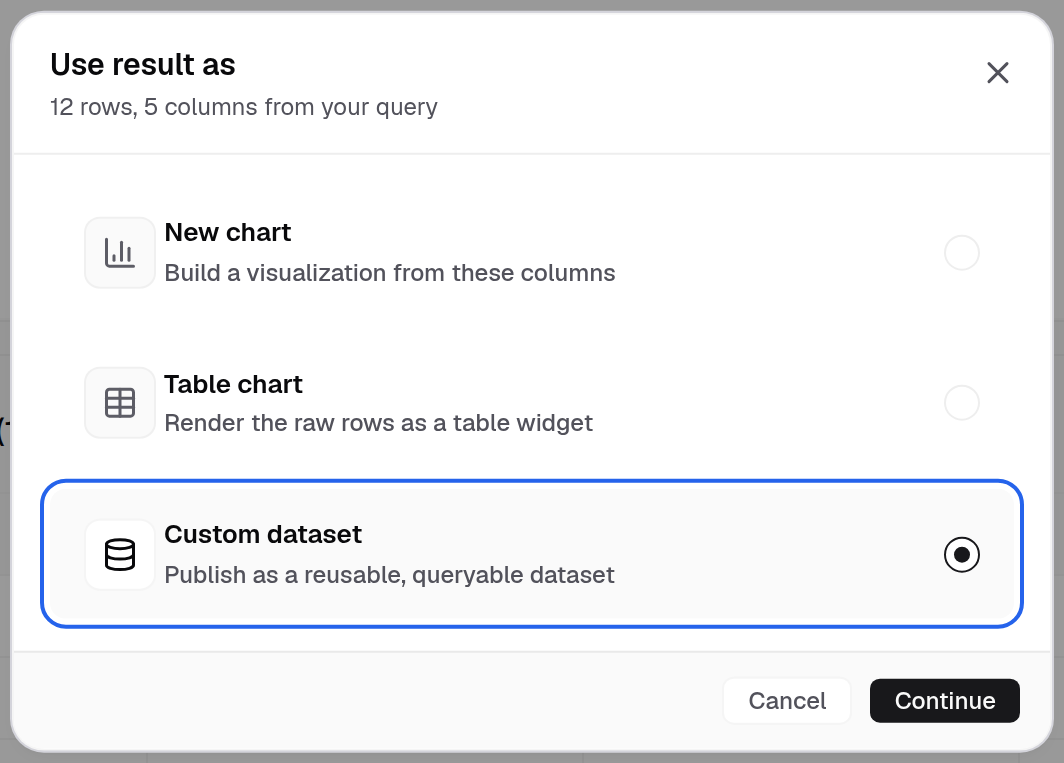
Custom dataset is the third choice, under New chart and Table chart. -
In Publish as Custom Dataset, enter a Dataset Name and select a Schema Name. If the workspace has more than one datasource or datamart, select one or more datasources under Datasource. Only enabled datasources are listed.
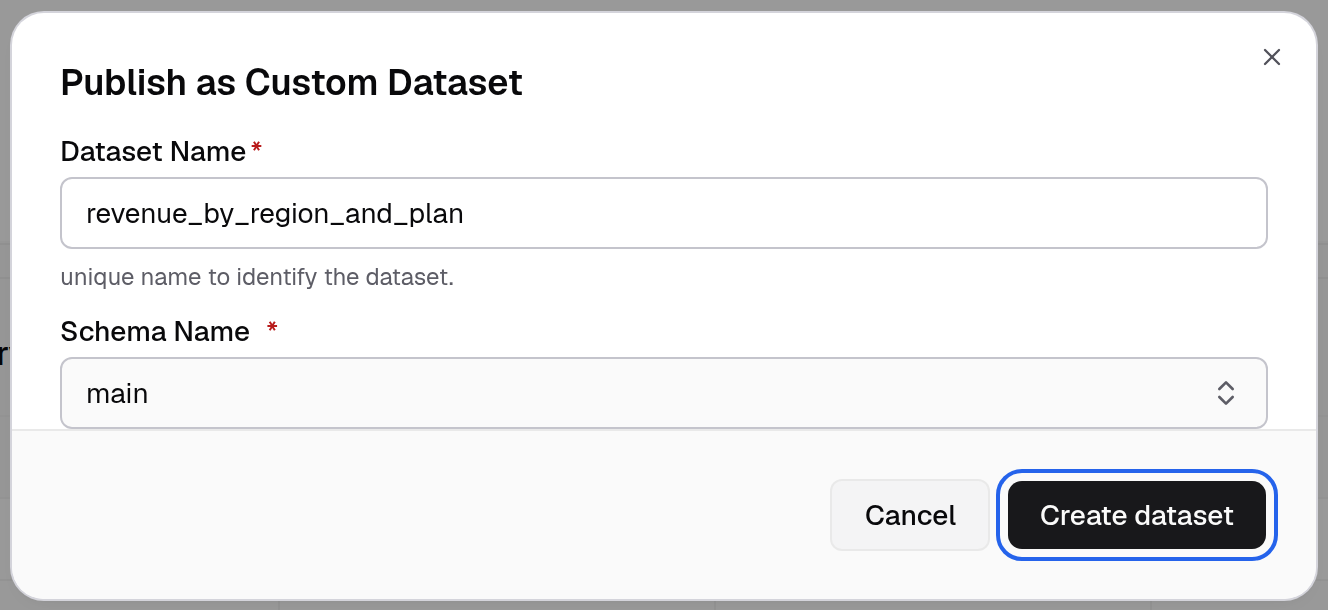
Use a name that no table in the selected datasources has. -
Select Create dataset.
A message confirms the custom dataset. In a workspace with several datasources, Databrain creates the dataset on each datasource you selected.
Custom dataset does not show in Python mode, on Elasticsearch or OpenSearch, when a datamart is selected, or without the Create permission.
From the External Datasets page
-
Open
/externalDataset/listin the app. The page is not in the Data Studio menu. -
Select New dataset.

New dataset starts a dataset from a table or a query. -
Choose a tab:

Materialized table takes SQL. Raw table takes an existing table. - Materialized table: write SQL in the editor.
- Raw table: pick an existing table, then its columns under Configure columns.
-
Select Save.
-
Under Dataset type, select Save existing table or Create virtual table. For a virtual table, enter Table name and Schema.
-
Optional: select a Client column to scope the dataset per customer.
Create virtual table creates a view in your database, then syncs the schema. The database user needs permission to create views in that schema.
If something goes wrong
- Please select a datasource. Select at least one datasource in Datasource.
- Please select a schema before saving the custom dataset. Select a Schema Name.
- Name already exists. A table with this name exists in one of the selected datasources. Choose another name.
- Saving fails while a schema sync runs. Wait for the sync to finish, then save again.