

Embedding Setup
Embed your first dashboard
Show a Databrain dashboard inside your app, with each customer seeing only their own data.
You make three things in Databrain, add one endpoint to your backend and one element to your page.
Before you start
- You are an Admin or Editor in Databrain.
- You have a dashboard to show. Note its Dashboard ID. Find a dashboard ID
- Your company has the Enterprise plan, or Databrain turned on Embedding for it.
Steps
-
Create the data app.
- Go to Data Studio > Data Apps and select Create data app.
- Enter an App name, for example
Customer Portal. - For Data app type, select Embedded. Select a Workspace.
- Select Create data app.
-
Add the dashboard as an embed. The video shows this step and the snippet.
- Select the Embeds tab, then Add embed.
- Select the Workspace, keep Embed type as Dashboard and select the Dashboard.
- Select Create embed.
-
Create an API token for your backend.
- Select the API tokens tab, then Generate API token.
- Enter a Name, for example
Production backend, and select Generate API token. - Select Copy token and store it in your backend secrets as
DATABRAIN_API_TOKEN. You see the full token only once.
-
Add a token endpoint to your backend. It creates one guest token per signed-in user.
server.js app.get('/api/databrain-token', requireSignedInUser, async (req, res) => { const response = await fetch( 'https://api.usedatabrain.com/api/v2/guest-token/create', { method: 'POST', headers: { Authorization: `Bearer ${process.env.DATABRAIN_API_TOKEN}`, 'Content-Type': 'application/json', }, body: JSON.stringify({ clientId: req.user.companyId, // your customer company (tenant) dataAppName: 'Customer Portal', // exact data app name params: { userIdentifier: req.user.id }, // the person viewing }), } ); const { token, error } = await response.json(); if (error) return res.status(response.status).json({ error }); res.json({ token }); });What
clientIdmust be depends on your tenancy level. See Create a guest token. -
Install the package in your frontend.
npm install @databrainhq/plugin -
Load the web components once, in browser code.
import '@databrainhq/plugin/web'; -
Fetch a guest token and show the dashboard.
const { token } = await fetch('/api/databrain-token').then((r) => r.json()); const dashboard = document.createElement('dbn-dashboard'); dashboard.setAttribute('token', token); dashboard.setAttribute('dashboard-id', 'revenue-overview'); dashboard.style.display = 'block'; dashboard.style.height = '800px'; document.querySelector('#analytics').replaceChildren(dashboard); -
Add your site to the allowed domains. In the data app, select Domains, enter your domain, for example
app.example.com, and select Add. The list is shared by every data app in your company.
You see the dashboard on your page, with only the rows of the signed-in user’s company. Next, check your setup before go-live.
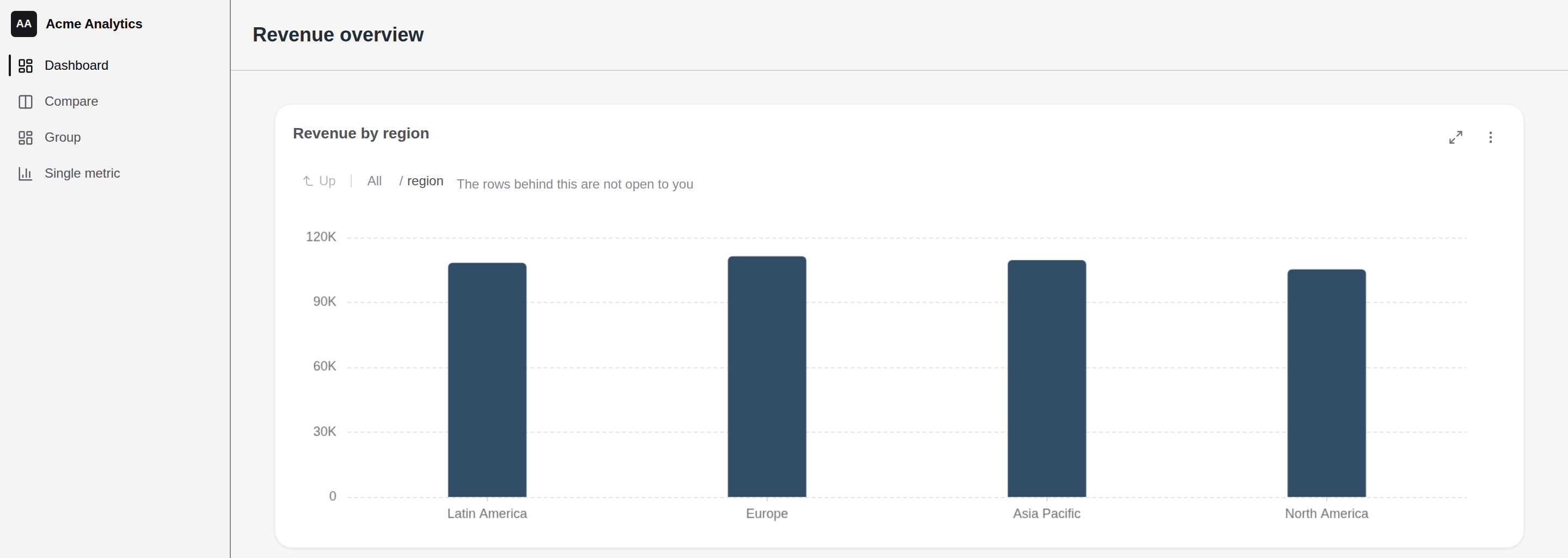
To see this view before you write code, open the embed’s Get snippet dialog, select Copy snippet, then Create test guest token and Preview as customer.
To show one chart instead of a whole dashboard, use <dbn-metric> with metric-id. Find a metric ID
For React, Next.js, Vue, Angular, Svelte and Solid, see Pick your framework.
If something goes wrong
- The embed says
UNAUTHORIZED_ORIGIN. The page’s domain is not on the Domains list. Add it. - The embed says
DASHBOARD_NOT_FOUND. Thedashboard-idis not an embed of this data app. Copy it from Embeds > Get snippet. - The token request returns 403
entitlement_required. Embedding is not on your plan. See Create a guest token. - The console says
no dashboard-id was setorlooks like a name, not an id. Setdashboard-idto the dashboard’s ID, not its name. - The dashboard is cut off or has no height. Give the element, or the box it sits in, a fixed height.