

Ship
Add an embed to a data app
Choose the dashboard or metric your customers see, and get the code for your app.
Before you start
- You have a data app.
- Your role has the Data App Create or Edit permission.
Steps
- Go to Data Studio > Data Apps and open the data app.
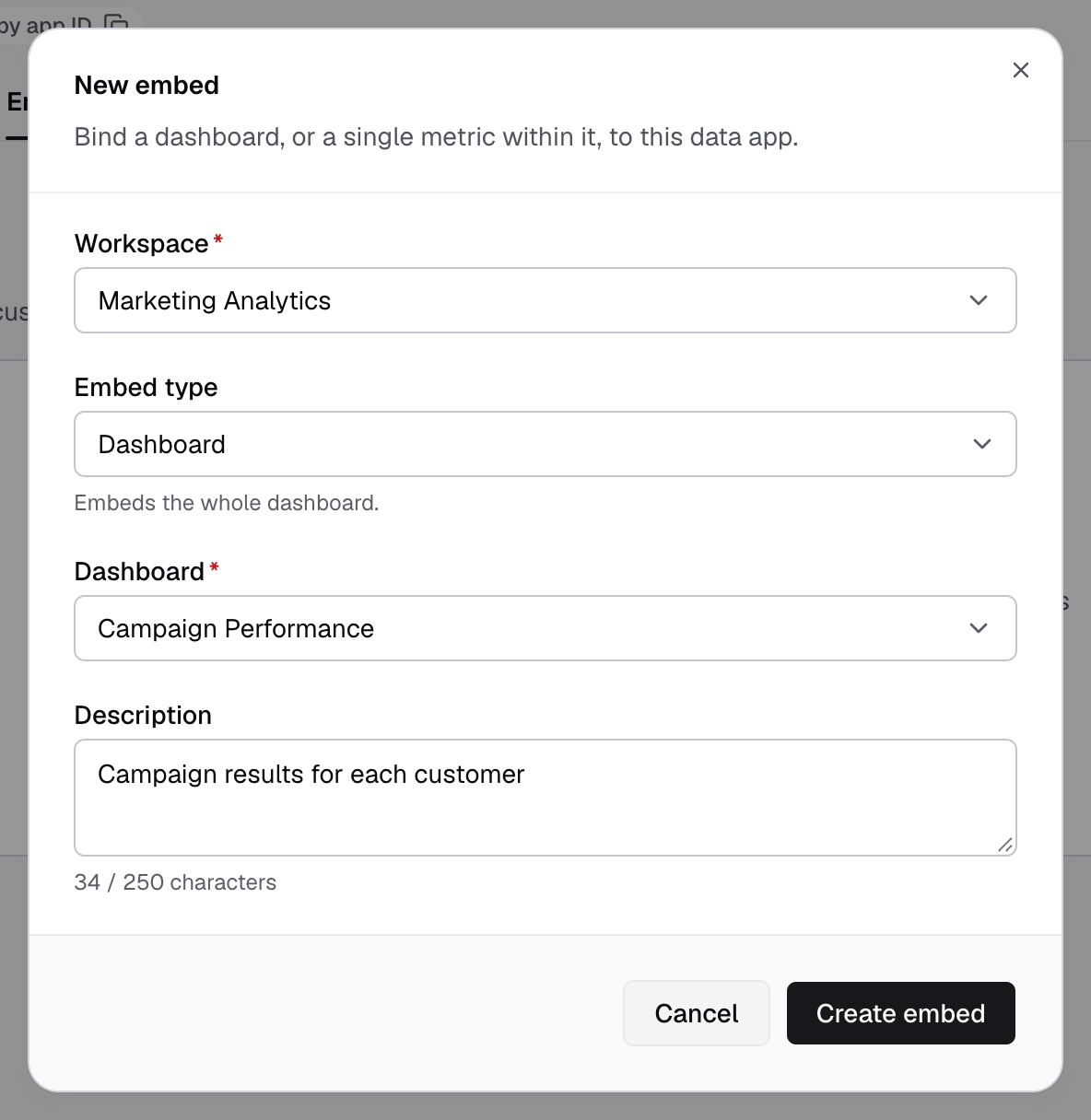
- Select Embeds, then Add embed.
- Choose the Workspace.
- Choose the Embed type:
- Dashboard: embeds the whole dashboard. Pick the Dashboard.
- Metric: embeds one metric. Pick the Dashboard, then the Metric.
- Optional: enter a Description, up to 250 characters.
- Select Create embed.
You see Embed created. The embed appears in the table with its Key and Type.
Get the code
- On the embed’s row, select Get snippet.
- Optional: set Appearance to Use saved theme, Light, Dark or System.
- Select Copy snippet and paste it into your app.
The snippet looks like this:
<dbn-dashboard token="token" dashboard-id="<your-dashboard-id>"></dbn-dashboard>Replace token with a guest token from your backend. To test first, select Create test guest token, then Preview as customer. The test token works for one hour.
Control what your customers can do
Select the embed’s row to open Access control. Turn on what end users may do in this embed, such as Create metrics, Schedule email reports or View underlying data. See Data app settings.
If something goes wrong
- Pick a dashboard. Choose a dashboard before you select Create embed.
- Add embed is locked. Embedding needs the Enterprise plan.