

Ship
Create a data app API token
Make the key your backend uses to create guest tokens for a data app's embeds.
Before you start
- You have a data app.
- You are an Admin, or your role has the API Tokens Create permission. Of the default roles, only Developer has it.
Steps
-
Go to Data Studio > Data Apps and open the data app.
-
Select API tokens, then Generate API token.
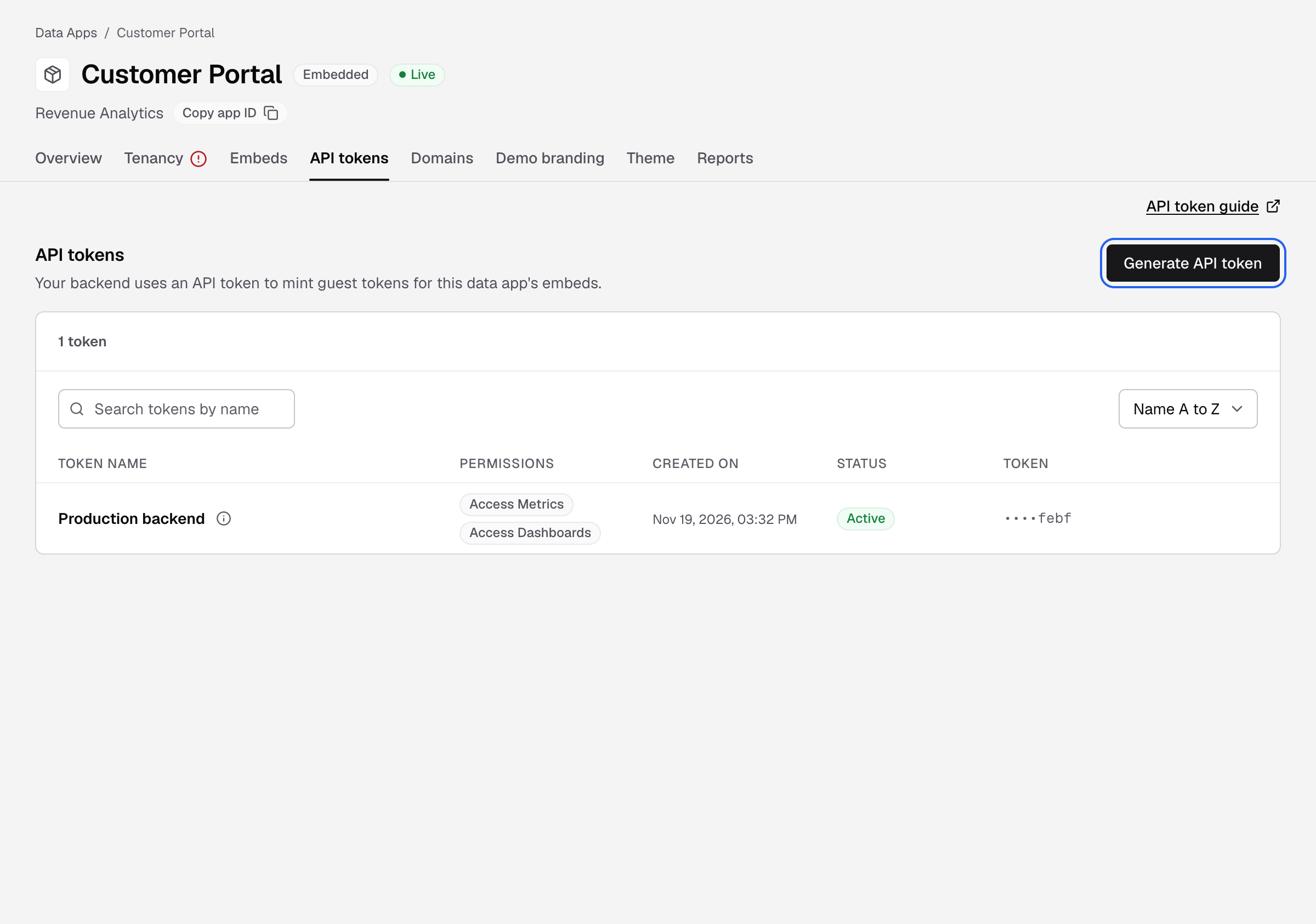
The API tokens tab lists each token by name with its last 4 characters. -
Enter a Name, for example
Production backend, and an optional Description.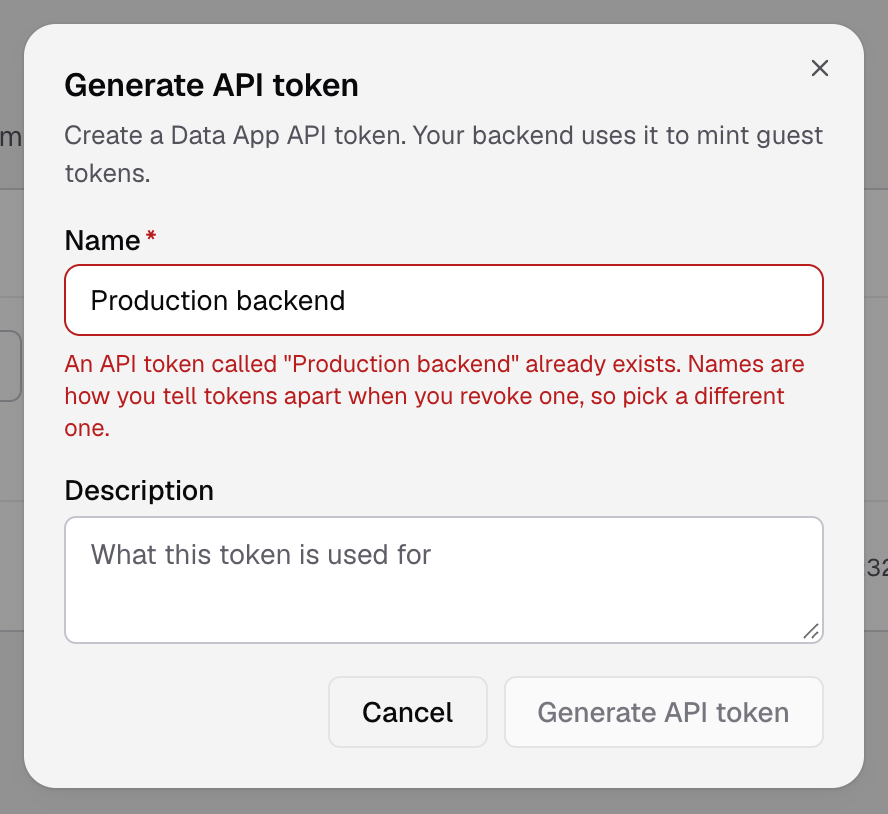
Name the token after the backend that uses it. -
Select Generate API token.
-
Select Copy token and store it in your backend’s secret store.
-
Select Done.
You see the full token only once. After you close the window, the table shows only its last 4 characters. Keep it on your backend. Never put it in browser code.
The token can read metrics and dashboards (Access Metrics, Access Dashboards). Next, use it to create a guest token.
Rotate a token
-
On the token’s row, select Rotate token.
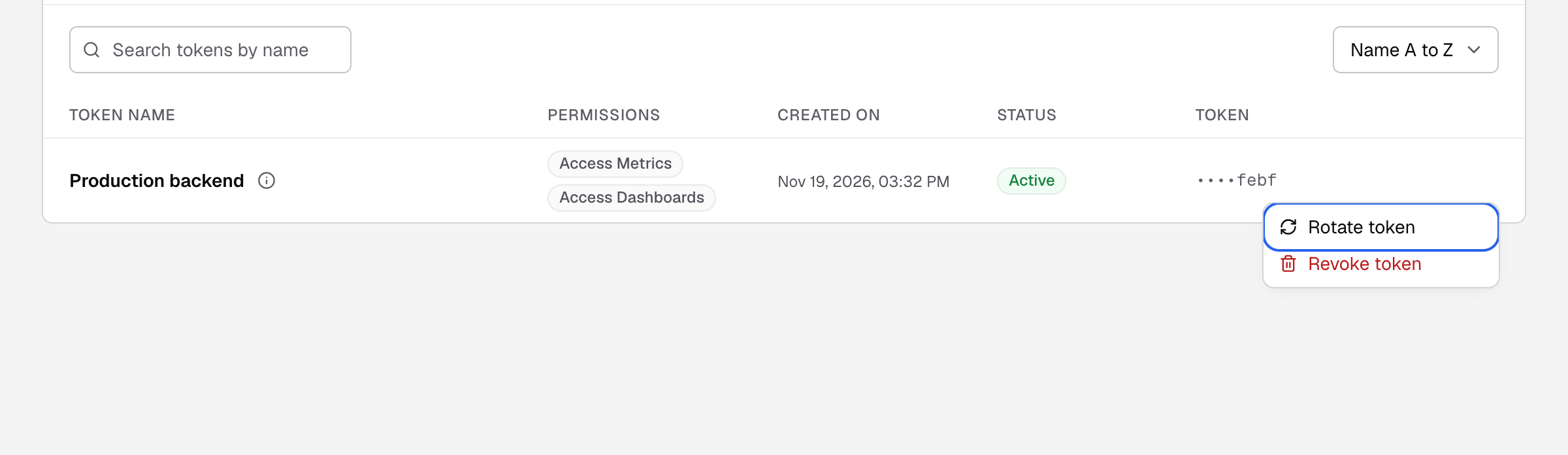
Rotate keeps the old value working for 24 hours. -
Confirm.
-
Select Copy new token, then Done.
The old value keeps working for 24 hours, so you can update your backend without downtime.
Revoke a token
On the token’s row, select Revoke token and confirm. It stops working at once and cannot be undone. To replace a token without downtime, rotate it instead.
Other tokens
Settings > Tokens holds organization-wide service tokens for server-to-server API and MCP access. They are not data app tokens. See API token.