

Ship
Configure a data app
Check tenancy, set what end users can do, allow your domains, and brand a data app.
Open a data app from Data Studio > Data Apps. Its tabs are Overview, Tenancy, Embeds, API tokens, Domains, Demo branding, Theme and Reports. A tab shows when your role has its permission.
Tenancy

Tenancy checks which rows each client gets, before you share a token. It changes nothing.
-
The banner says Risky when a surface is not scoped to the client. Select Fix to jump to it.
-
What a client gets, on each surface shows each place a client can see rows: Dashboard cards, Underlying data, CSV download, Raw data download, Scheduled reports and Embedded AI chat. Each says Enforced, Not scoped, Check, Off or Unknown.
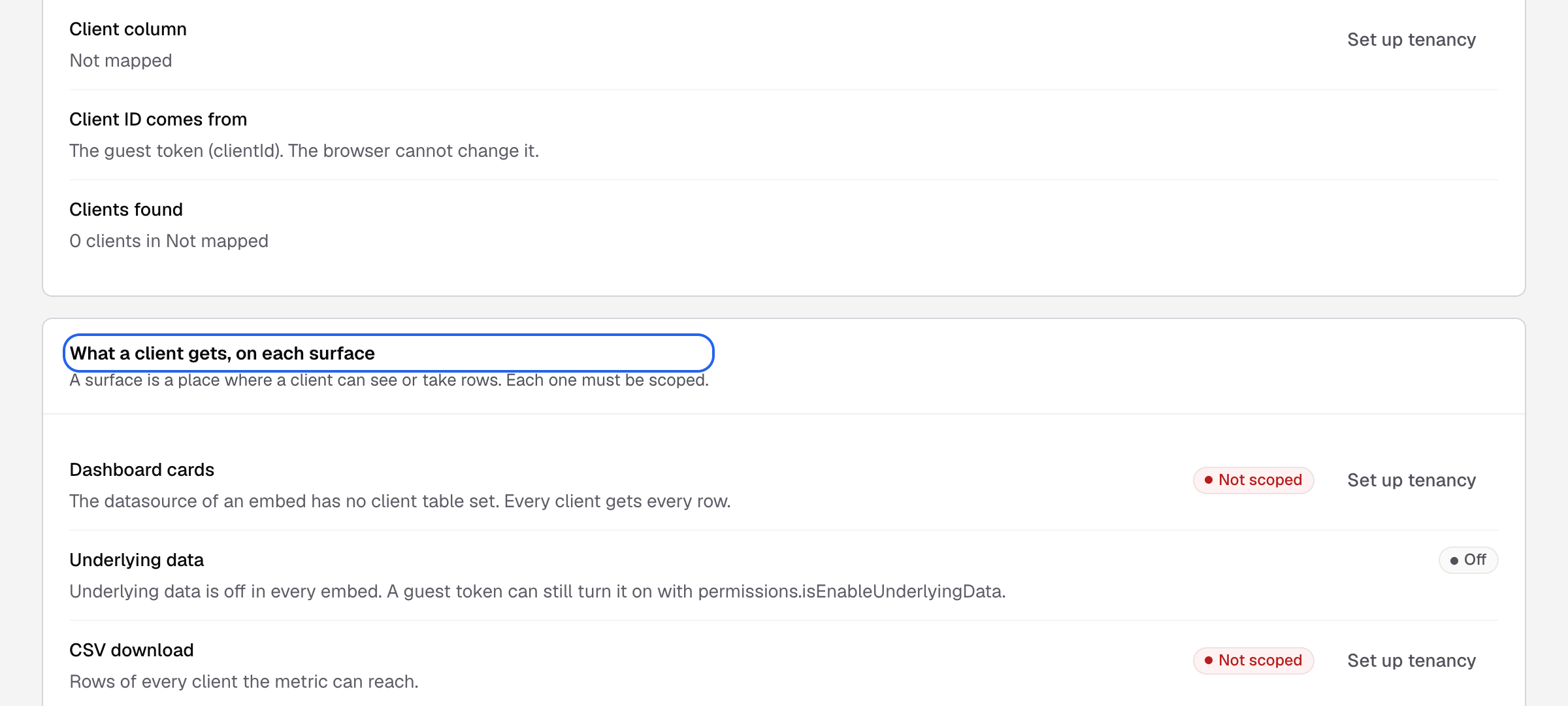
Each surface shows whether its rows are scoped to the client. -
Go-live checks say what Databrain found and where the fix lives, for example Client column mapped or Every metric filters by client.
Enforced needs a mapped client column and a client filter on every saved metric. See Configure tenants.
Embed access control
Sets what end users can do inside one embed. Needs the Business plan or higher.
-
Select Embeds, then the embed’s row.
-
Turn on what end users may do:
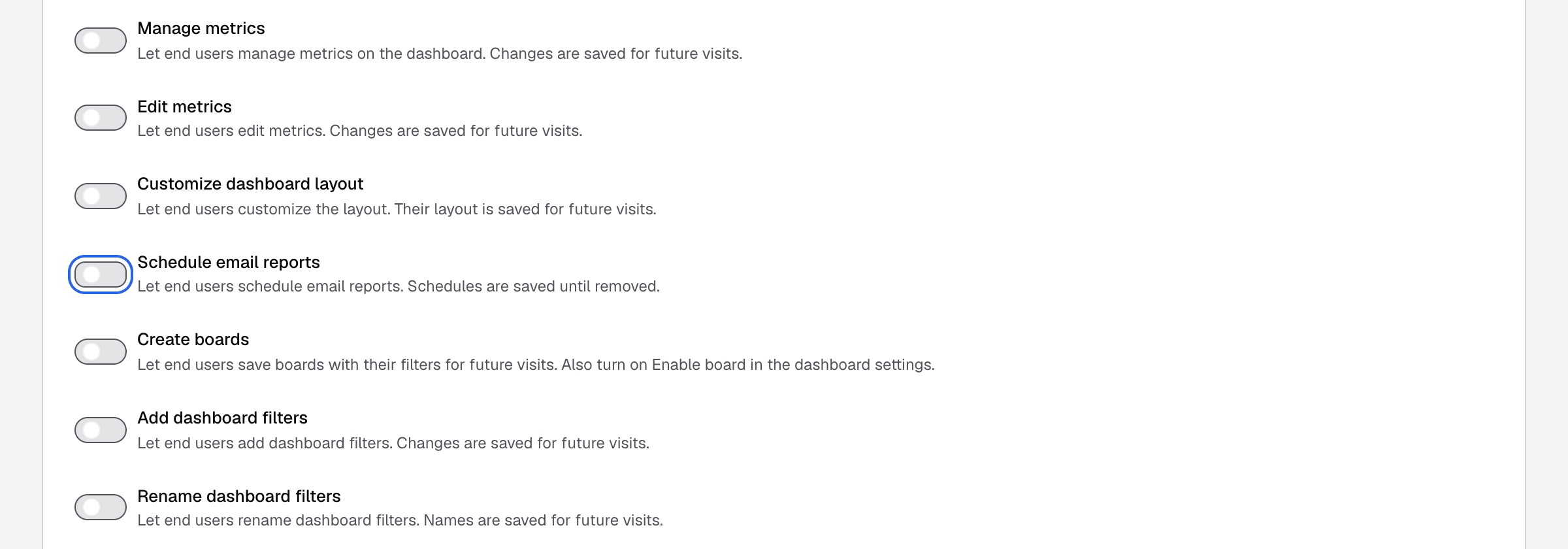
Each switch turns on one thing end users can do in this embed.
| Switch | Lets end users |
|---|---|
| Create metrics, Edit metrics, Delete metrics, Manage metrics | Build and change metrics on the dashboard |
| Customize dashboard layout | Move and resize cards |
| Schedule email reports | Schedule email reports. Needs report email set up first |
| Create boards | Save boards with their filters |
| Add dashboard filters, Rename dashboard filters | Add or rename dashboard filters |
| Add metric filters, Rename metric filters | Add or rename metric filters |
| View underlying data | See the rows behind each metric |
- If you turn on metric creation, editing or filters, choose the Datamart they use.
- Select Save.
End users’ changes are saved for their future visits.
Embed options
Get snippet on an embed adds options to the code, for example:
enable-download-csv: CSV on each card’s menu.enable-download-all-pdf: download the whole dashboard as PDF.disable-download-png: hide PNG download.disable-fullscreen: hide full screen.
See Options for the full list.
Domains
Your dashboards load only on the sites in this list. Every data app in your company uses the same list.
-
Select Domains.
-
In Add a domain, enter your app’s domain, for example
app.acme.com, and select Add. A pasted URL keeps only the domain.*.acme.com, an IP address andlocalhostalso work, with an optional port.
Type your app's domain, then Add. -
Select Save domains.
Demo branding and Theme
-
Demo branding: the logo, date format and colors of this app’s preview dashboards. Select Customize for this data app to change them only here. See Embed settings.
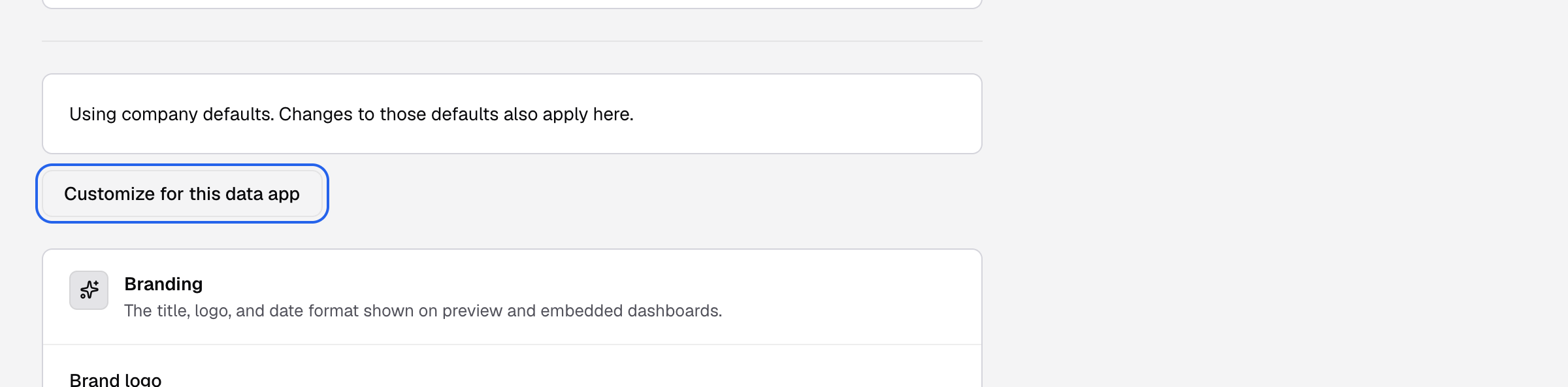
A data app uses the company demo branding until you customize it. -
Theme: select Customize for this data app to give this app its own theme. A theme set in the embed code still wins. See Preview and apply a theme.
Reports
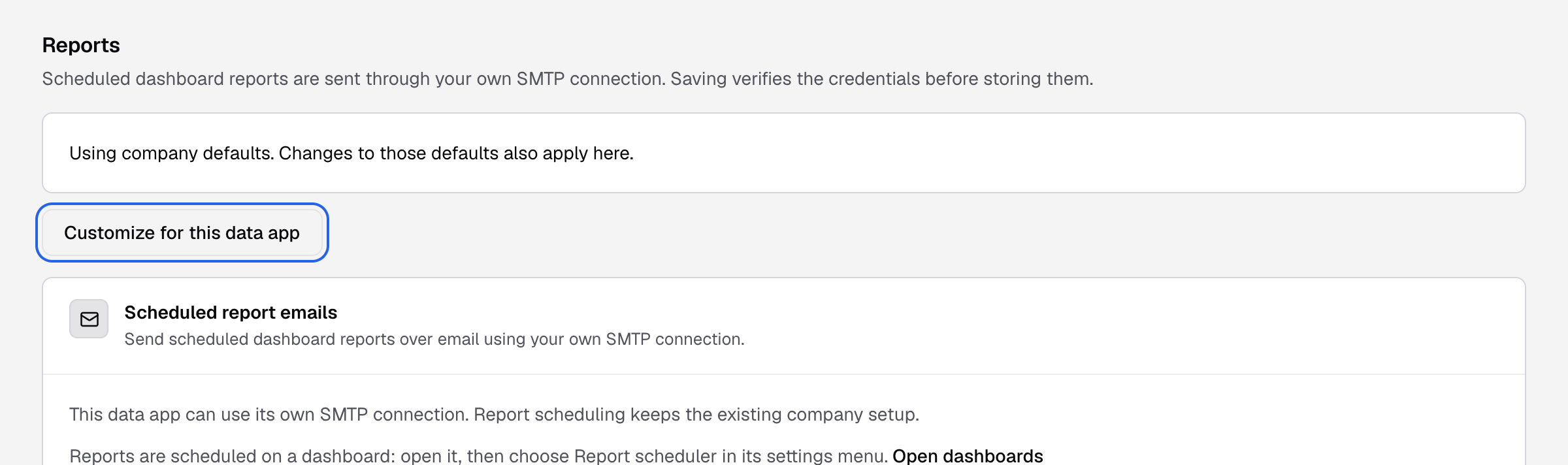
Reports sets the email connection for this app’s scheduled reports, and lists every scheduled report in the company. Select Customize for this data app to use a different SMTP connection here. Set up company report email first. See Email settings for scheduled reports.
Slack and Microsoft Teams
A Slack or Teams data app answers questions in one channel, using the workspace you chose when you created it. It has one page, Integration settings.
- Slack: select Connect to Slack, approve in the Slack tab, then pick the Slack channel and select Save settings. People mention the Databrain bot in the channel with a question. The bot replies in a thread with the answer and a chart.
- Microsoft Teams: enter the Team Id and Channel Id, then select Save settings.
The workspace must read from a datamart. Answers use AI credits.