

Embed & Distribution
Set demo branding and embed behavior
Brand the preview and demo dashboards, and choose how often embedded dashboards refresh.
Settings > Embed & Distribution holds company-wide embed settings: UI Theming, Email Settings, Demo branding, Embed behavior and Guest token usage. They need the Enterprise plan.
Demo branding
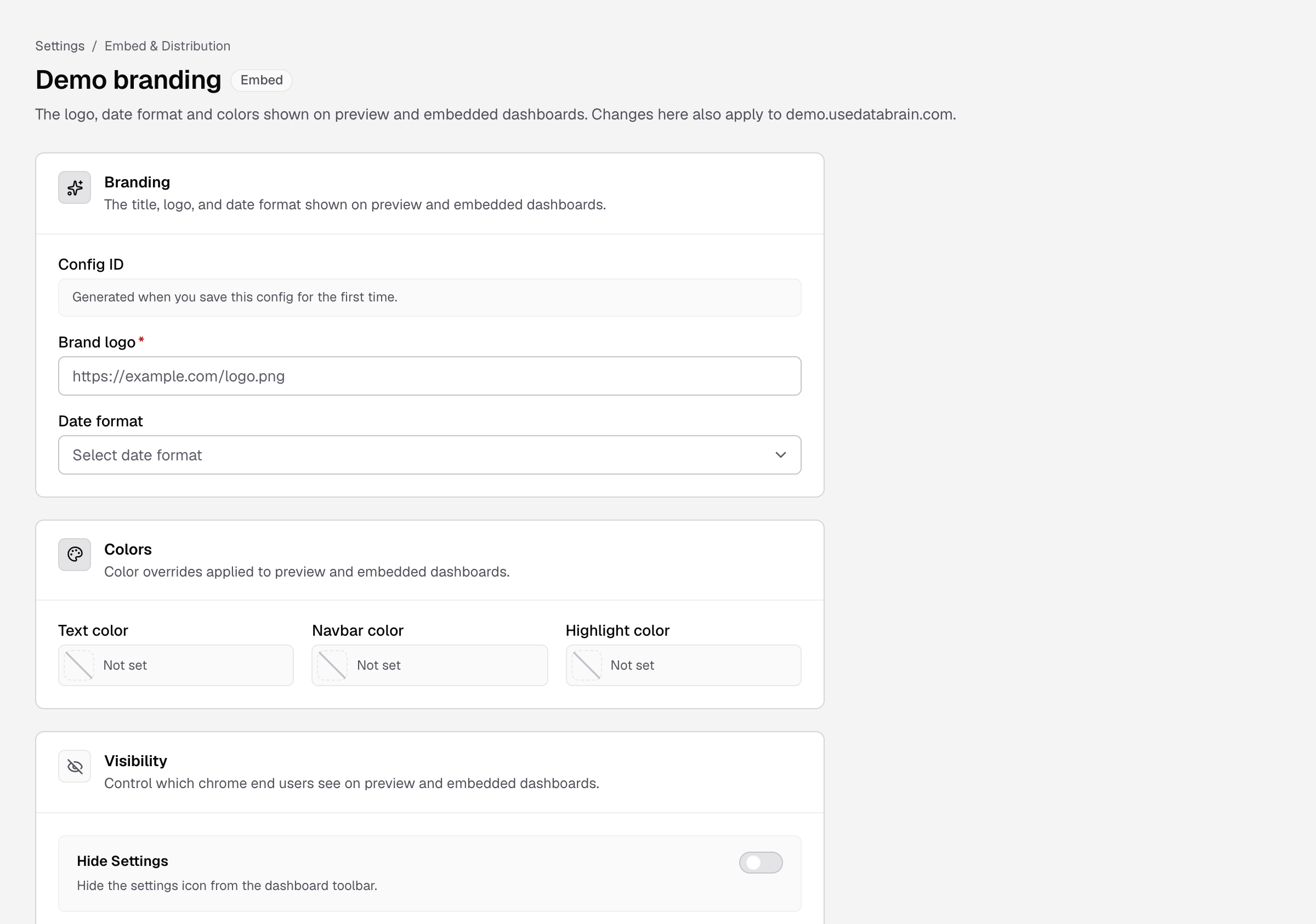
Sets the logo, date format and colors of preview and demo dashboards.
- Go to Settings > Demo branding.
- Under Branding, enter the Brand logo URL, for example
https://example.com/logo.png, and choose a Date format. - Under Colors, set Text color, Navbar color and Highlight color.
- Under Visibility, turn on Hide Settings or Hide Profile to hide the settings icon or the user profile menu.
- Select Save config.
Reset config puts every field back to the default. A data app can have its own copy: open the data app, select Demo branding, then Customize for this data app.
Embed behavior
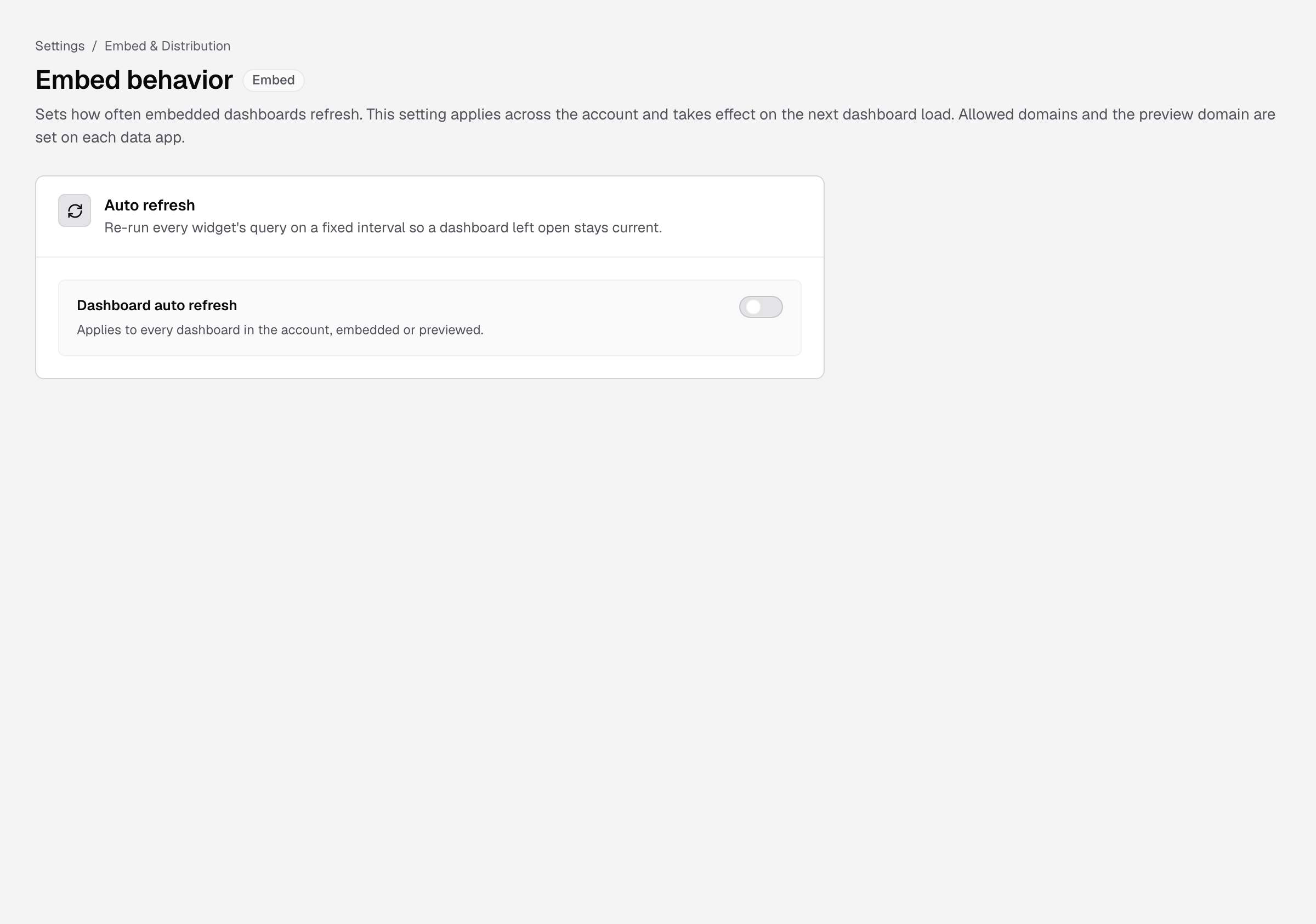
Sets how often embedded dashboards refresh. It applies to every dashboard in the company, embedded or previewed, from the next load.
- Go to Settings > Embed behavior.
- Turn on Dashboard auto refresh.
- Enter the Refresh rate (seconds), 5 or more.
- Select Save changes.
Each widget now re-runs its query at that rate. You need the Cache Settings Edit permission.
Moved to data apps
- Allowed domains are on each data app’s Domains tab. The list is shared by every data app. See Data app settings.
- Download options, such as PDF and CSV download, are options on each embed. See Data app settings.