

Embed & Distribution
Create a theme
Make embedded dashboards look like your product: colors, fonts, cards, charts and tooltips.
Before you start
- You are an Admin, or your role has the UI Theming Create permission.
- Theming is on the Enterprise plan.
Steps
- Go to Settings > UI Theming and select Add new theme.
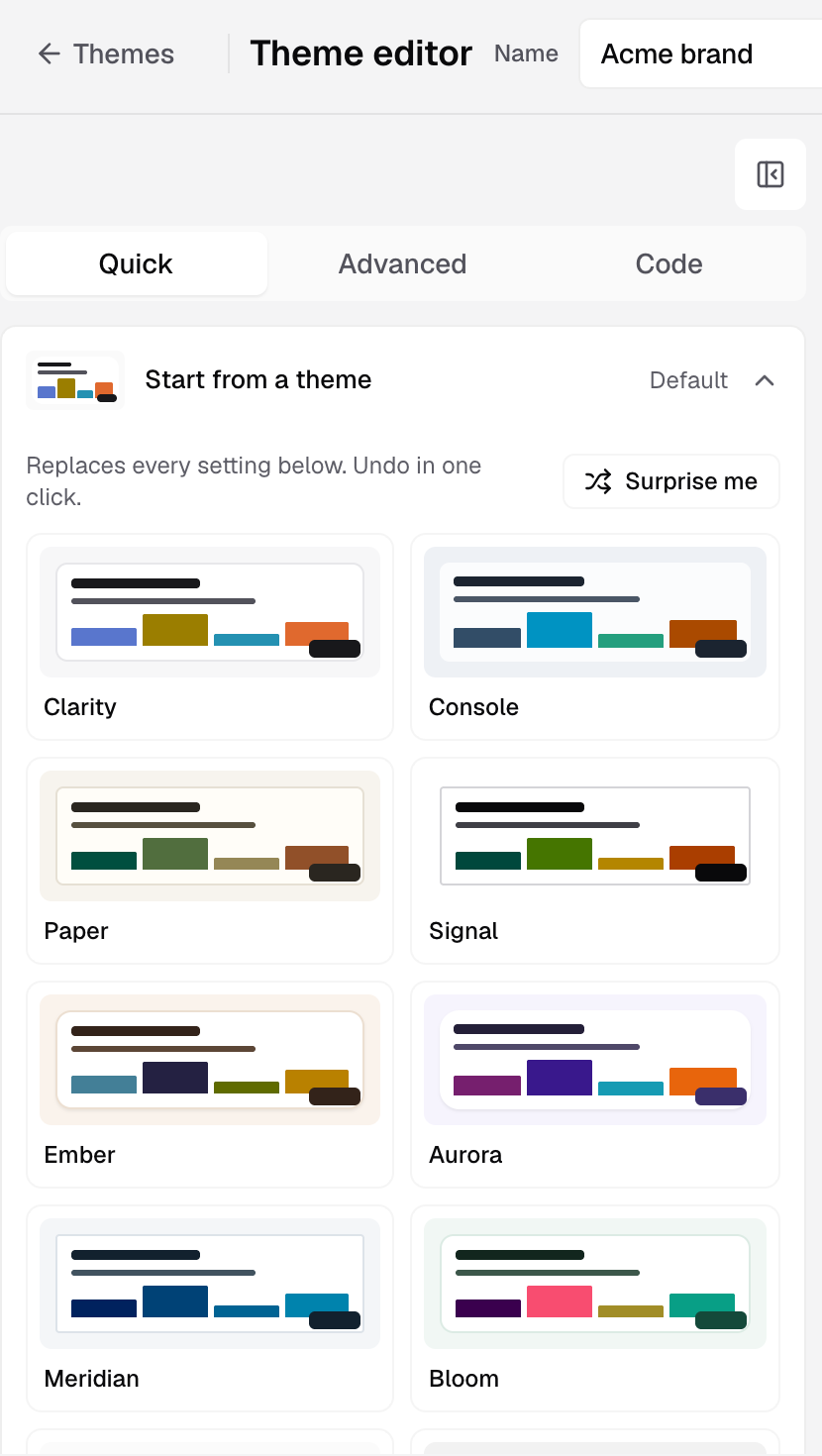
- Enter a Name, for example
Acme brand. - In Quick mode, set the basics:
- Start from a theme: pick a preset, or select Surprise me. This replaces every setting below.
- Base color mode: Light, Dark or Auto. Auto follows each viewer’s light or dark setting.
- Brand color: buttons and highlights.
- Font, Page background, Card background, Title color.
- Corner roundness, Density and Card shadow.
- Chart colors: the palette for charts.
- Watch the Preview on the right. It shows a real dashboard with your settings.
- Select Save theme.
The theme appears in the UI Theming list. Next, apply it.
More control
- Advanced mode has every setting, in sections: Appearance, Page and layout, Cards, Filters and buttons, Tables, Chart text and Tooltips. In Tooltips, Pointer line sets the guide line over a line chart to Dashed or Solid.
- Code mode shows the Theme JSON. Select Import file, Format, Copy or Export. An imported file keeps the name in the Name field.
- In the Preview, select Pick, then a part of the dashboard, to jump to its setting.
Contrast checks
The editor checks that text and chart colors are readable in light and dark mode. When a pair fails, you see a contrast warning. Select Fix to fix every warning at once, or Review to see each fix. Undo puts your colors back.
Manage themes
In Settings > UI Theming, each row has:
- Mark default: the company default theme.
- Edit: open the editor. Save with Update theme.
- Delete: embeds that use the theme fall back to the default. Deleting the default leaves new embeds with no theme until you mark another one.
Themes are shared by every data app and workspace in your company. Editing one changes it everywhere it is used.