

Embed & Distribution
See how your embeds are used
Check every guest token your data apps issued, what it loaded, and whether its theme is readable.
Before you start
- You are an Admin, or your role has the Guest Token Usage Logs View permission. No default role has it.
Steps
- Open the workspace you want to check from Home.
- Go to Settings > Guest token usage. The page shows that workspace.
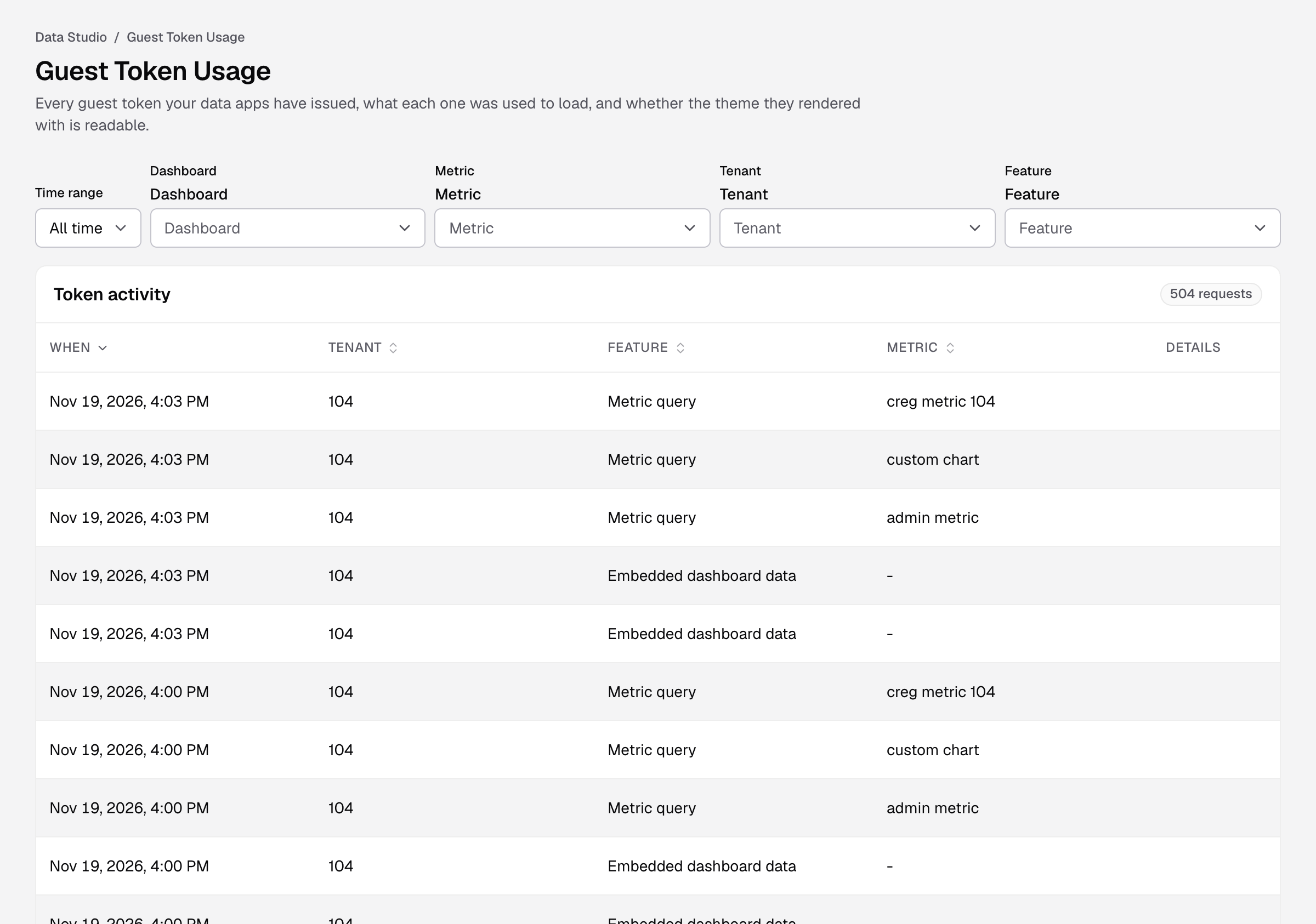
- Filter by Time range, Dashboard, Metric, Tenant or Feature.
- Select Details on a row to see the tenant, feature, dashboard and metric.
Each row is one request made with a guest token. Feature says what the request did, for example Embedded dashboard data, Metric query or Download metric. The table never shows the token itself.
If your data apps have not issued a token yet, you see No guest tokens have been used yet. Select Set up a data app to start.
Theme contrast
Theme these tokens rendered with grades the colors of the theme applied to this workspace against WCAG AA: 4.5:1 for text, 3:1 for chart marks.
- Each failing pair shows Where it shows, its Contrast, the Required value and What to change.
- Select Open theme editor to fix it. See Create a theme.
The grade covers embeds that set neither theme-name nor admin-theme-options. Requests that set either one rendered a different theme, and the logs do not record which.
If something goes wrong
- Could not load guest token activity. Select Try again.
- No requests match these filters. Select Clear filters.