

Embed & Distribution
Preview and apply a theme
Check a theme on real dashboards, then choose where it applies.
Preview a theme
-
Go to Settings > UI Theming and select Edit on the theme.

Edit opens the theme in the editor with its preview. -
In the Preview, choose the workspace and dashboard to show.

Pick the workspace and dashboard the preview shows. -
For a workspace with table tenancy, choose a client to see that client’s data.
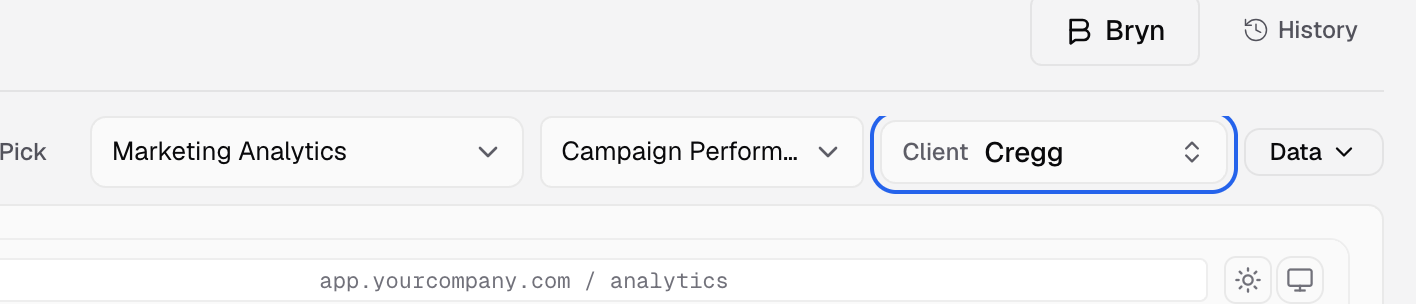
Client shows the preview as that customer. -
Use the preview controls:
-
Data: show live data, or a copy saved in this browser.
-
Dark app page: show the dashboard on a dark page around it.
-
Phone width: show the dashboard at phone width.
-
Preview as Light or Dark, when Base color mode is Auto.
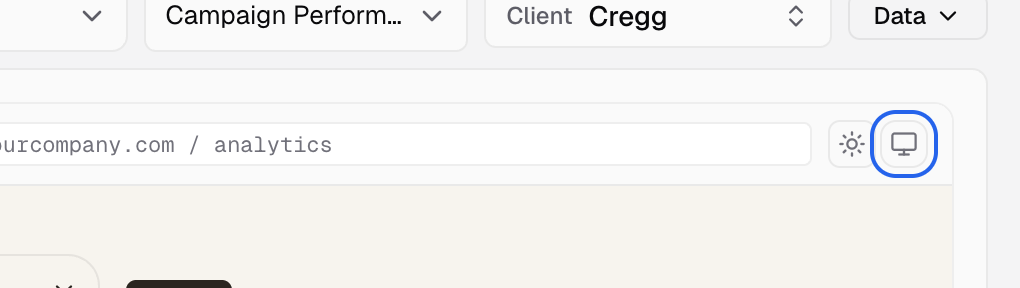
The two buttons at the right of the preview address bar switch a dark app page and phone width.
-
Saved changes appear in dashboards and live embeds that use this theme.
Apply a theme
An embed uses the first theme it finds, in this order:
-
The embed code. In a data app, select Get snippet on an embed and set Appearance to Use saved theme. This adds
theme-nameto the snippet. Theadmin-theme-optionsoption also overrides the theme.
Appearance in the snippet dialog. Use saved theme adds theme-name. -
The data app. In the data app, open Theme and select Customize for this data app.
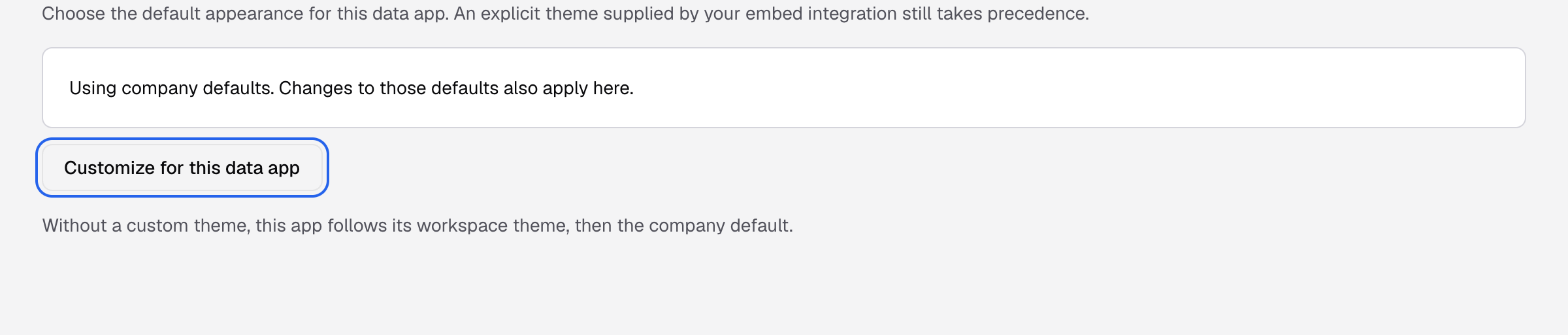
A data app follows its workspace theme until you customize it. -
The workspace. In the workspace settings, set Theme. It applies to every dashboard and embed served from the workspace.
-
The company default. In Settings > UI Theming, select Mark default.

Mark default sets the company default theme.
Without any of these, embeds use Databrain’s default theme.
To check which theme your embeds rendered with, and whether its colors are readable, see Guest token usage.