

Ship
Create a data app
Make the container that delivers your dashboards to your customers.
A data app holds the embeds you show in your product, the API tokens your backend uses, and the settings for both.
Before you start
- You are an Admin, or your role has the Data App Create permission. Of the default roles, only Developer has it.
- Embedded data apps need the Enterprise plan. Slack and Teams data apps are on every plan.
- You have a workspace with a dashboard.
Steps
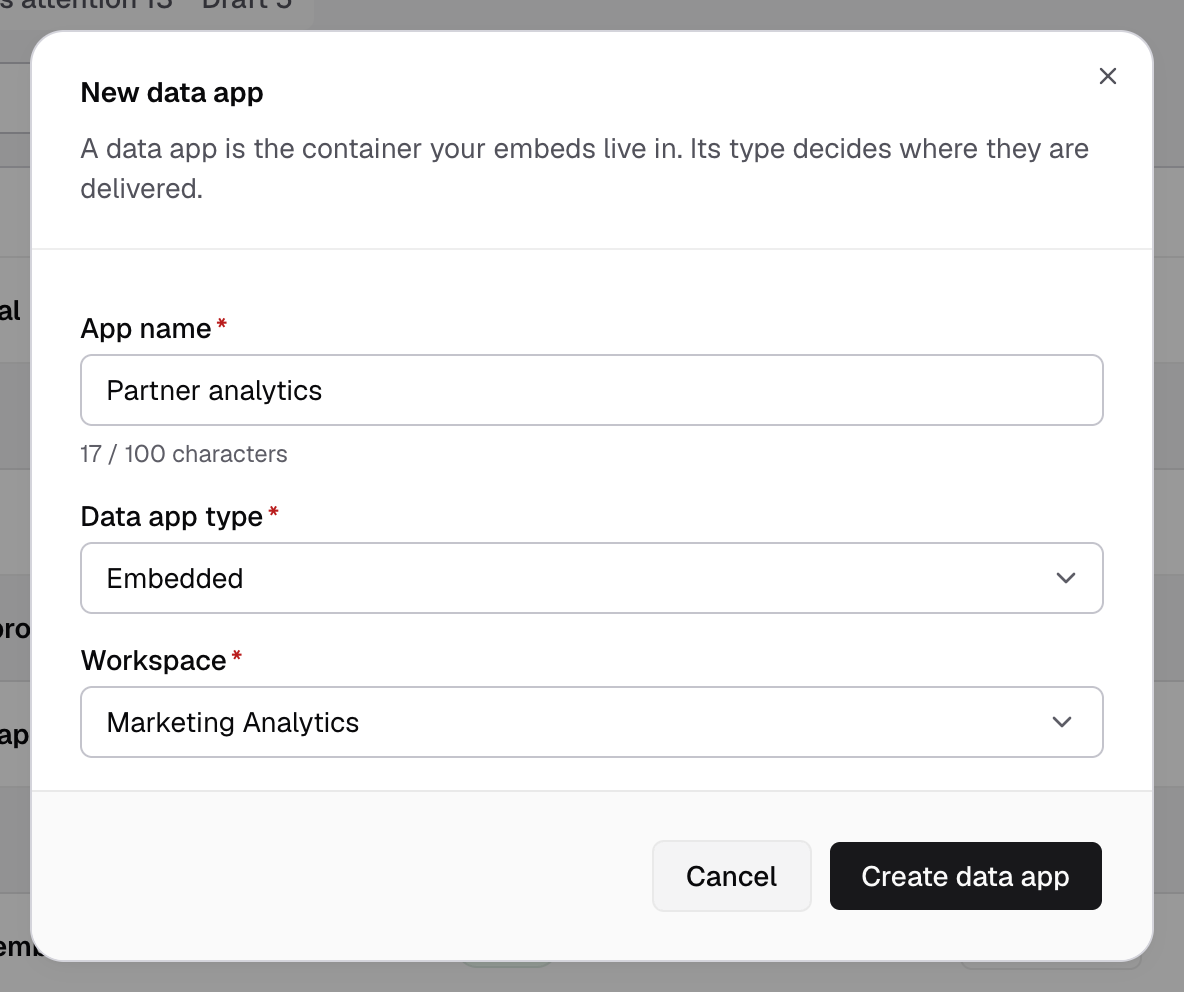
- Go to Data Studio > Data Apps and select Create data app.
- Enter an App name, for example
Customer portal. Use 100 characters or fewer. - Set Data app type to Embedded.
- Choose the Workspace. It starts on the workspace you are in.
- Select Create data app.
The data app’s Overview opens, with Draft next to its name. It changes to Live when you add the first embed.
Get it live
Overview shows Go-live readiness, the steps still to do:
- Add an embed.
- Create an API token.
- Allow your app’s domain on the Domains tab. See Data app settings.
- Optional: choose a theme and demo branding.
Then your backend uses the API token to create a guest token, and your frontend renders the embed. See How to embed.
Slack and Microsoft Teams
Set Data app type to Slack or Microsoft Teams instead. These apps answer questions in a channel. They have no embeds. See Data app settings.
If something goes wrong
- Another data app already has this name. Pick a different name.
- Embedded data apps are available on Enterprise. The Embedded type is not on your plan. See Plans and billing.
To delete a data app, open the row menu in Data Apps, select Delete and type the name to confirm. Everyone loses access to its embeds.