

LLM Configuration
Connect Azure OpenAI
Use your Azure OpenAI deployments for Bryn, copilot and natural-language questions.
Before you start
- Your role has LLMs > Edit. Admins have it.
- From your Azure OpenAI resource in the Azure portal: the endpoint URL, an API key, the deployment names and the API version.
Steps
-
Go to Settings > LLMs and select Add LLM.
-
Select Azure Open AI.
-
In Step 1 of 2: reach the resource, paste the Base URL, for example
https://<your-subdomain>.openai.azure.com/. You can paste any endpoint text from the Azure portal. Databrain tidies it. -
Paste the API Key and select Continue.
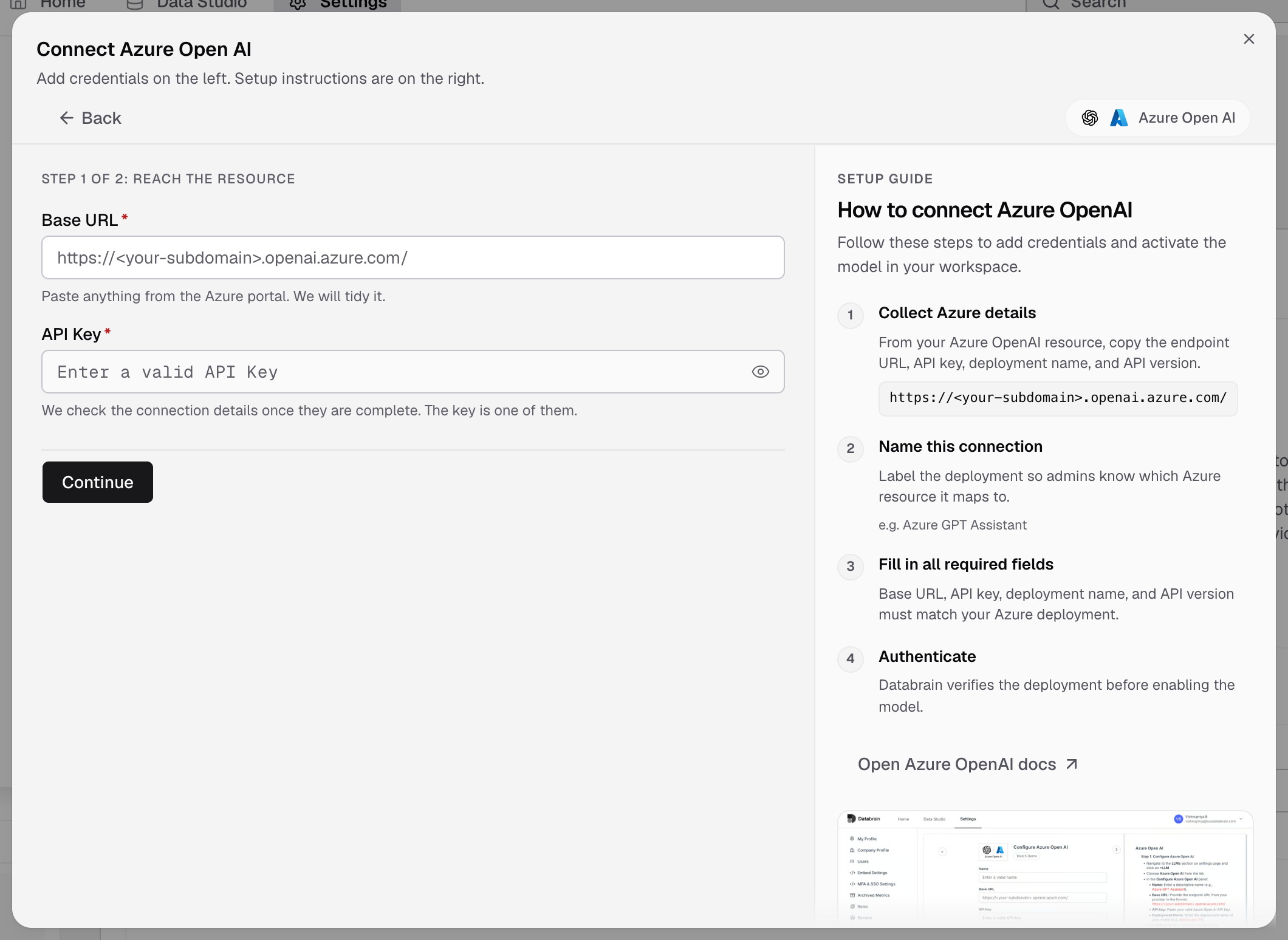
Step 1 of 2 asks for the Base URL and the API Key. -
In Step 2 of 2: confirm, enter a Name, for example
Azure GPT Assistant. -
In Deployment names, enter your deployment names, separated by commas, for example
prod-gpt, prod-mini. -
Check the API Version. It starts at
2024-10-21. Change it if your deployment needs another one. -
Select Save connection.
Databrain checks the deployment before it saves. The LLM shows as a card in Settings > LLMs with your deployments as its models.
If something goes wrong
- Step 1 fails. Check that the Base URL is your resource’s endpoint and that the key belongs to that resource.
- A deployment does not answer. The deployment name must match the name in the Azure portal exactly, and the API version must be one your resource supports.
Next, set the default model.