

Workspace settings
Change workspace settings
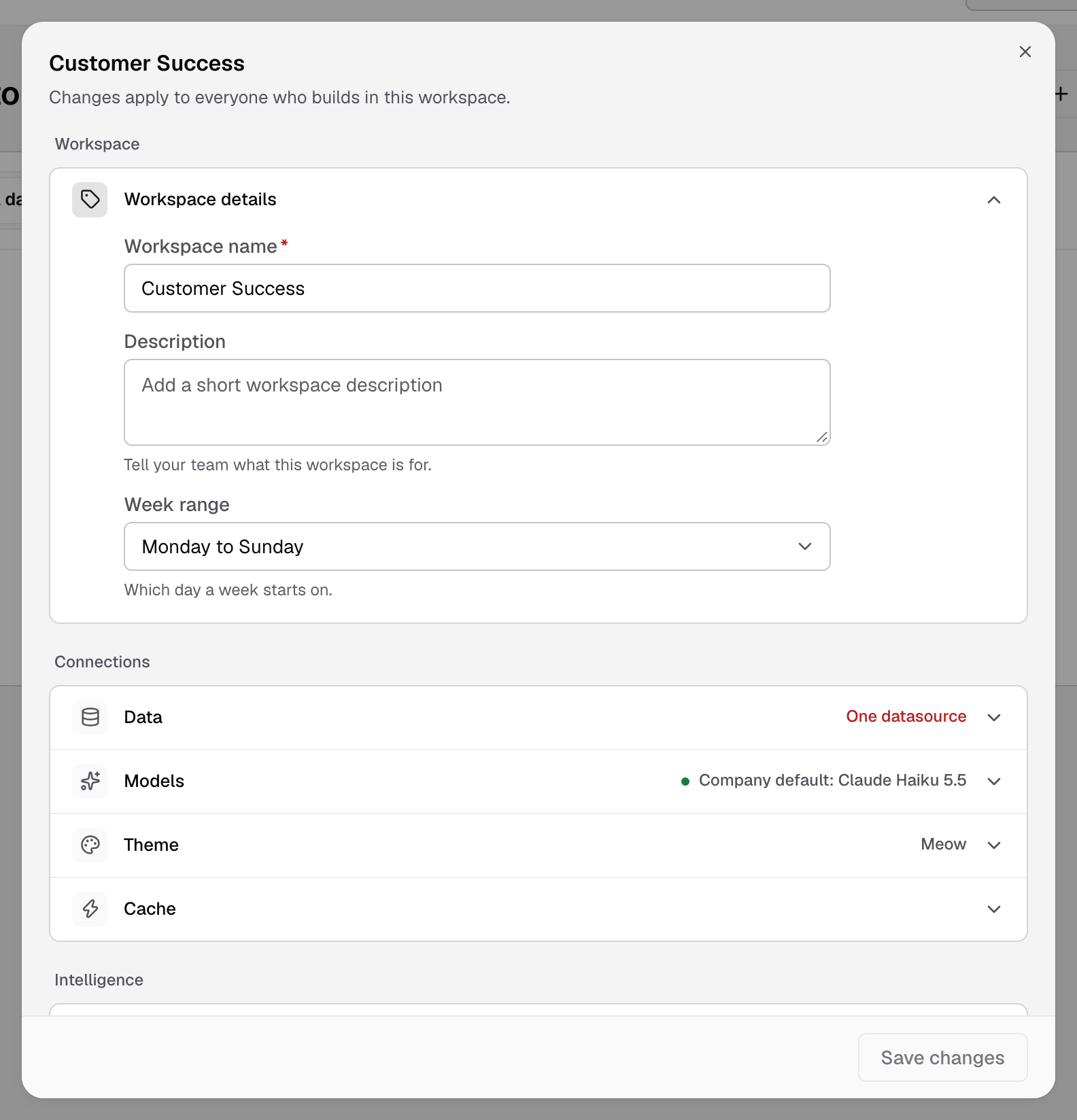
Rename a workspace, change its data, model, theme and cache, or delete it.
Before you start
- You are an Admin, or your role has the Workspace Settings permission. Of the default roles, only Developer has it.
Steps
- Go to Home and open the workspace.
- Select Settings in the workspace header.
- Expand the row you want to change.
- Select Save changes.
Changes apply to everyone who builds in this workspace. If you close the panel with edits, Databrain asks Discard changes?.
What you can change
| Group | Row | What it sets | Page |
|---|---|---|---|
| Workspace | Workspace details | Name, description, the day a week starts | General settings |
| Connections | Data | The datasource or datamart the workspace reads | General settings |
| Models | The AI model Bryn and Metric Summary use here | General settings | |
| Theme | The theme of every dashboard and embed from this workspace | General settings | |
| Cache | Cache query results | Cache settings | |
| Intelligence | Metric summary | AI-written summaries above charts | General settings |
| Metric suggestion | Metric ideas while someone builds | General settings |
Each row has its own permission. For example, the Workspace details row needs the Workspace Edit permission.
Delete a workspace
Deleting a workspace removes its dashboards, metrics and datamart bindings, and every embed that serves them stops working. This cannot be undone.
- In the workspace settings, under Delete this workspace, select Delete workspace.
- Select Delete workspace again to confirm.
- Type the workspace name and select Delete permanently.
Only Admins can delete a workspace. You cannot delete the only workspace in your company, or a workspace that has linked embedded data apps. Delete or unlink those data apps first.