

Workspace settings
Change a workspace's details, data, model and theme
Every field in workspace settings except the cache.
Open the workspace, select Settings in the header, expand a row, change it, then select Save changes. See Change workspace settings for who can do this.
Workspace details
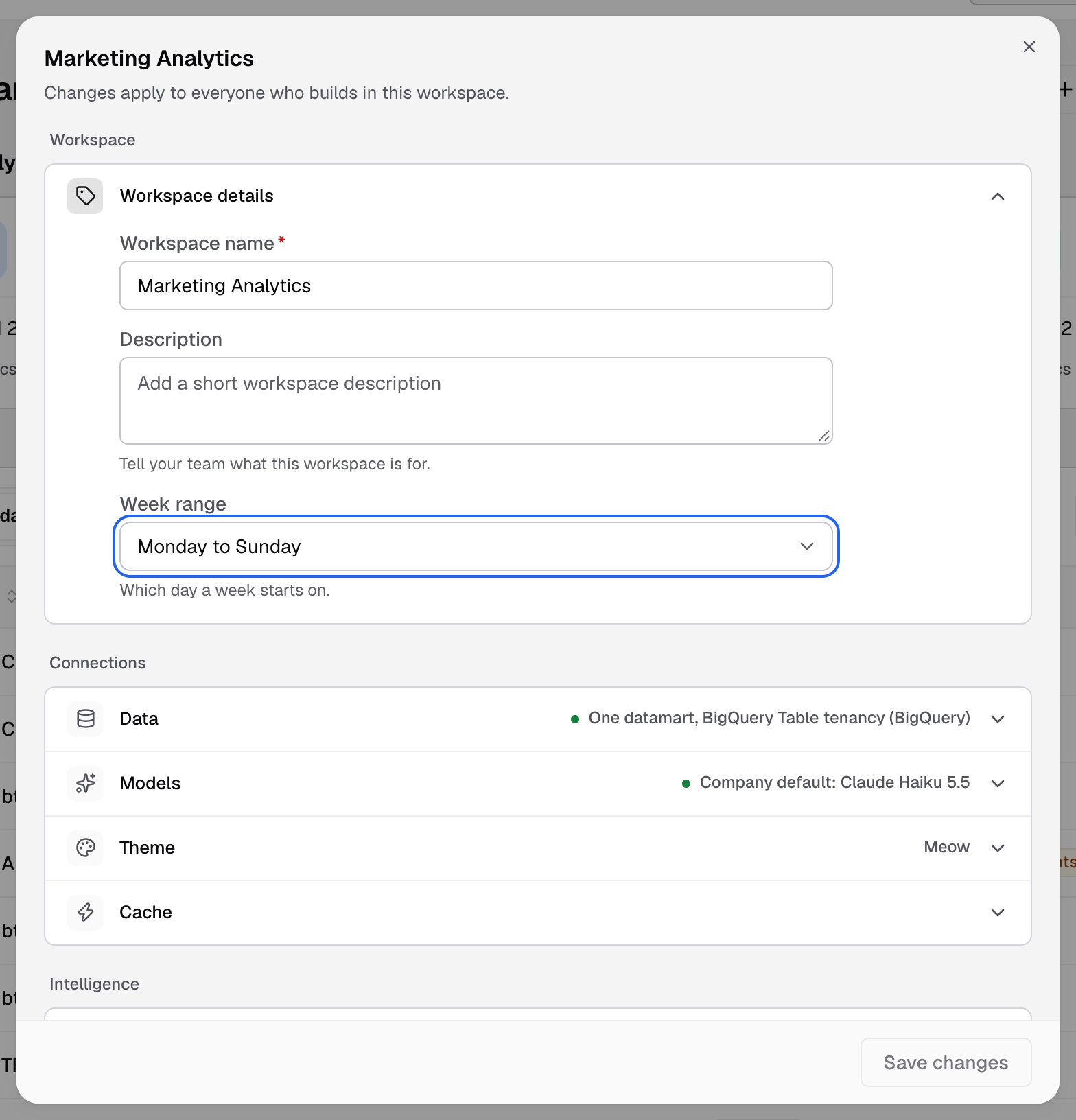
- Workspace name: up to 100 characters, unique in your company.
- Description: tell your team what the workspace is for.
- Week range: Monday to Sunday or Sunday to Saturday: the day a week starts on.
Data
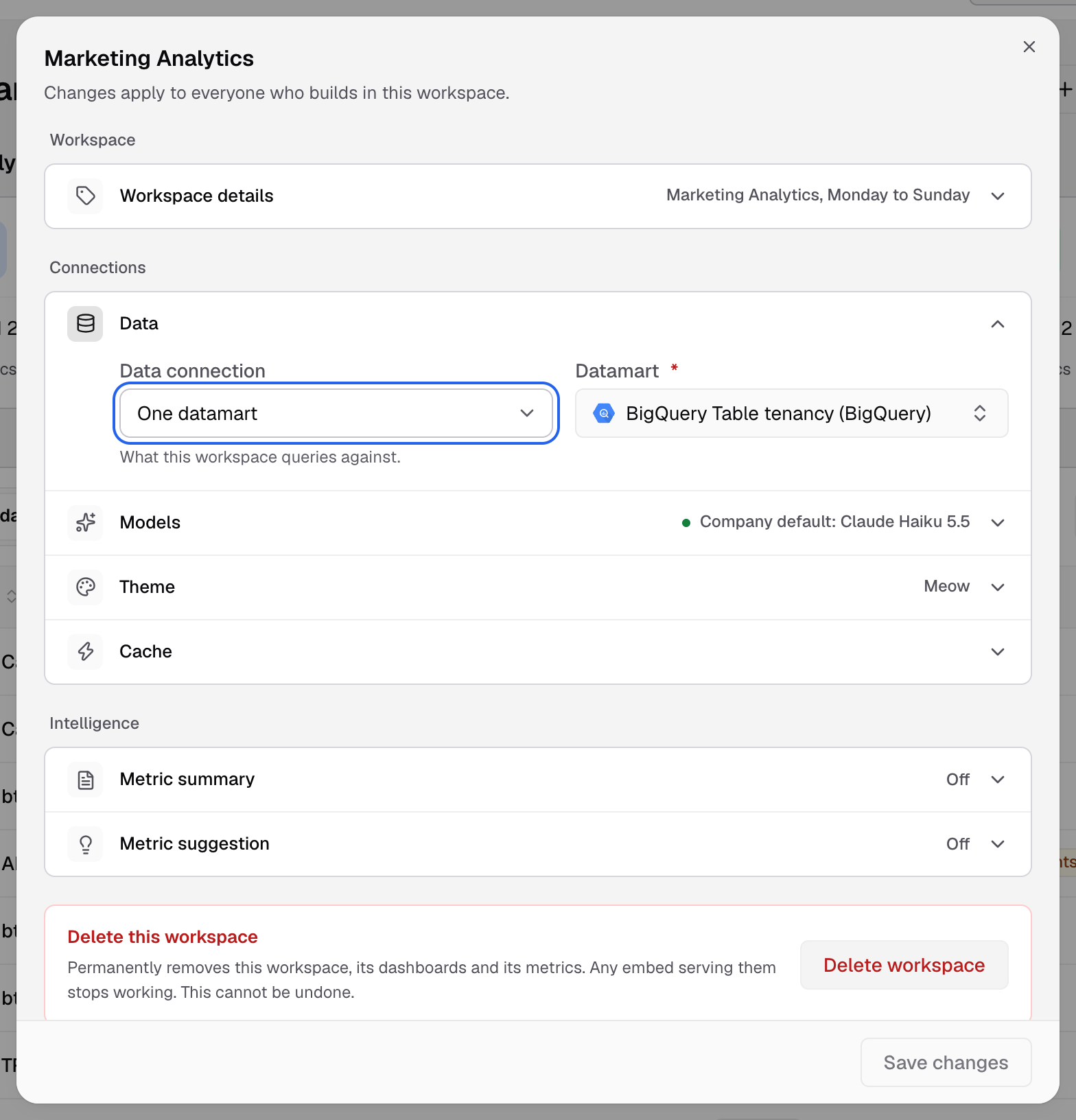
Data connection sets what the workspace queries:
- One datasource: pick the Data source.
- One datamart (or One semantic model): pick the Datamart.
- All datasources: each metric picks its own. See Use all datasources in one workspace.
- All datamarts: each metric picks its own. Choose the Default datamart. See Use all datamarts in one workspace.
When you change a single datasource or datamart and save, every metric on this workspace’s dashboards moves to the new one. Check the metrics after the change. Picking a datamart needs the Data Mart permission under General settings on your role.
Models
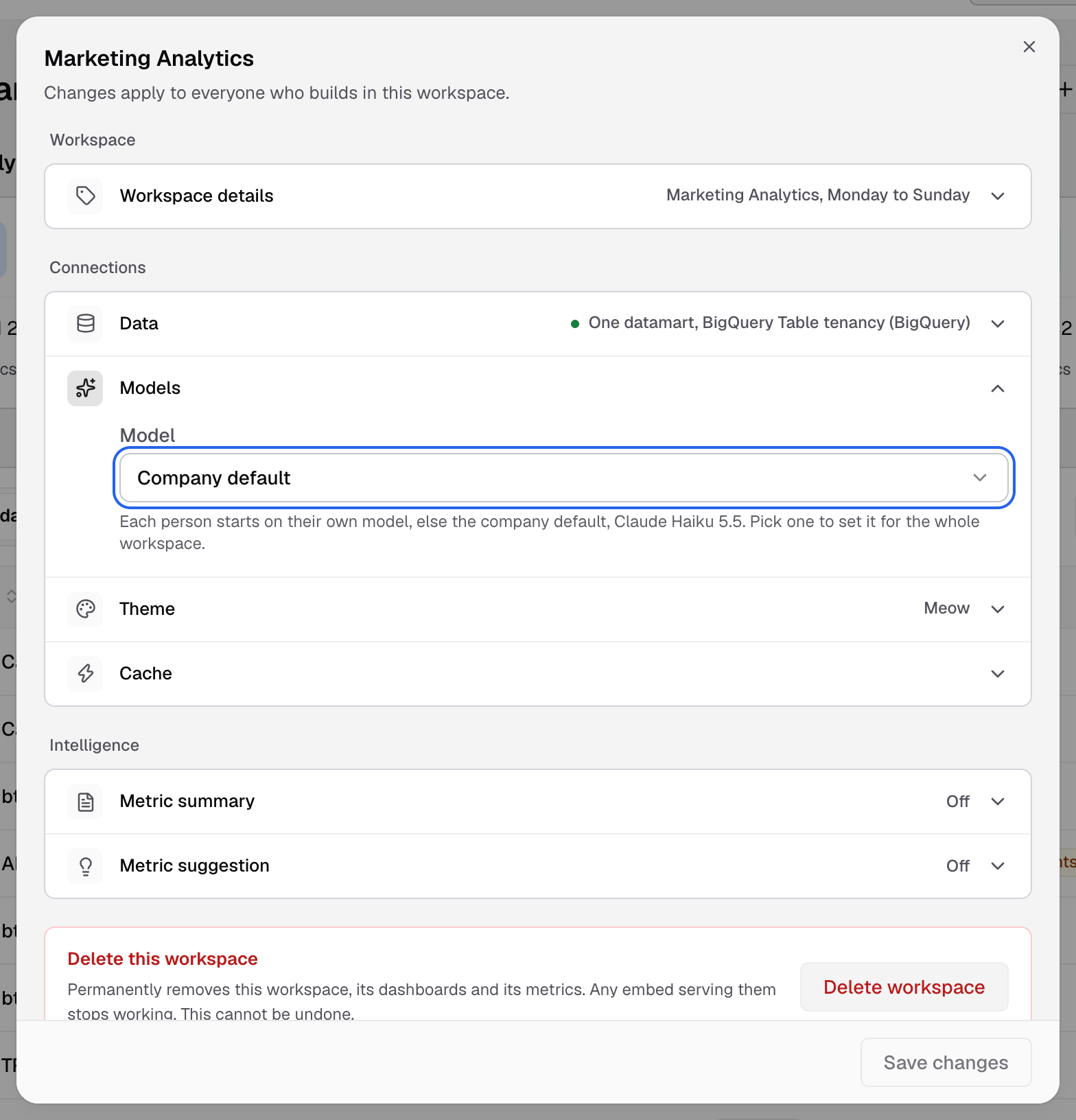
Model sets the AI model that Bryn and Metric Summary use in this workspace. Choose Company default, or a model from a key your company added in Settings > LLMs. If your company has no key, Bryn answers on Databrain AI and the picker is locked. You need the LLM permission under General settings on your role.
Theme
Theme applies to every dashboard and embed served from this workspace. Pick one of the themes in Settings > UI Theming. See Create a theme.
Intelligence
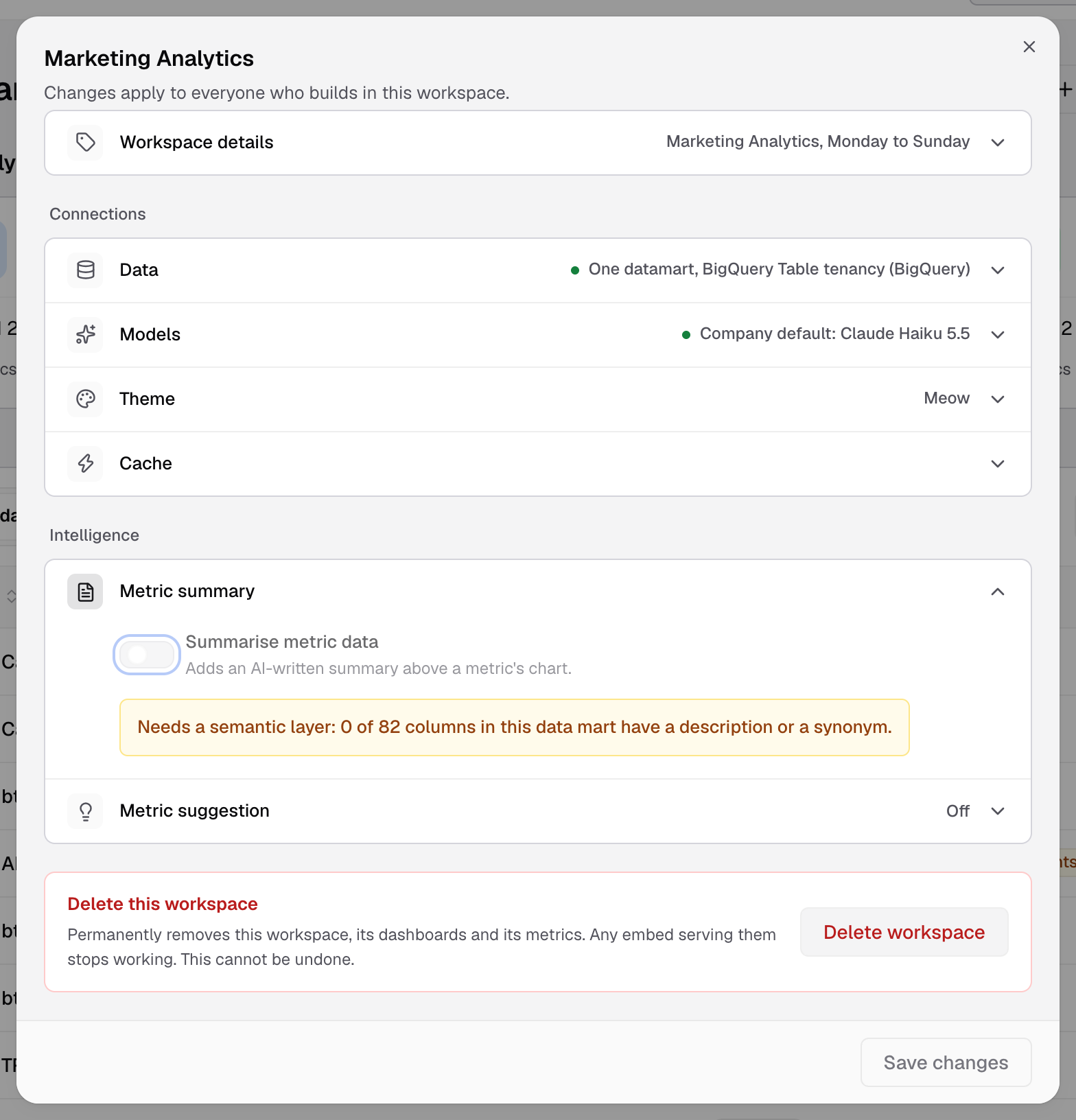
- Metric summary: turn on Summarise metric data to add an AI-written summary above a metric’s chart. Choose a Summary style: Technical and Insight Summary, Forecast and Trend Analysis, Comparative and Anomaly Detection or Custom. A Custom prompt is up to 180 words. Needs the Business plan or higher, and a semantic layer: a datamart whose columns have descriptions or synonyms.
- Metric suggestion: turn on Suggest metrics to offer metric ideas while someone builds a metric.
If something goes wrong
- Summaries are in use on dashboards in this workspace. Delete the summaries from those dashboards before you turn this off.
- Needs a semantic layer. Connect the workspace to a datamart and describe its columns first.
- Keep this under 180 words. Shorten the custom prompt.
For caching, see Cache settings.