

Workspace settings
Cache query results
Serve repeated queries from a cache so dashboards load faster and your warehouse does less work.
Before you start
- Your company is on the Business plan or higher.
- You are an Admin, or your role has the Cache Settings Edit permission. With View only, you see the settings but cannot change them.
Steps
- Open the workspace and select Settings in the header.
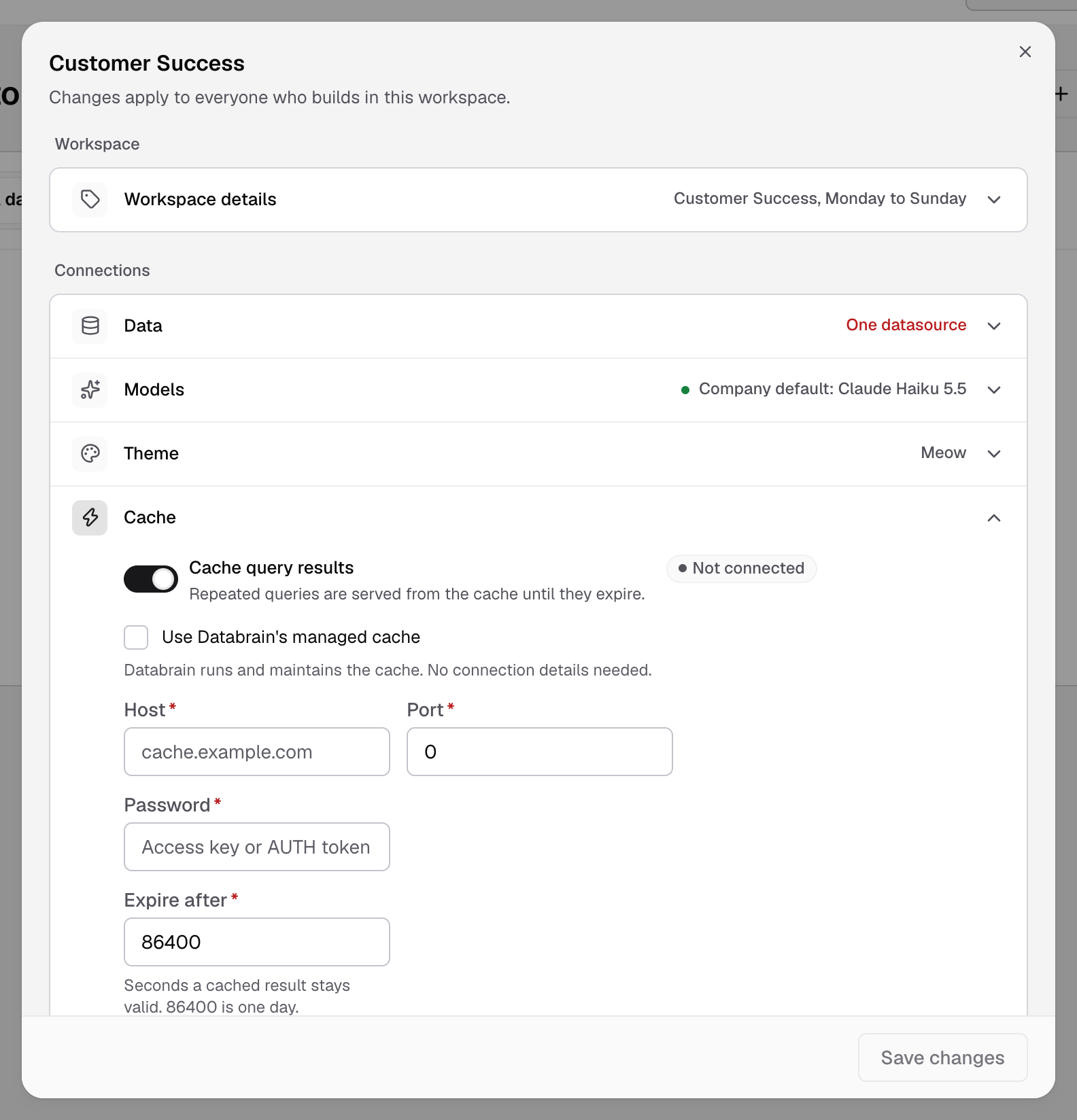
- Expand Cache and turn on Cache query results.
- Choose where the cache runs:
- Use Databrain’s managed cache: Databrain runs it. No connection details needed. Databrain cloud only.
- Your own Redis: leave the box clear and enter Host, Port and Password (access key or AUTH token).
- Enter Expire after in seconds, 10 or more.
86400is one day. - Optional, for your own Redis: set SSH tunnel to Enabled to reach a cache that is not on the public internet. Enter SSH host, SSH port, SSH username and SSH private key.
- Select Save changes.
The cache shows Connected. Repeated queries in this workspace are now served from the cache until they expire.
Clear the cache
- In the Cache row, select Clear cache.
- Confirm.
Every cached result for this workspace is dropped. The next query runs on the warehouse.
If something goes wrong
- Connection failed. Check the host, port and password, and that Databrain can reach your Redis.
- An expiry is required. Enter Expire after.