

Dashboards
Create a dashboard
Make an empty dashboard in a workspace, ready for metrics.
Before you start
- You are an Admin or Editor.
- The workspace has a datasource connected. Without one, Home shows Connect data source instead of New dashboard.
Steps
-
Go to Home and pick your workspace.
-
Select New dashboard.
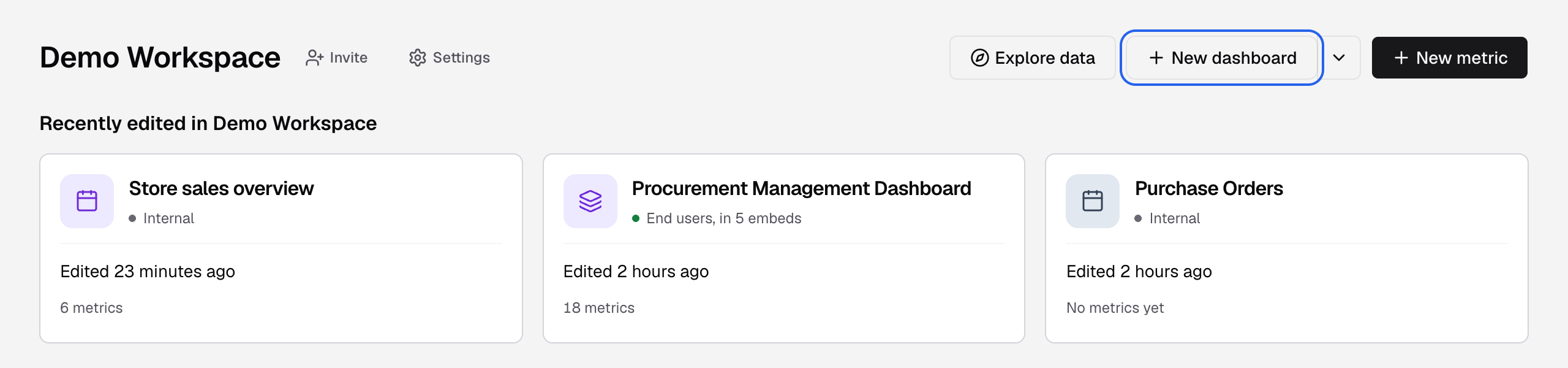
New dashboard is in the workspace header on Home. -
In Create dashboard, enter a Dashboard Name, for example
Revenue overview.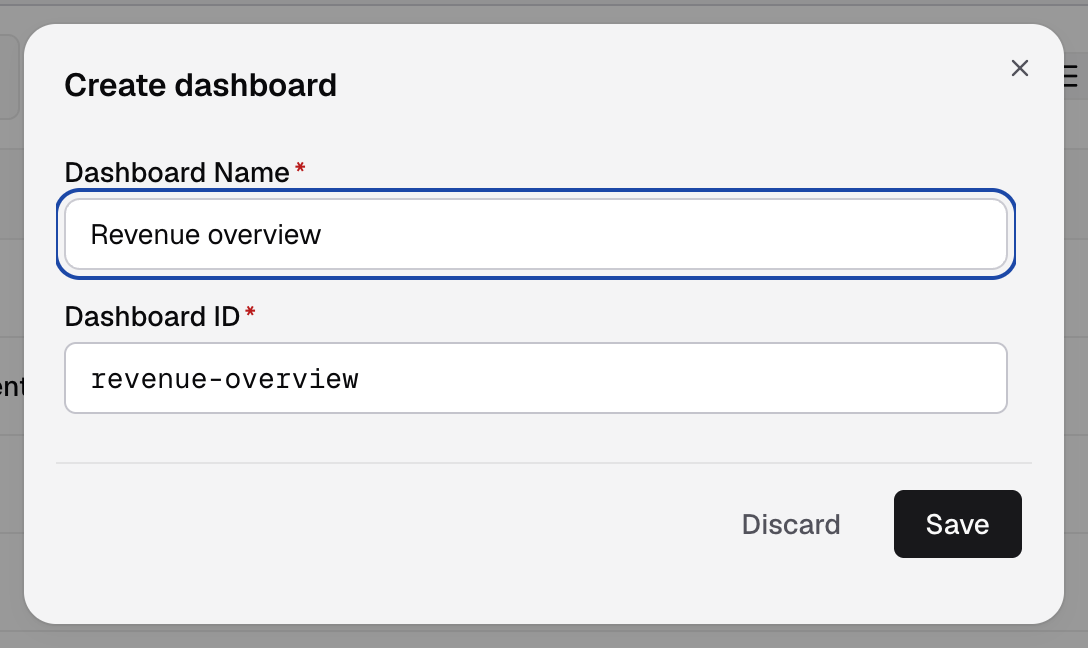
Type the name in Dashboard Name. -
Check the Dashboard ID. Databrain fills it from the name, for example
revenue-overview. You can change it.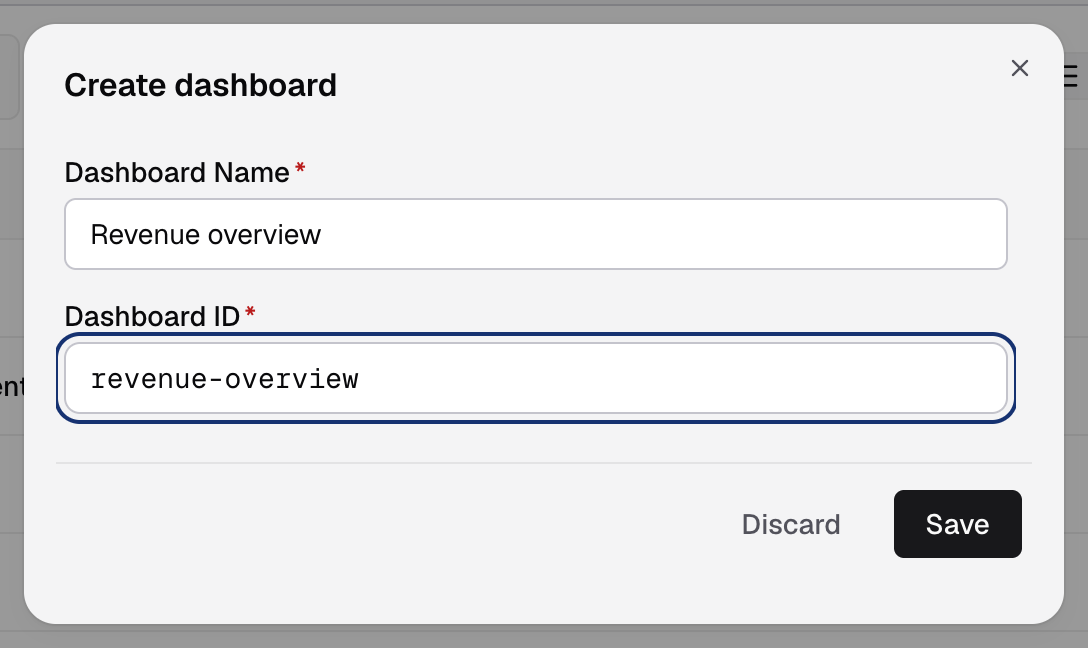
The Dashboard ID fills in from the name. -
Select Save.
You see the toast Dashboard created, and the new dashboard opens. It is empty and shows Add your first metric. Next, create a metric.
About the Dashboard ID
- Your embed code uses the Dashboard ID in its
dashboard-idattribute. The long id in the browser address is a different id. See Dashboard ID. - The ID must be unique in your company, not only in the workspace.
- The automatic ID uses lower case letters, numbers and
-, up to 32 characters. If the ID is taken, Databrain adds-2,-3and so on.
If something goes wrong
- Dashboard ID should be unique. Another dashboard in your company uses this ID. Enter a different one.
- No New dashboard button. Connect a datasource first, or ask an Admin for the dashboard Create permission.