

Dashboards
Import and export a dashboard
Copy a dashboard as a JSON file, or download it as a PDF or as metric data.
Before you start
- You are an Admin, or a custom role gives you the permission for the task. JSON export needs dashboard Export. Import needs Import External Dashboard. PDF and data downloads need Export As PDF or Download Metrics. The default Editor role has none of these.
- To import, the target workspace has a datasource or datamart connected.
Export a dashboard as JSON
-
Go to Home and pick the workspace.
-
On the All dashboards tab, open the dashboard’s ... menu.
-
Select Export.
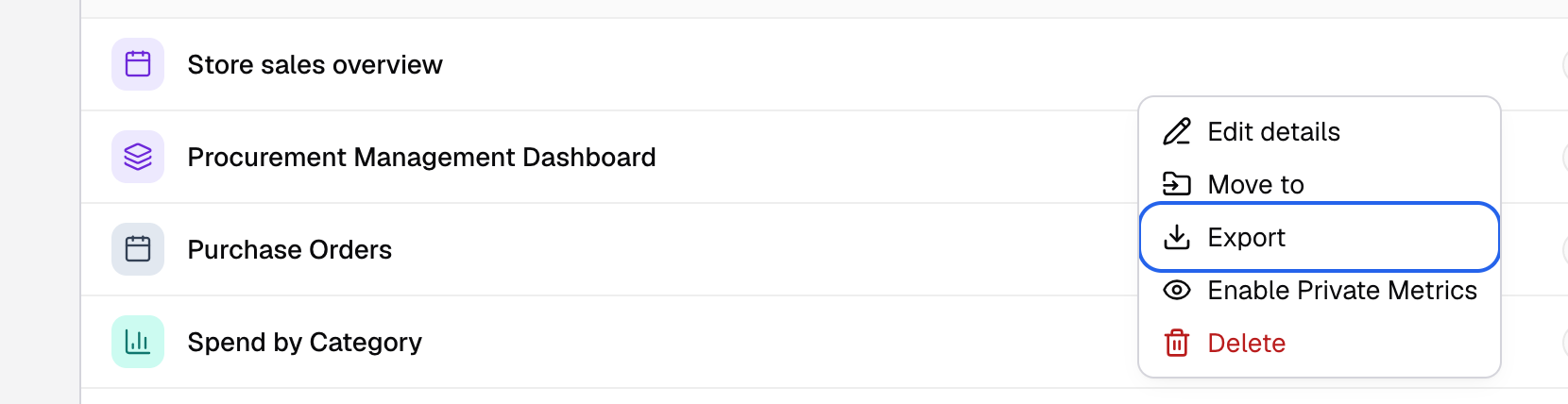
Export is in the dashboard's menu on the All dashboards tab.
Your browser downloads <dashboard name>.json. The file holds the dashboard, its metrics, filters, layout and elements. Databrain encrypts parts of it, so do not edit it by hand.
Import a dashboard from JSON
-
Go to Home and pick the target workspace.
-
Select the arrow next to New dashboard (More ways to add a dashboard). The menu has one item.

The arrow next to New dashboard opens More ways to add a dashboard. -
Select Import Dashboard.
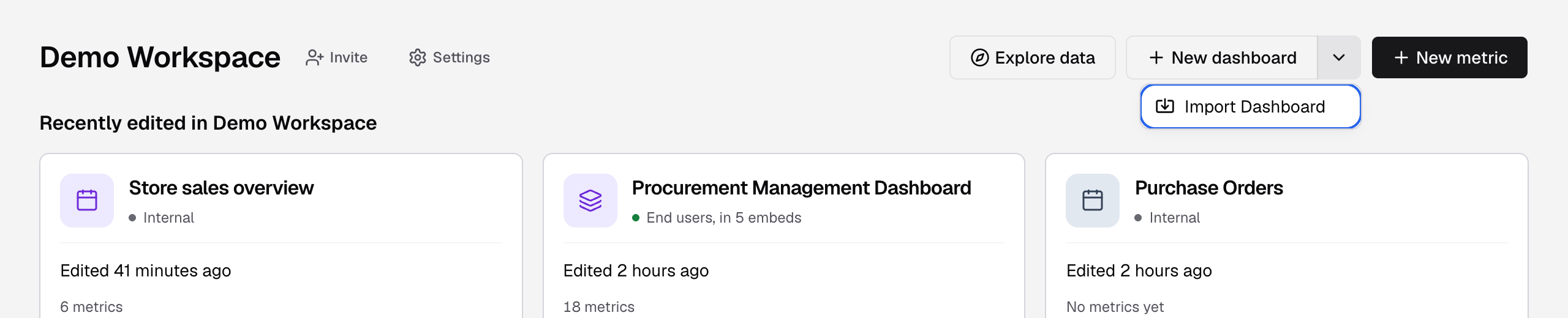
Import Dashboard is the only item in the menu. -
Drop the
.jsonfile in Import dashboard, or select it.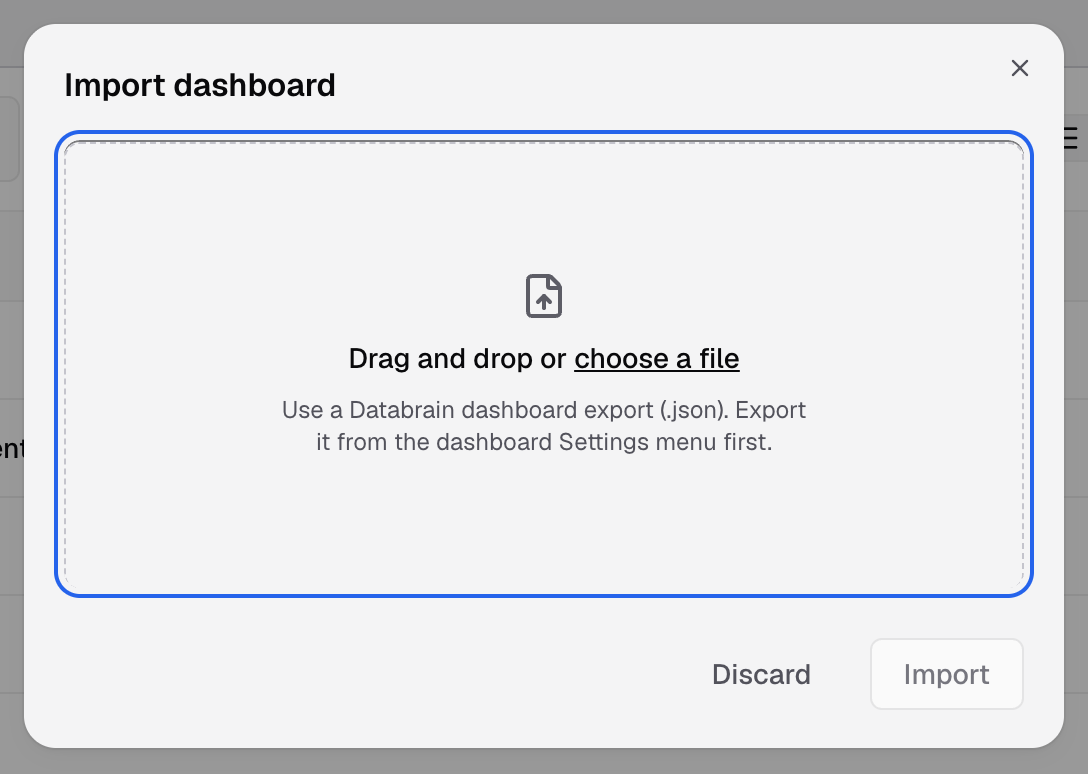
Drop a Databrain dashboard export (.json) in the drop zone. -
Optional: after you add the file, Map schema names (optional) shows under it. If the schema names differ in the target datasource, add rows: Schema in the export and Replace with. Before you add a file, the dialog shows only the drop zone.
-
Select Import.
You see Imported Dashboard with N metrics. Databrain skips metrics whose tables are not in the target datasource.
Export as PDF or download metric data
-
Open the dashboard.
-
Select Export (the download icon) in the header.
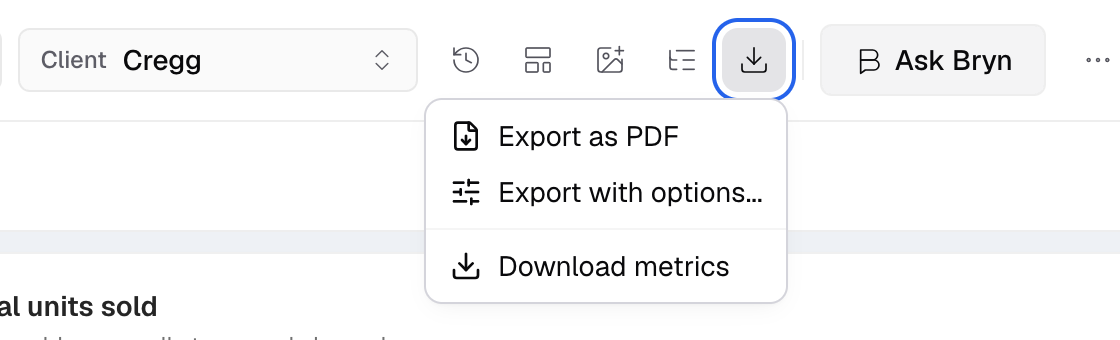
Export opens Export as PDF, Export with options and Download metrics. -
Choose one:
- Export as PDF downloads the dashboard as a PDF.
- Export with options... lets you set Page (Landscape or Portrait), Cards per page and Long tables, then select Export.
- Download metrics downloads the metric data.
Exports use the client you picked and the filters you applied. If the datasource uses client tenancy, pick a client first.
If something goes wrong
- Dashboard with same id already exists! The target workspace has a dashboard with this Dashboard ID. Change the ID of one of them.
- No data source or data mart is connected! Connect a datasource to the target workspace.
- Dashboard is cloned, but it has no eligible metrics! None of the metrics can run on the target datasource. Check the schema mapping.
- Nothing happens after you drop the file. The file is not valid JSON. Export it again.
To copy a dashboard by API, see Export a dashboard API and Import a dashboard API.