

Dashboards
Use the dashboard settings menu
Manage metrics, schedule reports, set rules and turn on boards from one menu.
Open a dashboard and select ... (Dashboard settings and more) at the right of the header.
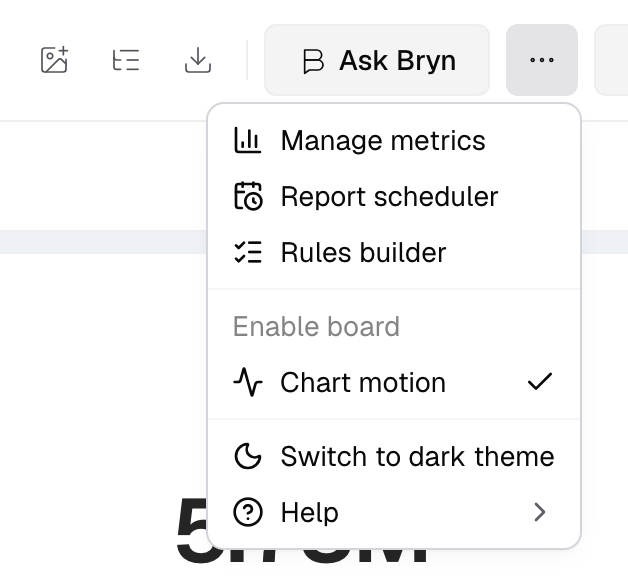
Menu items
| Item | What it does |
|---|---|
| Manage metrics | Pick which metrics show on the dashboard. With a client picked, it archives or restores metrics for that client only. |
| Report scheduler | Email the dashboard on a schedule. See Schedule reports. |
| Rules builder | Hide charts when other metrics have no data. Each rule has a Name, the metrics to check (Data Checker) and the charts to hide (Hide Charts). |
| Enable board | Let people save their filter values as boards. See Save filter views as boards. |
| Chart motion | Turn chart animations on or off in your browser only. |
| Preview as customer | See the dashboard with your saved brand. Shows only if your account has a saved brand. |
| Switch to dark theme / Switch to light theme | Change the app theme. |
| Help | Open help links. |
Why an item is off
- Add a metric first. The dashboard is empty. Manage metrics, Report scheduler and Rules builder need at least one metric.
- Report scheduler (set up email first). Save an email connection in Settings > Email Settings first. See Email settings.
- Enable board is off. Add a dashboard filter first. You also need the dashboard Edit permission.
- The whole menu is off. The page is loading, you are in Edit layout, or a client made this dashboard.
- An item is missing. Your role does not have that permission. Ask an Admin.
Other controls in the header
These are no longer in the menu:
- Refresh data: Refresh in the bar under the header. The arrow next to it sets auto refresh.
- Layout: Edit layout. See Customize a dashboard layout.
- Text and summaries: Add element. See Add dashboard elements.
- PDF and downloads: Export. See Import and export a dashboard.
- Preview links and embed code: Embed and share. See Share a dashboard preview.
- Filters: Add filter. See Create a dashboard filter.