

Share and schedule
Share a dashboard preview
Send a time-limited link that opens the dashboard as your customers see it.
Before you start
- You have the dashboard Share permission. Admins, Editors, Developers and Viewers have it.
- The workspace has a datasource connected.
- If the datasource uses client tenancy, pick a client in the dashboard header first. To check one client’s data, pick that client. See Configure tenants.
Steps
-
Open the dashboard.
-
Select Embed and share in the header. The Embed and share panel opens on the right.

Embed and share is at the right of the dashboard header. -
Under Preview links, select Share preview link.
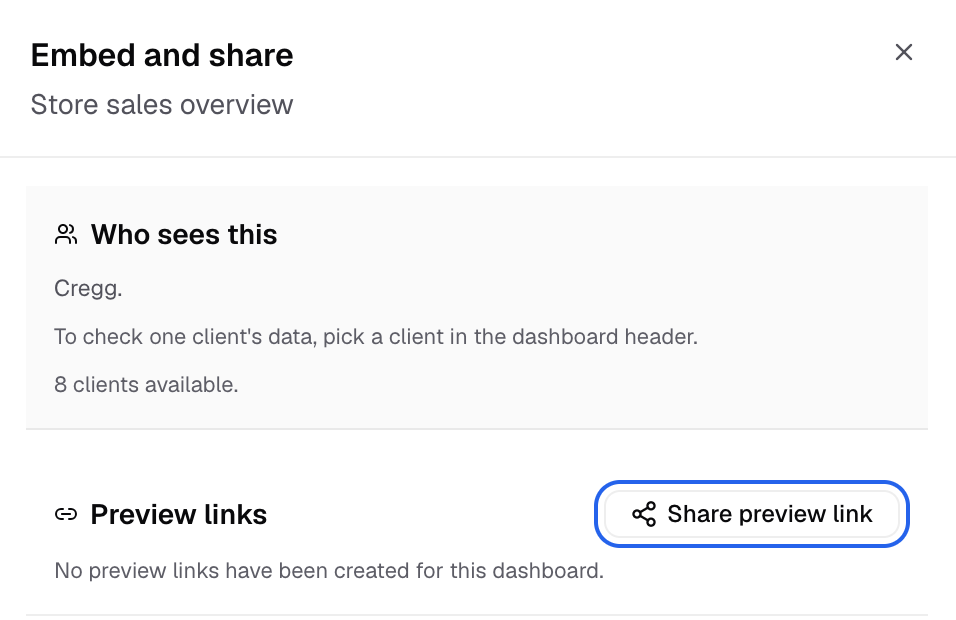
Share preview link is next to the Preview links heading. -
In Share a preview link, choose an expiry in Select an expiry time.
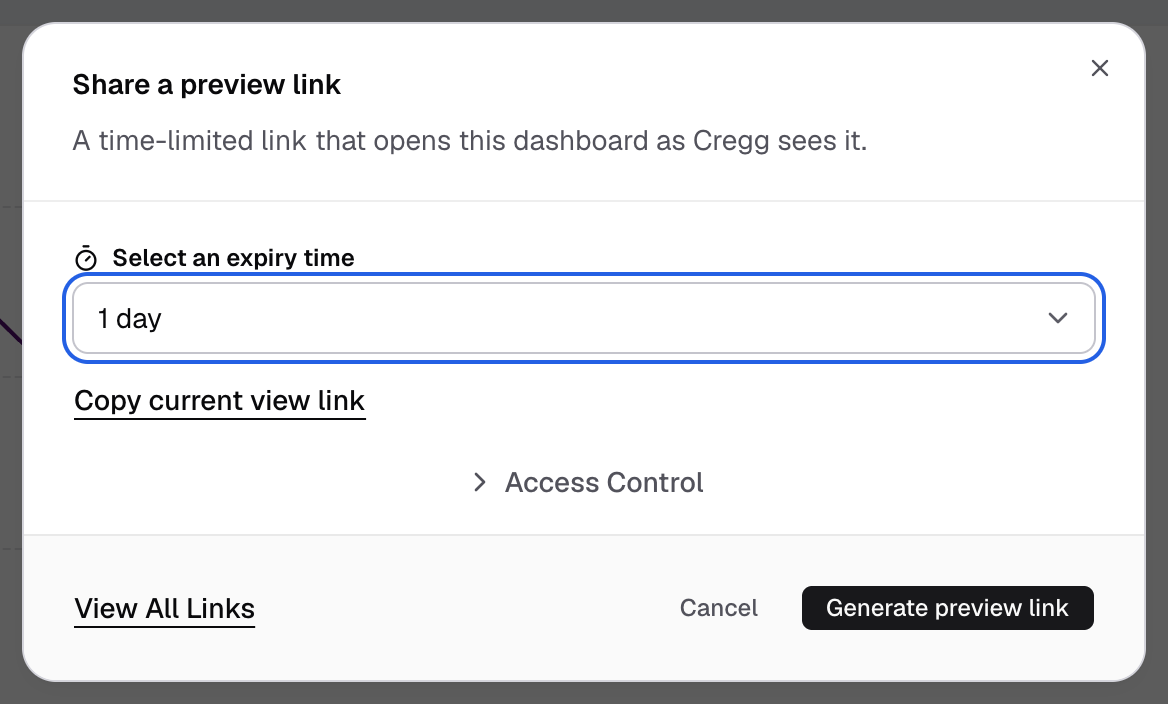
Pick how long the link works in Select an expiry time. -
Optional: open Access Control and turn on what viewers can do.
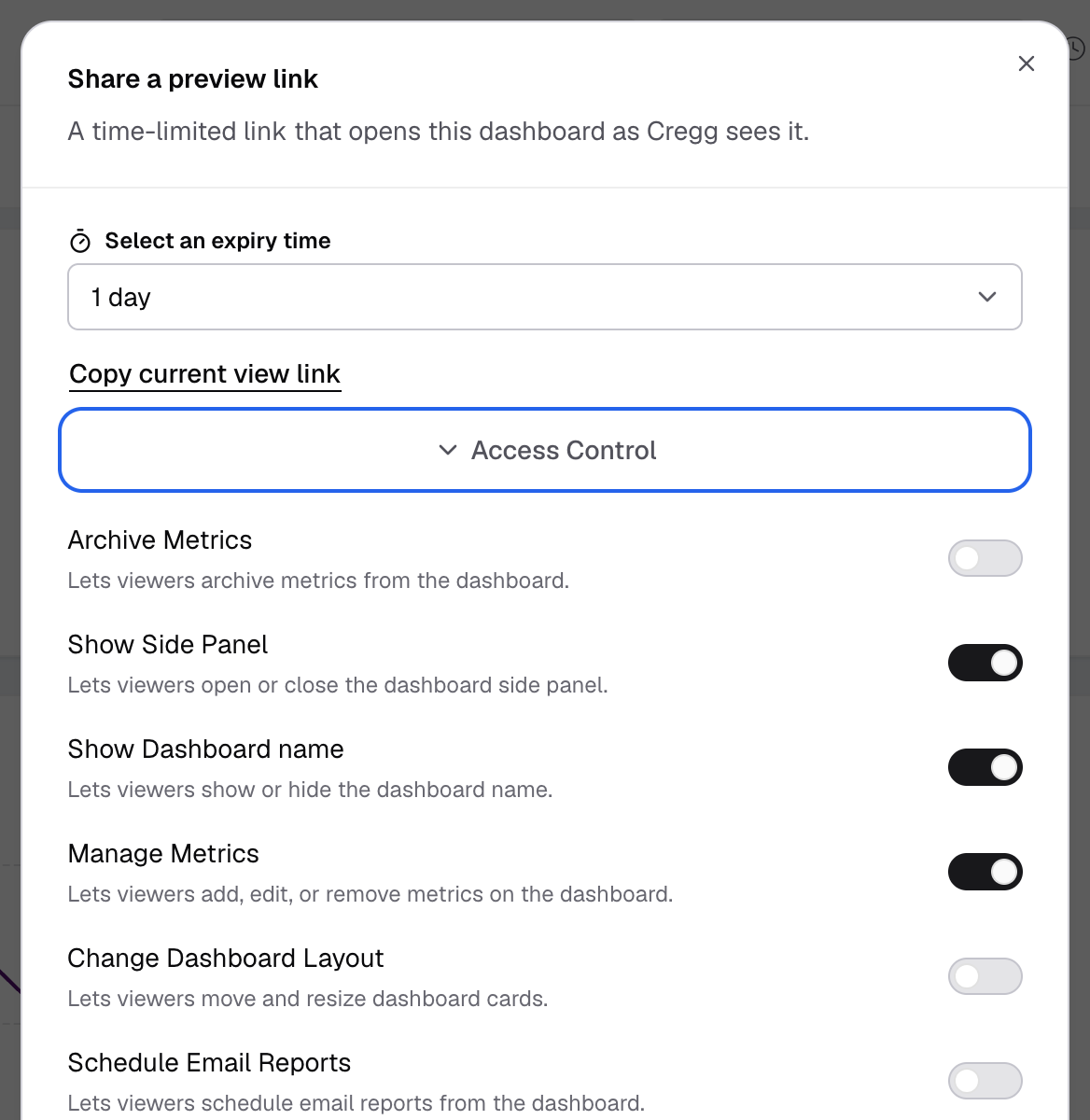
Access Control lists one switch for each thing viewers can do. -
Select Generate preview link.
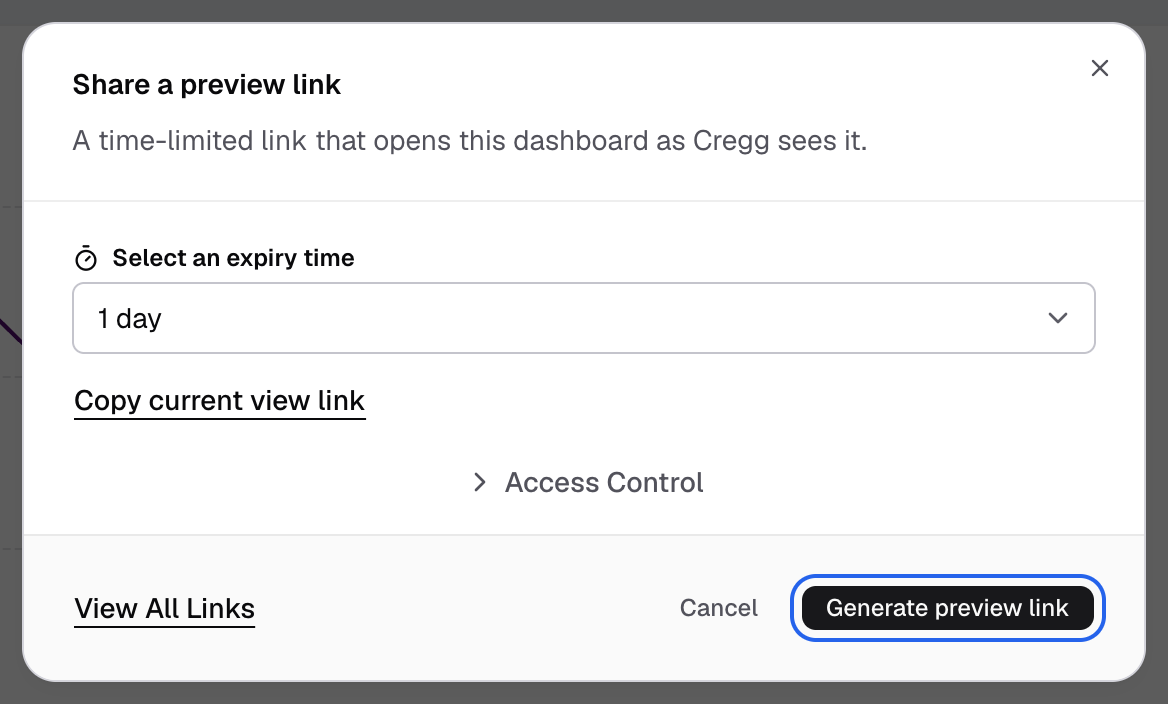
Generate preview link is at the bottom right of the dialog. -
Under Share link, select Copy.
Anyone with the link sees the dashboard until it expires. The link opens the dashboard unfiltered: your current filters are not carried. If the dashboard has app filters, the link uses the values you enter in the dialog. The panel lists your live links under Preview links. Select View All Links to see all of them.
Next, to put the dashboard in your own app, prepare an embed.
Expiry choices
| Choice | Link works for |
|---|---|
| 30 mins | 30 minutes |
| 1 hr | 1 hour |
| 1 day | 1 day (default) |
| 30 days | 30 days |
| 1 year | 1 year |
Access control switches
Each switch lets people who open the link do one more thing.
| Switch | Viewers can |
|---|---|
| Archive Metrics | Archive metrics from the dashboard. |
| Show Side Panel | Open or close the dashboard side panel. |
| Show Dashboard name | See the dashboard name. |
| Manage Metrics | Add, edit or remove metrics. |
| Change Dashboard Layout | Move and resize cards. |
| Schedule Email Reports | Schedule email reports. |
| Underlying Data | See the rows behind each metric. |
| Download Metrics | Download metric data. |
| Create boards | Save a board with their filters. Turn on Enable board first. See Save filter views as boards. |
| End-user Dashboard Filter, Rename Dashboard Filters | Add their own dashboard filters, and rename filters. |
| End-user Metric Filter, Rename Metric Filters | Add their own metric filters, and rename filters. |
| Metric updates | Edit metrics and save them to the dashboard. |
| Create Metrics | Create metrics from the dashboard. Needs datamart rights. |
Other parts of the Embed and share panel
- Who sees this: the client scope that previews use.
- Light or dark and Chart version: how the embedded dashboard looks.
- Embed code: select Copy code to copy the snippet for your app.
- Access: links to Embed permissions (on the data app) and Allowed domains (company settings).
If something goes wrong
- Share preview link is off. Pick a client in the dashboard header, or connect a datasource.
- The switches are locked. You need the Data App Edit permission to turn on more settings.
- Create boards is off. Turn on Enable board in the dashboard’s ... menu. The dashboard needs at least one dashboard filter.