

Dashboards
Ask Bryn about a dashboard
Ask Bryn what a dashboard shows, focus it on the widgets you need, and add new metrics to it.
Ask Bryn, the AI assistant, about the dashboard you have open. Bryn reads the widgets on it, answers questions, and rearranges what you see.
Before you start
- Your plan includes Bryn. Bryn is on the Solo plan and up.
- Your company has an AI model: its own model, or Databrain’s model.
- For questions about the data, your workspace has a published semantic model. Create a semantic model
- To add a metric to the dashboard, you need the dashboard Edit permission. Admins and Editors have it.
Open Bryn
-
Open a dashboard.
-
Select Ask Bryn in the header. The Bryn panel opens on the right.

Ask Bryn is in the dashboard header, left of the more menu.
You see a line such as “Nothing has changed on Store sales overview yet. All 6 widgets are as the author left them.” Under it are suggestions: Focus on and the title of each of the first two widgets, and What is on this board?. Select one, or type your request in the box that reads Ask for what you want to see... and send it.
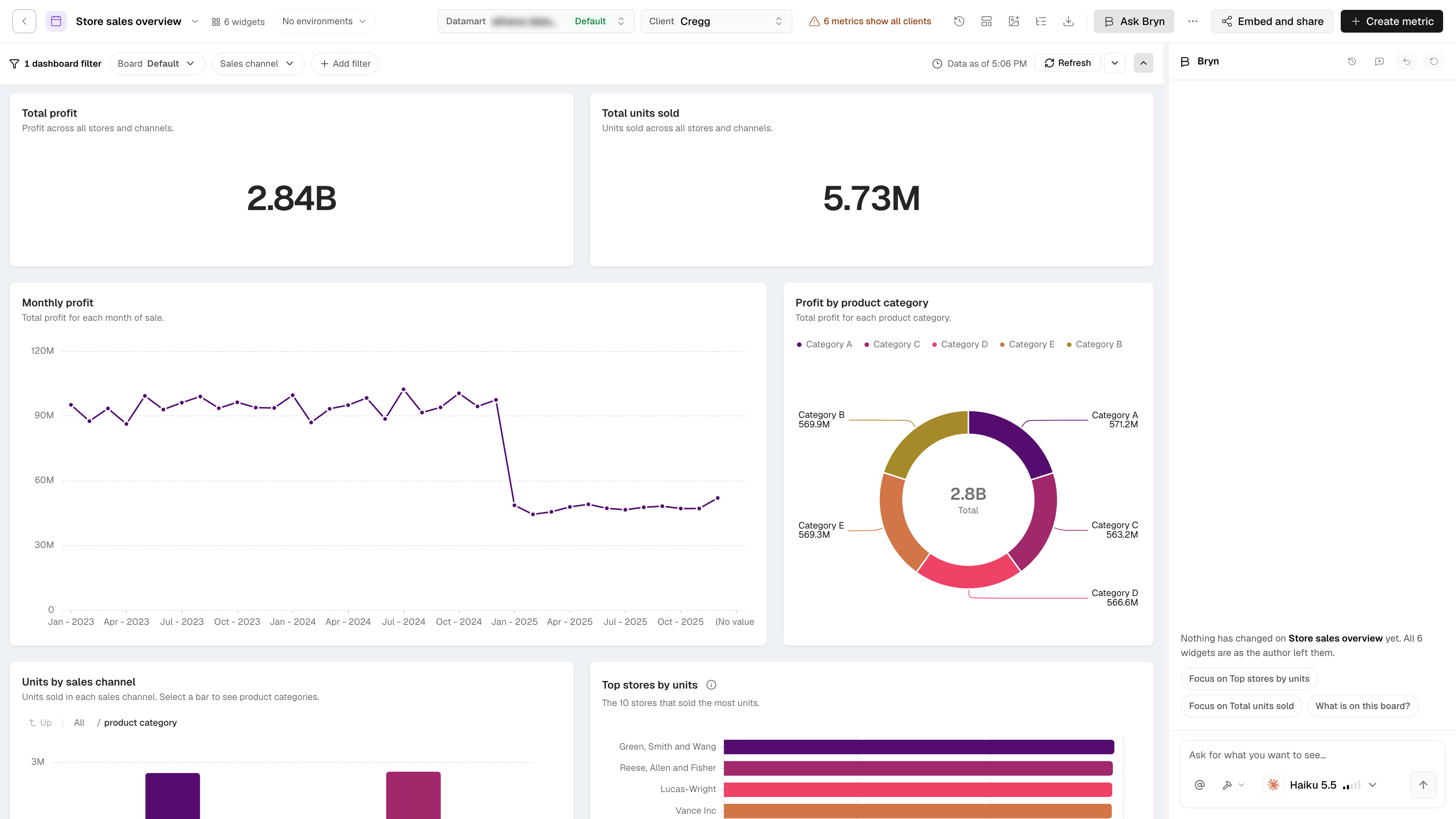
Ask What is on this board? to get a list of the widgets, their chart types and their saved filters.
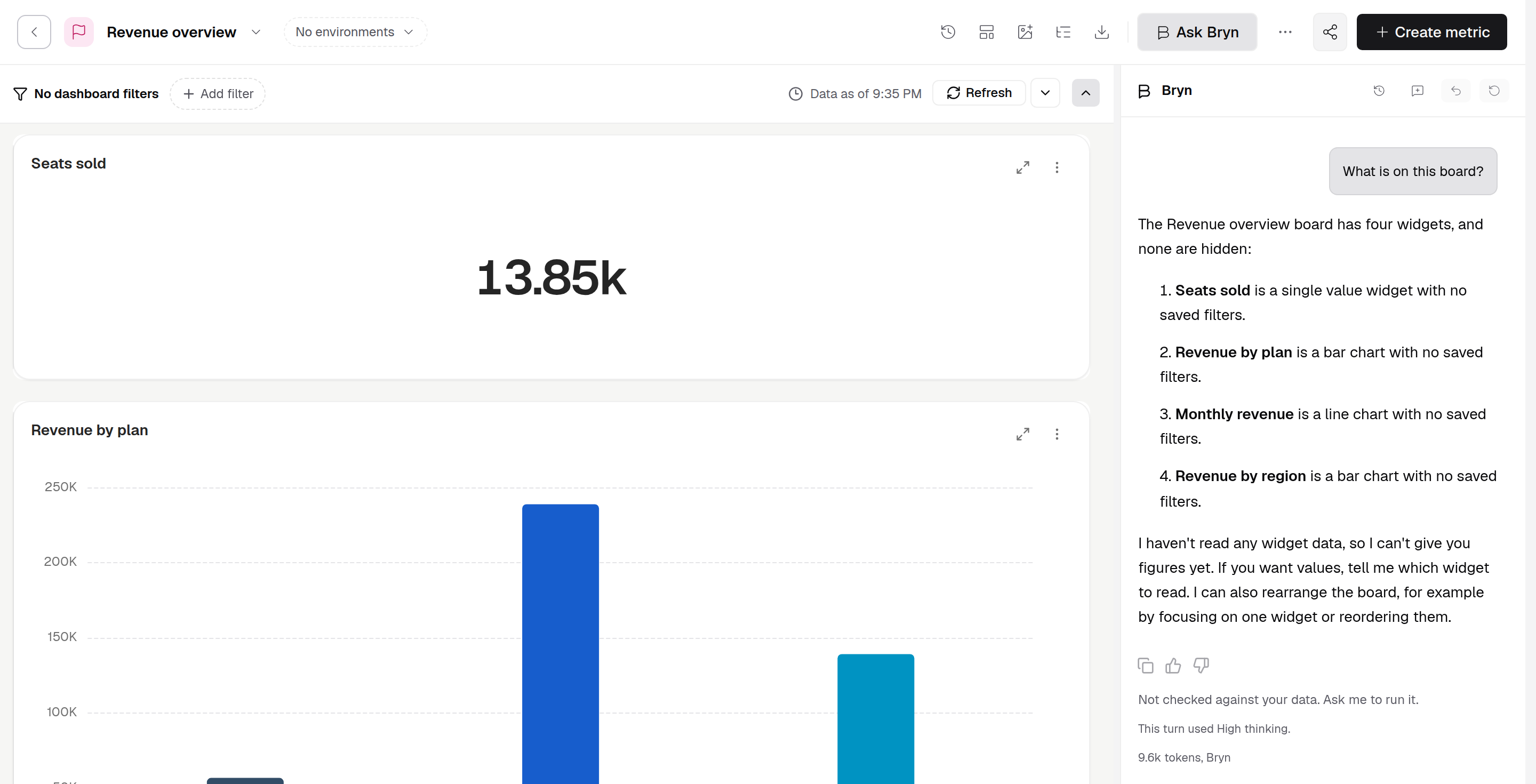
Ask Bryn is not in the header while you edit the layout. Drag the edge of the panel to make it wider or narrower.
What you can ask
- Questions about the board, for example
Which store sold the most last month?. Bryn reads the widgets and answers from them. The answer uses the dashboard filters that are on now. - Questions beyond the board, for example
Show weekly sales by region. Bryn writes and runs a query on your data. - Changes to what you see, for example
Focus on revenueorHide the map.
Type @ to name a metric on the board. Pick the mode in the message box:
| Mode | What Bryn does |
|---|---|
| Ask | Answers questions. It changes nothing. |
| Plan | Lays out the approach first, then waits for you to say go. |
| Build | Answers, changes the board view and proposes new metrics. This is the default. |
When your company has its own model keys, use Model in the message box to pick the AI model the question goes to. On Databrain’s model there is no picker.
What Bryn changes on the board
Bryn can show only some widgets, hide or show a widget, change the order, and show every widget again. It does not delete a widget.
These changes are your view only. They are not saved to the dashboard, and other people still see the saved layout. When widgets are hidden, the board shows how many, for example 2 hidden. Point at the bar on the edge of a card to see Placed by Bryn or Changed by hand.
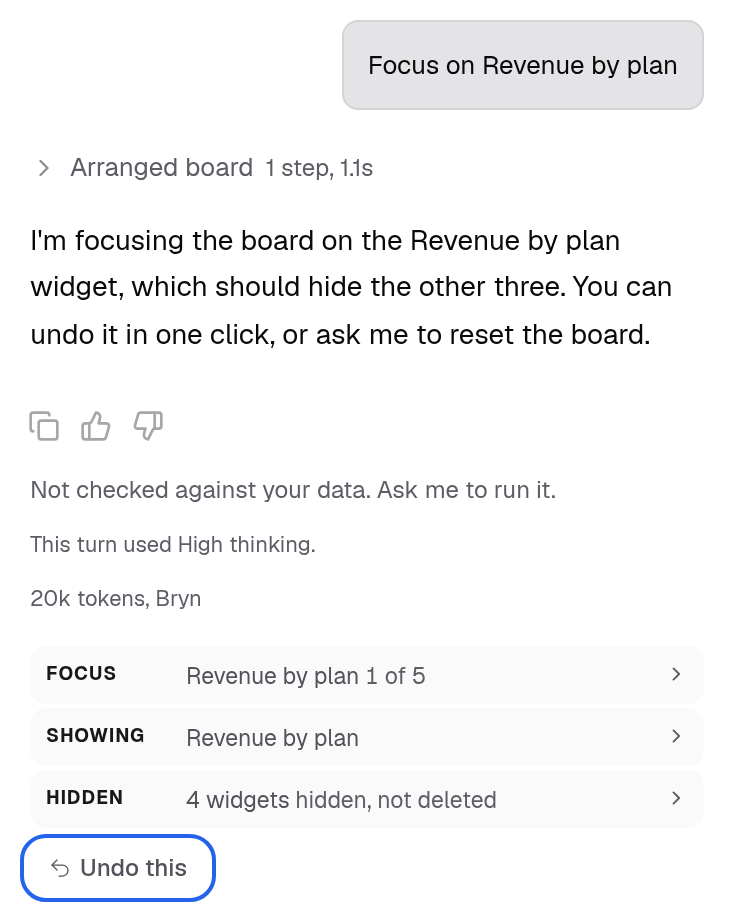
To take a change back:
- Select Undo this under the change in the panel.
- Or select Undo at the top of the panel. It takes back the last change, also one you made by hand.
- Select Show all to see every widget again.
If you open Edit layout, every widget shows again first.
Bryn does not change the saved dashboard filters. If you ask it to, it tells you to set the filter yourself. See Create a dashboard filter.
Add a metric Bryn proposes
In Build mode, when Bryn runs a query for you, it shows a Proposed metric card with the name, the columns and “Not on the board yet”.
- Read the name and the columns on the card.
- Select Add to board. The button shows Adding... while Bryn saves the metric.
The metric is now on the dashboard for everyone who can open it. To drop the proposal, select Dismiss. Add to board shows only if you have the dashboard Edit permission.
Past chats
- History opens earlier chats about this dashboard.
- New agent starts a fresh chat. The old one stays in History.
When Bryn cannot answer
If your plan, your credits or your AI model blocks Bryn, a panel shows above the message box, for example Bryn is not in your plan or Choose where AI answers come from. When you use Databrain’s model, Bryn can show the credits you have left under the message box, for example “You: 30 of 40 credits left”. For each panel and what to do, see When Bryn is not available.
When Bryn cannot answer, it can still change the view. Name a widget by its title, for example Hide <widget title>, or ask it to show all widgets again. In Plan mode, Bryn then shows a Change the board card with the steps and “Nothing has changed yet”. Select Apply to make the change, or Discard to drop it.
If something goes wrong
- The message box shows “No widgets on this dashboard yet”. The dashboard is empty. Add a metric first, then ask again.
- “cannot stream its work, so Bryn can arrange this board but not answer questions about it”. The model you picked cannot answer here. Pick another model in Model.
- Bryn says to create and publish a semantic model. Publish a semantic model for the workspace, then ask again.
- “Failed. You do not have access to this workspace” or “You do not have access to this workspace”. Your role does not cover this workspace. Ask an Admin to add the workspace to your role. In a workspace that uses more than one datamart, Bryn on dashboards shows this message too. Open the dashboard from a workspace with one datamart.