

Create a metric
Build a metric with Bryn
Ask Bryn, the AI assistant in the metric builder, to write the query and build the chart.
Ask Bryn, the AI assistant in the metric builder, to write the query and build the chart.
Before you start
- You can open the metric builder (Admin, Editor or Developer).
- Your workspace has a published semantic model. Create a semantic model
- Your plan includes Bryn. Bryn is on the Solo plan and up.
- Your company has an AI model: its own model, or Databrain’s model.
Steps
-
Go to Home and select New metric.
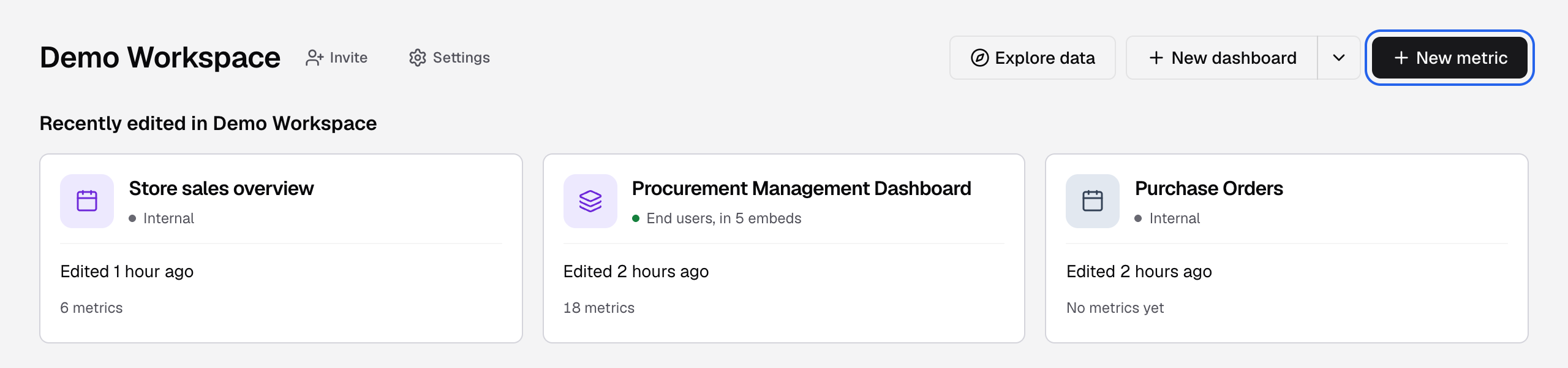
New metric is at the right of the workspace header on Home. -
Select Bryn in the header. The Bryn panel opens on the right.
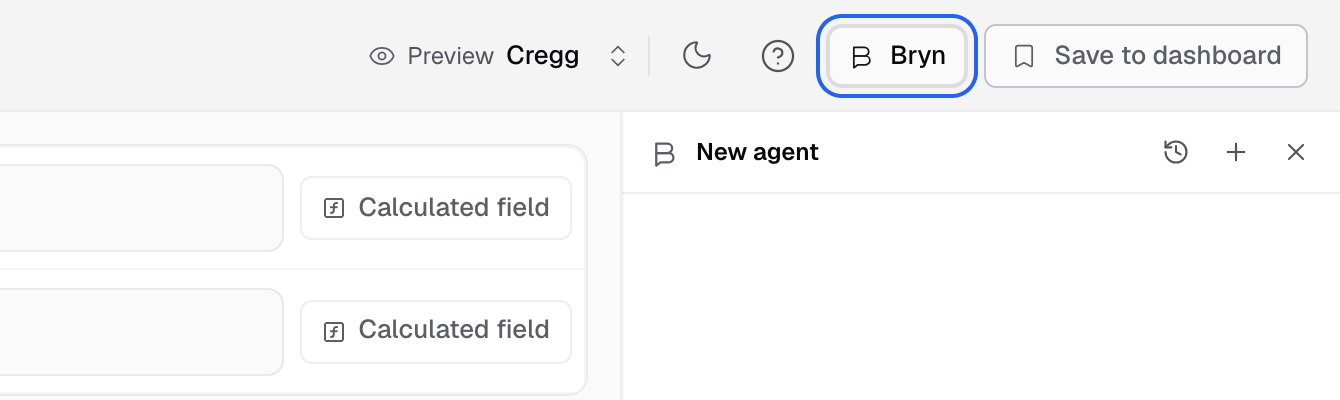
Bryn is next to Save to dashboard in the builder header. -
Check that the mode chip shows Build.
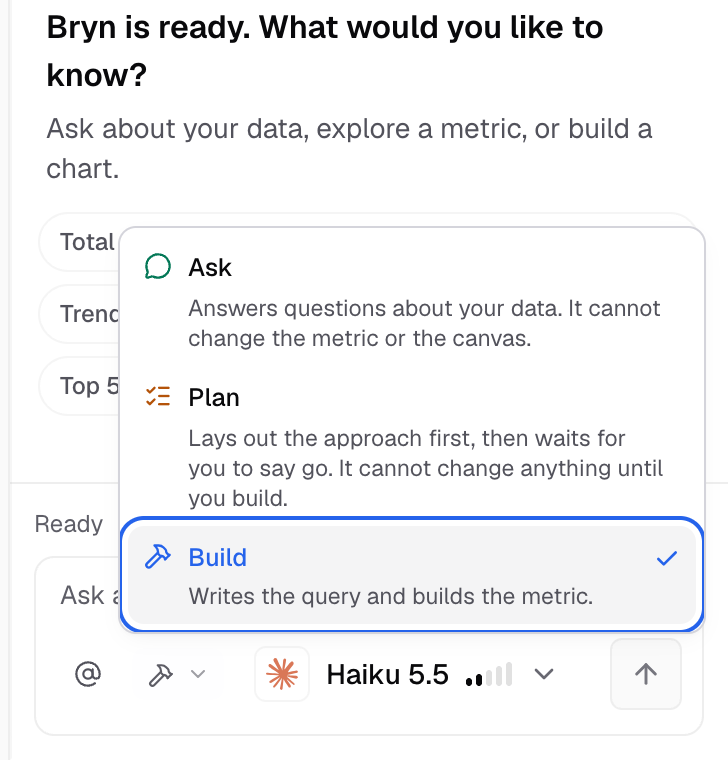
Open the mode chip to see Ask, Plan and Build; Build has the check. -
In Ask anything about your data..., describe the metric, for example
Monthly revenue for the last 12 months.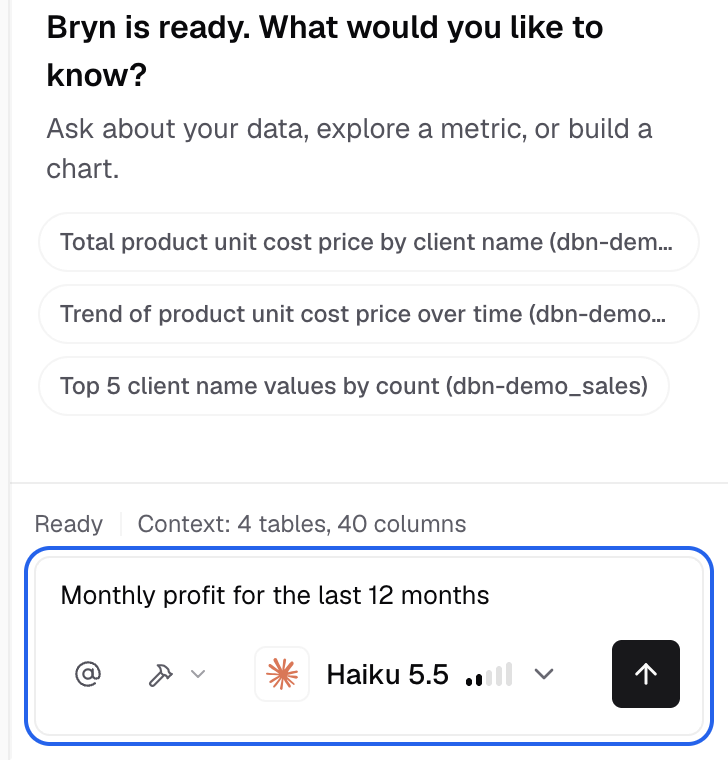
Type the metric you want in the message box. -
Send the message.
-
Wait until a result card shows in the panel. It shows the steps Bryn ran, what it assumed, and a preview of the chart.
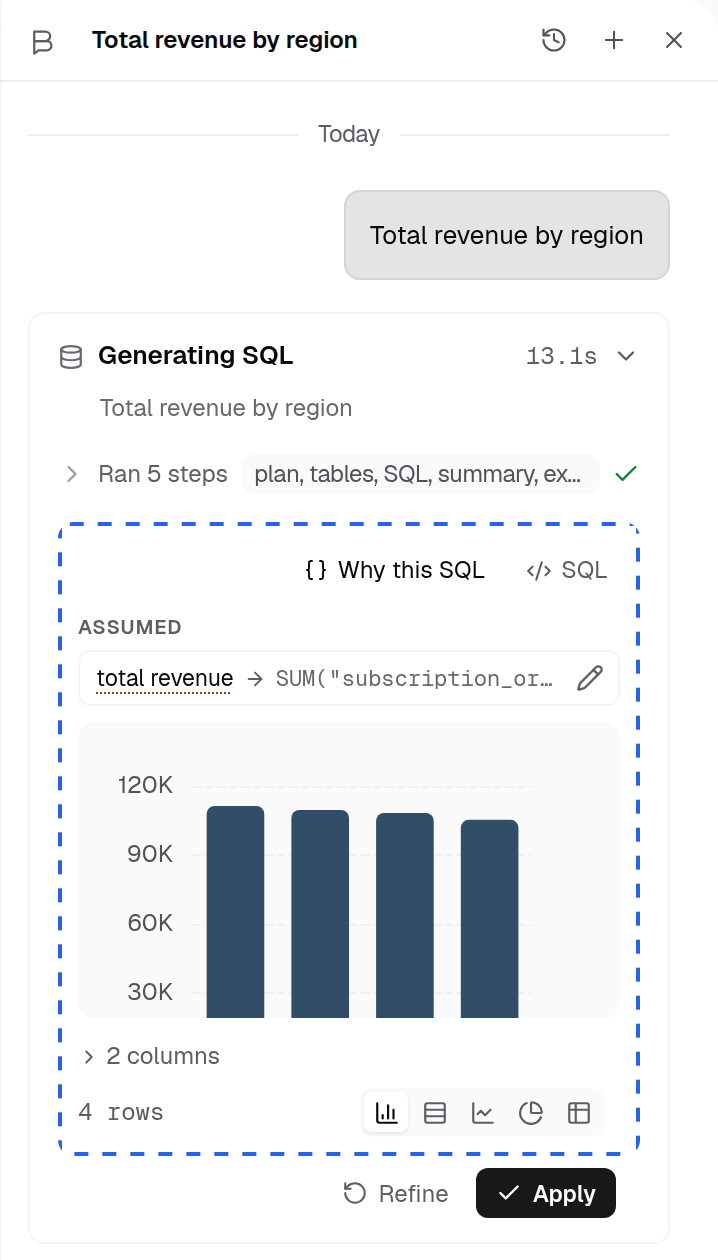
The result card: the steps Bryn ran, its assumptions and a chart preview. -
On the result card, select Apply.
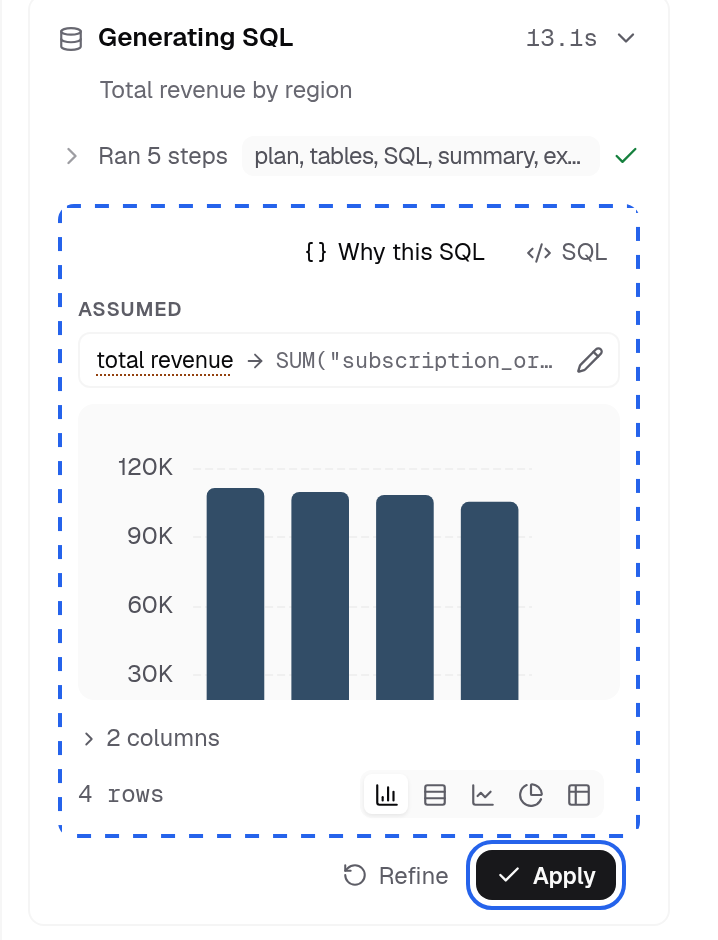
Apply puts the result on the canvas. Refine asks Bryn to change it first. -
Select Save to dashboard and save the metric.
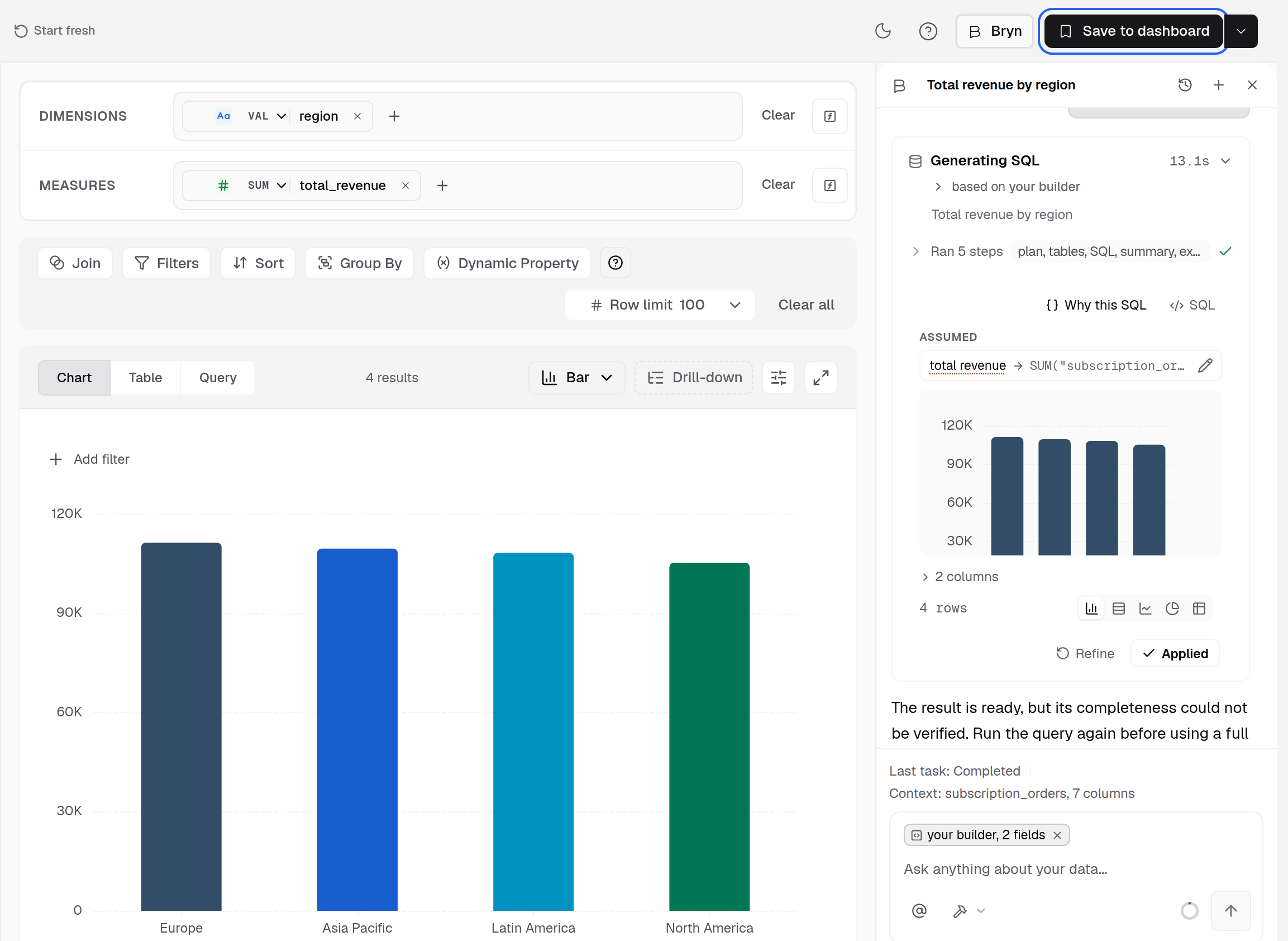
After Apply, the fields and the chart are in the builder and the card shows Applied.
The chart and its query are now in the builder. The canvas stays empty until you select Apply. Next, edit the metric.
On an empty canvas you can also select Ask Bryn to build it.
Modes
Select the mode chip next to the message box. Your browser keeps your last choice.
| Mode | What Bryn does |
|---|---|
| Ask | Answers questions about your data. It cannot change the metric or the canvas. |
| Plan | Lays out the approach first, then waits for you to say go. It cannot change anything until you build. |
| Build | Writes the query and builds the metric. This is the default. |
Composer controls
- Model sends the question to the model you pick from your company’s models. It shows only when your company has its own model keys. On Databrain’s model there is no picker, and the line under the message box shows the credits you have left. For models that think, pick a thinking level in the same menu.
- Type
@or select Add context (@) to point Bryn at tables and columns. You can also attach the SQL in Query editor. - Type
/to use a skill. Built-in skills areexplain-sql,optimize-query,suggest-chartandcheck-data-quality. Skills you make are kept in this browser, per workspace. - While Bryn answers, a new message waits as Queued. Use the stop button to stop the answer.
What Bryn can change
In the builder, Bryn can run read-only SQL, set the chart type, add color rules to a table, set drill levels, and save the metric. It cannot change other cards on a dashboard.
On a result card you can also open the SQL, change the chart type, or select Refine.
Past conversations
Each conversation is an agent.
- Select Open agents to see past agents. Use Search agents to find one.
- On an agent, select Rename or Archive.
- Select the title in the panel header to rename the open agent.
- Select Start new agent for a clean start.
Old results do not keep their rows. To use one, select Run again, then Apply.
When Bryn is not available
The panel shows a message instead of the message box.
| Panel title | What to do |
|---|---|
| Bryn is not in your plan | Select Upgrade. |
| Your trial has ended or Your subscription has ended | Select Upgrade or Renew. |
| Choose where AI answers come from | Select Use Databrain’s model or Add your own model. |
| Databrain’s model is off for your company | Select Turn it on, or Add your own model. |
| You have used the free Bryn credits or Your company has used the free Bryn credits | Select Add your own model. |
| You’ve used your credits on Databrain’s model | Wait for the reset date on the panel, or select Add your own key. |
| AI is not available right now | Select Retry. |
| Ask your admin to set up AI | Ask an Admin to set up an AI model. |
The buttons show only for people who can manage billing or AI settings.
If something goes wrong
- Bryn asks you to publish a semantic model. Bryn answers data questions only from a published semantic model. Publish one, then ask again.
- The agent can answer, but it cannot save yet. Your workspace uses database tenancy. Choose one client in Preview in the header, then ask again.
- Context window is full. Select Start new agent.
- That query did not run. Select Ask Bryn to fix it.
- “Bryn cannot run here.” with “You do not have access to this semantic model. A workspace admin can change this.” Your role does not cover this workspace, or the metric uses a datamart that is not the workspace’s datamart. Ask an Admin to add the workspace to your role, or open the metric from the workspace that holds its datamart.
- “You do not have access to this workspace”. Your role does not cover this workspace. Ask an Admin to add the workspace to your role.
- This workspace is not set up for Bryn yet. Select Open LLM Settings or Open Workspace Settings and set up a model.