

Metrics
Find and publish unpublished metrics
See every metric in a workspace, find the ones on no dashboard, and put them on one.
An unpublished metric is saved in the workspace but is on no dashboard.
Find unpublished metrics
-
Go to Home and open the workspace.
-
Select the Metrics tab, next to All dashboards.
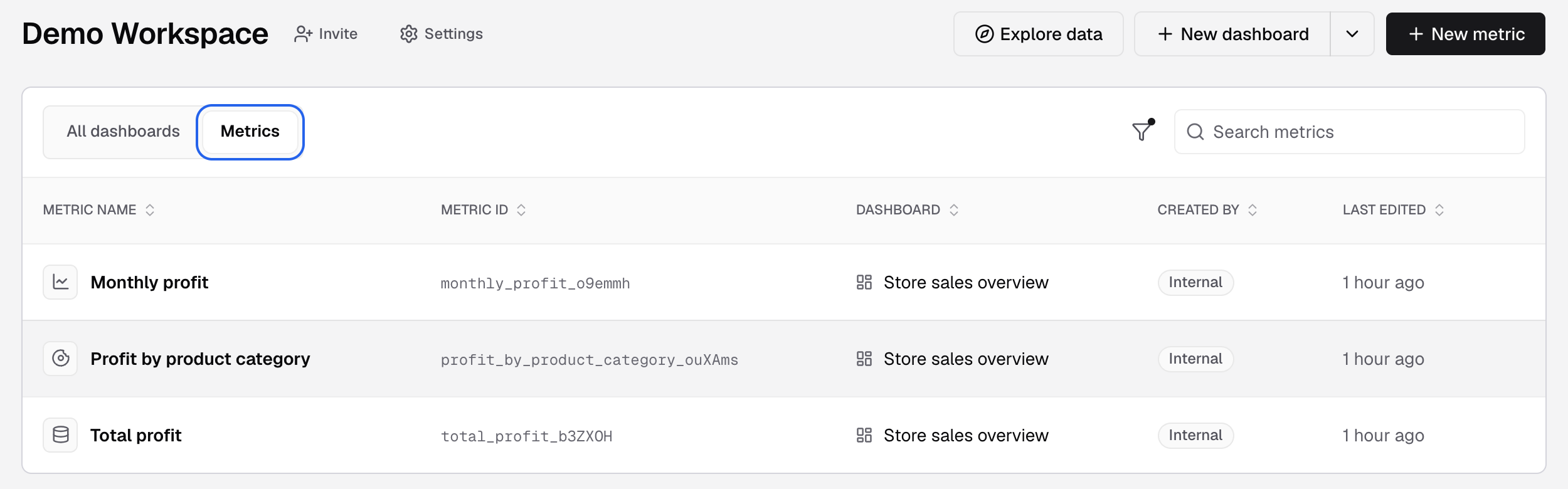
The Metrics tab lists every metric in the workspace. -
Look for the Unpublished badge in the Dashboard column. If no row has it, every metric is on a dashboard.
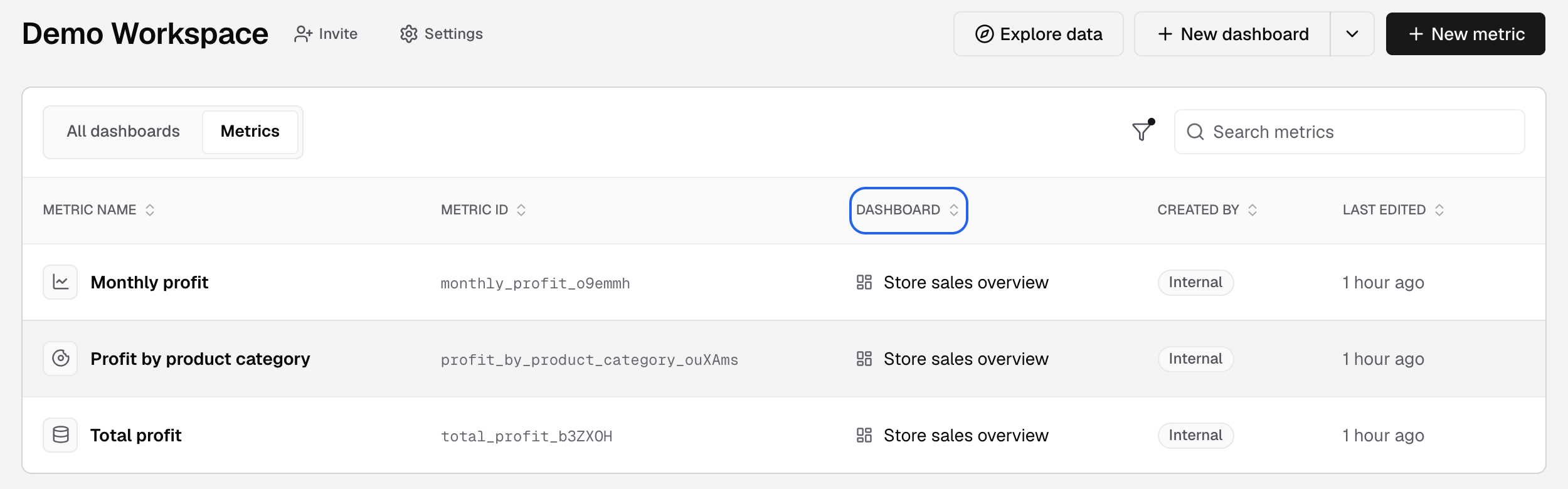
The Dashboard column shows where each metric is. Unpublished metrics show a badge here.
The table has Metric name, Metric ID, Dashboard, Created by and Last edited. Select a column header to sort. A metric on two dashboards shows in two rows.
Narrow the list
- Search metrics finds a metric by name or Metric ID.
- Search filters has three filters:
- Created by: All, Internal or End User.
- Chart Types: the chart the metric uses.
- From Dashboards: metrics on the dashboards you pick. This hides unpublished metrics.
Publish a metric
Publishing from the Metric Store needs Publish on Metrics Store and the Team plan or higher. Admins and Editors have Publish by default.
Use one of these:
- Open the Metric Store, find the metric and select Publish. Pick the dashboards and select Publish to dashboard.
- On the Metrics tab, select the metric to open it in the metric builder. Select Save to dashboard, pick a Dashboard and select Save and add to dashboard.
The Unpublished badge is replaced by the dashboard name.
Archive or delete a metric
Open the row’s Metric actions menu and select Archive or Delete. Delete removes the metric from every dashboard and cannot be undone. See Archive and restore a metric.