

Metrics
Add a dynamic property
Add a named value to a metric's SQL that changes with a filter.
A dynamic property is a named value. You write it as [[name]] in the query, and Databrain puts in the value when the metric runs.
Steps
-
Open the metric in the metric builder.
-
Select Dynamic Property in the Query toolbar.

Dynamic Property is the last button in the Query toolbar. -
Select Property.
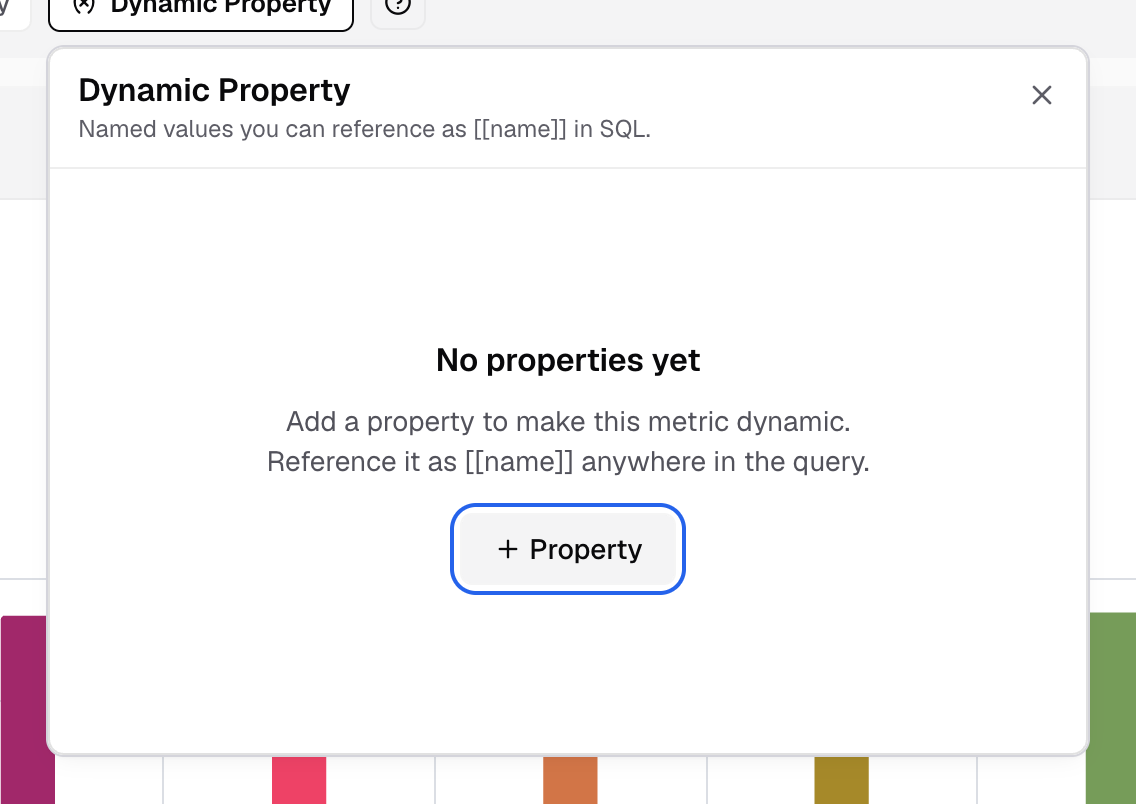
Select Property to add a new one. -
In Property Name, enter a unique name, for example
region.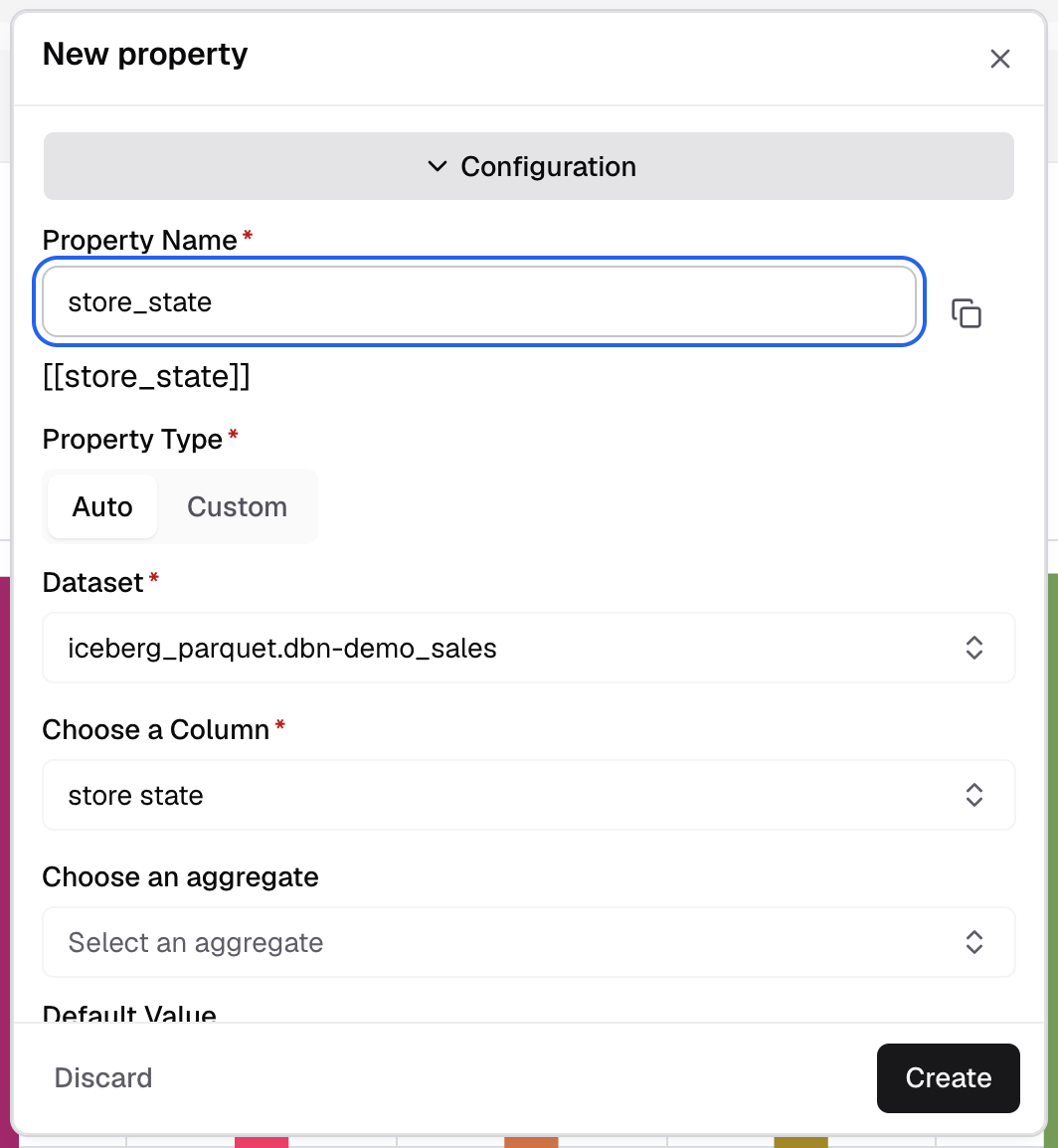
The line under the name shows how to write it in the query. -
In Property Type, select Auto or Custom.
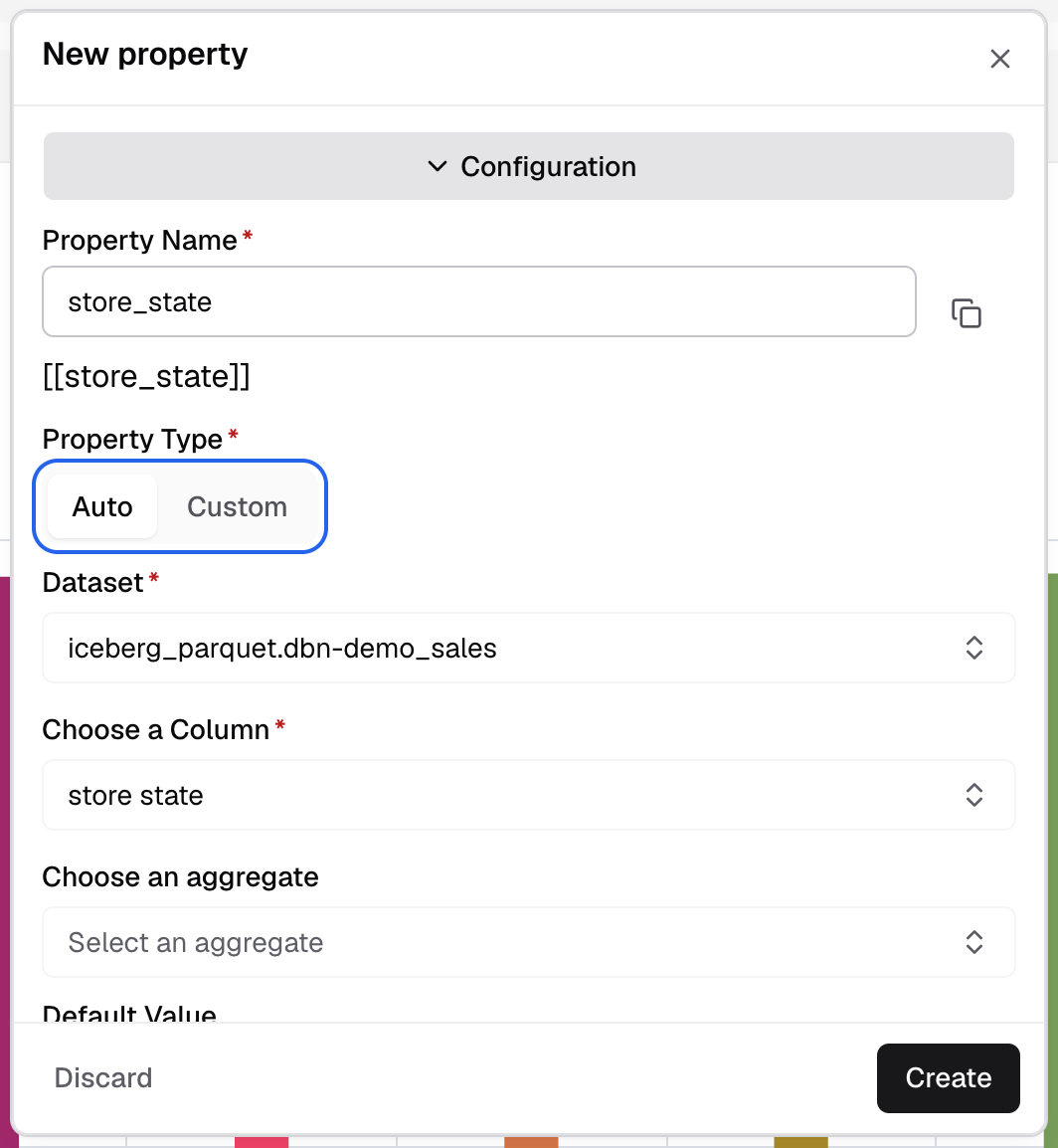
Property Type: Auto or Custom. -
Fill in the fields for the type. See the table below.
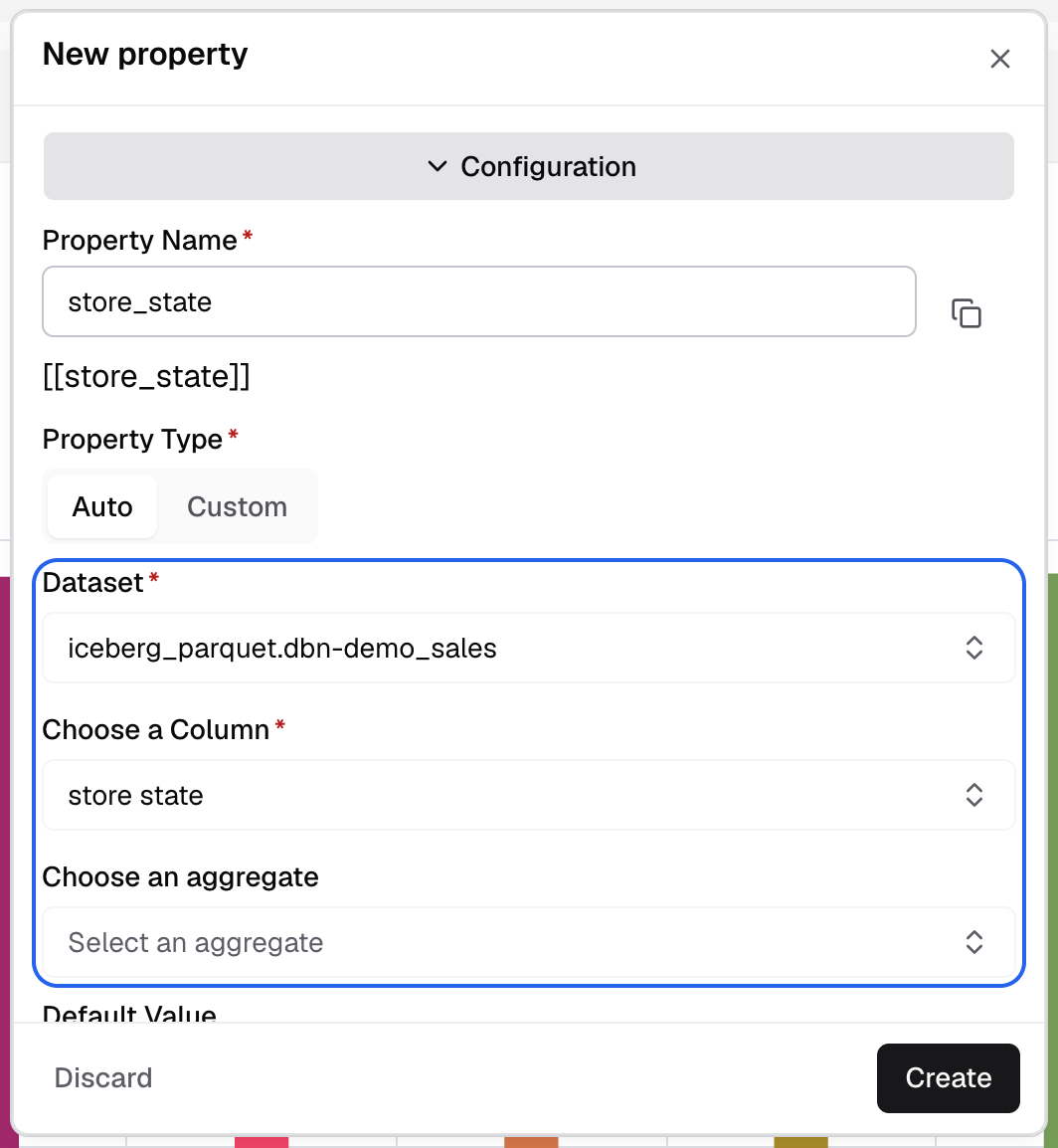
For Auto, pick the dataset, the column and, if you need one, an aggregate. -
Optional: in Default Value, enter the value to use when nothing is picked.
-
Optional: link the property to a filter. See below.
-
Select Create.
-
Write
[[region]]in the query where the value goes.
The Dynamic Property button shows how many properties the metric has.
| Property Type | Fields |
|---|---|
| Auto | Select a table, Select a column, Select an aggregate. Optional client column to scope the values to each client. |
| Custom | SQL Editor with a query that returns the values, and Column Name: the column or alias from that query. |
Databrain runs a Custom query to check it before it saves.
Make the property follow a filter
-
Select Depend on, then Add Option.
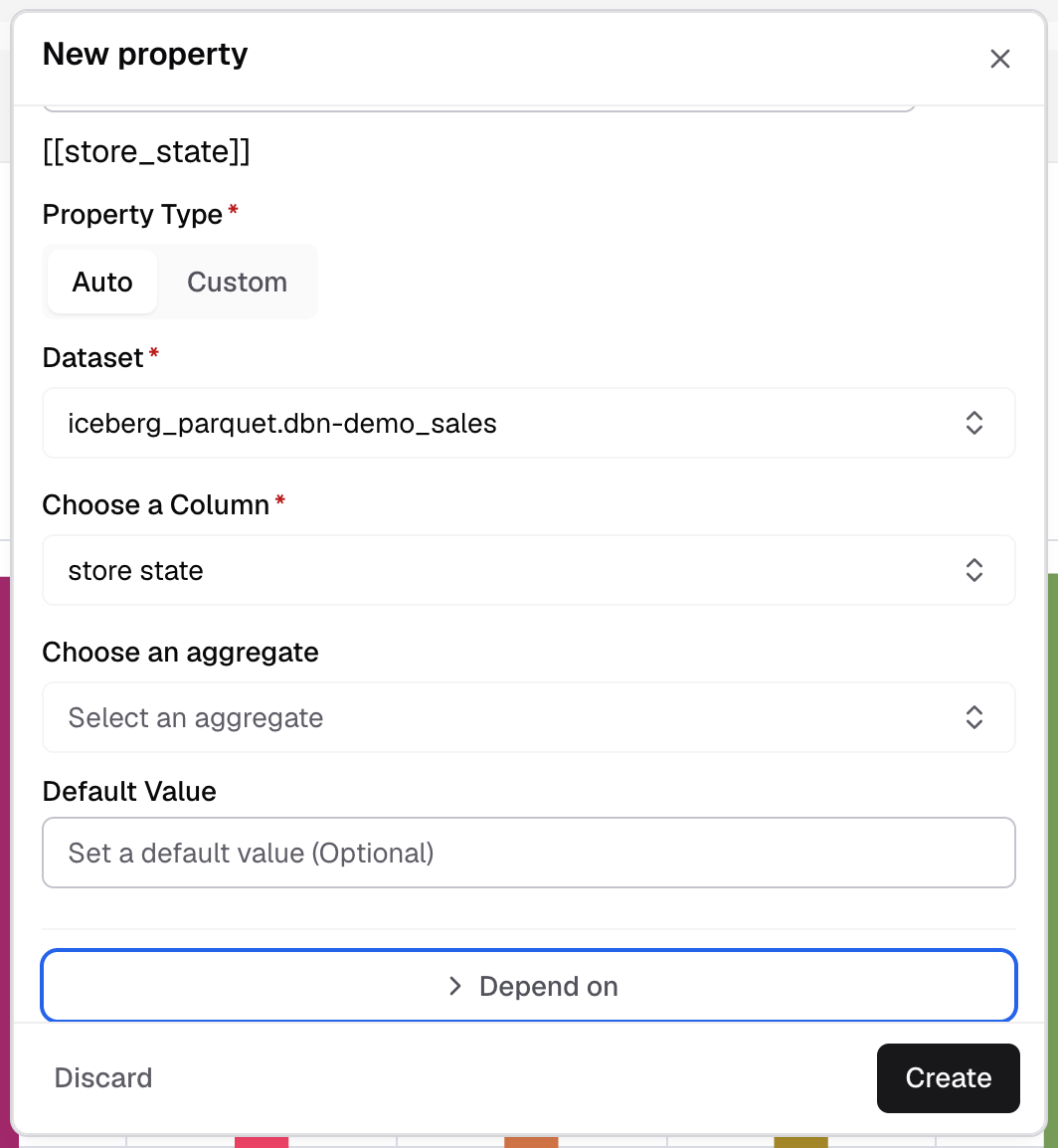
Depend on is at the bottom of the New property panel. -
Select a Filter type: Dashboard Filter, Metric Filter or Client Filter.
-
In Select the Filter, select the filter.
-
In Column Name for Dependency, enter the alias from the query.
When a viewer changes that filter, the property gets the new value.
If something goes wrong
- Property name should be unique. Another property has this name. Enter a different name.
- Client Filter is not available for a Custom SQL property. Set Property Type to Auto.
- Client Filter is not available on a database-tenancy workspace. Use a Dashboard Filter or Metric Filter.