

Metrics
Edit a metric
Change a saved metric. Every dashboard that shows it gets the change.
Change a saved metric. Every dashboard that shows it gets the change.
Before you start
- You are an Admin, Editor or Developer.
- The dashboard is not in Edit layout mode. Edit metric does not show while you edit the layout.
Steps
-
Open the dashboard that has the metric.
-
On the card, select More actions (the three dots).
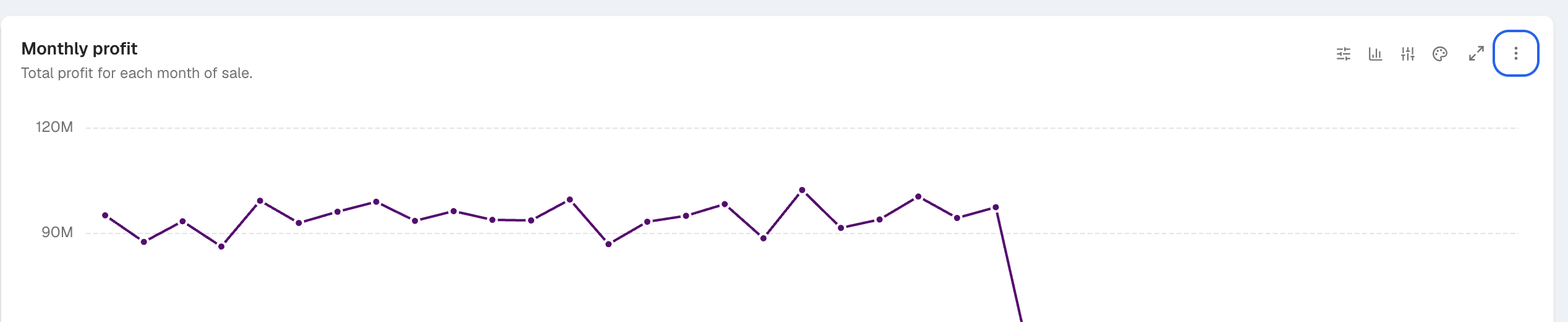
More actions is the last icon at the top right of the card. -
Select Edit metric.
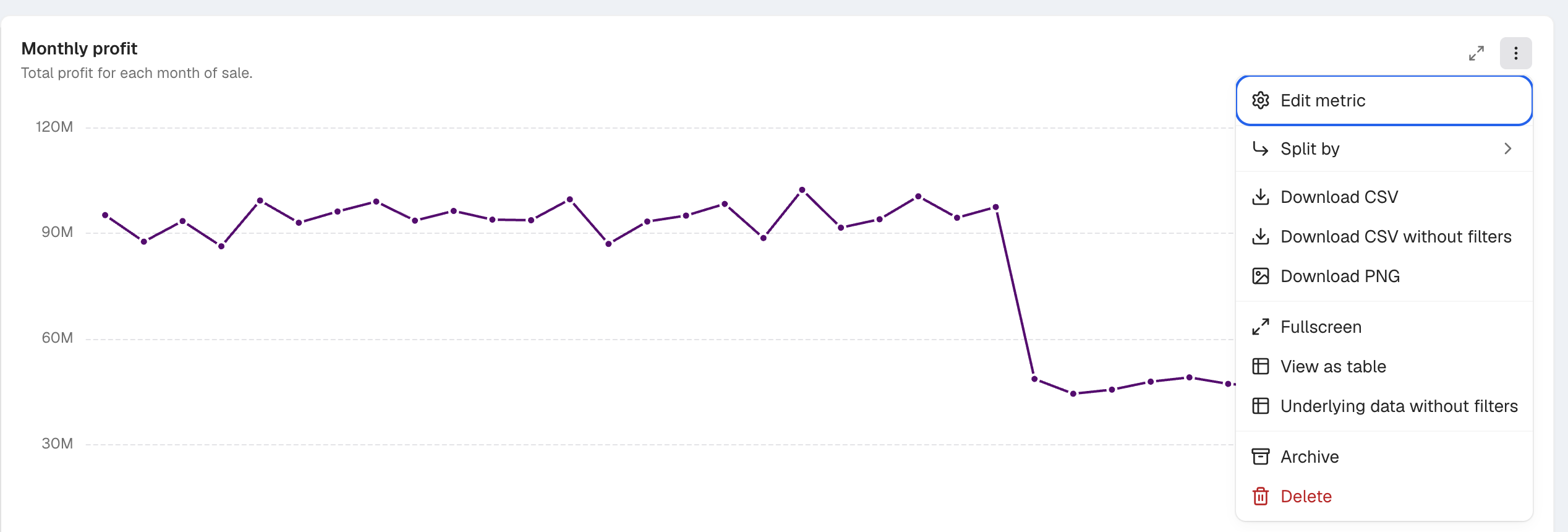
Edit metric is at the top of the More actions menu. -
Change the fields, filters or chart.
-
Wait until the header shows Saved.
The builder saves your changes to the same metric. It does not make a copy. You can also open a metric from Home > Metrics: select its row.
To change the title, description or dashboards, select Save to dashboard. In What changed? (optional), write a short note for the version history, for example count only paid orders.
Rename the metric
-
In the header, select the pencil next to the metric name (Rename metric).

The pencil is right after the metric name in the builder header. -
Enter the new name.
-
Press Enter.
Renaming does not change the Metric ID. Embeds and expressions use the Metric ID, so change it only in the save dialog, and only if you must.
Go back to an earlier version
-
In the header, select the history button. It shows the last edit time, for example “Edited 5 min ago”.
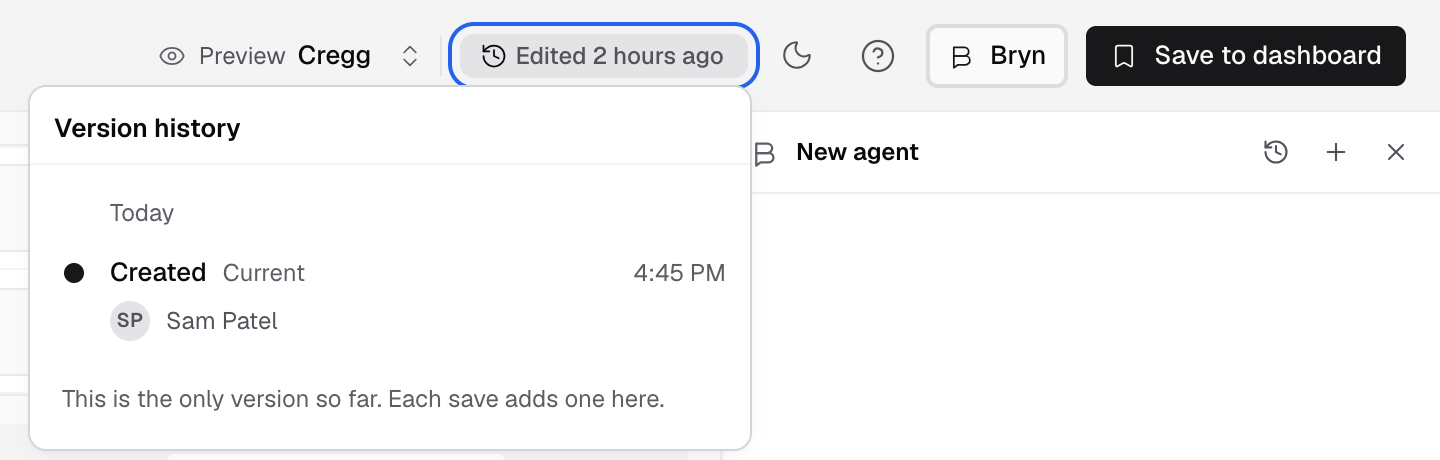
The history button opens Version history with each saved version. -
In Version history, select a version.
-
Turn on Show changes to see what is different.
-
Select Restore this version.
The builder reloads on the restored version. Select Undo in the Restored message to go back.
If something goes wrong
- This metric changed in another tab. Reload the page to get the latest version, then make your change again.
- Couldn’t save. Check your connection. The header shows Unsaved changes until the save works.
- Edit metric is missing. Leave Edit layout mode, or ask an Admin for the Editor role.