

Metrics
Publish a metric from the Metric Store
Find every metric on a datasource and put the ones on no dashboard onto a dashboard.
Find every metric on a datasource and put the ones on no dashboard onto a dashboard.
Before you start
- You are an Admin or Editor. Developers can view the store but cannot publish.
- Your plan is Team or higher. On other plans Publish is locked.
Steps
-
Open the Metric Store at
/metricStorein the app, for examplehttps://app.usedatabrain.com/metricStore. -
Select the datasource picker and choose a datasource.

The datasource picker is at the top right of the Metric Store. -
Find the metric. Use Search metrics to search names and descriptions.
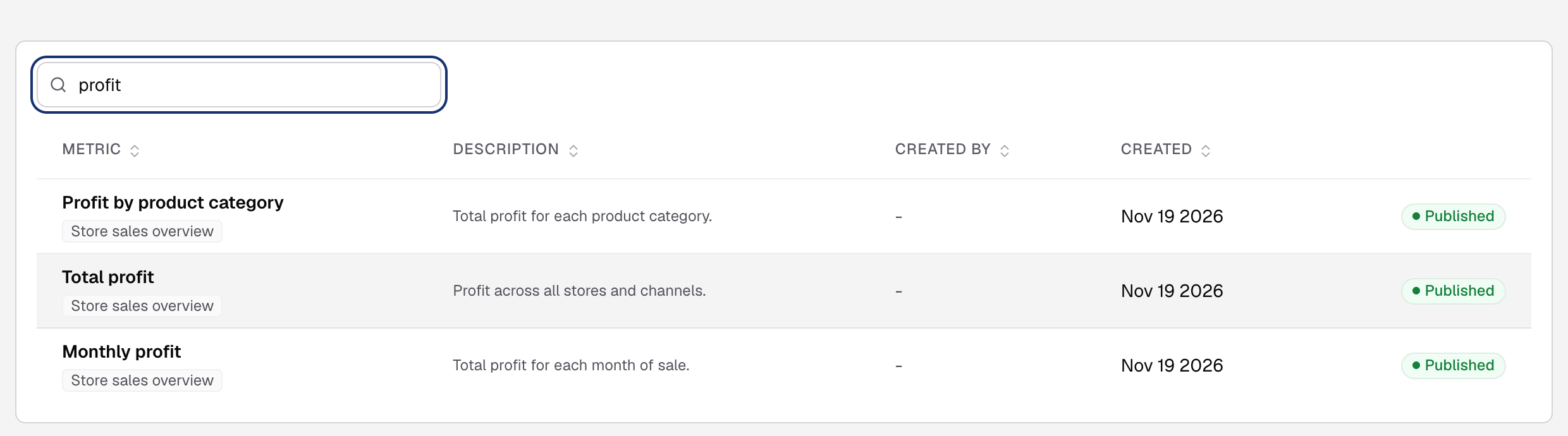
Search metrics narrows the list by name and description. -
In the metric’s row, select Publish. Only a metric on no dashboard has it. If every row shows Published, there is nothing to publish.
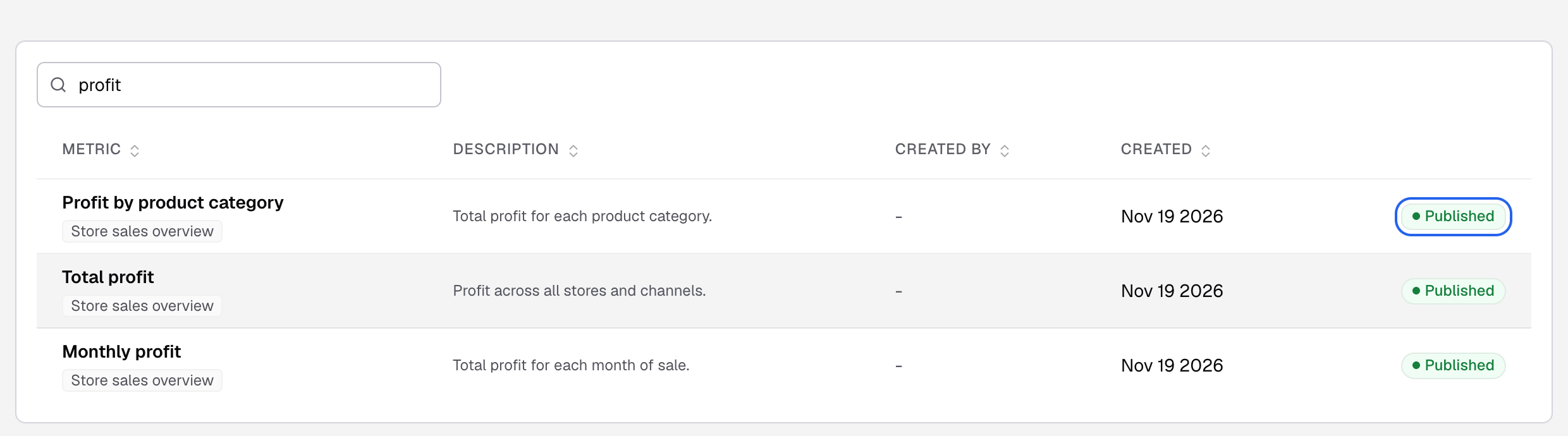
A metric that is already on a dashboard shows Published instead of Publish. -
In Dashboards, select one or more dashboards.
-
Select Publish to dashboard.
The page reloads and the row shows Published. The metric is now a card on each dashboard you chose.
The Metric Store is no longer in the Data Studio menu. You also reach it from Data Studio > Build > Archived Metrics: select Browse active metrics when the list is empty or after you restore a metric.
What the list shows
- Metrics of the current workspace that are not archived, for the datasource you chose.
- Columns: Metric, Description, Created by and Created. Select a column name to sort.
- Under each name, the dashboards that use the metric. Select the name to open it in the builder.
- A Published badge when the metric is on at least one dashboard. Otherwise a Publish button.
Choosing a datasource from another workspace also switches you to that workspace. To make a metric here, select Create metric.
If something goes wrong
- Publish is greyed out: “Your role cannot publish metrics.” Ask an Admin for the Publish permission on the Metric Store.
- No metrics use this datasource yet. Select Try another datasource, or Create a metric.
- No datasources connected. Select Add datasource. Add a datasource
Related: view unpublished metrics on the Home page.