

Metrics
Download a metric card
Save a metric card's data as a CSV file or its chart as a PNG image.
Before you start
- To download CSV, your role has Download Metrics on Dashboard. Admins have it. The default Editor, Developer and Viewer roles do not, so ask an Admin to add it to your role.
- PNG needs no extra permission.
Download the data as CSV
-
Open the dashboard.
-
On the metric card, select More actions (the three dots).
-
Select Download CSV.
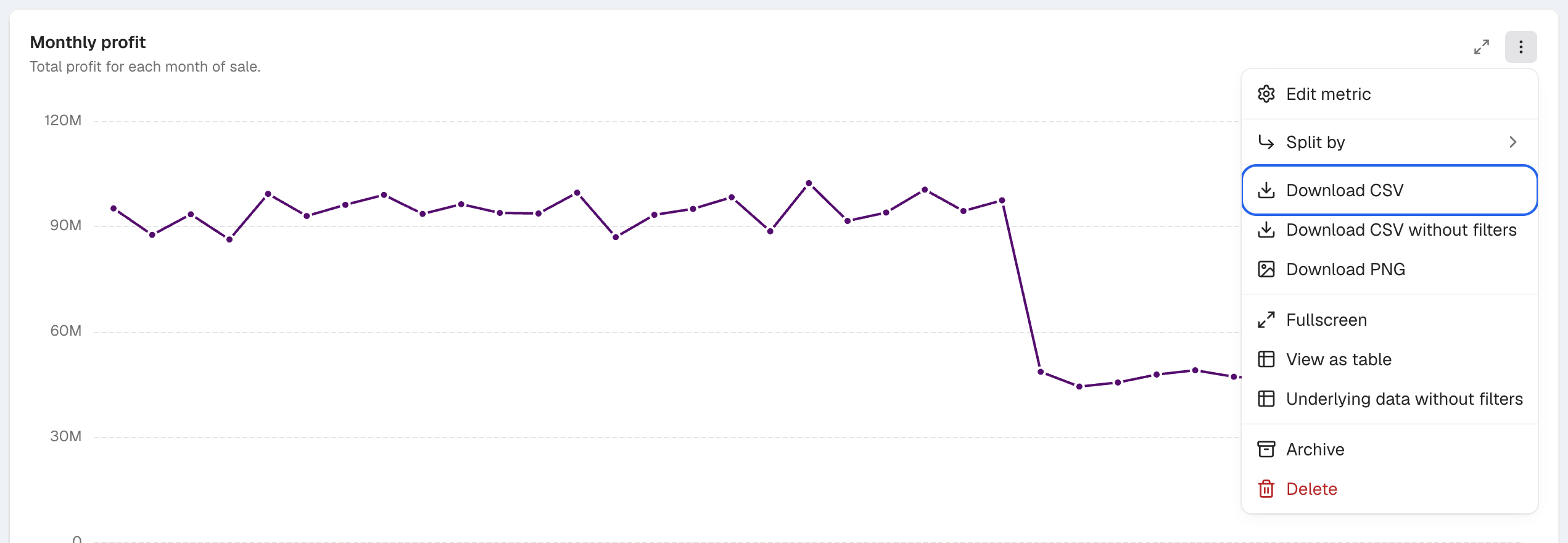
Download CSV is in the card's More actions menu. -
In the Download CSV dialog, select Download.
You get <card title>.csv with the rows the card shows now, with the current filters. Columns hidden under Hide columns from CSV data in the metric’s chart actions are left out.
To get the rows with no dashboard or metric filters, select Download CSV without filters instead. There is no dialog. Your access rules still apply, and the file has at most 5,000 rows.
Download the chart as PNG
-
On the metric card, select More actions.
-
Select Download PNG.
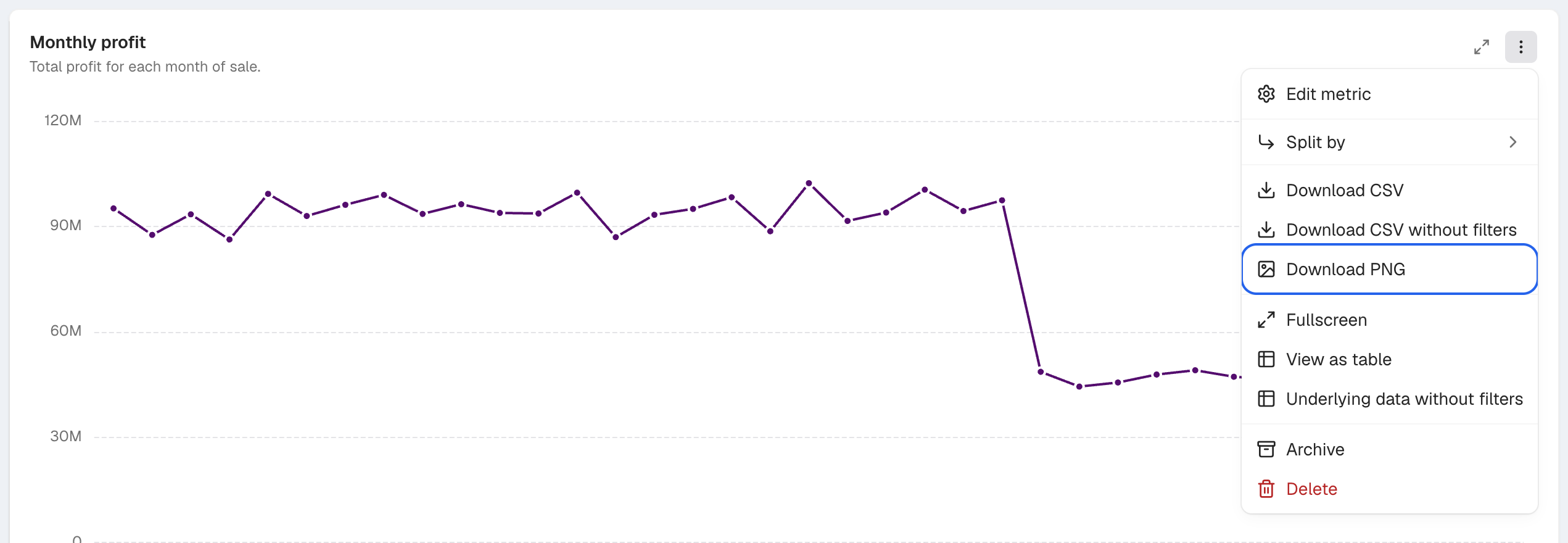
Download PNG saves a picture of the chart.
You get <card title>.png, a picture of the chart on a white background.
PNG works for charts only. For a Table, Trend Analyzer, Pivot Table or Horizontal Stack Table card, use Download CSV.
Download every card at once
In the dashboard header, select Export > Download metrics. You get a ZIP file with one CSV for each metric. This also needs Download Metrics.
For the rows behind a card, see Download underlying data.
If something goes wrong
- Download CSV is not in the menu. Your role does not have Download Metrics. Ask an Admin.
- Download CSV is greyed out. The card is still loading, could not load, or has no rows.
- PNG export is only available for charts. Use Download CSV for this card. The card is a table type. Use Download CSV.
- The chart is still drawing. Try Download PNG again in a moment. Wait for the chart, then try again.