

Metrics
Add a complex filter
Filter a metric's rows with your own SQL condition, and save it to use again.
Filter a metric’s rows with your own SQL condition, and save it to use again.
Before you start
- The metric is open in the builder and has at least one field. Create a metric
Steps
-
Select Filters.
-
Select Add Filter, then Complex Filter.
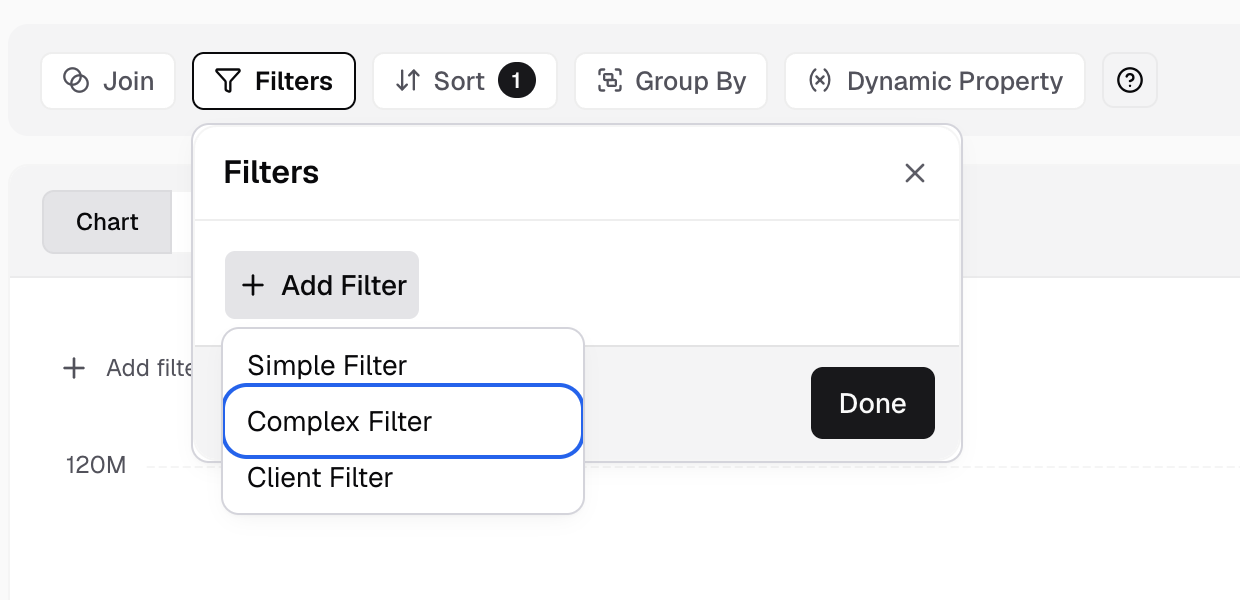
Complex Filter is the second item under Add Filter. -
In Filter Name, enter a name, for example
Paid orders.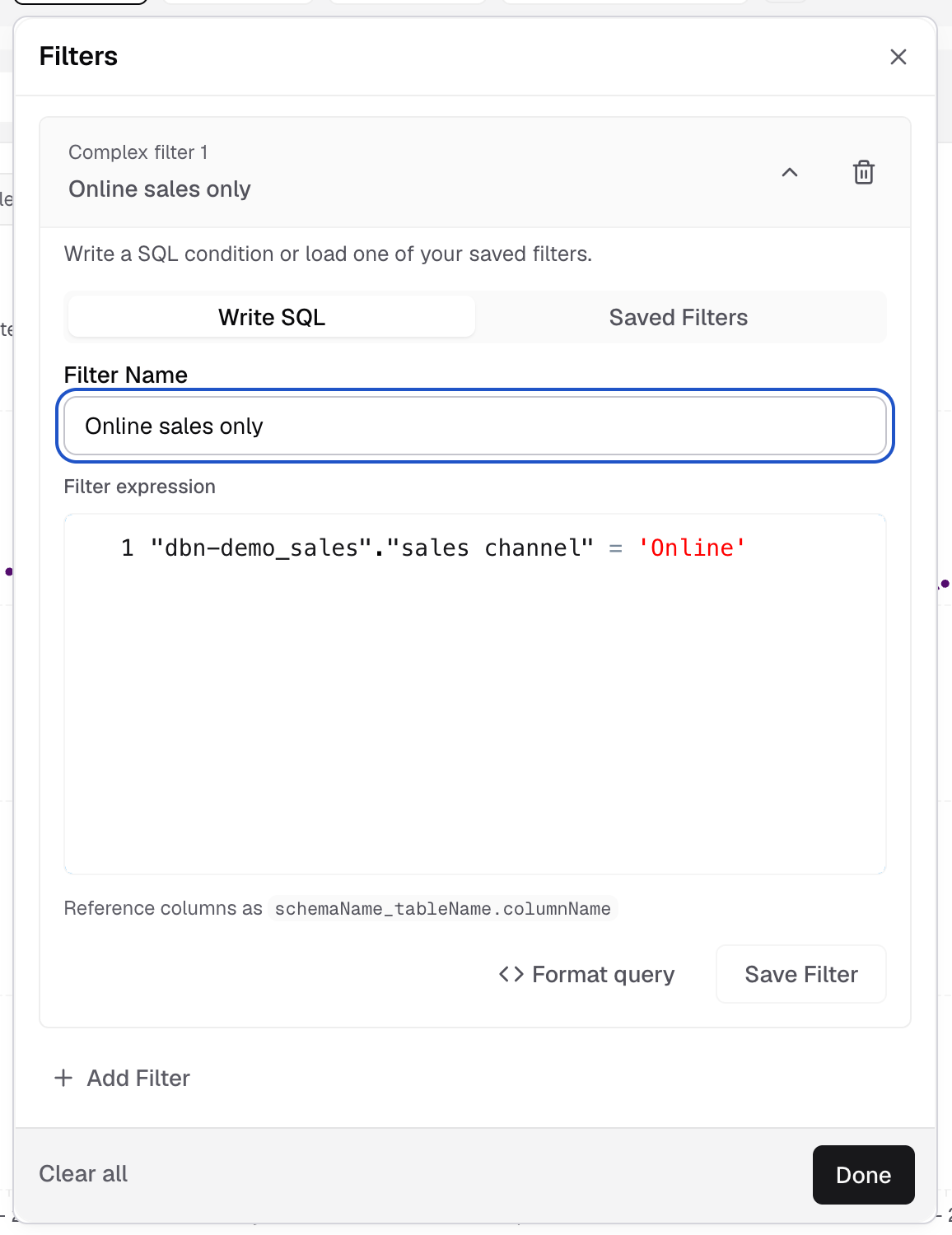
Name the filter on the Write SQL tab. -
On the Write SQL tab, write the condition in Filter expression, for example
"public_orders"."status" = 'paid'.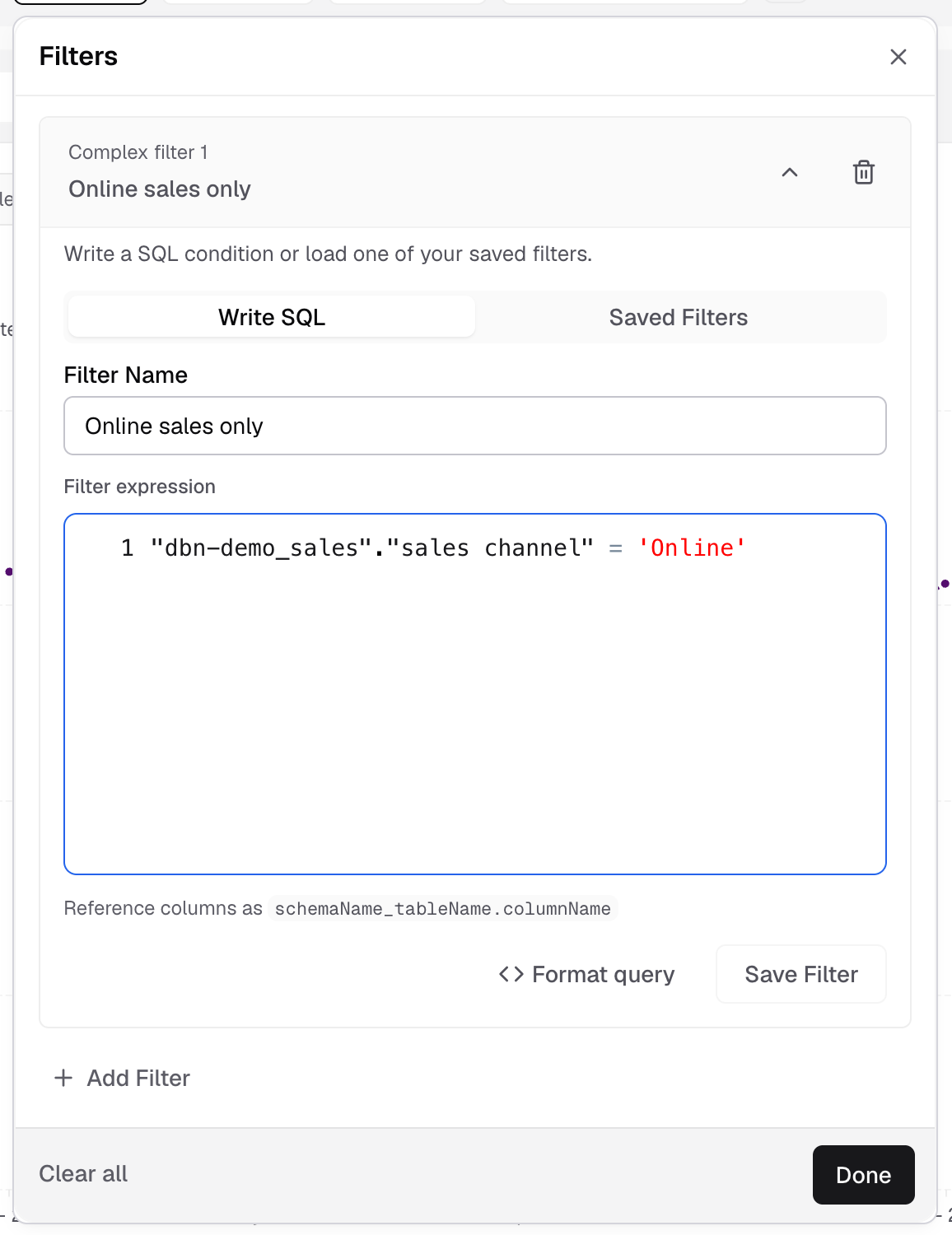
Write the SQL condition in Filter expression. -
Select Save Filter to keep it for later. This step is optional.
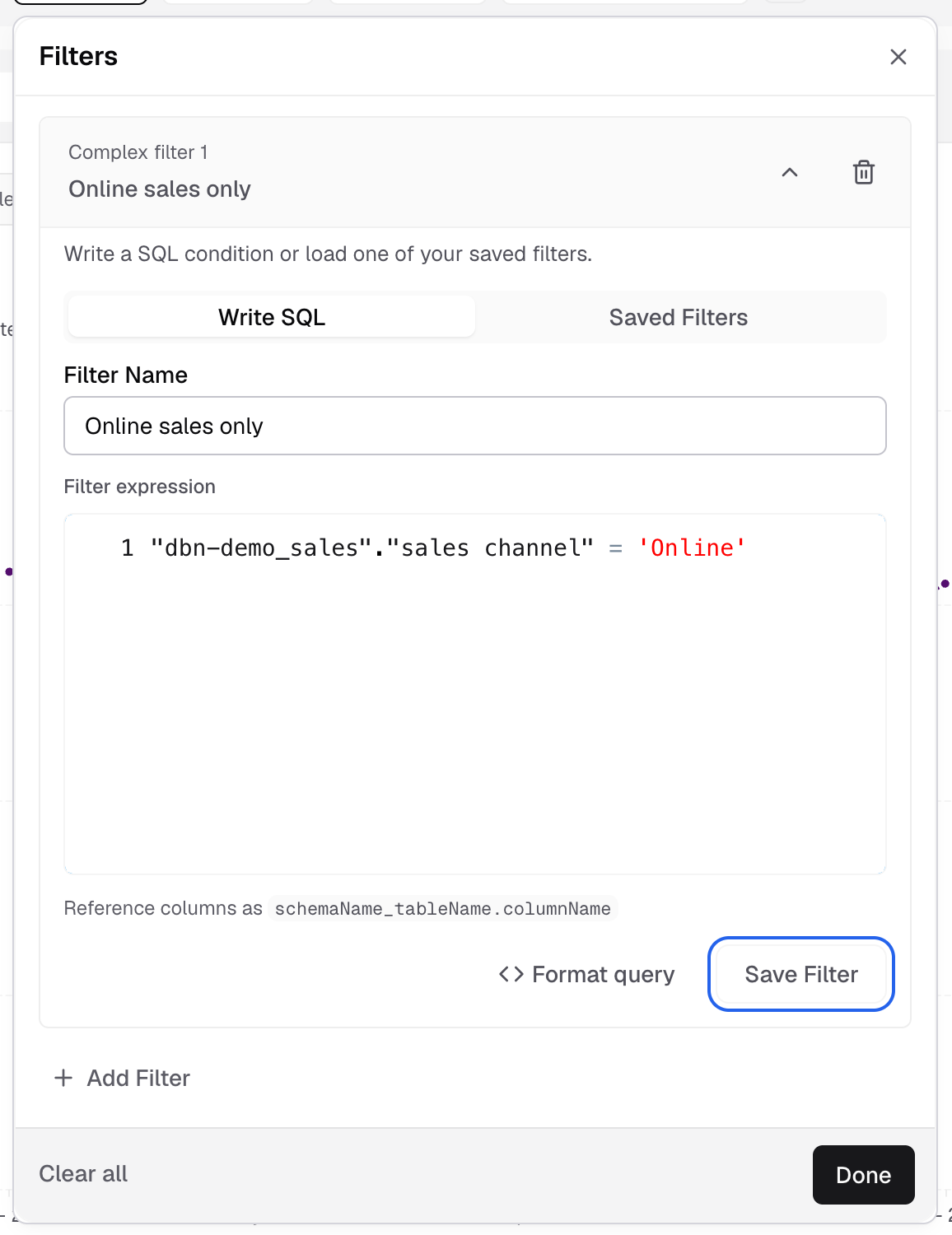
Save Filter keeps the condition for later use. -
Select Done.
The preview updates with only the matching rows.
Write the condition
- Write only the condition, as you would after
WHERE. Do not writeWHERE,SELECTorORDER BY. - Reference columns as
schemaName_tableName.columnName. For a SQL result or custom table, usetableName.columnName. - You can use
AND,ORand functions of your database, for example"public_orders"."amount" > 100 AND "public_orders"."region" IN ('EU', 'US'). - Format query tidies the SQL.
Use a saved filter
-
Select Add Filter, then Complex Filter.
-
Select the Saved Filters tab.
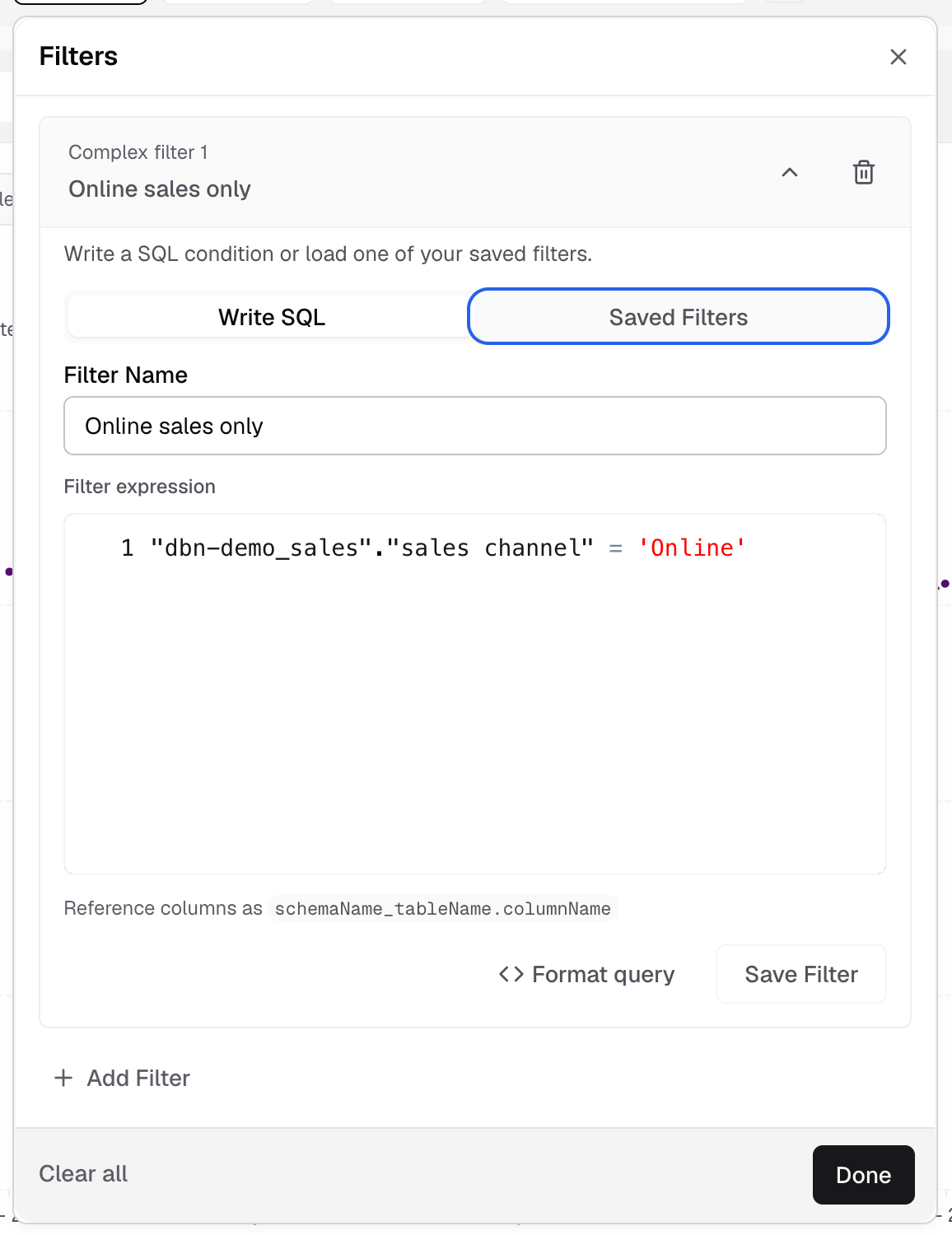
Saved Filters is the second tab on the card. -
In Select a saved filter, pick the filter.
-
Select Done.
To delete a saved filter, select the delete icon next to it and confirm.
For a filter your viewers pick from on the dashboard, use a metric filter.
If something goes wrong
- please add valid where condition. Remove
WHERE,SELECTorORDER BY, and write one condition only. - Save Filter is greyed out. Enter both a Filter Name and a condition.
- Complete this filter to add another. Finish the current filter first.