

Create a metric
Add a calculated field
Make a new measure or dimension from the columns already in your metric.
Make a new measure or dimension from the columns already in your metric.
Before you start
- The metric builder is on the Schema tab. Calculated fields are not on the SQL tab.
- The well you add to (Dimensions or Measures) has at least one column.
Add a quick field
A quick field combines two columns, or a column and a number. It is for Measures only.
-
In Measures, select Calculated field.

Each well has its own Calculated field button at the right. -
Select Quick field.
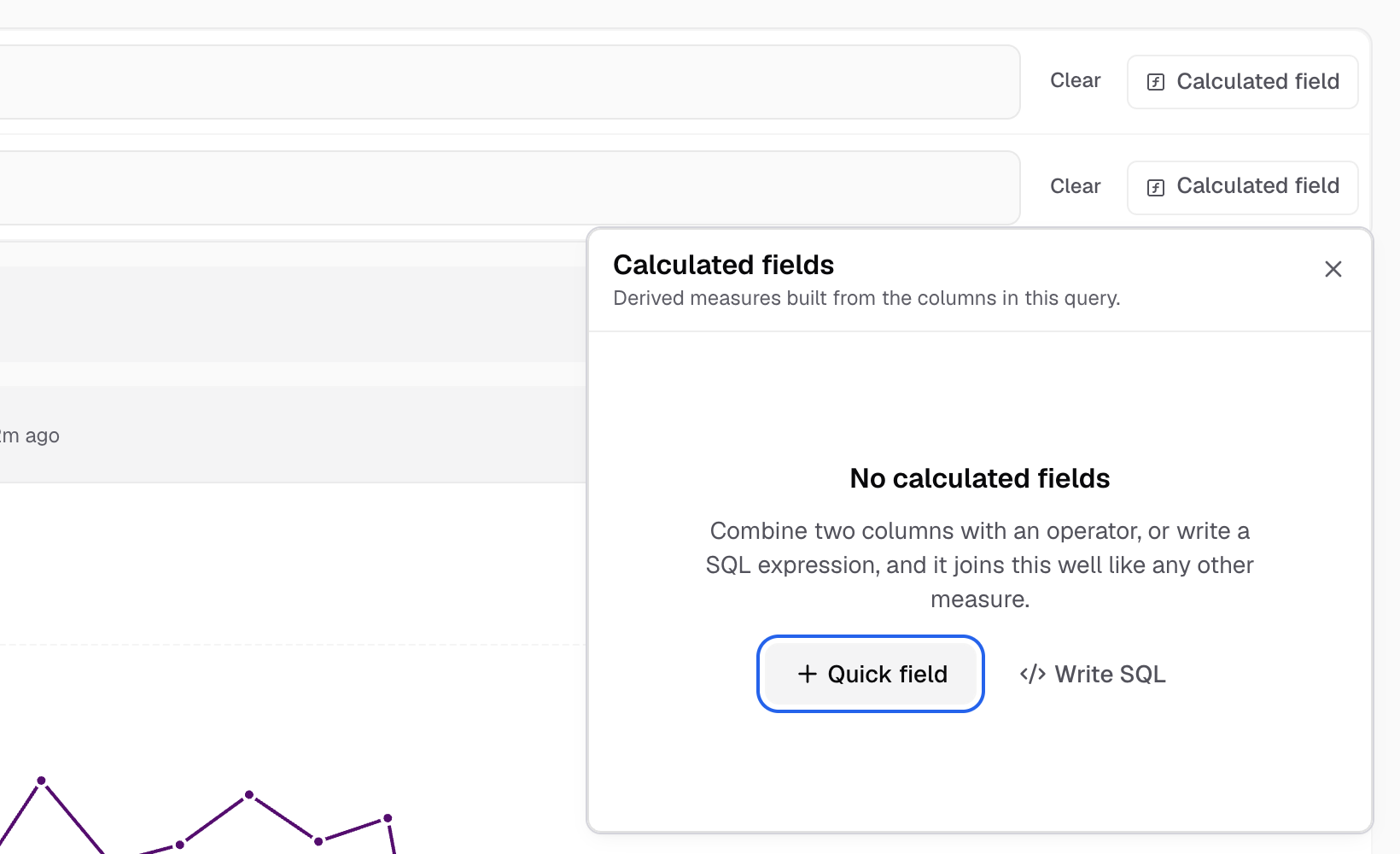
Choose Quick field or Write SQL. -
In Column, pick the first column. Set Cast as and Aggregate if you need them.
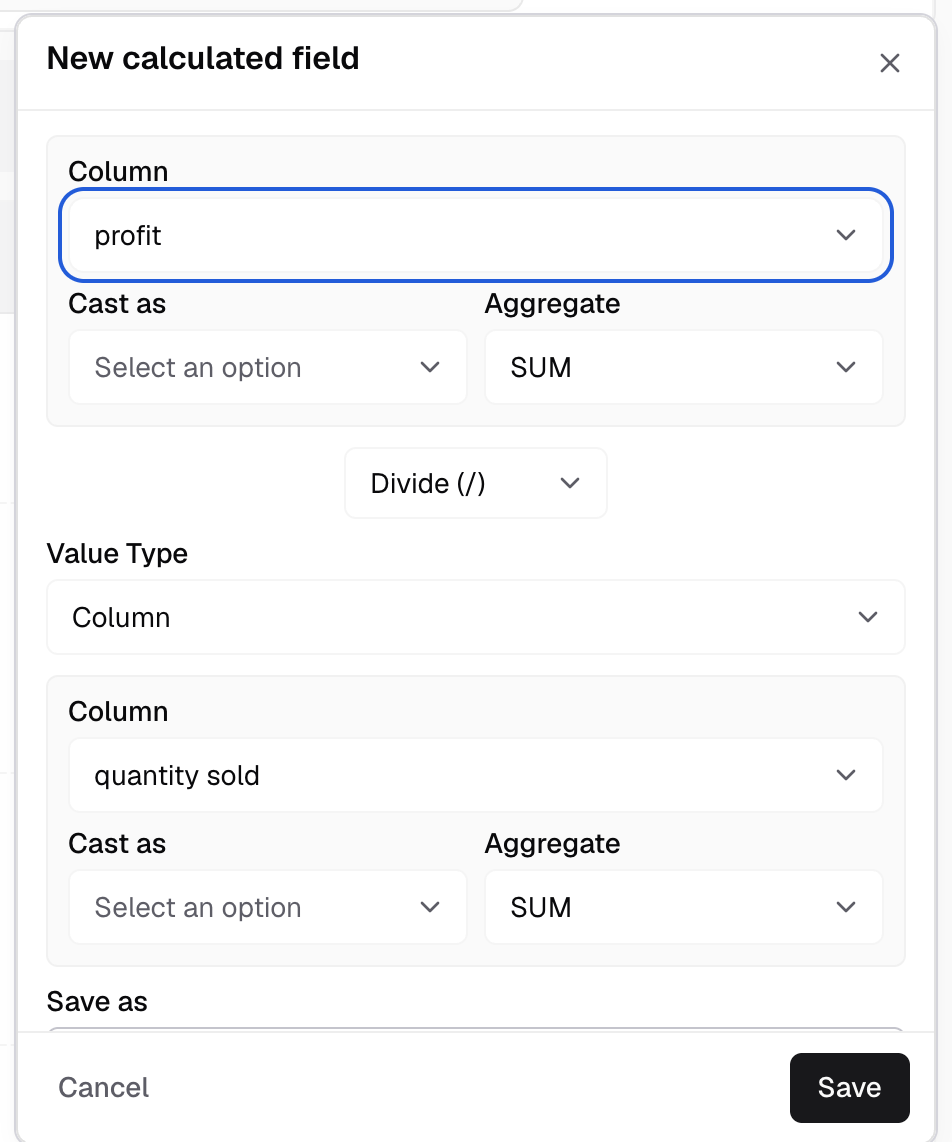
The first Column, with Cast as and Aggregate under it. -
Pick an operator: Add (+), Sub (-), Multiply (*) or Divide (/).
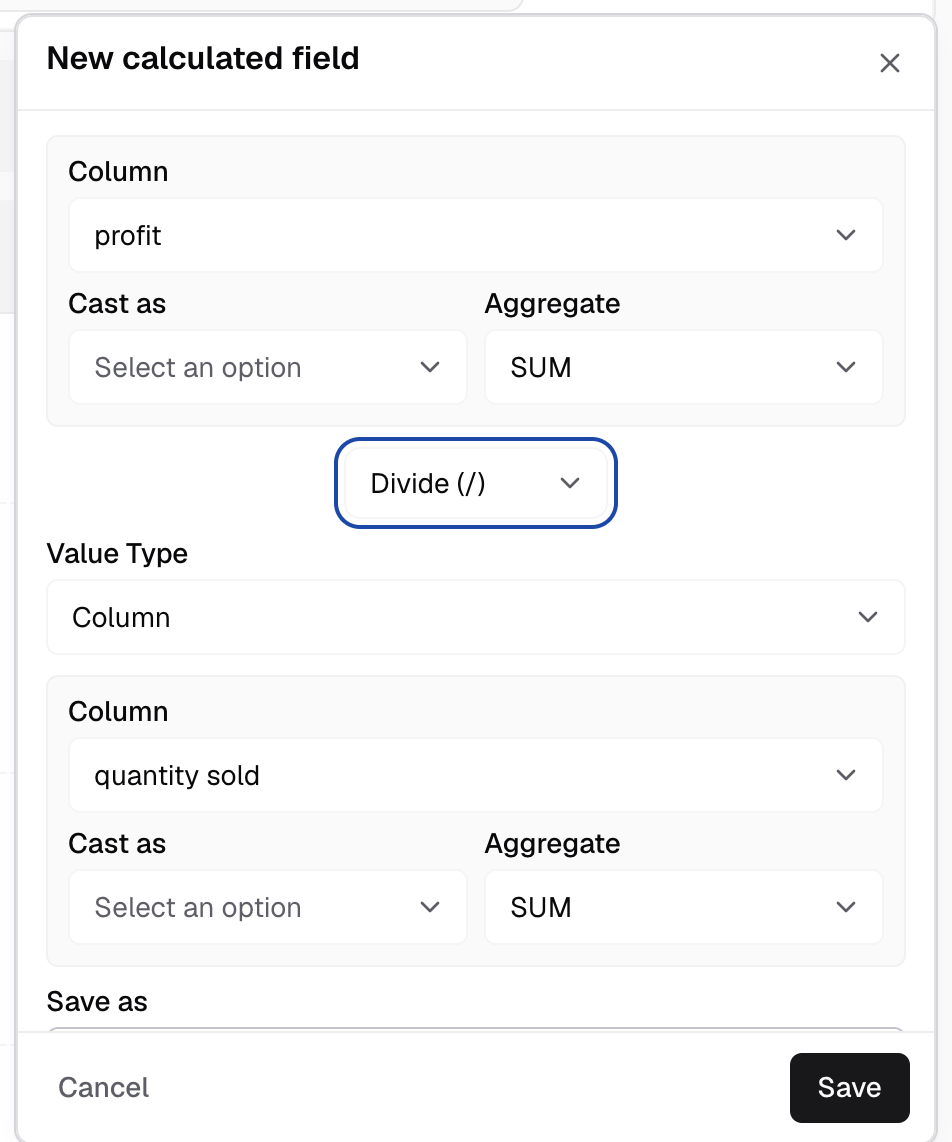
The operator sits between the two columns. -
In Value Type, choose Column or Number.
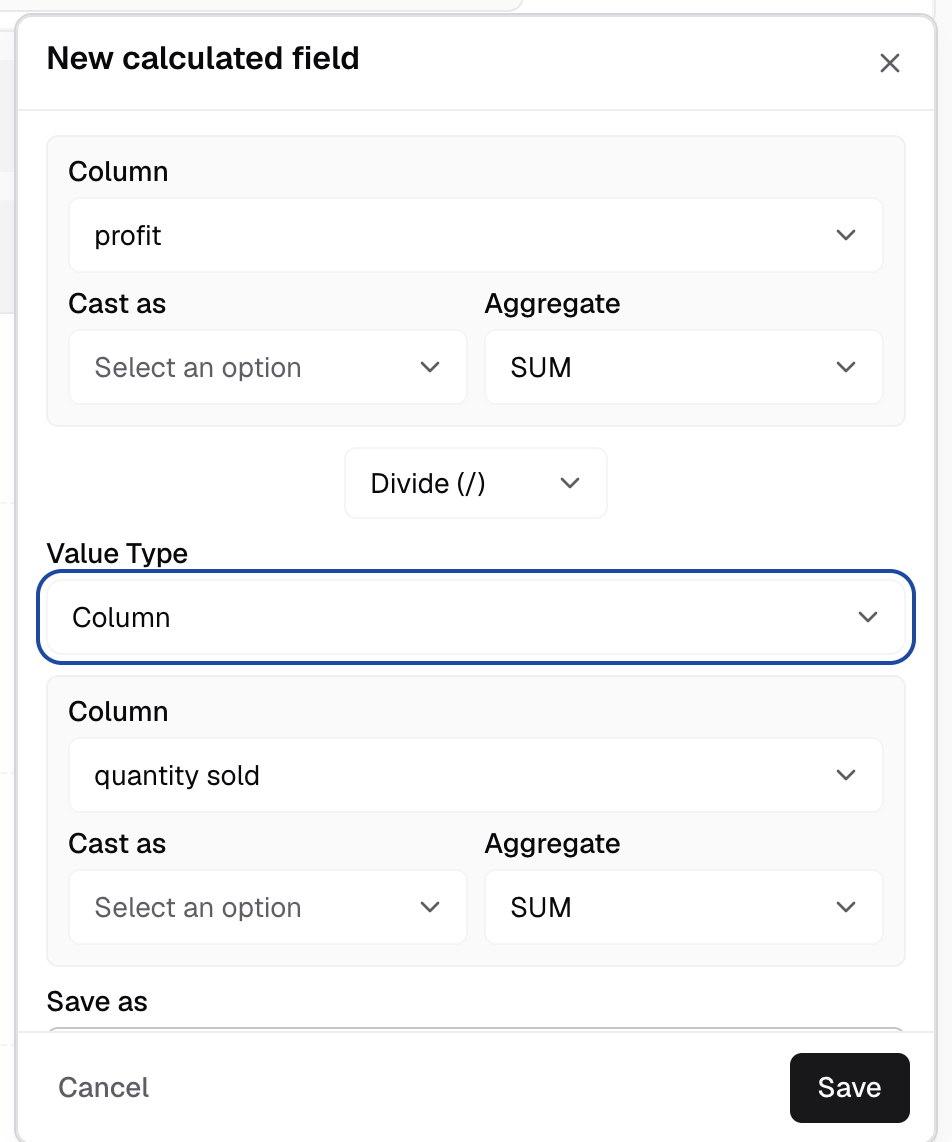
Value Type decides if the second value is a column or a number. -
Pick the second column, or enter a number, for example
100.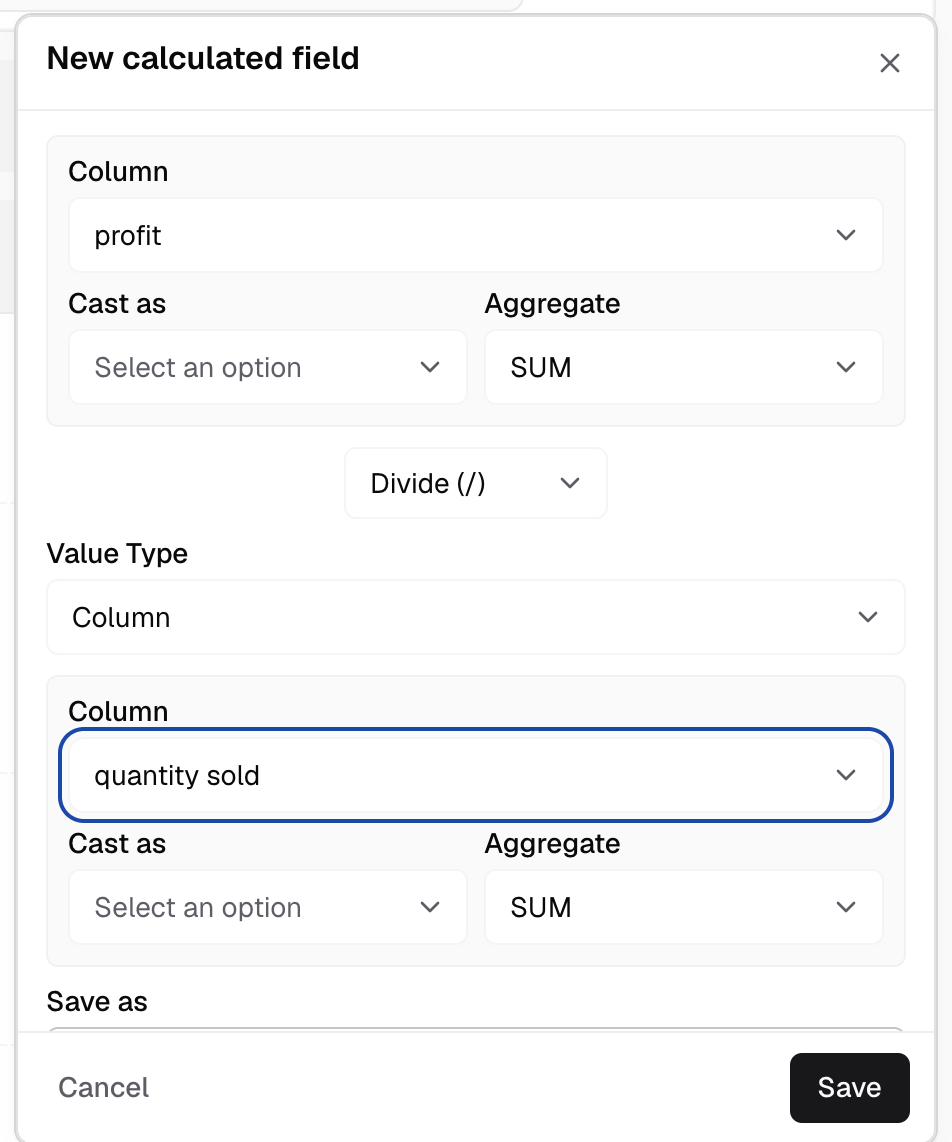
Pick the second column, with its own Cast as and Aggregate. -
In Save as, enter a name, for example
revenue_per_order.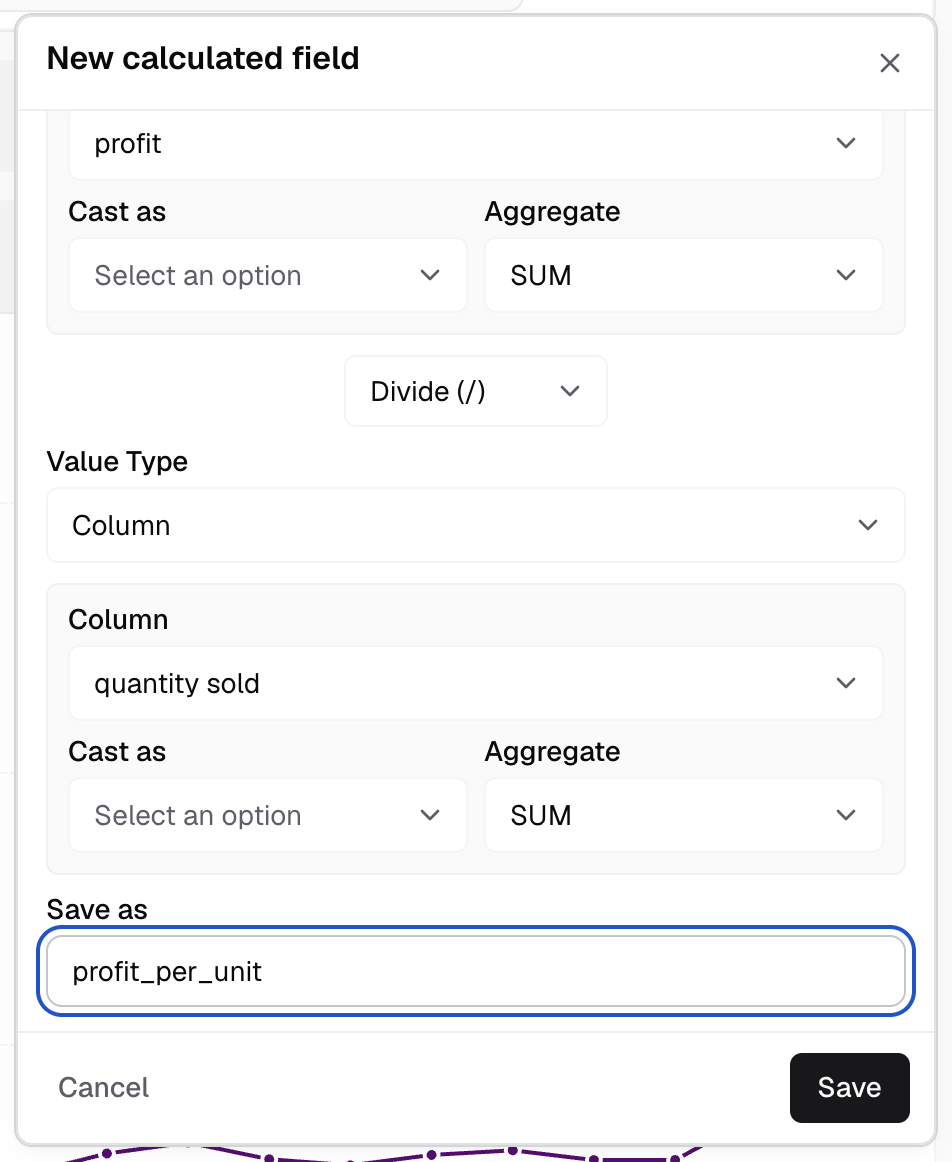
Save as is the name the field gets in Measures. -
Select Save.
The field shows in Measures with an fx badge. Select it to change it.
Write a SQL field
Use this for logic a quick field cannot do. It works in Dimensions and Measures.
-
In the well, select Calculated field.
-
Select Write SQL.
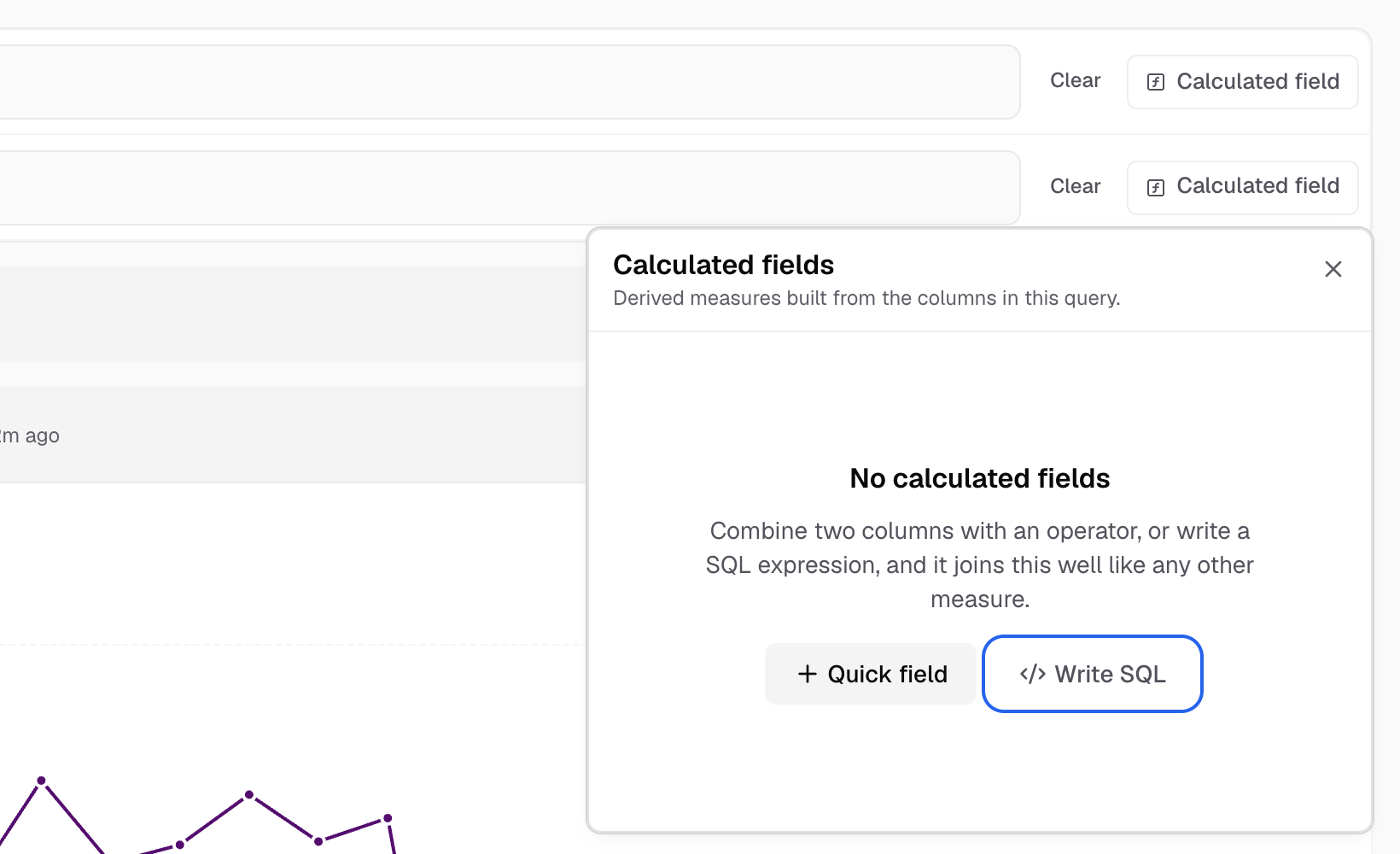
Write SQL is next to Quick field. -
In the Calculated Fields panel, pick the Table.
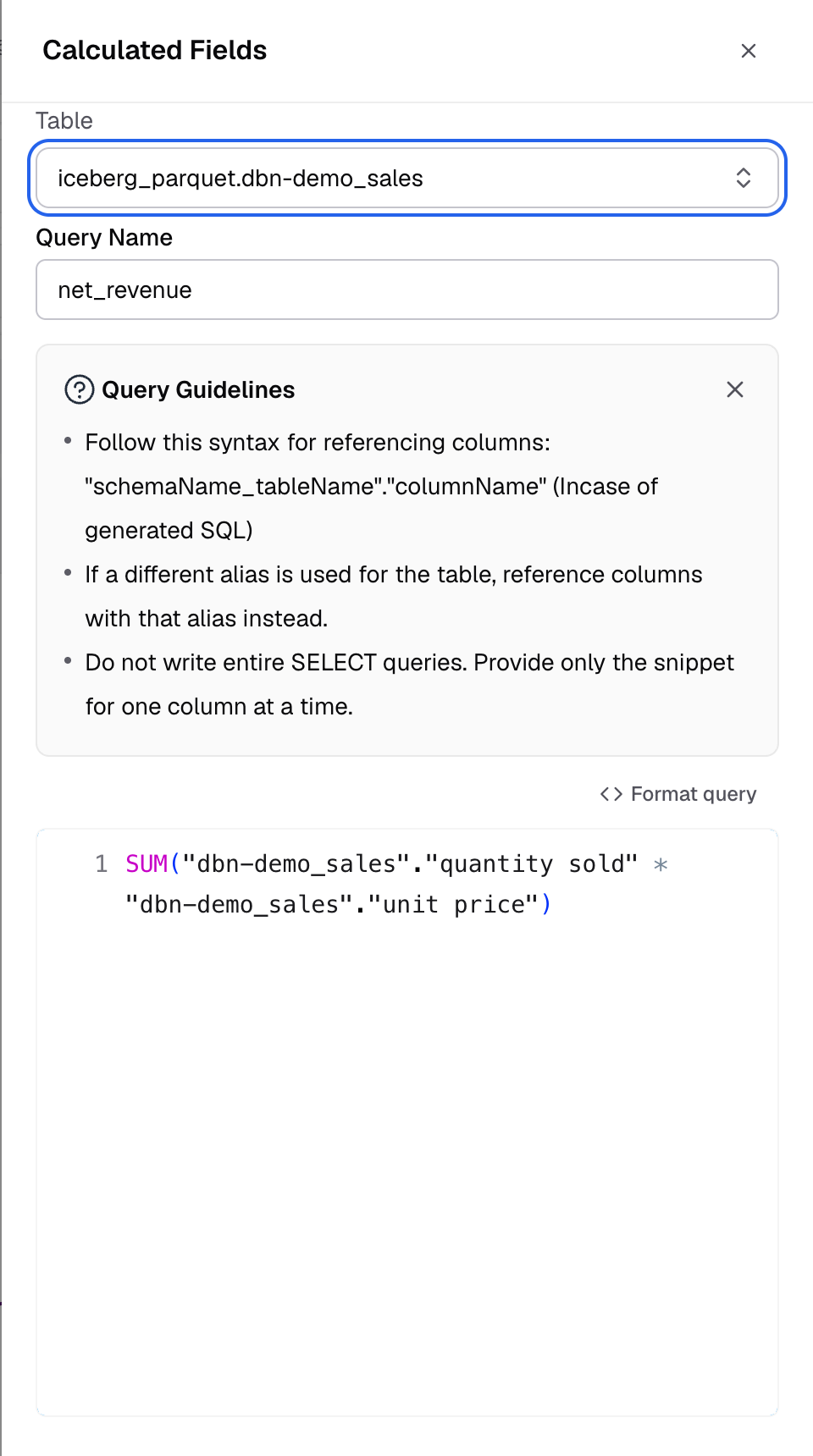
The Calculated Fields panel opens on the right; pick the Table first. -
Enter a Query Name, for example
net_revenue.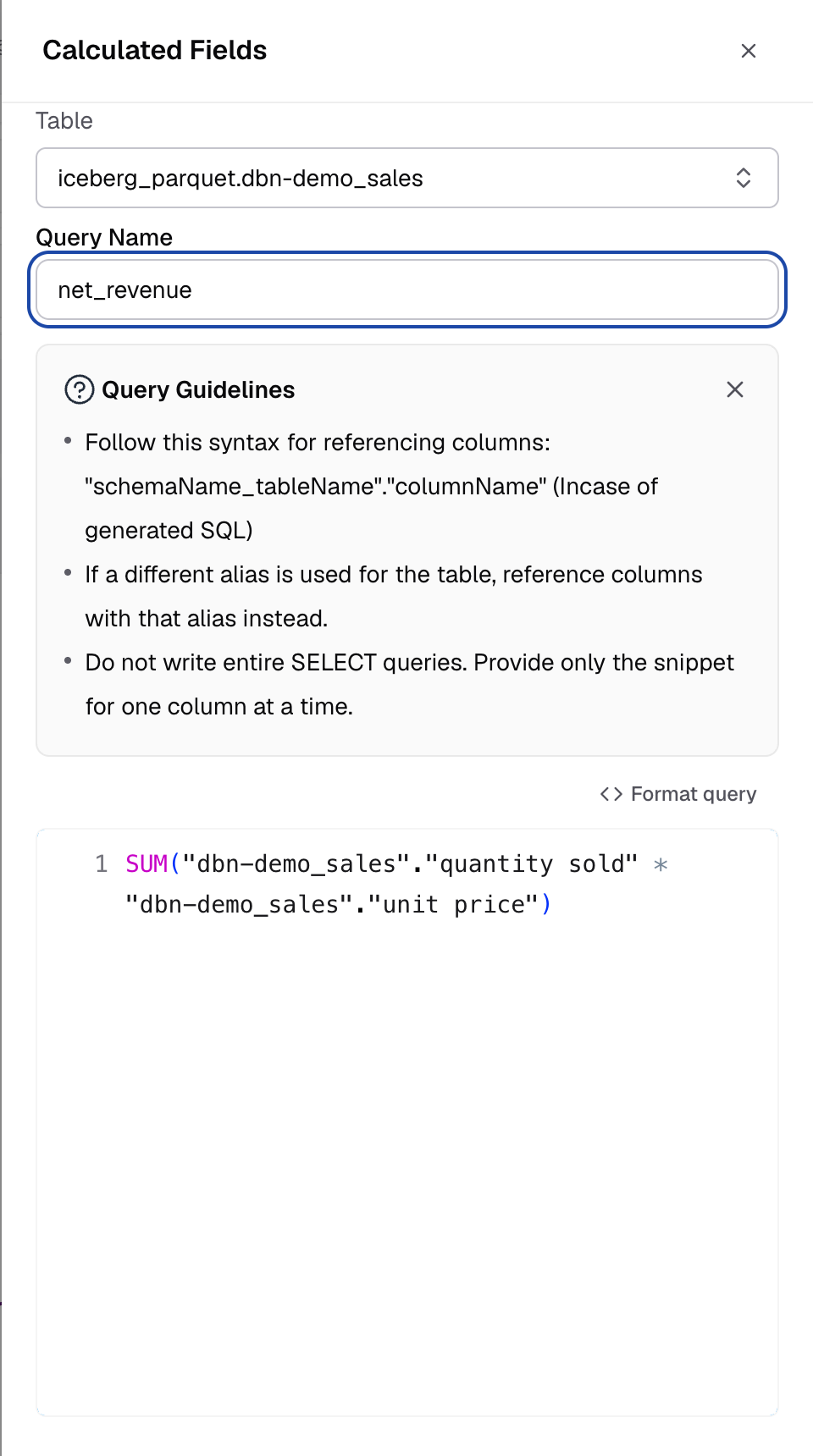
Query Name is the name of the new field. -
Write one column expression in the editor. Do not write a full
SELECTquery.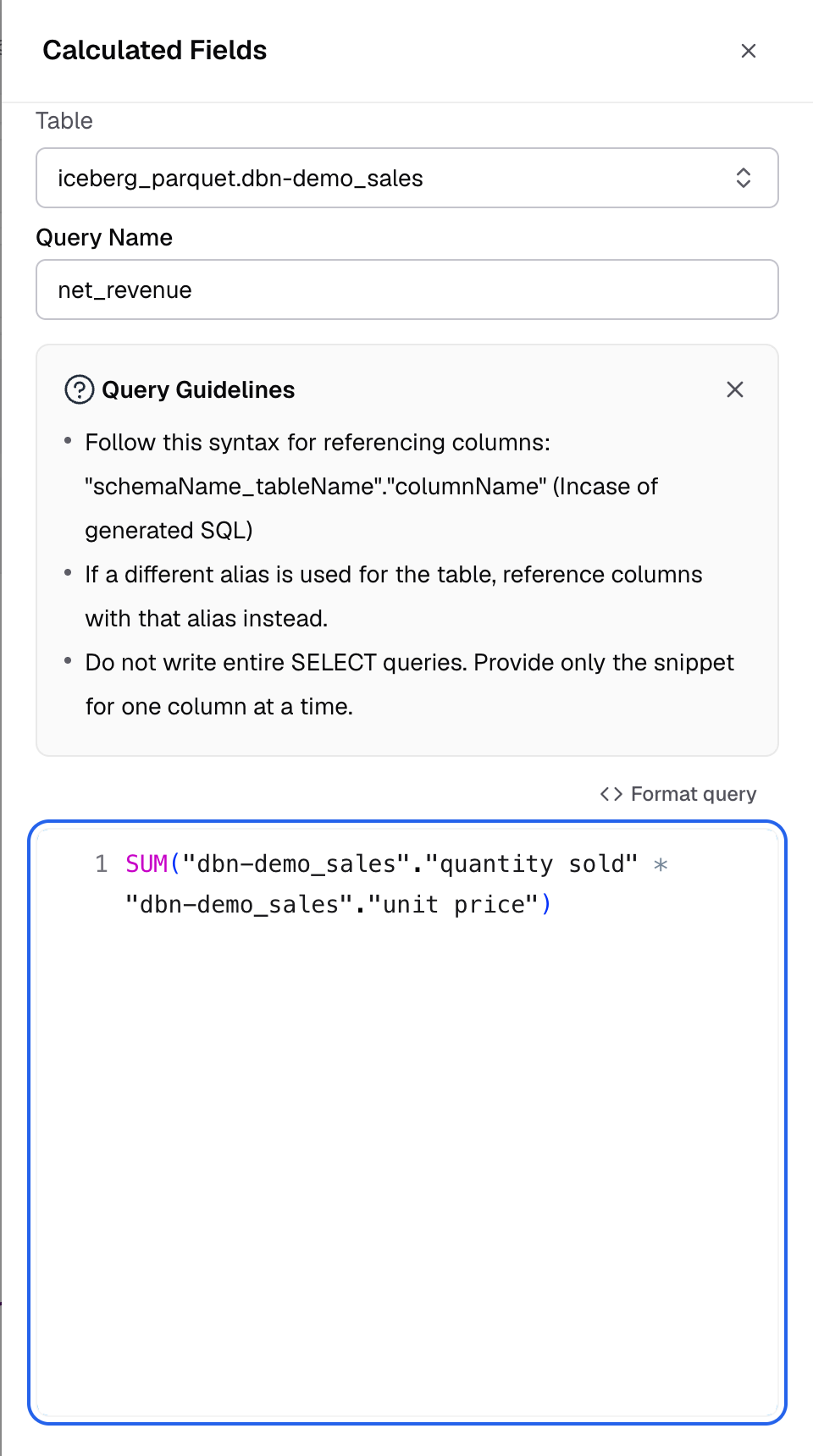
Write one column expression; Query Guidelines above it shows the rules. -
Select Save.
Reference columns as "schemaName_tableName"."columnName", for example "public_orders"."amount". If the query uses another alias for the table, use that alias. Query Guidelines in the panel shows these rules.
The wand button, Format Column With AI, formats the expression with AI. It works only when Summarise metric data is on in the workspace settings.
Next, join, filter, sort and group the metric.
If something goes wrong
- Calculated field is greyed out. Add a column to that well first.
- Quick field is missing. It is only in Measures. Use Write SQL in Dimensions.
- “x” is already used in this well. Enter a different name in Save as.