

Model
Create a semantic model
Build and check reusable metrics, then publish them for your workspace.
Build and check reusable metrics, then publish them for your workspace.
New companies see Semantic Models in Data Studio. Companies that use Datamarts and Model status follow Create a datamart instead.
Before you start
- You are an Admin. A role with the datamart Create permission can also create a model, but an Admin must assign it to a workspace before that person can edit it.
- You have a connected datasource. To connect one, open Data Studio > Datasources > Connect data source. See Choose a connector.
- To build with Bryn, your admin must connect an AI model.
Use a datasource connected to one database. Publish cannot save database-qualified table references.
Connecting a new datasource may open an empty model. If it does, continue at Choose how to build.
Create the model
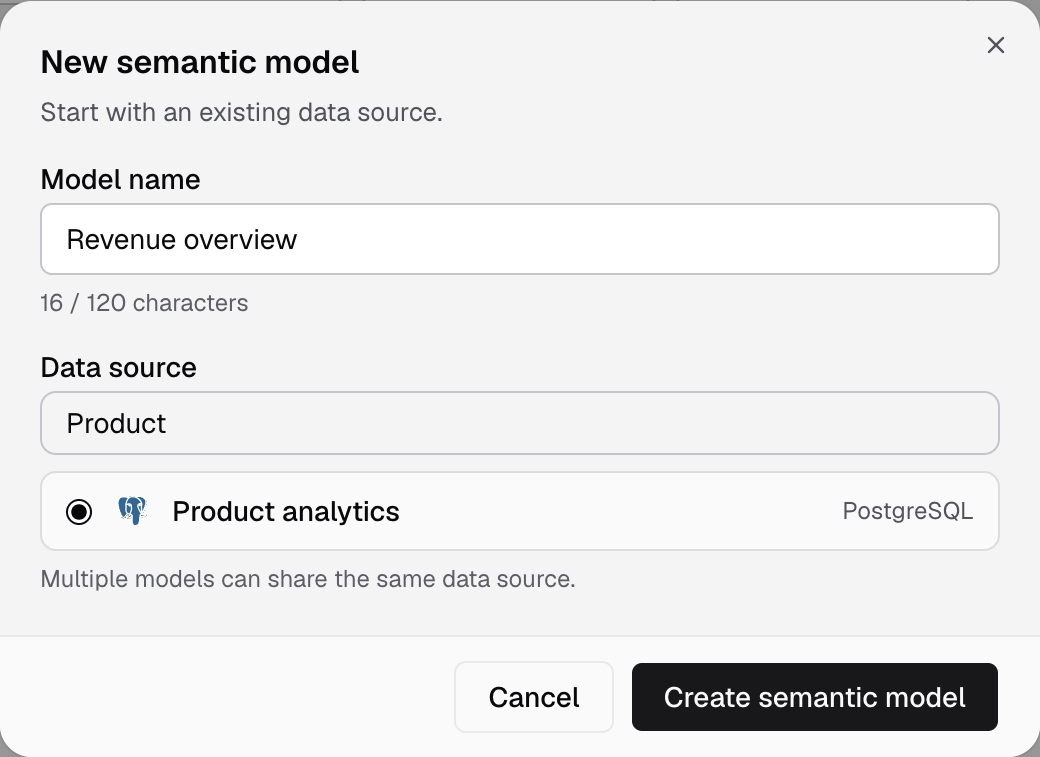
- Open Data Studio > Semantic Models.
- Select New semantic model.
- Enter a Model name, up to 120 characters.
- Select the Data source.
- Select Create semantic model.
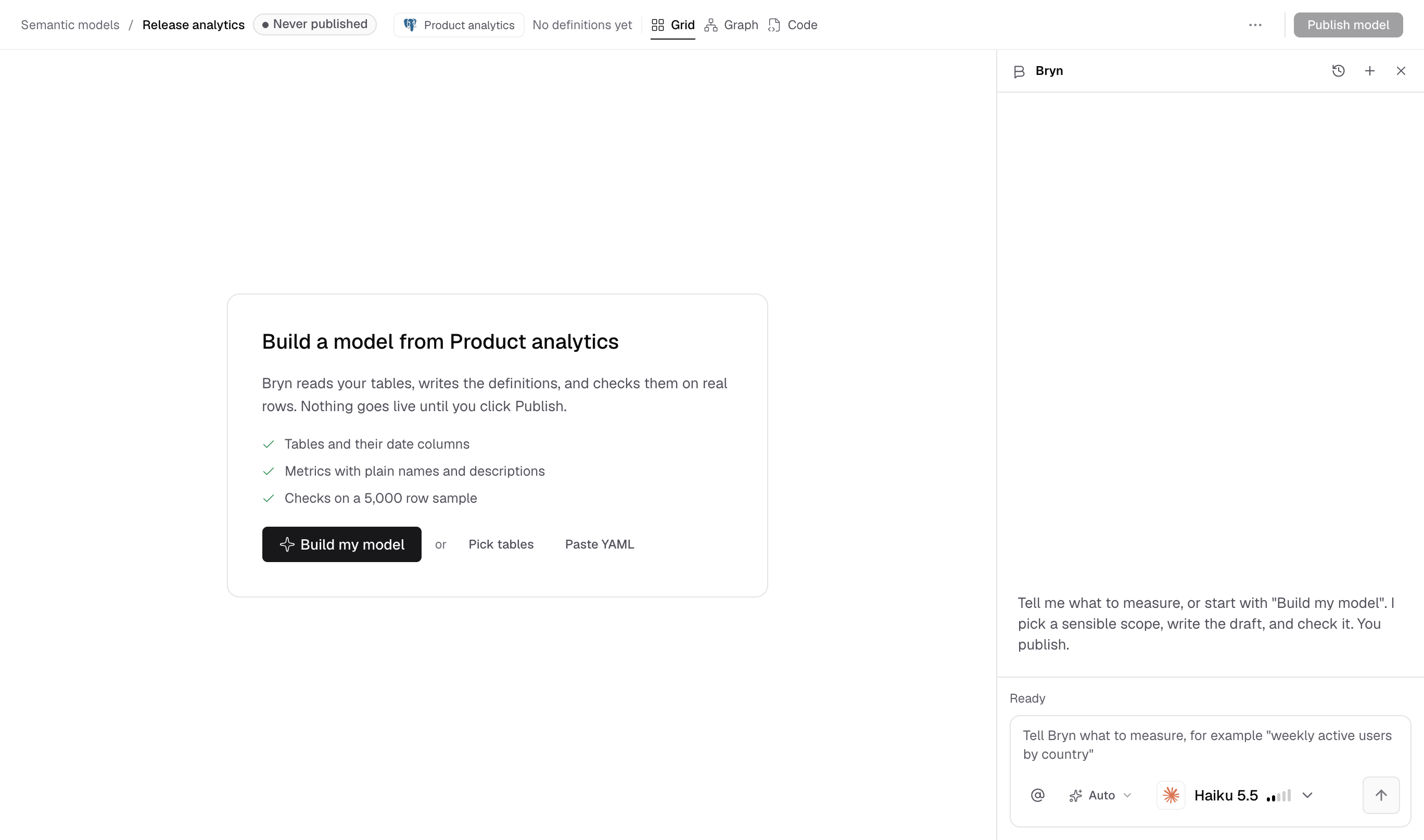
The model opens with Build a model from your datasource. Choose Build my model, Pick tables or Paste YAML.
If you are not an Admin, you see Semantic model created instead. Ask an Admin to assign the model to a workspace.
Choose how to build
Build manually if you want to define the first metric yourself. Then return to Check and publish. This path does not need an AI model.
Build with Bryn
- Select Build my model.
- Read the tables and metrics Bryn prepares.
- Answer any business question shown in Waiting for you.
- Review the definitions in Grid.
New models default to Auto. Bryn applies draft changes and runs checks. You still publish. Existing models default to Review each change. Review Bryn’s changes.
If no AI model is connected, your request stays in the inline setup form. Ask an admin to connect one. The request runs after the connection is ready.
Check and publish
- Open a metric in Grid.
- Select Run in Preview.
- Inspect the value and date range against your source data.
- Open Checks.
- Resolve each failed or missing check.
- Select Publish model.
- Review What goes live and the checks for this draft.
- Select Publish model in the confirmation, or Run checks first.
You see your model name and is live, with Open in workbook, Build a dashboard and Create a workspace. The header shows Published and the time. To undo, select Roll back the last publish. Bryn cannot publish the model for you.
Use the published model
- Select Open in workbook.
- Add the published metric to Measures if it is not already selected.
- Select Run metric. If results are already open, select Run.
- Select Save to dashboard.
- Choose the Workspace if prompted.
- Choose a Dashboard.
- Enter the Metric title.
- Check the Metric ID.
- Select Save and add to dashboard.
Your dashboard uses the published metric.
If it shows tenant_scope_unenforceable, set model access.
Then refresh the dashboard.
If something goes wrong
- Waiting for you: answer the business question or run the requested check. Your draft stays available.
- Run again: the draft or customer scope changed. Run the metric in its current scope.
- Publish is blocked: read the reason, for example Add a table to publish, No changes to publish, Data source is off or View only.
- Publish cannot save database-qualified tables. Use a datasource connected to one database.
- Enable this data source before creating a semantic model. Turn the datasource on in Data Studio > Datasources.
- Workspace assignment required: ask a workspace admin to assign the new model before editing.
Next, edit model definitions to add another metric.