

Model
Set model access
Choose which rows each customer can use in embeds and data apps.
Choose which rows each customer can use in embeds and data apps.
Inside Databrain, your team’s access follows workspace roles. A model used in an embed or data app also needs a customer column or an explicit shared-table decision.
Before you start
- You are an Admin. Other roles see Only an admin can change this. Ask an admin to pick the customer column.
- You know which physical column identifies each customer.
- The table is in the published model.
- An embed or data app uses the model.
Pick a customer column
-
Open the table in your semantic model.
-
Find Who can see this.
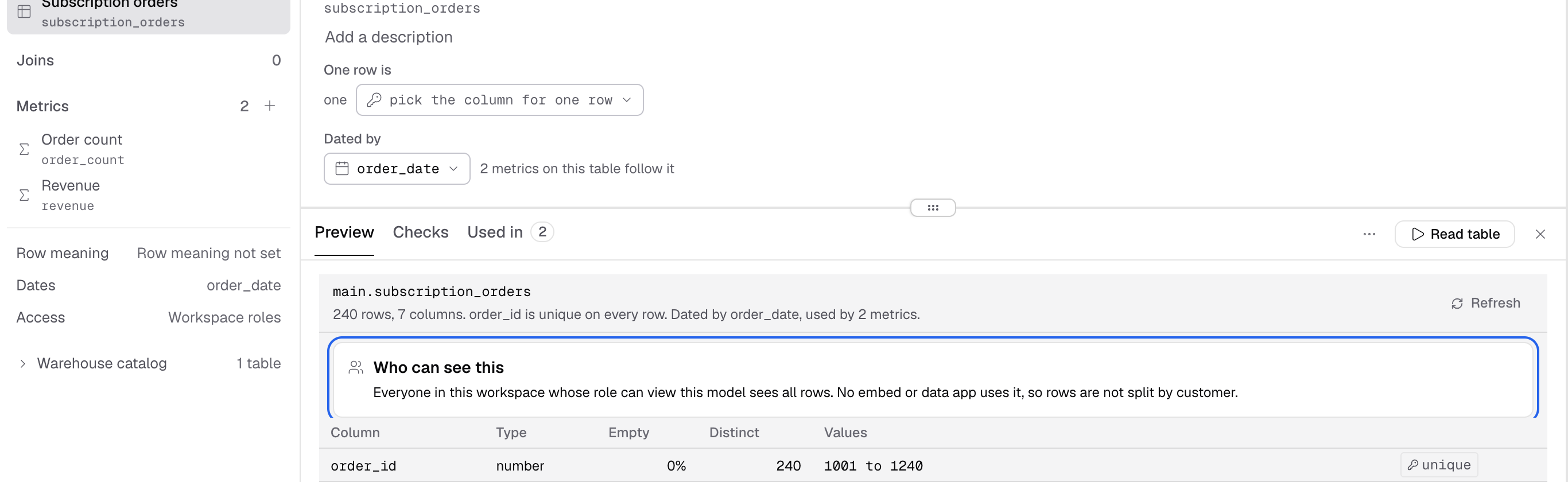
Who can see this says who sees which rows of the table. -
Open Customer column.
-
Select the column that identifies the customer for each row.
-
Check the confirmation: Saved. Each customer sees only rows where your column matches them.
-
Run the affected metric again in the intended customer scope.
The choice is logged with the admin who changed it. To see every table at once, open the studio’s more menu and select Who can see this. A table that is not published yet shows Publish first, then pick its column. Column counts help you inspect the data. They do not decide which column identifies a customer.
A missing customer column can also appear beside a refused metric preview. Use its column picker to repair the mapping, then run the metric again.
Mark a shared table
Use this only when every customer should see every row, such as a shared reference table.
- Open Who can see this for the table.
- Select Every customer sees all rows.
- Read the confirmation’s impact.
- Select Show to every customer only if the table contains shared data.
Every customer can use all rows from this table in embeds and data apps. The decision is logged with your name. You can change it later in the same card.
Check the customer scope
- Open a metric that uses the table.
- Choose the customer in Run as, or All clients. It shows only for Table tenancy with at least one client.
- Select Run.
- Inspect Checks for this run.
The customer selector appears for table tenancy with a configured client list. Changing the customer makes earlier results stale. Run again before relying on those checks. All clients is a preview scope, not permission to expose every customer’s rows. A missing mapping on another table can still block the query.
Next, check and publish the model.