

Model
Describe tables and columns
Add descriptions and synonyms to a datamart, so Bryn and your team pick the right fields.
Descriptions and synonyms tell Bryn what each table and column means. A workspace needs them before AI summaries and chat can run. Workspace settings then say Needs a semantic layer.
This page is for datamarts (Classic model). In a semantic model, describe tables and metrics in the studio. See Edit model definitions.
Before you start
- Your role has the datamart Edit permission.
- You have a datamart.
Open the description page
The page has no tab in the datamart editor. Open it by address:
- Go to Data Studio > Datamarts and open the datamart. The address ends in
/datamarts/edit/<datamart ID>. - In the address, change
edittodesc:/datamarts/desc/<datamart ID>.
Describe a table
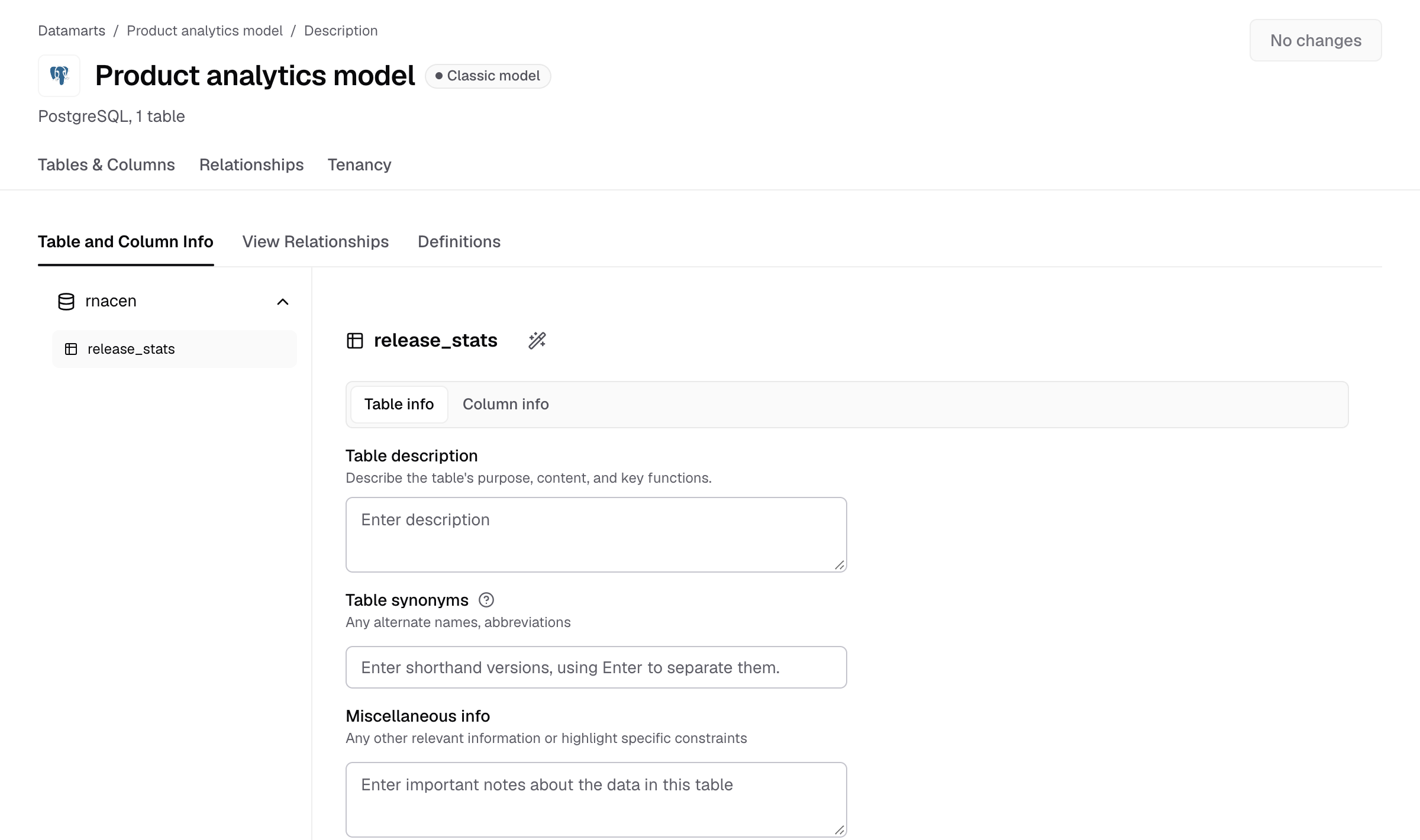
- Under Table and Column Info, select the table on the left.
- On Table info, fill in:
- Table description: the table’s purpose, content and key functions.
- Table synonyms: other names people use. Press Enter after each one.
- Miscellaneous info: anything else, for example known gaps in the data.
- Select Save changes.
Describe columns
- Select Column info.
- For each column, fill in Description and Synonyms, and check Type.
- Select Save changes.
Add a definition
A definition is a question with a validated SQL query, so Bryn can answer that question directly.
- Select the Definitions tab.
- Select New definition.
- Enter the question and its SQL, then save.
View Relationships shows how the tables join. Change joins on the datamart’s Relationships tab.