

Model
Work in the semantic studio
Find your way around the studio where you build, check and publish a semantic model.
The semantic studio is where you edit a semantic model: its tables, joins and metrics. Nothing you change here goes live until you select Publish model.
Before you start
- Your role has the datamart View permission. To edit, it also needs Edit. Without Edit, the studio is read-only and Publish model shows View only.
- Your plan includes semantic models.
- Use a screen at least 1024 px wide. On a smaller screen you see Open Studio on a larger screen.
Open the studio
- Go to Data Studio > Semantic Models and select the model.
- Or create a model. See Create a semantic model.
- From a classic datamart editor, select Open new studio when it is shown.
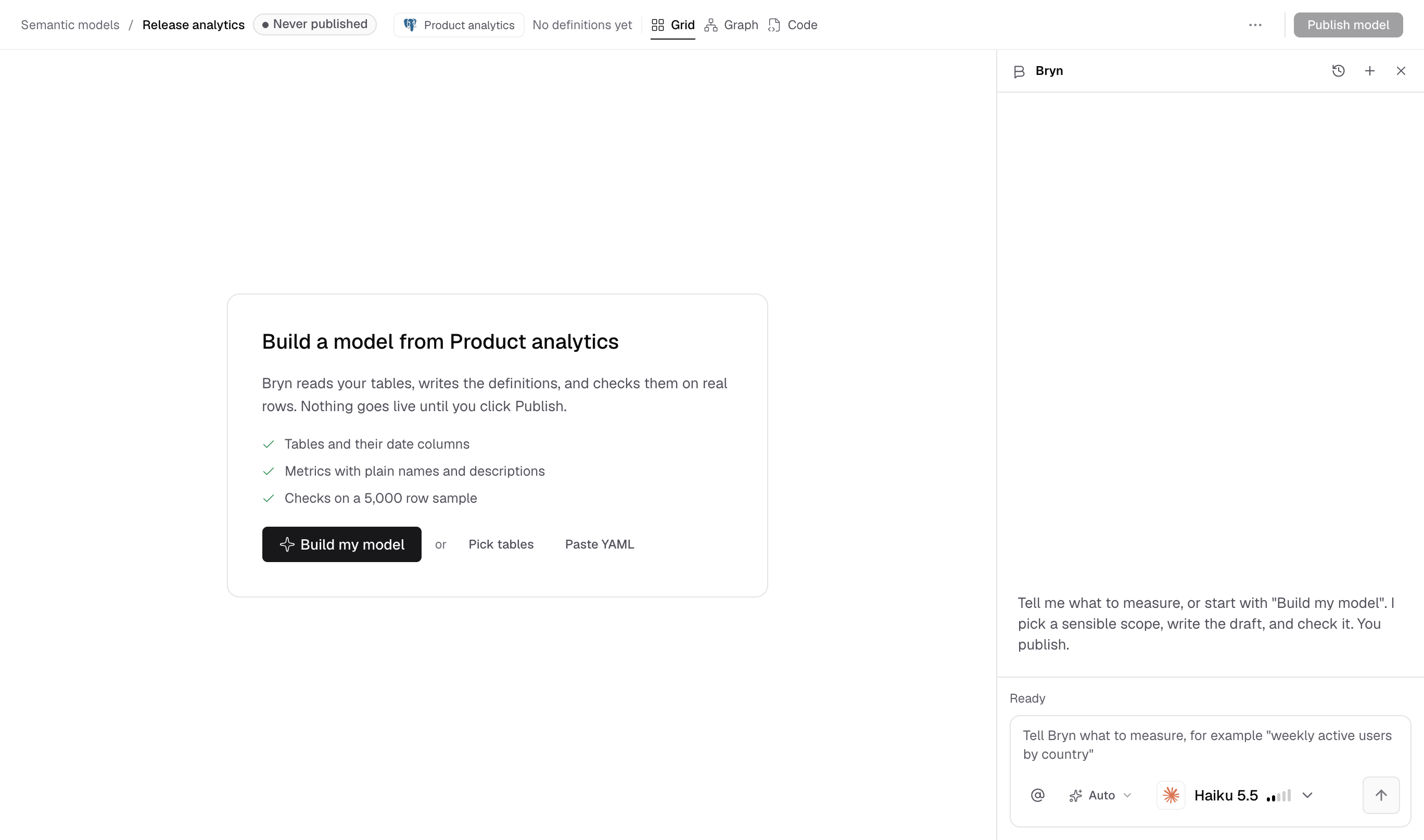
The header
| Control | What it does |
|---|---|
| Semantic models | Goes back to the list. |
| Publication badge | Never published, Published with the time, or the draft state, for example Draft, saved. |
| Datasource chip | The datasource the model reads. |
| Grid, Graph, Code | The three views of the same model. |
| Ask Bryn | Opens the Bryn panel. |
| More menu | Review all changes, Roll back the last publish, Workbook field settings, Who can see this, Open classic editor, Modeling help. |
| Publish model | Shows What goes live, then publishes. Run checks first runs the checks before you publish. |
The three views
- Grid lists every definition. Filter with All, Needs you, Tables, Joins, Metrics, Row meaning, Dates or Access. Add with Add a table, Add a join or New metric. Open Warehouse catalog to add tables that are not in the model yet.
- Graph shows tables as cards. Drag from a column on one table to a column on another to add a join. Select + Metric on a table card to add a metric. Use Find a table, column or metric to search.
- Code shows the model as YAML. Select Format document to tidy it. Tables that are only in Warehouse catalog say In the warehouse, not in your model yet.
See Edit model definitions for each field.
The bottom pane
- Preview runs the selected definition on real rows. Select Run, or press Ctrl+Enter. For a table, the button is Read table.
- Checks shows three checks: The definition is valid, It runs on real rows and It previews as in a workbook.
- Used in lists the metrics and dashboards that use the definition.
Bryn
Bryn builds and fixes definitions for you. Only people with Edit see Bryn.
- Open it with Ask Bryn or Ctrl+I (Cmd+I on Mac). Close it with Close Bryn.
- The chip next to the message box sets who applies changes: Auto or Review each change. See Review Bryn’s changes.
- With no AI model connected, Bryn shows Connect an AI model to start.
Ask in plain words, for example Add a metric for average seats per order. Bryn reads the tables, checks real rows and tells you what it prepared.
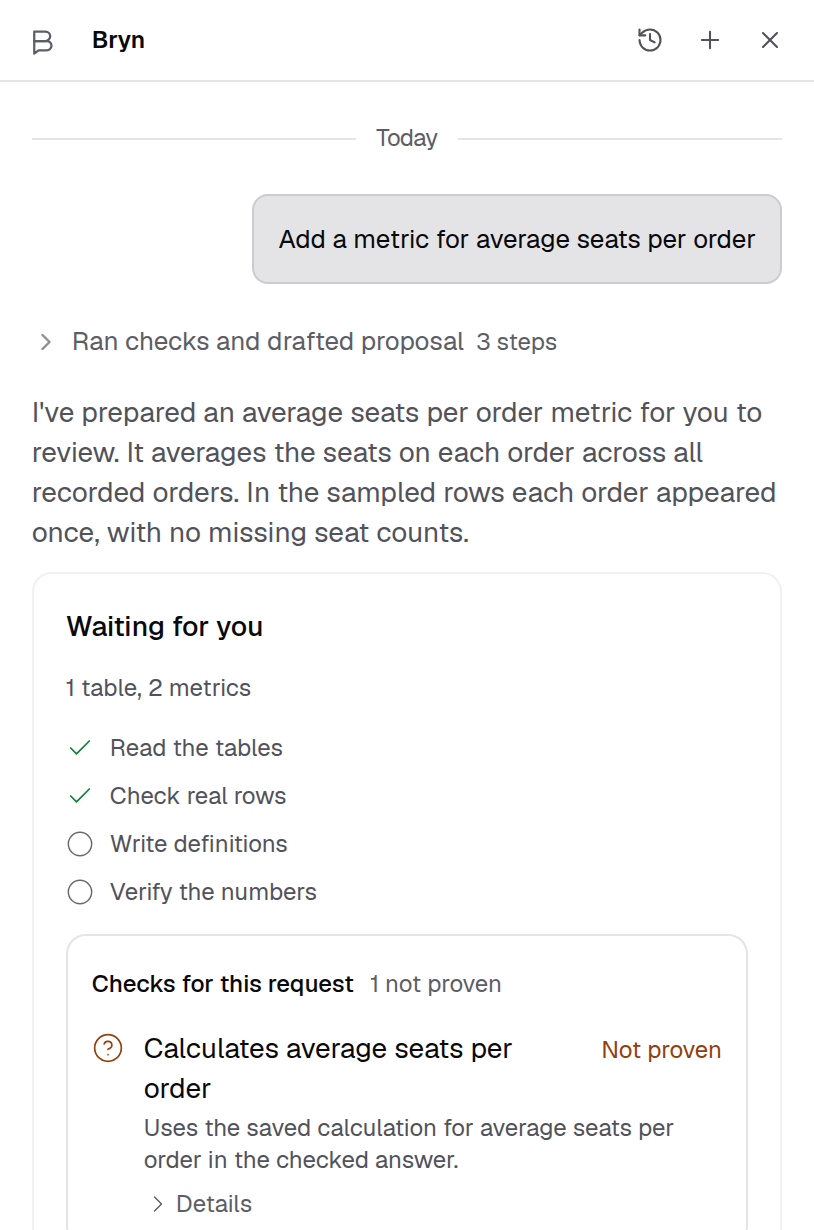
With Review each change, nothing goes into the draft until you accept it. Select Review in Code to read the change.
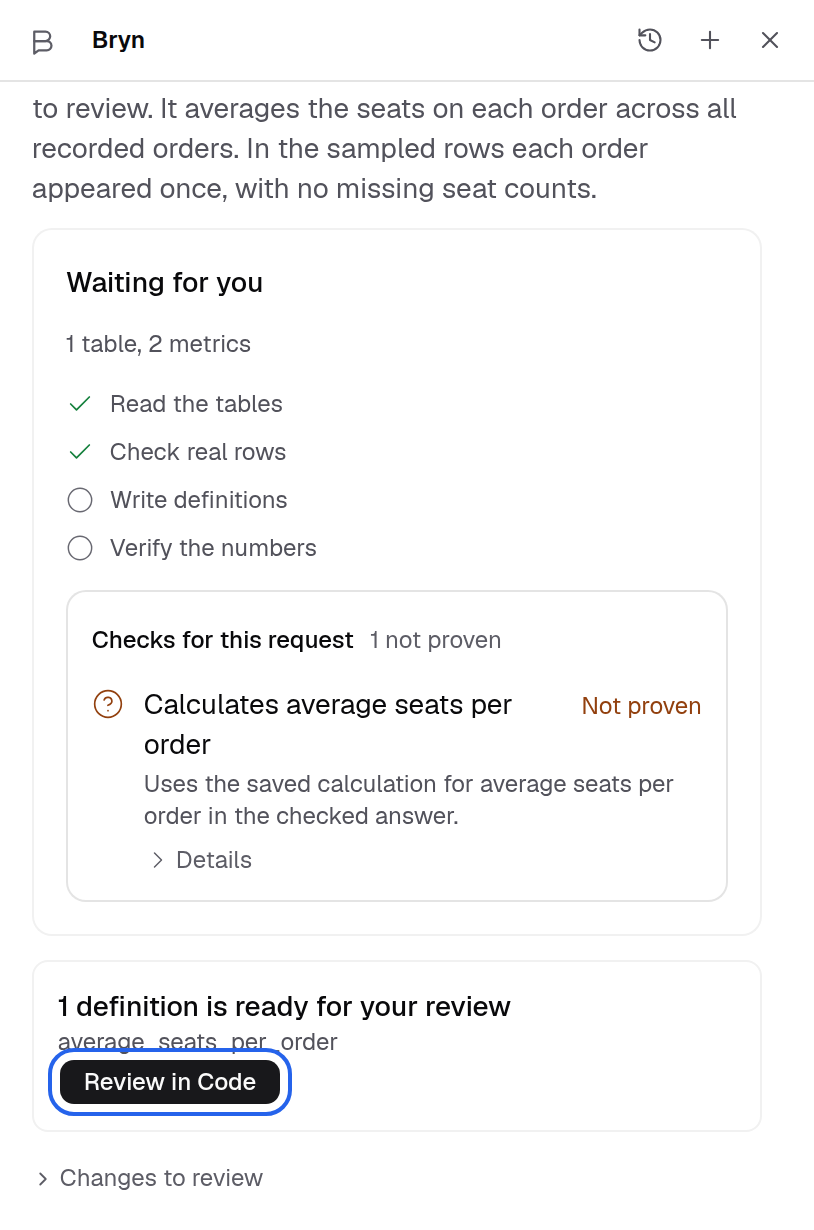
Other shortcuts: Ctrl+B (Cmd+B) shows or hides the list, and Ctrl+J (Cmd+J) shows or hides the bottom pane.
Roll back a publish
- Open the more menu.
- Select Roll back the last publish.
You see Rolled back, and the previous version is live again. Roll back goes back one publish only.
If something goes wrong
- Someone published a newer version while you worked. Review their version before you publish yours.
- This draft changed in another tab. Select Reload draft.
- The data source is disabled. Turn the datasource on, then publish. While it is off, the model is read-only.
- There is no publish to roll back. Roll back works only after a publish that was not the first.