

Model
Check model status
See every datamart's tables, tenancy, AI model and publication state on one page.
Data Studio > Model status lists every datamart with what it is ready for. Companies that use Semantic Models do not have this page. Their Semantic Models list shows the same publication state.
Before you start
- Your role has the datamart View permission.
Open Model status
- Go to Data Studio > Model status.
- Narrow the list with Search datamarts, Publication (
Published,Never published,Classic model) or Datasource. - Sort by Newest first, Name A to Z or Most tables.
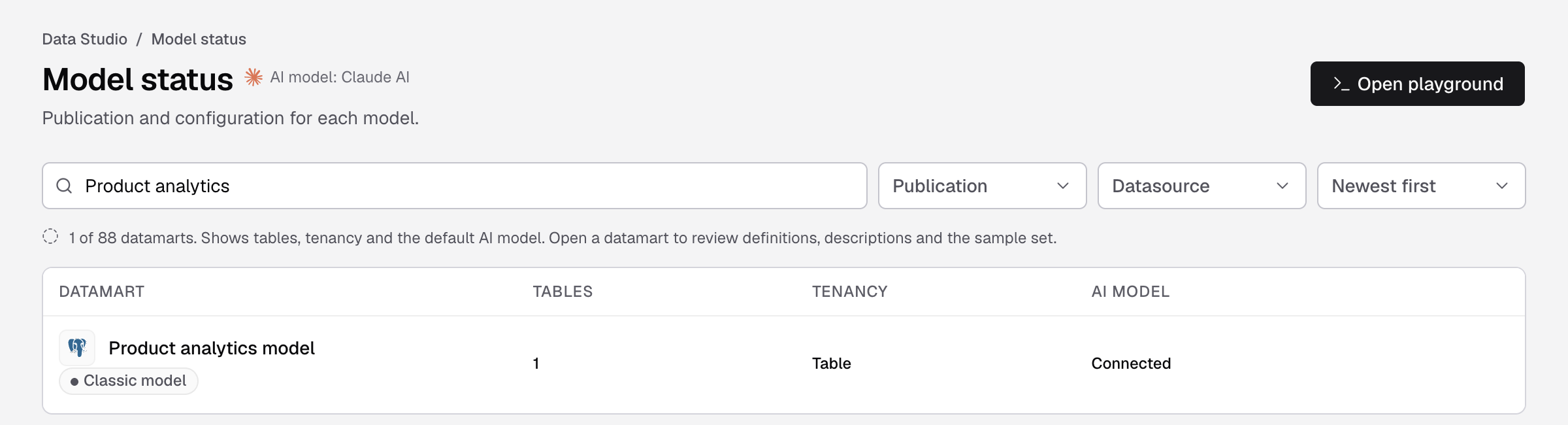
What the columns mean
| Column | Shows |
|---|---|
| Datamart | The name, and its state: Classic model, Never published or Published. |
| Tables | How many tables the datamart has. |
| Tenancy | Table, Database, Multi-database or Not set. Set it before you embed. See Set tenancy on a datamart. |
| AI model | Connected when your company has a default AI model, or Not set. |
Actions
- Open playground: try questions against the model. It needs a default AI model.
- Connect an AI model: shows instead when there is no default AI model. It opens Settings > LLMs.
- In a row: Playground and Sample set.
If something goes wrong
- Playground is greyed out. Set up a default AI model in Settings > LLMs.
- No datamarts yet. Select Go to datamarts and create one.
- You don’t have access to Model status. Ask an Admin for the datamart View permission.