

Model
Test a model with questions
Ask questions in the playground, save good answers as definitions and measure how well an AI model answers.
Check that Bryn answers questions about your model correctly before your team and customers ask them.
Before you start
- Your role has the datamart View permission. To save, run tests or add questions, it also needs Edit.
- Your plan includes semantic models.
- Your company has its own AI model in Settings > LLMs, with Custom AI in use and a Default model set. Without one, Playground is greyed out. Databrain AI does not answer here.
- The datamart is the datamart of a workspace you can open. If no workspace uses it, the playground answers “You do not have access to this semantic model.”
Open the test pages
- From Data Studio > Model status, select Open playground, or the Playground or Sample set icon in a datamart’s row.
- From Data Studio > Semantic Models, select the Open playground icon, or Open sample set in the row menu.
The pages share four tabs: Definitions, Sample Set, Playground and Model tests.
Ask a question in the playground
-
Type a question the way a customer would, for example
What is our total revenue and order count?, and send it.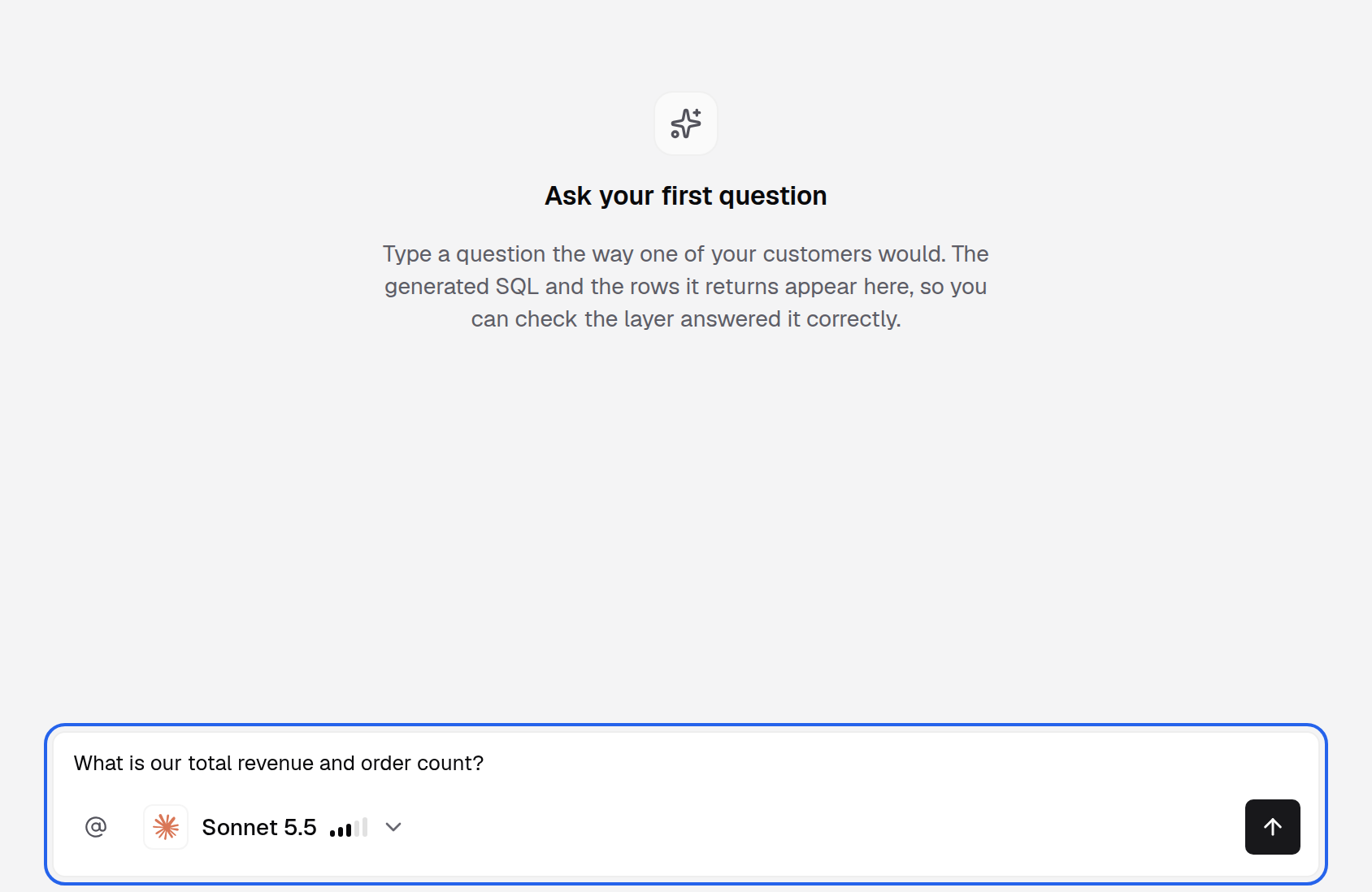
Ask in the playground the way a customer would. -
Read the answer: Generated SQL and the result rows. Tables used shows below the rows when the answer names its tables.
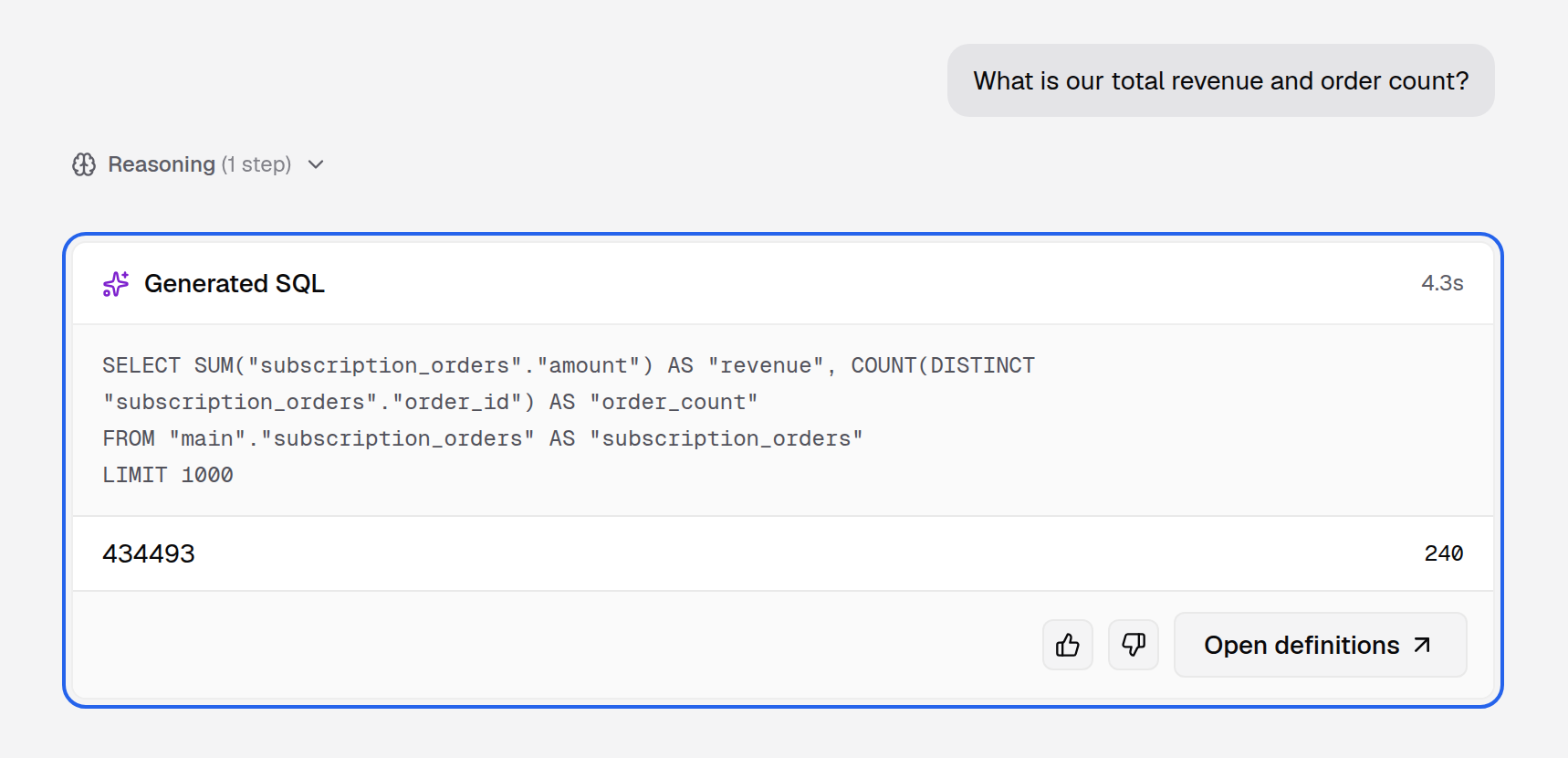
Check the SQL and the rows before you save the answer. -
If the answer is right, select the thumbs up (Save as definition). You see Saved as a definition, then Definitions opens with your question marked Unverified.
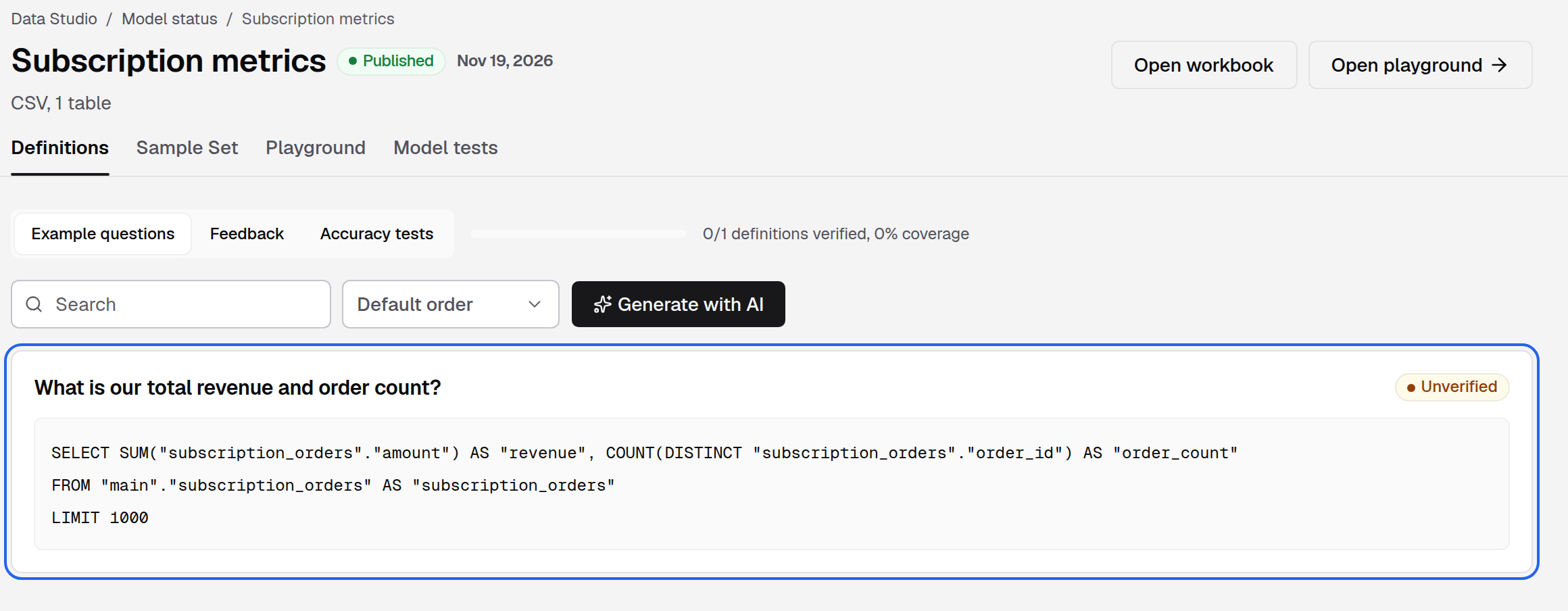
A saved answer becomes a definition, marked Unverified. -
If it is wrong, select the thumbs down and pick what went wrong: Reasoning is not accurate, Tables/Columns selected are incorrect, Generated SQL is incorrect or More.... Edit the SQL or add information, then select Save and regenerate.
With Database tenancy, pick a customer first.
Add sample questions
Sample questions pair a question with the SQL you expect. Bryn uses them to fill in table, column and join descriptions.
-
Open Sample Set and select Add sample question.
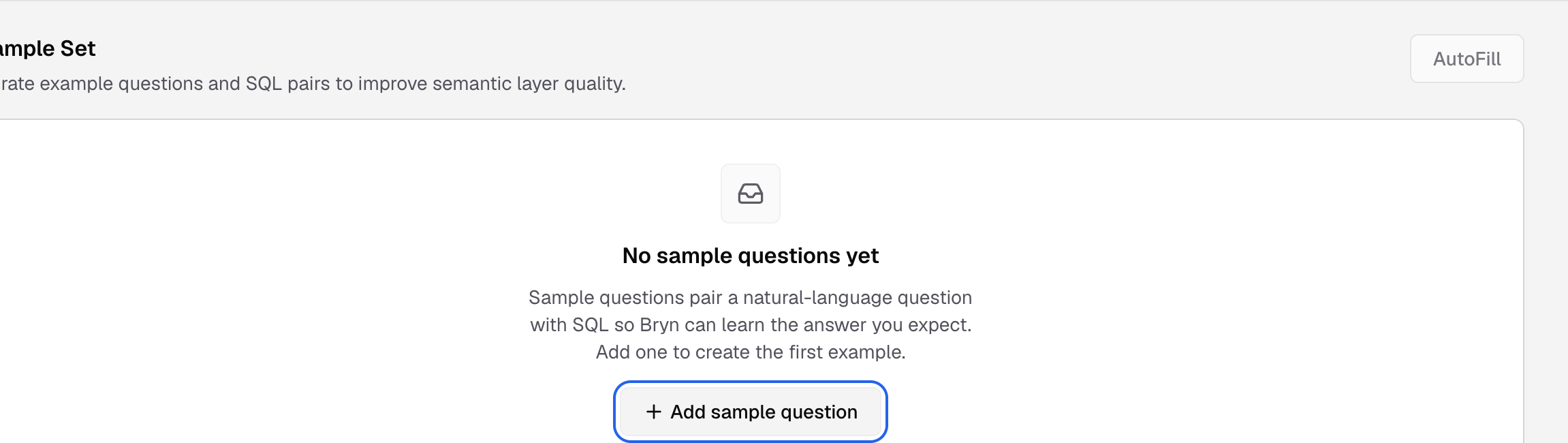
Add sample question pairs a question with the SQL you expect. -
Enter the Question and the SQL query (10 to 500 characters). Or select Import from a file to load a CSV or JSON file.
-
Select Save.
-
Select AutoFill to update the descriptions from your samples.
AutoFill does not work on semantic models that you edit in the studio.
Review definitions
Definitions holds the questions with validated SQL that Bryn can answer directly.
- Example questions shows each question as Valid or Unverified. Select Generate with AI to create 10 to 100 questions. Generating takes 1 to 2 minutes.
- Feedback lists answers your users flagged, with FEEDBACK TYPE and CONFIDENCE.
- Accuracy tests runs a benchmark. Pick an AI model, then select Run benchmark. Add questions with Add question.
Run model tests
Model tests ask an AI model every saved definition and mark each one Passed or Failed.
-
Open Model tests.
-
Pick an AI model in AI model to test with. The list shows the models your company connected in Settings > LLMs, by name.
-
Select Run tests. It can take a minute.
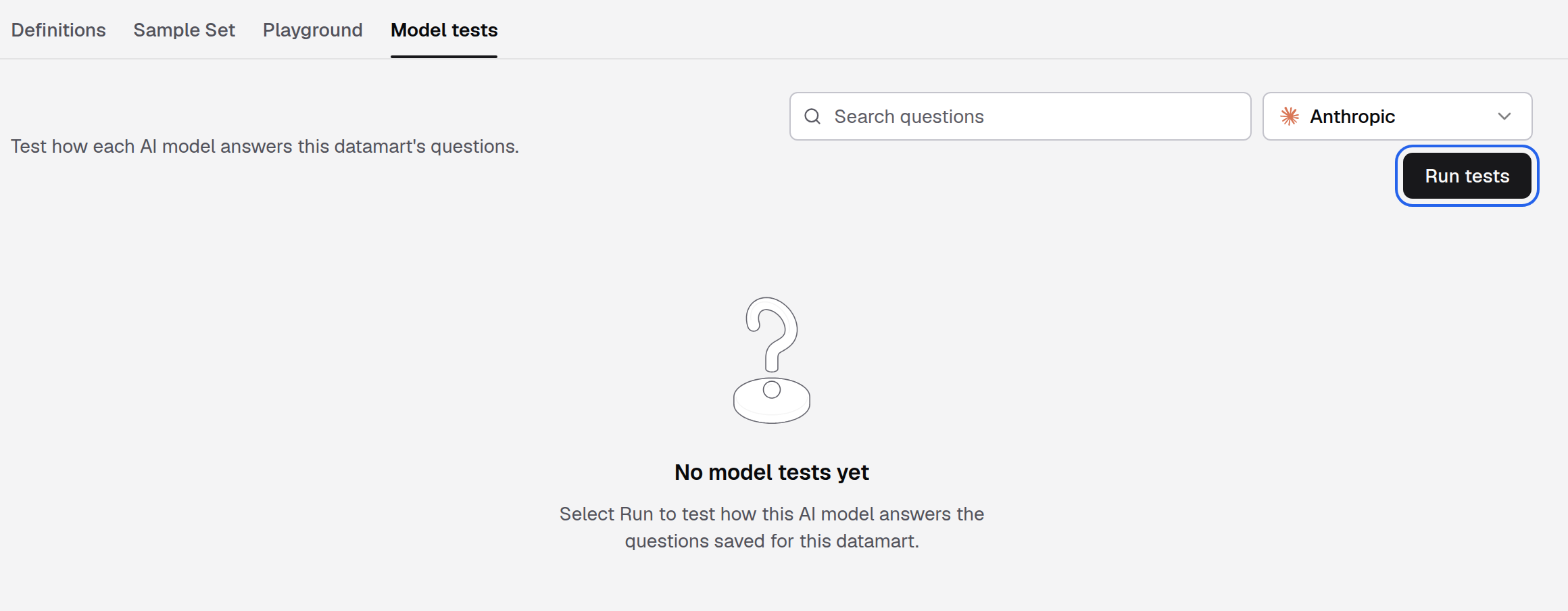
Pick one of your connected models, then Run tests. -
Read STATUS for each question. LAST RUN ON shows when the model last answered it.
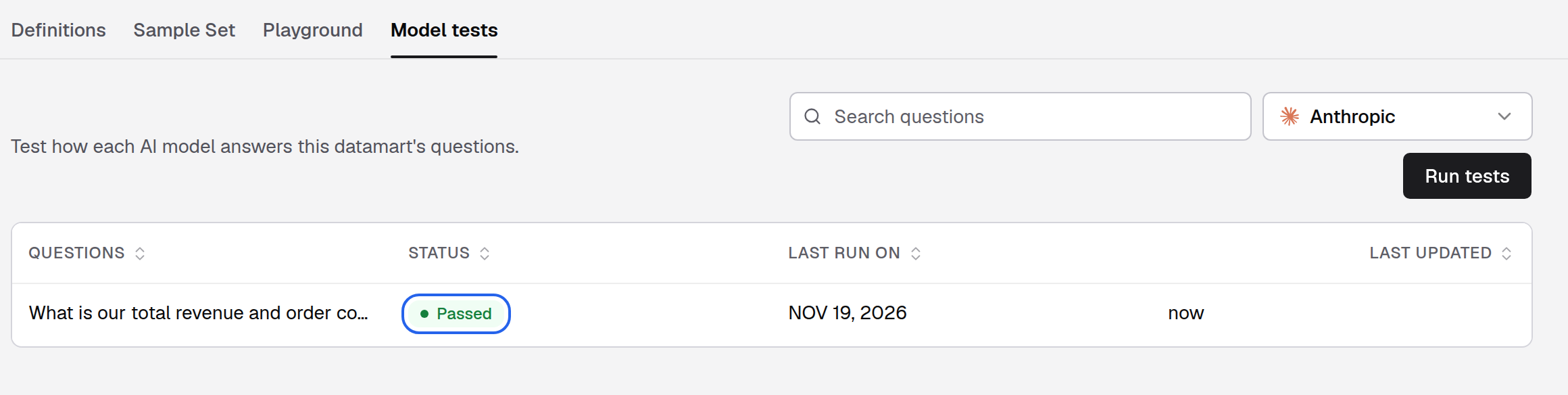
Each saved question gets Passed or Failed for the model you picked.
If something goes wrong
- Playground is greyed out. Connect your own model in Settings > LLMs, select Use your own keys and pick a Default model.
- You do not have access to this semantic model. No workspace you can open uses this datamart. Create a workspace with the datamart, or add it to one, then open the playground again.
- The published model cannot answer this. The question needs a field or sort the model does not have. Ask it another way, or add the field to the model in the studio.
- Couldn’t save the sample question. Check the SQL and try again.
- Run tests keeps showing Running... with no result. Reload the page and run the tests again.