

Model
Review Bryn's changes
Control draft changes, answer business questions, and check Bryn's work before publishing.
Control draft changes and check Bryn’s work before publishing.
Choose how changes apply
-
Open your semantic model.
-
In the Bryn panel, select the Auto or Review chip next to the message box (Who applies changes).

The chip next to the message box sets who applies Bryn's changes. -
Select Auto or Review each change.
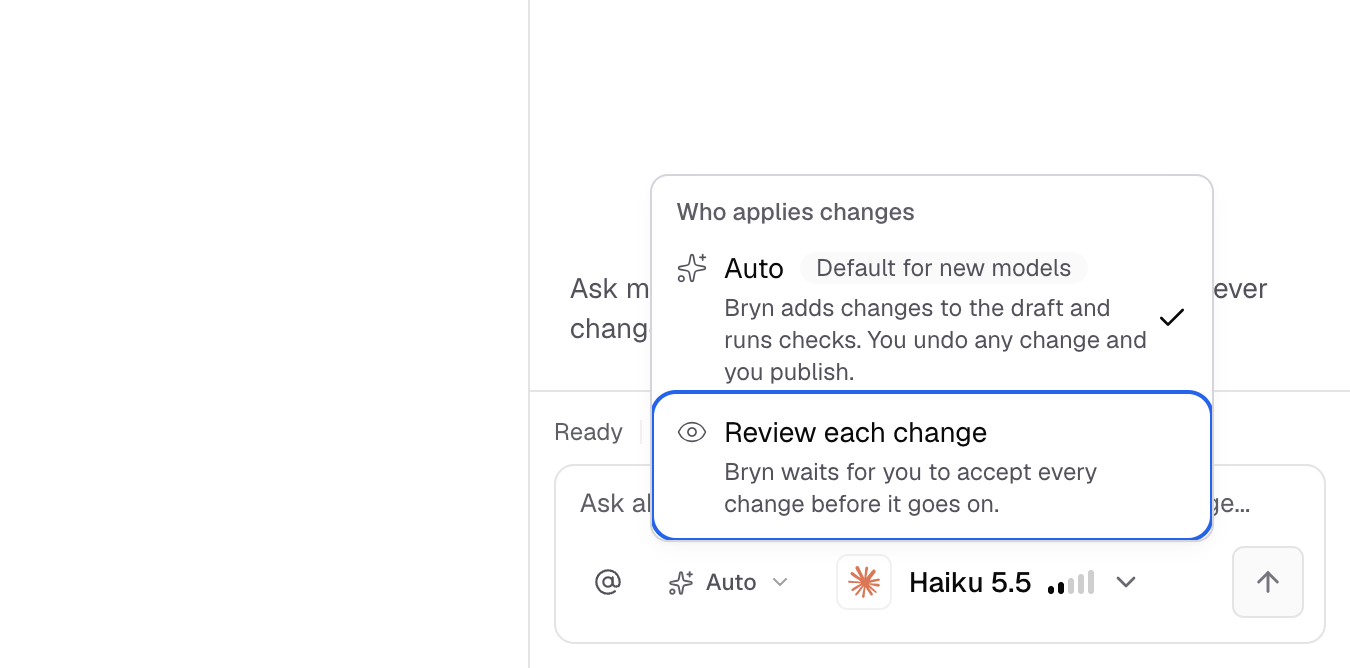
Review each change makes Bryn wait for your approval.
Auto adds changes to the draft and runs checks. New models use this default. Review each change waits for your acceptance. Existing models use this default. Neither setting publishes the model.
Review a proposed change
- Select Review in Code in Bryn. With Auto, select Review one by one first.
- Read the affected definitions and the reason for the change.
- Inspect its checks and any business question.
- Select Accept changes only when all included definitions match your business rule. To take all of them, select Accept all. To refuse one, select Reject.
Accepted changes enter the draft. They are available to publish after the required checks pass.
Use the change’s Undo action to reverse it. If newer edits depend on that change, resolve those edits before retrying Undo.
Answer a business question
- Read the question in Waiting for you.
- Select the answer that matches your business rule, or write your own reply.
- Inspect the resulting draft change.
Later keeps the question open and pauses changes that depend on it. Until you answer, Bryn shows Answer the linked business question before accepting. Do not choose an answer only to clear the status.
Correct a definition
-
Open the definition in Grid.

Grid lists every table, metric and join in the model. -
Correct its name, calculation, column, or date field.
-
Select Run in Preview.
-
Open Checks to inspect the new result.
You can also describe the correction to Bryn in plain words. Give the business rule, such as which status counts as a completed signup.
A successful query checks the current draft and customer scope. It does not prove every business rule. A result marked Ran on an older draft. Run again or Ran for a different customer. Run again needs a fresh run.
Ask from Claude or ChatGPT
Connect the hosted Databrain server with your own sign-in. Use your client’s setup instructions: Claude or ChatGPT. Your AI workspace may require an admin to add the connection.
- Add a custom remote MCP connection with server URL
https://mcp.usedatabrain.com/mcp. Self-hosted Databrain uses your app address plus/mcp. Settings > MCP shows the URL for your deployment. - Use OAuth authentication.
- Sign in to Databrain when prompted.
- Choose the workspaces to approve, then select Allow.
- Enable the connection in your conversation.
- Ask the client to call
whoamiand confirm your user ID and approved workspace.
If you approve several workspaces, name the workspace in each request. You can now ask the client to inspect your model, propose a correction, and explain the checks.
Use ask_bryn_semantic_model to ask Bryn about the model.
The semantic_model_draft tool manages drafts, review, Undo, and checks.
It requires a signed-in user and workspace permissions.
The semantic-model tools do not publish. Review the model in Databrain and select Publish model yourself.
Next, edit definitions yourself when you already know the required calculation.